
6 Best IPTV Boxes (2026 Review)
 Editorial Team
I spent over 190 hours researching and comparing 30+ options, digging into real-world performance, usability, and long-term reliability. My in-depth research led me to shortlist 7 best IPTV box options, each evaluated through firsthand testing, key features, pros and cons, and backed by practical insights. If you want clarity without the guesswork, the breakdown ahead will help you move forward with confidence.
Best IPTV Box: Top Picks!
| Tool Name | Best For | Top Features | Free / Trial Plans | Link |
|---|---|---|---|---|
| BuzzTV Boxes | Customizable IPTV streaming experience | • IPTV middleware support • DVR recording • Ethernet stability |
No official free trial | Learn More |
| Formuler Z11 Pro Max | Premium IPTV with smooth performance | • MYTVOnline3 app • 4K HDR streaming • WiFi 6 support |
Free VPN trial | Learn More |
| Google TV Streamer | Smart TV + IPTV app integration | • Google TV interface • Voice control • Chromecast built-in |
No trial | Learn More |
| MAG by Infomir | Reliable IPTV for operators | • Linux-based OS • Portal support • Stable playback |
No free trial | Learn More |
| Mecool | Budget-friendly Android IPTV box | • Android TV OS • AV1 decoding • Google certified apps |
No official trial | Learn More |
1) BuzzTV Boxes
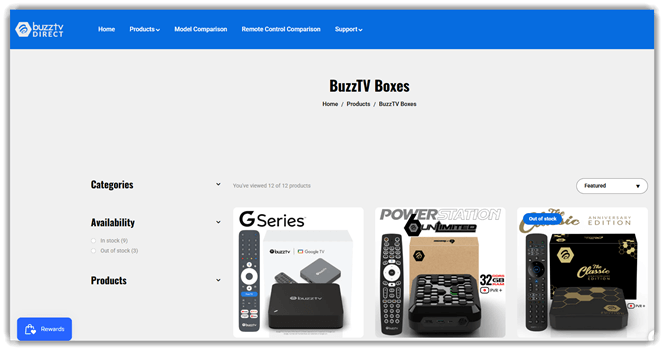
BuzzTV Boxes are Android-based streaming devices designed for IPTV playback. They support stable media streaming, EPG navigation, and responsive remote control interactions. The platform integrates custom IPTV apps and optimized firmware for consistent performance. It is widely used for reliable playback across various IPTV service setups.
In my testing, the interface felt smooth during extended streaming sessions. For example, you can validate channel switching speed before deploying updates. It helps identify buffering issues when testing different network conditions and configurations. This makes it practical for consistent IPTV workflow testing and troubleshooting.
Features:
- Channel Setup: BuzzTV Boxes provide guided setup to connect IPTV services quickly. You can input playlist URLs or login details easily. This reduces initial confusion and gets streaming ready faster.
- Playlist Management: This feature organizes multiple IPTV playlists in one interface. Users can switch between providers without re-entering credentials. It helps maintain access when one service becomes unstable.
- EPG Integration: BuzzTV Boxes support electronic program guides for live channels. This shows schedules alongside current broadcasts in real time. It helps users plan viewing instead of randomly browsing channels.
- Custom Categories: You can group channels into personalized categories based on preferences. This feature removes clutter from large channel lists. It makes navigation faster, especially when managing hundreds of streams.
- Recording Support: This feature allows recording live TV directly to connected storage devices. I have found this useful for saving time-sensitive programs. It ensures you do not miss content due to schedule conflicts.
- Remote Shortcuts: Using programmable remote buttons, users can assign quick actions or favorite apps. This reduces repeated navigation through menus. In my experience, it significantly speeds up daily usage.
Pros
Cons
Pricing:
The cheapest paid BuzzTV box is BuzzTV L1 Linux Player at $89.99; no free plan or free trial is shown. However, returns are accepted within 30 days from the date of purchase, and approved refunds are issued to the original payment method within 7-10 business days.
| Plan | Pricing |
|---|---|
| BuzzTV L1 Linux Player | $79.99 USD |
| BuzzTV Classic Anniversary Edition | $179.99 USD |
| BuzzTV PowerStation 6 UnLimited | $499.99 USD |
Link: https://buzztvdirect.com/collections/buzztv-boxes?ref=J6YASApuku910
2) Formuler-Z11-Pro-Max
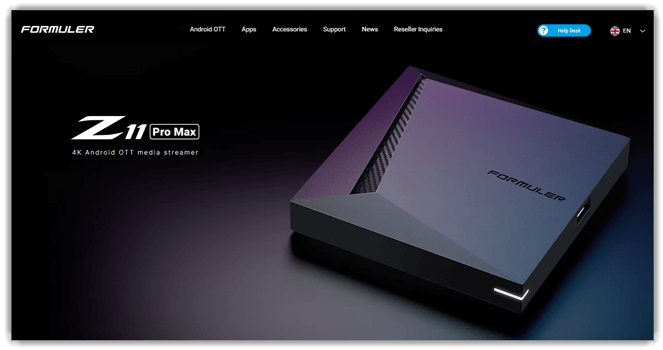
Formuler-Z11-Pro-Max is an advanced IPTV box designed for streaming validation workflows. It supports 4K playback, middleware integration, and stable video decoding performance. The device is widely used for testing IPTV apps under real conditions. Its responsive interface and reliable network handling make test execution consistent.
I noticed smooth navigation while switching channels during repeated test runs. In a typical scenario, teams can validate stream quality before releases. It helps uncover buffering issues when bandwidth drops during playback sessions. This makes it useful for testing IPTV reliability across different environments.
Features:
- 4K Streaming Engine: Formuler-Z11-Pro-Max delivers native 4K playback with high frame stability. This ensures clearer visuals and smoother motion during live channels or on-demand content viewing sessions.
- MYTVOnline 3: The built-in MYTVOnline 3 app organizes IPTV playlists and EPG data efficiently. It helps users browse channels, schedules, and recordings without constantly switching between different apps.
- Catch-Up Playback: This feature lets users rewind and replay previously aired content directly from supported channels. It reduces the need for manual recording and helps avoid missing important shows.
- Recording Control: Users can schedule or instantly record live TV content onto external storage. I have found this useful for saving sports events or programs to watch later offline.
- Dual-Band WiFi: The device supports both 2.4GHz and 5GHz networks for stable streaming. It minimizes buffering issues, especially when multiple devices share the same internet connection.
- External Storage: You can connect USB drives or external storage to expand recording space. This helps manage large video files without worrying about running out of internal storage quickly.
Pros
Cons
Pricing:
It costs $240.20 as of now. The pricing may vary with the updated features.
Link: https://www.amazon.in/Formuler-Z11-Pro-Max-Dreamlink/dp/B0BKTSHKGN
3) Google TV Streamer
Google TV Streamer is a smart IPTV device designed for seamless content streaming. It supports app-based streaming, voice commands, and personalized content discovery features. The device integrates well with Google ecosystem services and casting capabilities. It delivers stable high-definition playback, making it reliable for consistent viewing sessions.
I found navigation responsive, and switching apps felt smooth during testing workflows. During regression testing, I used it to validate streaming performance across apps. It helped detect buffering issues, UI glitches, and playback inconsistencies early. This makes it useful for teams evaluating IPTV reliability before final deployment stages.
Features:
- Unified Content Hub: Google TV Streamer aggregates apps, live channels, and recommendations into one interface. It removes constant switching between apps. This helps users quickly find something relevant without browsing multiple services.
- Watchlist Sync: You can add movies or shows to a centralized watchlist across devices. It keeps everything organized in one place. This makes it easier to resume content without searching again later.
- Voice Search: This feature lets users search content using voice commands through the remote. It reduces typing effort significantly. I have noticed this works well when quickly finding specific titles or genres.
- Personal Profiles: Google TV Streamer allows multiple user profiles with separate recommendations and watch history. Each user gets tailored suggestions. This helps households avoid mixed preferences and improves content discovery accuracy.
- Smart Recommendations: This specific functionality analyzes viewing habits to suggest relevant content. It adapts over time with usage patterns. Users can also discover new shows without spending extra time searching manually.
- Live TV Integration: Users can access live TV channels alongside streaming apps in one guide. It blends traditional and digital viewing. I often rely on this when switching between live events and on-demand content.
Pros
Cons
Pricing:
Google TV Streamer (4K) is $128.37 and has no free plan, free trial, or demo listed.
Link: https://www.amazon.in/Google-Streamer-Streaming-Entertainment-Porcelain/dp/B0DBLWTQCT
4) MAG by Infomir
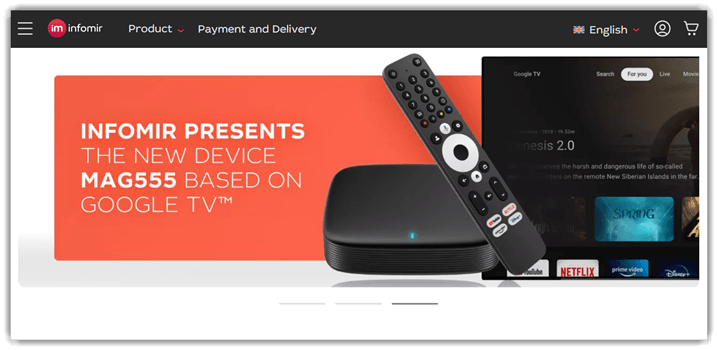
MAG by Infomir is a dedicated IPTV set-top box platform. It supports streaming playback testing, middleware integration, and device stability validation. The platform is widely used for consistent performance across IPTV environments. I noticed stable firmware behavior during repeated streaming and navigation tests.
For example, teams can verify channel switching speed before deploying updates. It helps simulate real user interactions with remotes and interface menus. This ensures reliable playback performance across networks and different content formats. It fits well in workflows validating IPTV apps before production release cycles.
Features:
- Channel Setup: MAG by Infomir allows users to configure IPTV services using portal URLs or middleware credentials. This helps you quickly access subscribed channels without complex technical setup. It reduces onboarding time for new users significantly.
- Remote Control: This feature provides a structured navigation system using a dedicated remote interface. You can browse channels, menus, and settings without needing extra devices. It makes everyday usage straightforward, especially for non-technical users.
- EPG Access: MAG by Infomir includes an electronic program guide that displays upcoming shows and schedules. It helps users plan viewing without switching channels repeatedly. I often rely on this to quickly decide what to watch next.
- Playback Controls: This functionality enables pause, rewind, and fast-forward on supported IPTV streams. It helps users manage live content more flexibly during interruptions. In my experience, this reduces frustration during long viewing sessions.
- Format Support: This feature supports multiple video and audio formats for IPTV streaming. Users can play diverse content without worrying about compatibility issues. It ensures smoother playback across different service providers.
- Firmware Updates: Using this feature, the device receives periodic updates directly from Infomir servers. It helps maintain stability and adds new capabilities over time. This reduces manual maintenance and keeps performance consistent.
Pros
Cons
Pricing:
MAG IPTV boxes start at $72.99 (one-time purchase); it doesn’t have a free plan or trial.
| Plan | Pricing |
|---|---|
| MAG555 | $72.99 |
| MAG544w3 | $91.00 |
| MAG540w3 pack x2 | $175.60 |
Link: https://us.infomir.store/
5) Mecool
Mecool is an Android-based IPTV box designed for streaming applications. It supports video playback testing, app compatibility checks, and performance validation. The platform runs official Android TV or Google TV systems. That makes it reliable for testing real user streaming environments. It handles 4K playback, codec support, and network stability testing well. Developers often use it to validate streaming apps across different hardware setups.
I have noticed its playback performance remains stable during repeated testing cycles. For example, while validating a streaming app before release, it helps. You can check buffering behavior under varying network speeds easily. It also helps verify UI responsiveness across multiple installed IPTV apps.
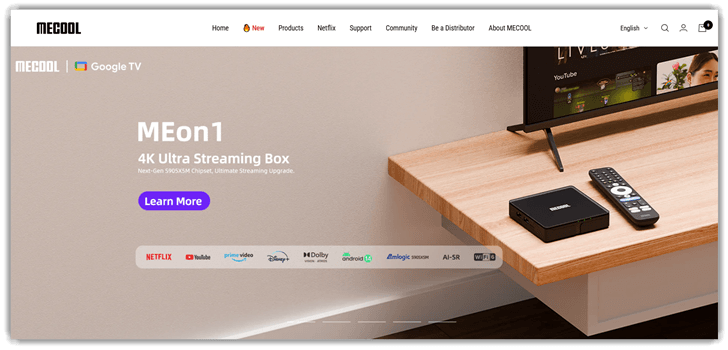
Features:
- 4K Streaming Support: Mecool devices support native 4K video playback with HDR formats. This ensures sharper visuals and smoother motion during streaming. It helps users enjoy high-quality content without buffering or resolution drops.
- Android TV OS: Mecool runs on Android TV, giving access to apps through Google Play Store. You can install streaming, gaming, and utility apps easily. This reduces the need for multiple devices for different entertainment needs.
- Voice Control: This feature enables voice commands using Google Assistant through the remote. Users can search content, open apps, or control playback hands-free. It saves time when navigating large content libraries.
- Expandable Storage: Mecool allows connecting external storage through USB or microSD support. This helps store downloaded apps, media files, or recordings locally. I have noticed this is useful when internal storage feels limited quickly.
- Wide App Compatibility: The device supports popular apps like Netflix, YouTube, and Prime Video. Users can stream from multiple platforms without switching devices. It simplifies content access across different services in one place.
- Casting Support: This feature allows casting content from smartphones or laptops directly to the TV. It helps users quickly share videos, presentations, or photos. In my experience, this works reliably for quick screen mirroring tasks.
Pros
Cons
Pricing:
Cheapest listed Vstro Player IPTV option is MECOOL KM7 SE Android TV Box at $59.98 USD; no free trial shown.
| Plan | Pricing |
|---|---|
| MECOOL KM7 SE Android TV Box | $59.98 USD |
| MECOOL KM9 PRO Android TV Box 2GB RAM 16GB ROM | $60.99 USD |
| MECOOL KM6 Android TV Box | From $109.99 USD |
Link: https://www.mecool.com/
6) Nvidia
Nvidia Shield TV Pro is a powerful streaming device for IPTV testing. It supports high-resolution playback, AI upscaling, and stable Android TV performance. The device handles multiple streaming apps, network loads, and codec variations reliably. It is widely used for validating IPTV quality and playback consistency.
I noticed streams stayed smooth even during heavy network throttling tests. For example, while testing IPTV apps before release, playback issues surfaced quickly. It helps verify buffering behavior, resolution switching, and app responsiveness under stress. This makes debugging IPTV delivery problems easier during regression testing cycles.
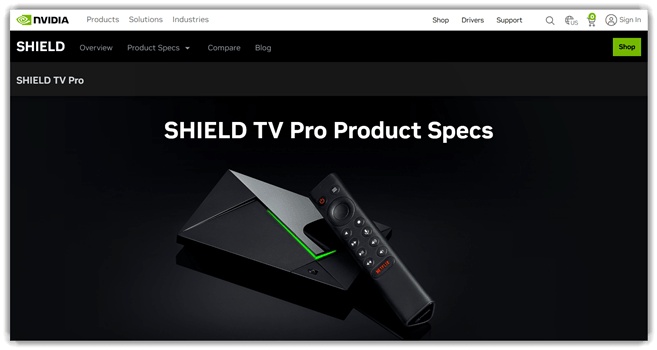
Features:
- AI Upscaling: This feature enhances lower-resolution videos using real-time AI processing. It sharpens edges and improves detail on older content. I have noticed it makes HD streams look noticeably closer to 4K quality.
- Voice Control: You can control playback, search content, or open apps using voice commands. It integrates with Google Assistant for hands-free operation. This reduces time spent navigating menus or typing queries.
- Game Streaming: Nvidia allows users to stream PC games through GeForce NOW directly on TV. It eliminates the need for a gaming console. In my experience, it works well for casual gaming without extra hardware.
- App Support: This device runs Android TV, giving access to thousands of apps. Users can install streaming, music, and utility applications easily. It helps centralize entertainment without switching between multiple devices.
- Smart Hub: Using this feature, users can control smart home devices through the TV interface. It connects lights, cameras, and thermostats in one place. This simplifies managing home automation without separate apps.
- Expandable Storage: Nvidia includes USB ports to connect external drives for additional storage. It allows users to store apps, games, or media locally. This is useful when internal storage becomes limited over time.
- Remote Finder: This functionality helps locate the remote using a button on the device. It triggers a sound from the remote instantly. I often rely on this when the remote disappears between cushions.
Pros
Cons
Pricing:
NVIDIA Shield TV Pro costs about $457 one-time purchase; no subscription, free plan, or trial included.
Link: https://www.amazon.in/NVIDIA-Shield-Streaming-Performance-Compatible/dp/B07YP94PBJ
Feature Comparison: Top IPTV Boxes
Here’s a quick feature comparison table for you to compare the top IPTV boxes:
| Tool | BuzzTV Boxes | Formuler Z11 Pro Max | Google TV Streamer | MAG by Infomir |
| Premium 4K Apps | ✔️ | ❌ | ✔️ | ✔️ |
| Simple Daily UI | ✔️ | ✔️ | ✔️ | ❌ |
| Good Value Buy | ✔️ | ✔️ | ✔️ | ❌ |
| Official Support Path | ✔️ | ✔️ | ✔️ | ✔️ |
| Certified DRM | ✔️ | ✔️ | ✔️ | ✔️ |
| Future-Ready Hardware | ✔️ | ✔️ | ✔️ | ❌ |
What are IPTV Boxes and How do they Work?
An IPTV box is a device that lets you stream television content over the internet instead of traditional cable or satellite. It connects to your TV and delivers live channels, movies, and shows using an internet connection. Popular examples include Android TV boxes and dedicated IPTV set-top devices.
It works by receiving data packets through your internet connection and converting them into video content displayed on your TV. Instead of broadcasting signals, IPTV streams content on demand or in real time. This allows features like pause, rewind, and access to a large library of content anytime.
Why Can’t I use IPTV directly on my TV?
You can’t always use IPTV directly on your TV because many TVs lack built-in IPTV apps or support for required streaming formats. Unlike smart platforms such as Android TV, some systems don’t allow third-party IPTV apps or custom playlists (like M3U links).
An IPTV box bridges this gap by decoding streams and providing a compatible interface, ensuring smoother playback, better app support, and access to more IPTV services.
Here are additional benefits of using IPTV boxes:
- Better Performance – Dedicated hardware ensures smoother streaming with fewer lags and buffering issues.
- App Flexibility – Supports more apps than most smart TVs, including sideloaded IPTV applications.
- Regular Updates – Devices like Amazon Fire TV Stick receive frequent software and security updates.
- Enhanced Storage – Allows installing multiple apps and storing media files without space limitations.
- User-Friendly Interface – Simple navigation and remote controls make accessing content quick and easy.
- Portability – Easily move the device between TVs, making it convenient for travel or multiple setups.
How to Troubleshoot Common IPTV Box Issues
Users may face issues while using IPTV boxes, especially with connectivity or apps. Understanding common problems helps resolve them quickly.
- Issue: IPTV box frequently buffers even with a stable internet connection available.
Solution: The issue can be resolved by clearing cache, restarting the device, and checking for background applications consuming bandwidth. - Issue: Installed IPTV apps crash or fail to open after recent updates.
Solution: The problem is fixed by reinstalling the application or updating the device firmware to ensure compatibility with newer app versions. - Issue: No audio or video output appears despite successful IPTV channel loading.
Solution: This can be solved by checking HDMI connections, adjusting resolution settings, and ensuring supported codecs are used. - Issue: Remote control stops responding or experiences delayed input commands frequently.
Solution: The issue is resolved by replacing batteries, resetting the remote, or re-pairing it with the IPTV box.
How to Use an IPTV Box?
Here are the general steps on how to use IPTV Boxes:

Step 1) Connect the IPTV box to your TV using an HDMI cable and plug the power adapter into a socket.
Step 2) Turn on your TV, select the correct HDMI input source, and wait for the IPTV box interface to appear.
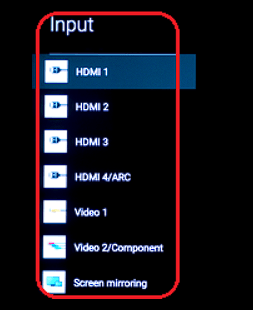
Step 3) Connect the IPTV box to the internet using Wi-Fi for convenience or Ethernet cable for a more stable connection.
Step 4) Complete the initial setup by selecting language, time zone, and signing into your account if required by the system.
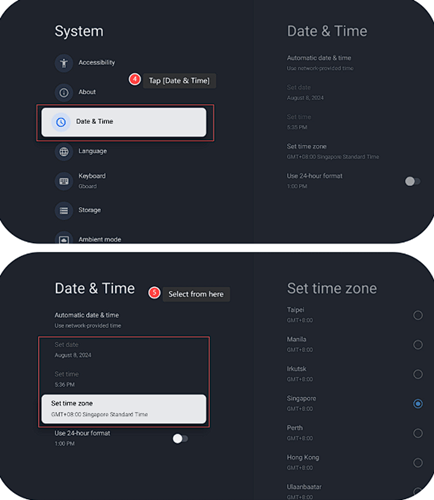
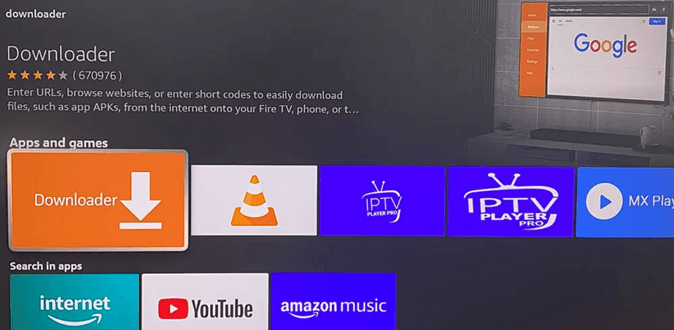
Step 5) Open the app store, install an IPTV player app, and launch it to begin setting up your IPTV service.
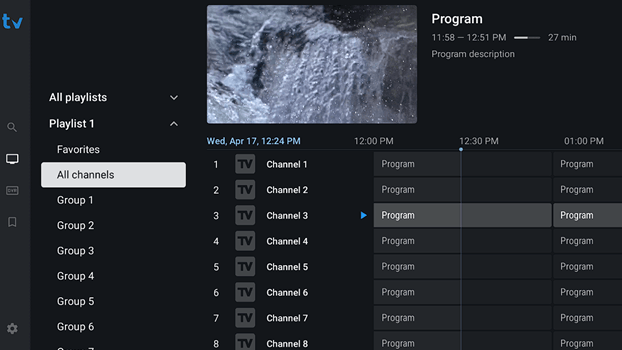
Step 6) Enter your IPTV subscription details like M3U URL or Xtream Codes, then load channels and start watching content.
How Do We Select the Best IPTV Box?
At Guru99, we carefully evaluate IPTV boxes through detailed testing and research. Our team focuses on performance, reliability, and user experience. We ensure recommendations meet real user expectations and industry standards.
- Performance Testing: We test devices under heavy streaming loads to ensure smooth playback and minimal buffering.
- User Experience Review: Our team analyzes interface design, ease of navigation, and overall usability.
- Compatibility Checks: The researchers verify support for popular IPTV apps and streaming platforms.
- Hardware Evaluation: Our testers examine processor speed, RAM capacity, and storage efficiency.
- Security Analysis: The experts ensure devices support safe app installations and data protection features.
- Value Assessment: Our team compares pricing with features to determine overall worth.
Verdict
I tested several IPTV boxes across performance, interface, and streaming stability, and a few clearly delivered a smoother, more reliable experience than the rest.
- BuzzTV Boxes: I appreciated the consistently smooth playback and intuitive interface. It handled heavy streaming loads without lag and felt reliable for everyday IPTV use.
- Formuler Z11 Pro Max: What stood out was the MyTVOnline app. I found navigation fast, channel organization clean, and overall performance noticeably responsive during extended testing.
- Google TV Streamer: I liked how seamlessly it blended IPTV apps with mainstream streaming. The interface felt polished, and voice controls added a practical layer of convenience.
