
How To Watch IPTV on Roku (Best Apps in 2026)
 Editorial Team
I invested 156+ hours researching and testing 40+ IPTV tools and Roku-compatible methods. This guide covers 5 methods that work with Roku setups today. Every recommendation by me is backed by firsthand, hands-on experience and real-world testing. Now, dive into the full article to understand how to watch IPTV on Roku the right way.
Method 1: Using Best IPTV Apps for Roku
It is necessary to pick the right IPTV apps that offer reliable licensed service with proper plans without any hidden costs. Although the following IPTVs require a player to run on Roku, these are some of the most compatible services that I have come across while testing several providers.
1) VocoTV
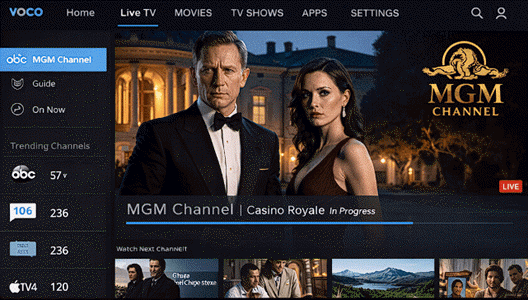
VocoTV comes with 20,000+ live channels and over 17,000 on-demand, along with PPV events. Its programs can be screened on Roku through compatible IPTV player apps. All I had to do was load my subscription and playlist into a Roku IPTV player like IPTV Smart Player. It makes cutting the cord feel real and exciting, and the setup was straightforward once I found the right player.

That said, I did hit a couple of speed bumps, such as occasional channel dropouts at peak times. Therefore, I had to tweak my player settings and pick a higher-bandwidth plan to keep things smooth. Additionally, its support was slightly slow while fixing deeper technical issues. Hence, if you run into trouble, brace for a bit of DIY troubleshooting or reach out persistently.
Here’s how you can use VocoTV for watching IPTV on Roku:
Step 1) First, connect your Roku device to Wi-Fi, sign in, and ensure your device is updated to the latest Roku OS.
Step 2) Now, you can install an IPTV player like IPTV Smarters or IBO Player from the Roku Channel Store.
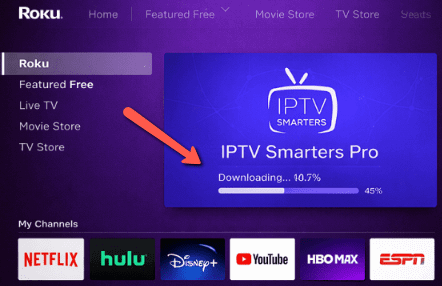
Step 3) Open the VocoTV welcome email and copy your M3U playlist URL or Xtream Codes login details.
Step 4) Launch the IPTV app you selected on Roku and enter VocoTV credentials carefully, then save and load channels.
Step 5) Now, open the app, browse live TV or VOD, and start streaming like a couch-surfing champion.
24-Hours Free Trial
2) OTTOcean
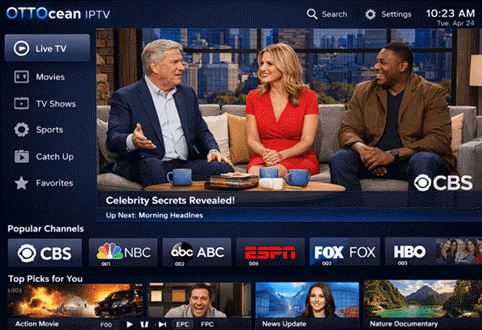
OTTOcean offers tons of live TV, movies, and sports, and has anti-buffering and anti-freezing features. The setup wasn’t rocket science, so users facing compatibility issues with Roku can use OTTOcean. I could watch 20,000+ channels in HD/4K with an EPG guide, and the support team seemed pretty well trained.

However, occasionally the service drops out, and there are setup issues with non-native apps, so patience and a good internet connection are the key. Its legal availability can vary by region, hence, I suggest double-checking that before diving in.
Here’s how I used OTTOcean on Roku:
Step 1) Create an account at OTTOcean, choose a plan, and note your username, password, and portal URL.
Step 2) On Roku, install IPTV Smarters or a similar player from the Channel Store; Roku doesn’t support native IPTV apps.
Step 3) Open the IPTV app, select login with Xtream Codes, then enter the credentials sent by OTTOcean.
Step 4) After logging in, allow channels and EPG to load; this may take a few minutes initially.
Step 5) Now, browse live TV or VOD, adjust player settings if needed, and start watching content and channels on your Roku.
24-Hours Free Trial
3) Krooz TV
Krooz TV is one of the most robust IPTV services that supports almost all devices. While Roku doesn’t support a native app, I could set it up through an IPTV player that works with Roku. Krooz TV delivers 16,000+ live channels and 40,000+ VOD library in UHD/HD quality, making it a solid alternative to traditional cable. Once you subscribe and enter your login into a compatible IPTV player on Roku, the experience feels smooth and reliable.

The issue that you might face while streaming is slight buffering and freezing if your internet fluctuates. I suggest using a 25 Mbps internet speed to ensure a stable connection, or switching players usually fixes buffering. Therefore, if you are a beginner, keep these solutions in mind.
Here’s how I streamed Krooz TV on Roku:
Step 1) Start by subscribing to Krooz TV and note your M3U playlist URL and login credentials.
Step 2) On Roku, install an IPTV player like IPTV Smarters or M3U Playlist Player from the Channel Store.
Step 3) Then, open the IPTV player app and choose the login via M3U URL option inside the settings menu screen.
Step 4) Then, enter your Krooz TV M3U URL and credentials, and load channels successfully onto the app.
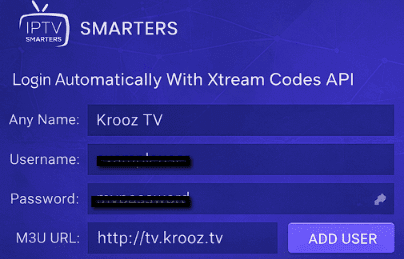
Step 5) You must now wait for channels to sync; this may take a minute, depending on internet speed and device performance.
Step 6) Finally, browse categories, select a channel, and start streaming Krooz TV on Roku instantly.
24-Hours Free Trial
Honourable Mentions
Here are some of the best IPTV players that will help you stream IPTV content on Roku or Firestick:
- IPTV Pro: I used IPTV Pro on Roku to upload my own playlist and stream live TV smoothly. Setup was fast, navigation felt intuitive, and playback stayed stable. It doesn’t include content, but it worked reliably with my IPTV provider.
- OTT Player: This Player can be used on Roku by adding an M3U playlist. As per my observation, it handled live channels and VOD without hiccups. Channel organization was also simple, with minimal buffering, and overall performance felt consistent for everyday IPTV streaming at home.
- TiviPlayer: When I streamed content on Roku using TiviPlayer after uploading a playlist through its portal, it felt seamless. The clean interface, fast channel switching, and clutter-free design made the viewing enjoyable without unnecessary features getting in the way.
Method 2: Screen Mirroring IPTV to Roku (Android & Windows)
This method mirrors your entire phone or computer screen directly onto your Roku device. You can use this technique if you are unable to use your IPTV service even with the help of a third-party player. I found this method quick and simple, rather than downloading a player and connecting, when it comes to watching some exclusive international content.
One of the major issues I faced while screen-mirroring was lag in audio syncing. However, most of the time, the issue was resolved once I restarted and reconnected the device. Moreover, I recommend that you use high-speed internet for a smoother connection. In case the device doesn’t identify Roku, you can check if the screen-mirroring is enabled on Roku or re-add it.
Here’s how you can use screen-mirroring to watch IPTV on Roku:
Step 1) On Roku, you can open Settings > System > Screen mirroring, and then enable screen mirroring.
Step 2) Then, come to your Android or Windows device, open Display Settings, and turn on Screen Mirroring.
Step 3) Select your Roku device from the available devices list to connect.
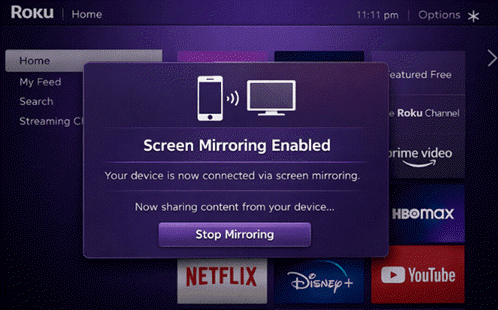
Step 4) Once connected, launch your IPTV app and start streaming normally.
Step 5) The video will then appear on TV instantly, but do expect Wi-Fi quality limits and notification pop-ups.
Method 3: Using Web Video Caster on Roku
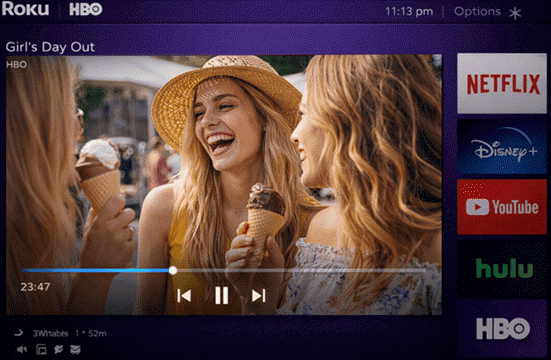
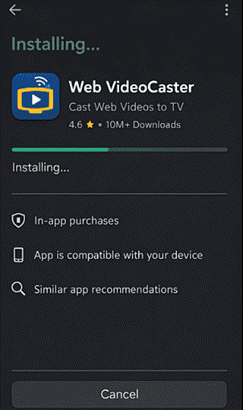
Web Video Caster on Roku is a casting app that lets you stream web videos and IPTV links from your phone or computer to a Roku device. I could easily install it from the Google Play Store. It works as a receiver channel on Roku, while the sender app controls playback, subtitles, and playlists remotely with minimal setup.
The common problem that I faced while using this player is compatibility with certain IPTVs. Hence, make sure your streaming service provider is supported in this app, since this method is great for users who already have an IPTV subscription. I also came across a random, unknown error and realised this is usually caused when you do not update the app.
Here’s how I used the Web Video Caster app to view IPTV on Roku:
Step 1) First, install Web Video Caster on Android or iOS, then launch it.
Step 2) Open the app, connect to your Roku on the same Wi-Fi network.
Step 3) Paste your IPTV stream URL or open your provider’s web player in-app.
Step 4) Finally, let the app detect the video, then tap Cast to stream directly.
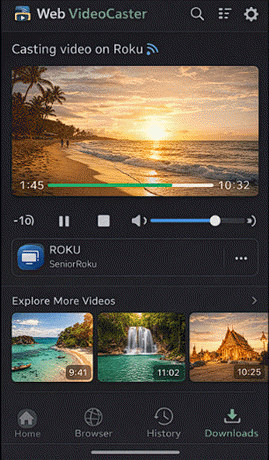
Link: https://www.webvideocaster.com/home
Method 4: Using Compatible Channels from the Roku Store
This is one of the simplest methods that Roku owners facing IPTV issues can use. You must install Roku-compatible channels from the Roku Store. Some of these channels include Different Sports, ABC, Disney+, Max, Hulu, Prime Video, etc.
Although I must say I did face issues such as buffering, crashing on launch, and missing audio. All of these problems usually arise when the app is outdated or if you are using a slow internet connection. Hence, update the app and reinstall the channel, or get a higher-speed internet connection for smooth streaming.
Here’s how I used compatible Channels from the Roku Store to stream videos:
Step 1) First, go to the Roku Home Screen and open the Channel Store on your device.
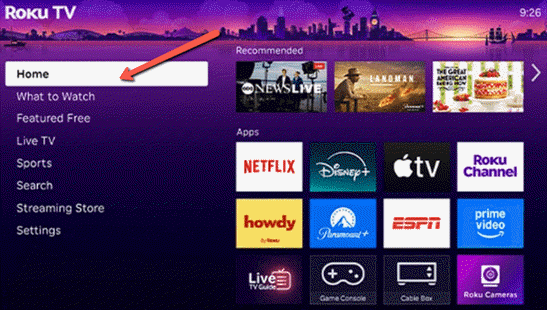
Step 2) Next, browse or search for a compatible channel available in your region today.
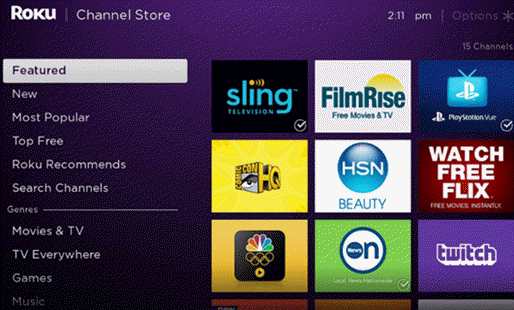
Step 3) Select the channel, choose Add Channel, and wait for installation to finish successfully.
Step 4) Launch the channel, sign in if required, and start streaming content instantly.
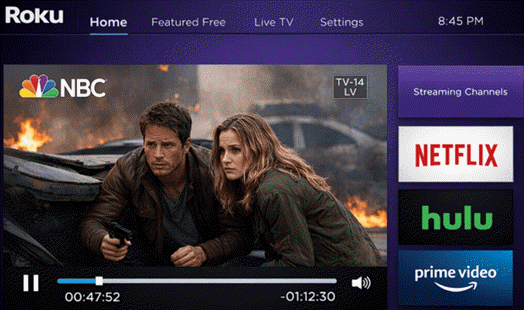
While using compatible channels from the Roku Store is the easiest way to begin, it’s limited by channel availability. To overcome this constraint, the upcoming method introduces casting IPTV from an iPhone using AirPlay, which expands compatibility beyond Roku’s native options. This approach gives you greater control and flexibility when the first method falls short.
Method 5: Casting IPTV from iPhone (AirPlay Method)
Using casting IPTV from an iPhone via AirPlay helps stream IPTV content from an iPhone to a Roku-enabled TV by mirroring the phone’s screen. A third-party IPTV app plays the stream on the iPhone, while AirPlay sends the live display wirelessly to the TV. If you’re using an iPhone and your Roku supports AirPlay, you can wirelessly cast IPTV content straight to your TV. At times, AirPlay does not detect the Roku or fails to pair.
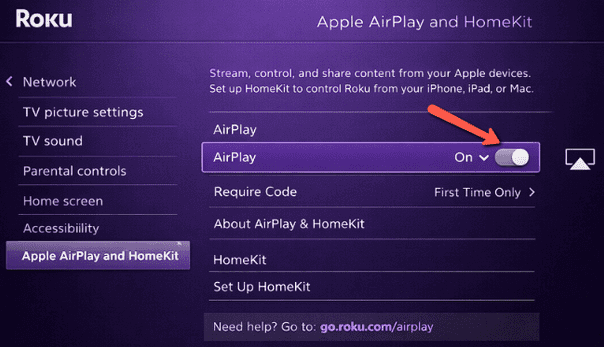
A major issue that I came across while using this method is that AirPlay does not detect Roku or fails to pair. To fix it, I enabled AirPlay and HomeKit on Roku. You must also ensure both devices share the same Wi‑Fi and reset the paired devices in Roku’s AirPlay settings.
Here’s how you can cast IPTV from iPhone:
Step 1) First, enable AirPlay in Roku settings under Apple AirPlay and HomeKit.
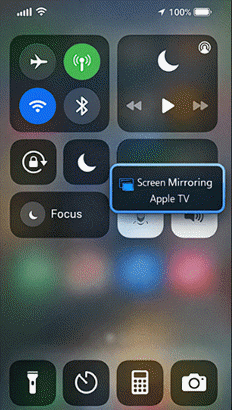
Step 2) Open Control Center on iPhone, then tap Screen Mirroring.
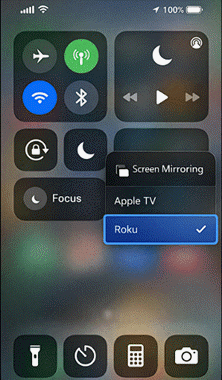
Step 3) Select your Roku device from the available AirPlay devices list.
Step 4) Finally, launch your IPTV app on iPhone to mirror the content directly on the TV.
How to Troubleshoot the Common Issues of Using IPTV on Roku?
Let me now take you through the most common challenges that you might face while using an IPTV on Roku and how to solve those issues:
- Issue: The IPTV app does not appear in Roku channel search results.
Solution: Ensure your Roku region settings match supported markets and update system software immediately. You must also restart the device afterward to refresh the channel store listings. - Issue: The installation process may stall or freeze during the initial download process.
Solution: First, check your network stability and confirm sufficient storage space remains on the device. Then you should restart Roku, reconnect to Wi-Fi, and attempt installation again without background downloads. - Issue: At times, the activation code fails when linking the IPTV app to the account.
Solution: To solve this, enter the activation code promptly before expiration and avoid switching screens during entry. Refresh the activation page and generate a new code if necessary. - Issue: IPTV channels buffer constantly during live streaming sessions.
Solution: Start by checking your internet speed; aim for at least 25 Mbps stable throughput. Restart your router, switch to wired Ethernet, and reduce network congestion immediately. - Issue: The app fails to load or crashes after launching, even if you try multiple times.
Solution: You must remove the app completely, restart your Roku device, and reinstall it fresh. Ensure your firmware is updated to eliminate compatibility conflicts causing instability. - Issue: You will notice that some IPTV playlists or M3U links do not load properly.
Solution: I recommend double-checking the playlist URL for typos, expiration, or formatting errors. Confirm if the subscription is active and re-enter credentials carefully to restore proper access. - Issue: In some cases, you might only hear the audio playing, but no video appears on the channels.
Solution: Adjust Roku display settings to match your television resolution. Switch HDMI ports or cables if necessary, as faulty connections frequently disrupt video output signals. - Issue: Your IPTV channels display as “Unavailable” or “Server Error” messages repeatedly.
Solution: Verify the IPTV service servers are operational by checking provider announcements. Restart your network equipment and refresh the app to re-establish stable server communication. - Issue: During the login, the credentials are repeatedly rejected despite being correctly entered.
Solution: For such issues, you must confirm that there are no extra spaces while entering the username or password. There’s also a way to reset credentials through your provider dashboard and ensure your subscription has not expired. - Issue: The electronic program guide seem to fail in updating correctly or the channel programs might does not sync properly.
Solution: Start by manually refreshing the guide within the app settings and confirm the EPG URL is valid. Clear cached data by reinstalling if synchronization continues failing.
How to Verify an IPTV’s Legality Before Integrating it With Roku?
Here are the best ways to verify if an IPTV is legal before you use it on Roku:
- Licensing: Find out whether the IPTV provider lists valid licenses or broadcaster partnerships, because legitimate services document distribution rights clearly and publicly always.
- Transparency: I make sure to review the provider’s website and terms to confirm ownership details, legal disclosures, and a verifiable business address clearly publicly listed.
- Roku Approval: You must confirm the service appears in Roku’s official channel store, since Roku restricts apps associated with illegal streaming distribution platforms.
- Pricing Red Flags: I avoid IPTV services promising massive channel counts at low prices, often signaling unlicensed rebroadcasting and copyright violations.
- Reputation Check: Research independent reviews and legal complaints, focusing on takedowns, lawsuits, or payment processor bans linked to the service.
- Business Signals: Confirm customer support responsiveness and refund policies; legitimate IPTV providers act like real businesses, not anonymous email-only operations.
How AI Is Improving IPTV Streaming on Roku?
Advanced AI systems are reshaping IPTV streaming on Roku by optimizing delivery intelligence at every layer. I shall now take you through some of the points to help you understand this better:
- AI predicts network congestion to adjust IPTV bitrates before playback disruption.
- Machine learning selects optimal encoding ladders using real time scene analysis.
- On Roku devices, AI inference minimizes latency without relying on cloud roundtrips.
- Behavioral models reorder IPTV channel guides based on predictive viewing patterns.
- AI-driven error diagnostics isolate ISP issues from server failures instantly.
- Its adaptive buffering algorithms learn household bandwidth habits across different times.
- AI-security models detect stream tampering, stabilize delivery, and protect IPTV providers.
FAQs
Conclusion
When it comes to watching IPTV on Roku, some of the best IPTVs include VocoTV, OTTOcean, and Krooz TV . However, you need to use a player to stream these services. The screen-mirroring method is one of my top picks for watching IPTV on Roku. It is one of the simplest answers to “how to watch IPTV on Roku?” without a heavy setup process or tricky workarounds. Additionally, using the Web Video Caster app also allows a smooth casting and streaming experience. I also realized that using compatible channels from the Roku store makes streaming straightforward. Overall, there are no native IPTV apps; hence, you have to depend on workarounds to stream them on Roku.
