
SQL Server Management Studio: MS SSMS Download & Install
 Editorial Team
⚡ Smart Summary
SQL Server Management Studio (SSMS) is Microsoft’s free graphical environment for connecting to, configuring, querying, and administering SQL Server. Downloading, installing, and launching SSMS gives access to the Object Explorer, Query Editor, and other core management windows.

What is Server Management Studio?
SQL Server Management Studio (SSMS) is an integrated development environment (IDE) that provides a graphical interface for connecting to and working with Microsoft SQL Server. It was launched with Microsoft SQL Server 2005 and is used for configuring, managing, and administering all components within SQL Server, from the Database Engine to security and jobs.
How to Download and Install SQL Server Management Studio
Following are the steps to download and install Microsoft SQL Server Management Studio (SSMS):
Note: Recent releases (SSMS 21 and SSMS 22) install through the Visual Studio Installer and download a stub named vs_SSMS.exe, so there is no standalone MSI. The classic SSMS-Setup-ENU.exe flow shown below still illustrates the core steps and field choices.
Step 1) Open the official Microsoft download page.
Go to the official SSMS download page on Microsoft Learn and select the latest SQL Server Management Studio (SSMS) installer. The download page is shown below.

Step 2) Double-click the downloaded file.
Once the download completes, you get an executable file (named SSMS-Setup-ENU.exe in older releases or vs_SSMS.exe in current ones). Double-click it to launch the installer, as shown below.
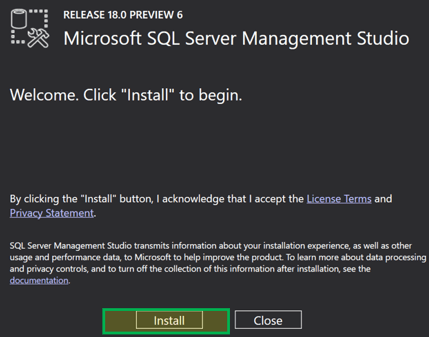
Step 3) Click the Install button.
The setup window appears. Click the Install button to begin installing SQL Server Management Studio (SSMS) on your system, as shown below.

Step 4) Wait until the installation process is done.
Installation begins. The screen below shows the Packages progress and the Overall progress bars.

Step 5) Setup is done.
Once the installation completes, SSMS Setup displays a screen with a “Setup Completed” message. You may be prompted to restart the computer.
How to access “Management Studio”
Now you are ready to open Management Studio. Go to Start Menu > Programs > Microsoft SQL Server Tools > Microsoft SQL Server Management Studio. The version number in the folder name matches the SSMS release you installed.
The Connect to Server screen appears, as shown below.

The Server Name defaults to the name selected while installing MS SQL Server. Let’s understand each of the fields:
- Server type: This selects one of the four available MS SQL services. We will work with the Database Engine for creating and working with databases. Other server types include Analysis, Reporting, and Integration Services.
- Server name: This is the name of the server where MS SQL Server is installed and to which you need to connect. Generally, we use the server name as “Machine name\Instance,” where Instance is the name given to the SQL Server instance during installation of MS SQL Server.
- Authentication: This defaults to “Windows Authentication” if you used Windows Authentication during SQL Server installation. If you selected Mixed Mode (Windows and SQL Server Authentication) instead, you can also sign in with a SQL Server login.
- User name / Password: If an authentication method other than Windows Authentication (such as SQL Server Authentication) is selected, these two fields are required.
Click Connect. You are now connected to the SQL Server Management Studio environment.
Access “Management Studio” using the command line
Alternatively, you can open MS SQL Server Management Studio using the Windows command line. You need the full path of ssms.exe. Below is the default location and file name (the folder number matches your installed SSMS version):
Path:
C:\Program Files (x86)\Microsoft SQL Server Management Studio 18\Common7\IDE
Exe name: ssms.exe
The command prompt with the full path entered is shown below.

The screenshot below shows the ssms.exe command ready to run.

Here are the steps to access SSMS via the command line:
- Open Command Prompt by typing CMD in the search window.
- Type the entire path followed by ssms.exe as shown above and press Enter.
The Connect to Server screen then appears, the same way as described in the previous section.
Introduction to the Management Studio IDE
Below is the start screen for SQL Server Management Studio.

Let’s discuss each section in detail.
1) Object Explorer
The Object Explorer provides a tree view of the database objects contained in the server. This section shows all the Databases, Security, and Server Objects for quick reference. To view the components of each object, click the + icon located to the left of the object to expand it.

2) Databases selection dropdown
This dropdown allows the user to select the database in which the queries will run.
3) Query Editor
Here you can write all your queries. MS SQL Server provides interactive IntelliSense suggestions for tables, columns, and more for easy query creation.
4) Execute button
This button finally executes the query and returns the results.
SSMS Tips and Issues
- Management Studio is a standalone product. It does not correspond to any specific version of SQL Server. Because SSMS is version-independent, one install (for example SSMS 21 or SSMS 22) can manage SQL Server 2016 through 2025 as well as Azure SQL.
- Large scripts reduce readability, so use comments to improve it. Put “–” in front of any line to comment it out.
- Group comment: You can comment out a group of lines by selecting them all and clicking the icon shown in the image below.

An unexpected shutdown or system failure can cause data loss. Keep the AutoRecover option checked to minimize it. You can even customize the time interval for AutoRecover and the number of days the information is kept before it is deleted, under Tools > Options > Environment > AutoRecover.

In case of failure, a popup window appears with the recovered file name. You often need the result of a query to be saved in text format for future reference.

Click and select the highlighted icon above, then run any query. You are prompted to specify the location where the file is saved for future reference.
SSMS Versions and Updates
SSMS first shipped with SQL Server 2005 and remained bundled with SQL Server 2008, 2012, and 2016. In 2016, Microsoft made SSMS a free, standalone download and started numeric versioning at 16.x, followed by the 17.x and 18.x series.
Since then, Microsoft has released SSMS 19, SSMS 20, SSMS 21 (2025), and SSMS 22 (2025). SSMS 21 and later are rebuilt on Visual Studio 2022 with full 64-bit support, an optional dark theme, and Copilot integration (Preview). Microsoft supports only the latest release, so upgrading to the newest SSMS is recommended.
The complete version history is listed in the official SSMS release notes.
SSMS supported operating systems
The table below maps SQL Server editions to their supported operating systems, where “Y” means supported and “N” means not supported. SSMS itself runs on Windows only — Windows 11, Windows 10 (version 1607 or later), and Windows Server 2016 through 2025. To manage SQL Server from macOS or Linux, use Azure Data Studio instead.

