
SAP MRP (Material Requirement Planning)
 Editorial Team
⚡ Smart Summary
Material Requirement Planning in SAP PP calculates what to buy or build, when, and in what quantity, so that every component is available on the date production needs it without carrying surplus stock.
What is SAP MRP?
SAP MRP (Material Requirement Planning) procures or produces the required material quantities on time, either for in-house use or to fulfill customer demand. In manufacturing, the function of MRP is to guarantee material availability on the date it is needed. The main objective is to plan supply against requirements, take the current stock in hand into account, and cover the shortages.
MRP Process Flow
The steps below trace a requirement from the market to a planned order or a purchase requisition.
- With MRP, inventory can be optimized by planning receipts according to the actual need, so that surplus inventory is avoided.
- Sales and distribution give concrete customer requirements from the market.
- In Demand Management, sales are planned in advance through a sales forecast. The forecast is entered in demand management as a Planned Independent Requirement (PIR), that is, the requirement for the finished product.
- To cover these requirements, MRP performs the net requirement calculation and plans the procurement quantities and the dates on which the material has to be procured or produced.
- If a material is produced in-house, the system explodes the BOM and calculates the dependent requirements, that is, the quantity of components required to produce the finished product.
- If a material shortage exists, planned orders are created at every BOM level to fulfill the requirements, and purchase requisitions are generated for externally procured raw materials. You can also create planned orders for externally procured materials, which can then be converted to purchase requisitions.
- MRP performs lead time scheduling and calculates planned order dates from the routing times. It works backward from the requirement date, subtracting the goods receipt processing time, the in-house production time and the float time before production, and calculates the duration of the planned orders.
- Production orders or purchase orders are created after the conversion of planned orders and purchase requisitions respectively.
- MRP type “PD” in the material master MRP 1 view is essential to run MRP for the material. If you do not want to run MRP on a material, then MRP type “ND” can be maintained in the material master instead.
Master Production Schedule (MPS)
MPS is used specifically for critical materials, usually high-valued products, where you do not want changes to the production plan inside the planning time fence during the next MPS run. The plan is firmed automatically as soon as it moves inside the planning time fence, unlike a normal MRP run.
- A separate run occurs for the MPS items; they are not included in the MRP run.
- It ensures the availability of critical resources, which should not hamper production, by maintaining the stock.
- The planning time fence (a number of days starting from the current date) is useful in an MPS scenario, where the procurement proposals (planned orders) can be protected from undergoing any change since the last MRP run.
- No automatic changes happen to the procurement proposals once they enter the planning time fence (the PTF is maintained in the material master). All planned orders inside the planning time fence are therefore firmed automatically by the system.
- MRP types “P0” to “P3” in the material master should be maintained to run MPS for materials.
MRP Planning Parameters
MRP parameters control which requirements (PIRs) inside the planning horizon are considered, how orders are scheduled, and how the BOM and routing data are used.
Processing Key
- Net change (NETCH): The system includes those materials that have undergone changes relevant to receipts, issues or stock since their last MRP run.
- Net change in planning horizon (NETPL): The system includes the same changed materials, but considers only the requirements inside a pre-defined planning horizon, unlike the NETCH key, which considers all future requirements.
- Regenerative planning (NEUPL): It plans all materials in the MRP run irrespective of the changes they have undergone. This key is not widely used because it takes a long time to produce the final result.
Planning Mode
- Adapt planning data: It only processes the changed data.
- Re-explode BOM and routing: The BOM and routing data are read again for the existing orders.
- Delete and recreate planning data: It completely deletes the planning data (all receipts) and creates it again.
Scheduling
- Basic scheduling: MRP calculates only the basic dates for the orders, and the in-house production time from the material master is used.
- Lead time scheduling: The production dates are determined by lead time scheduling for the planned orders. The routings are read in order to schedule the operations and calculate the capacity requirements on the work centers.
How to Run MRP for All Products
Before starting, make sure the material masters, BOMs and routings exist for the plant, because MRP explodes them during the run.
Step 1) From the SAP Easy Access screen, open transaction MD01. We will run MRP at plant level.
- Enter your manufacturing Plant for which you want to take the MRP run.
- Enter Processing key as “NETCH” (net change in total horizon).
- Input “1” in Create Purchase Req., which means that for externally procured materials, MRP generates purchase requisitions instead of planned orders.
- Enter “3” for Schedule lines, which means that MRP generates schedule lines for raw materials that have a scheduling agreement.
- Enter “1” in MRP List, and the system creates an MRP list similar to the stock/requirements list for later analysis of the previous MRP run.
- Enter Planning mode “3”, as we will delete and recreate all planning data for all materials.
- Enter Scheduling indicator “2”, which means that MRP performs lead time scheduling and considers the routing times to calculate the planned order dates.
The MD01 selection screen appears.
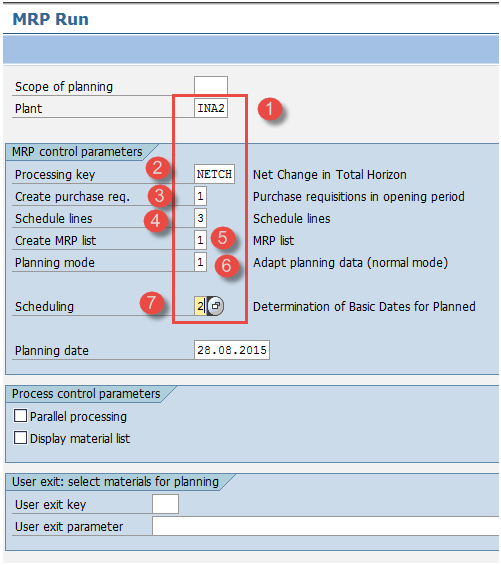
After filling in all the fields, click  to go to the next screen.
A warning appears in the status bar.

Press Enter to ignore this message.

The system asks you to re-check your input parameters, because the MRP run reschedules and overwrites the existing planning data. If the entries are correct, press Enter.

Confirm this second prompt with Enter to start the run.
Step 2) The system takes some time to calculate the material requirements.
- After the calculation is done, a report appears. Here it is possible to see how many materials were planned and which parameters were used during the run.

MRP Run for a Single Material
Transaction MD02 plans a single material together with all the components below it.
Step 1) In transaction MD02, we will run MRP for a single material.
- Input the material code for which you want to run MRP.
- Enter your manufacturing Plant code for which you want to take the MRP run.
- Enter Processing key as “NETCH” (net change in total horizon).
- Input “1” in Create Purchase Req. so that externally procured materials get purchase requisitions.
- Enter “3” for Schedule lines to cover raw materials with a scheduling agreement.
- Enter “1” in MRP List to keep a snapshot of this run.
- Enter Planning mode “3” to delete and recreate the planning data.
- Enter Scheduling indicator “2” for lead time scheduling from the routing times.
The MD02 selection screen adds the material field.

After filling in all the fields, click  to go to the next screen.

The system asks you to re-check your input parameters, because the MRP run reschedules and overwrites the existing planning data. If the entries are correct, press Enter.

Confirm this second prompt with Enter to continue.
Step 2) The system takes some time to calculate the material requirements.
- After the calculation is done, a report appears. Here you can see how many materials were planned.

Note: As there are 22 materials available in the plant, only these 22 materials were planned.
Master Production Schedule (MPS) Run
MD43 uses the same control parameters as the MRP run above, but it runs interactively, so the planner reviews the result before saving it.
Step 1) In transaction MD43, we will run MPS for a single material.
- Input the material for which you want to run MPS. Here we have taken ID “13967476”.
- Enter your manufacturing Plant “INA2” for which you want to take the MPS run.
- Enter Processing key as “NETCH”.
- Input “1” in Create Purchase Req.
- Enter “3” for Schedule lines.
- Enter “1” in MRP List.
- Enter Planning mode “3”.
- Enter Scheduling indicator “2”.
The MD43 initial screen appears.

Click  to move to the next screen after filling in all the fields. The system shows a message
  . Click
  again if everything is correct.
Step 2) In this step, we generate the interactive planning data, which lets you see the planning results at the same time.
- Press the “Planning” button, which generates planned orders for the shortage quantity.
- Check the planned orders generated.

MRP Evaluation: Stock/Requirements List
In this list, you will see the requirements, the current stock and the planned receipts, that is, the orders for the material.
Step 1) From the SAP Easy Access screen, open transaction MD04.
- Enter the material for which the stock/requirements list needs to be displayed.
- Enter the Plant code.

Step 2) After entering the information in all the fields, click  to go to the next screen, and the stock/requirements list is displayed.
The generated stock/requirements list of the material shows that:
- the BOM for material D13967476 was exploded, and
- a purchase requisition of 50 (fixed lot size 50 maintained in material master code A01232589) was generated against the net requirement of – 41.606.

Troubleshooting MRP Run Errors
- There might be a case where the material master record does not exist. Create the material master for the material before running MPS or MRP.
- Ensure that the BOM and routing data are in place before running MRP, so that procurement proposals are generated at all BOM levels. Otherwise planned orders are created without a BOM, which causes problems later in the consumption process.
- If a material is skipped, check the MRP type on the MRP 1 view. An MRP type of ND excludes the material from every run.
- Processing key NETCH plans only materials with a planning file entry, so a material changed outside MRP may need a regenerative run.
