
Goods Movement in SAP PP: MIGO, 261 & 531 Movement Type
 Editorial Team
⚡ Smart Summary
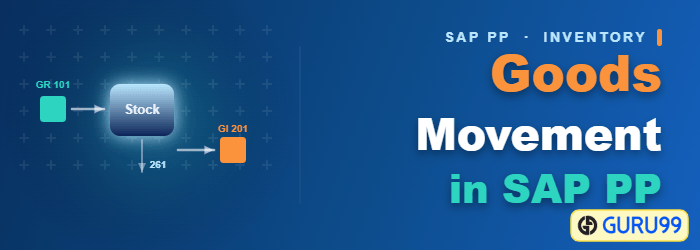
Goods movements against a production order post the finished material into stock and the components out of it. Movement type 101 records the goods receipt, and movement type 261 records the goods issue.
What is Goods Movement Against a Production Order?
There are two types of goods movement against a production order, and both change the inventory of a material. These movements are carried out through movement types in SAP.
- Goods Receipt (GR) against order is executed with movement type 101 and is done when the material is produced. After the goods receipt, the system increases the stock of the material at the relevant storage location.
- Goods Issue (GI) against order is executed with movement type 261 and is done whenever the component materials are consumed to produce another material. After the goods issue, the system decreases the inventory of the components at the relevant storage location.
Both movements are posted in transaction MIGO, and both create a material document plus an accounting document. The movement type is what tells SAP which stock and which accounts to update.
Movement Types Used in Production Order Goods Movements
A movement type is a three-digit key that controls the stock update, the account determination and the screen layout of the posting. These are the keys a production planner meets most often.
| Movement type | Meaning | Effect on stock |
|---|---|---|
| 101 | Goods receipt for a production order | Increases the stock of the produced material |
| 102 | Reversal of movement type 101 | Removes a goods receipt posted in error |
| 261 | Goods issue for a production order | Decreases the stock of the components consumed |
| 262 | Reversal of movement type 261 | Returns unused components to the storage location |
| 531 | Receipt of a by-product or co-product | Increases the stock of the by-product from the order |
| 532 | Reversal of movement type 531 | Removes a by-product receipt posted in error |
Every movement type in SAP has a paired reversal key, which is why the table reads in pairs. Before any of them can be posted, the order and the material master have to be ready.
Prerequisites Before Posting Goods Movements in MIGO
A goods movement fails at posting rather than at entry, so it is worth checking these points first.
- Order status — the production order must be released (status REL). A created order (status CRTD) accepts no goods movement.
- Component stock — unrestricted stock must exist for each component in the issuing storage location, otherwise the goods issue is blocked by a deficit.
- Storage location and plant — the receiving storage location on the order and the issuing storage location on the reservation must both be maintained.
- Open posting period — the posting date has to fall in a period that is open for materials management, otherwise the document cannot be saved.
- Batch and quality settings — a batch-managed material needs a batch number, and a material with a quality inspection setup posts the receipt into inspection stock instead of unrestricted stock.
With the order released and the stock in place, the goods receipt can be posted.
How to Create a Goods Receipt (GR) Against an Order
Step 1) From the SAP Easy Access screen, open transaction MIGO. The two dropdown boxes at the top define the action and the reference document.
- Select Goods Receipt, because you are going to post a goods receipt.
- Select Order, because the goods receipt is posted against a production order.
- Enter your production order number.

After filling in all the fields, click  or press Enter to go to the next screen.
Step 2) In this screen, the item data proposed from the order is displayed.
- Check movement type “101”, which is the type relevant for a goods receipt against an order.
- If the material is subject to quality inspection, the stock type is shown as “quality inspection”.
- If the material is handled in batches, enter the batch number in which the inventory will be updated.

Step 3) In the same screen, complete the item and validate it.
- Enter the date of manufacture, that is, the date on which the material was produced.
- Set the flag of “Item OK”.
- Click the “Check” button at the top, and the result message appears at the bottom of the screen.

Click  to save the document. The system then confirms the posting with a message like
  .
.
The components consumed by the same order are posted with the opposite movement.
How to Create a Goods Issue (GI) Against an Order
Step 1) From the SAP Easy Access screen, open transaction MIGO again, and change the two dropdown boxes.
- Select “Goods Issue” in the first box.
- Select “Order” in the second box, which means the goods issue is posted against an order.
- Enter the production order.

After filling in all the fields, click  to go to the next screen.
Step 2) In this screen, the reservation created by the order is displayed as a component list.
- You can see the list of components fetched automatically from the order together with the required quantity. The quantity can be changed to match the actual consumption.

Step 3) In the same screen, validate the items before posting.
- Set the flag of “Item OK”.
- Click the “Check” button at the top, and the result message appears at the bottom of the screen.
- A green status light indicates that the document is ready for posting.

Click  to save the document. The system then confirms the posting with a message like
  .
.
Automatic Goods Movements: Backflush and Auto Goods Receipt
Both movements shown above can also be posted by the system during order confirmation, which removes the manual MIGO step on a high-volume line.
- Backflush — when the backflush indicator is set for a component, confirming the operation in CO11N posts movement type 261 for that component automatically, in the quantity derived from the confirmed yield.
- Automatic goods receipt — when the control key of the final operation carries the automatic goods receipt indicator, confirming that operation posts movement type 101 for the finished material automatically.
- COGI — if an automatic movement fails, for example because a component has no stock, the confirmation is still saved and the failed movement is written to a post-processing record. Transaction COGI lists those records so they can be corrected and reprocessed.
Automatic movements are convenient, but they are also the usual reason a manual posting behaves unexpectedly.
Troubleshooting Goods Movement Errors
- For a manual goods issue, the material master must not carry a backflush indicator. Otherwise the components are issued automatically at confirmation instead of manually.
- For a manual goods receipt, the routing operation data must use a control key without the auto goods receipt flag, so the receipt is posted manually instead of at confirmation.
- A “deficit of stock” message on a goods issue means the component quantity is not available as unrestricted stock in the issuing storage location on the posting date.
- If MIGO reports that the order is not released, set the order to status REL in CO02 before posting.
- If the goods receipt lands in quality inspection stock rather than unrestricted stock, the material is set up for an inspection, and the stock is released only when the inspection lot is closed.
