
Bill of Material (BoM) in SAP PP
 Editorial Team
⚡ Smart Summary
Bill of Material (BoM) in SAP PP is a structured list of components, quantities, and units that defines how a finished product is built using transactions CS01, CS02, and CS03 for create, change, and display.

What is Bill of Material (BOM) and its Role?
A Bill of Material (BOM) is a formally structured list of the components that make up a product or assembly. The list contains the material number of each component, together with the quantity and unit of measure.
- A BOM can be single-level or multi-level. For example, a finished material contains semi-finished materials, which in turn contain raw materials at the next level.
- Multiple alternative BOMs can exist for the same product depending on lot sizes, validity dates, and production methods.
- BOMs are used in production planning for semi-finished items and in purchase planning for raw materials.
- BOMs feed standard cost calculations by rolling up costs from raw materials through semi-finished assemblies to the finished product.
- Material BOMs are maintained in the PP module, while equipment BOMs are used in Plant Maintenance (PM).
How to Create BOM
Step 1) From the SAP Easy Access screen, open transaction CS01.
- Enter the parent material for which the BOM needs to be created.
- Enter the Plant Code.
- Enter BOM Usage = “1”, which is used for creating a Production BOM.
- Enter the “Valid From” date, which determines when the BOM becomes active.

After filling in all the fields, click  or press Enter to go to the next screen.
Step 2) On the item overview screen:
- Enter Item Category as “L” (stock item); this may already be the default.
- Enter the Component material code in the Component field.
- Enter the Component quantity required.
- Press Enter or click
 — the system auto-fills the description and base unit of measure.
 — the system auto-fills the description and base unit of measure.
Useful Note: To drill into a component’s own BOM, double-click the  indicator in the Assembly column. If the box is not ticked, the component has no further BOM.
Step 3) Click the  icon to open the BOM header screen, shown in the next step.

Step 4) In the BOM header view:
- Enter the base quantity of the parent material. If set to 1 EA (each), the component quantities describe how much is needed to build one finished unit.
- Click
 to save the new BOM. The system shows confirmation
  in the lower-left corner.
 to save the new BOM. The system shows confirmation
  in the lower-left corner.
How to Change BOM
Use CS02 whenever the list of components or any component quantity in the parent material is updated.
Step 1) From the SAP Easy Access screen, open transaction CS02.
- Enter the parent material whose BOM needs to be changed.
- Enter the Plant Code.
- Enter BOM Usage = “1”, used for the Production BOM.
- Enter the “Valid From” date for the change.
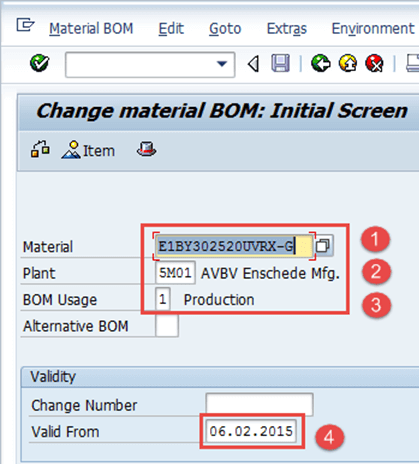
Step 2) After filling in all the fields, click  to go to the next screen.
- Change the component code or quantity as required.
- After completing all modifications, click to save the BOM. The system displays
 in the lower-left corner.
 to save the BOM. The system displays
  in the lower-left corner.
How to Display BOM
Step 1) From the SAP Easy Access screen, open transaction CS03.
- Enter the parent material whose BOM needs to be displayed.
- Enter the Plant Code.
- Enter BOM Usage = “1”, used for the Production BOM.
- Enter the “Valid From” date to filter the active record.

Click  to proceed to the next screen.
Step 2) The item overview screen lists each component along with its quantity.
- Click the
 icon to view the BOM header.
 icon to view the BOM header.
Step 3) The BOM header view is now displayed.
- Review the base quantity of the parent product and validity dates.

Troubleshooting Common BOM Issues
- Missing component master: If a component material does not exist, CS01 fails. Create the material master first, then return to the BOM.
- Duplicate alternative BOMs: If a BOM already exists, SAP warns “Alternative BOM 2 is being created.” Ignoring this creates redundant data — use CS02 to change the existing BOM.
- Wrong BOM usage: A usage other than “1” excludes the BOM from production MRP. Verify the usage before saving.
