
Routing in SAP PP: CA01 Tcode, Create & Display
 Olivia Turner
⚡ Smart Summary
Routing in SAP PP lists the operations needed to manufacture a material, the sequence they run in, and the work centers that perform them, which drives production scheduling and standard cost calculation.
What is Routing in SAP PP?
A routing is a description of which operations, or list of activities, have to be carried out during the production and planning process. It also tells you in what order or sequence the activities and operations need to be carried out at work centers or machines.
The following points describe how routings behave in SAP PP:
- There may be several alternative routings for a product. For example, a product can be manufactured on 2 manually operated machines (drilling and grinding) and simultaneously manufactured on 1 automatic machine that has both drilling and grinding functions. In this case, the material has 2 alternative routings, namely the automatic machine and the manually operated machine.
- Multiple materials can follow the same routing group, which means a group of materials can have a single routing.
- Routing is used in production for scheduling and costing of operations for finished and semi-finished materials.
- Routings are also used in standard cost calculation for a finished product, by calculating the operational cost of that product.
- Before creating the routing, it is mandatory that the work center is already available in the system.
Components of a Routing in SAP PP
A routing is not a single flat screen. SAP stores it in layers, and each layer holds a different kind of data. Knowing which layer a field belongs to makes the CA01 screens much easier to follow.
| Component | What it holds |
|---|---|
| Header | Group and group counter, usage, status, validity dates and the lot-size range the routing applies to |
| Sequence | The chain of operations. A standard sequence runs in a straight line; a parallel sequence runs beside it; an alternative sequence replaces part of it |
| Operation | Work center, control key, description, base quantity and the standard values such as setup and machine time |
| Component allocation | Which bill-of-material items are consumed at which operation. Unassigned components default to the first operation |
| Inspection characteristics | In-process quality checks attached to an operation, which generate an inspection lot on confirmation |
| Production resources and tools (PRT) | Jigs, fixtures, molds and documents an operation needs but that are not consumed as material |
The walkthrough below uses the header and operation layers, which are the two every routing must have.
How to Create Routing in SAP PP
Step 1) From the SAP Easy Access menu, open transaction code CA01.
- Enter the parent material for which the routing needs to be created.
- Enter the Plant code.
- Enter the Key date (valid-from date), which means that the routing would be valid from that date.
The initial screen asks for these three entries before any routing data can be maintained.

After filling in all the fields, click  or press Enter to go to the next screen, “Header Details”.
Step 2) In this step, we will maintain routing header data as given below.
- Enter Usage as “1”, which is meant for a production routing and will be used in the production order. There are other task list usages that are meant for plant maintenance and inspection plans.
- Enter Status as “4”, which is a released status. It indicates that the routing is valid for material requirement planning and costing.
- Enter Lot Size as “99999999”, which means that the routing is valid for an order quantity between 0 and 99999999.
- Press the Operation button to add the sequence of operations and follow step 3 below.
Some information, such as Description, Group Counter and Basic Unit of Measure, is populated by the system automatically. The completed header screen looks like this.

Click the Operation tab and it will open the “Operation Overview” screen.
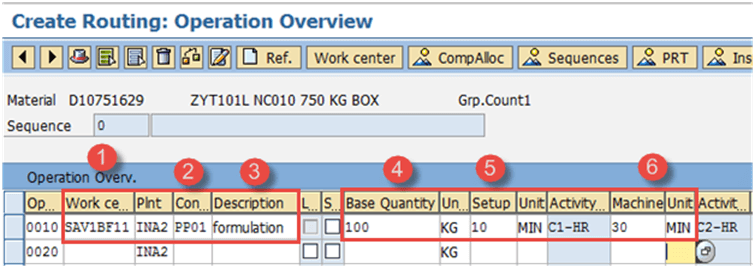
Step 3) In this step, we will maintain operation data.
- Enter the Work Center code at which the operation is carried out.
- Input the Control Key, which determines whether the operation should be scheduled and costed, and whether automatic goods receipt is possible during production confirmation. It is generally configured depending on your business process.
- Input the operation description.
- Input the base quantity, or output quantity of the material, which indicates how much material would be produced in the machine and labor time entered in points 5 and 6 below.
- Enter the setup time in minutes required for the base quantity.
- Enter the machine time in minutes required for the base quantity.
Each row on this screen is one production step, and the operation numbers control the order in which they run.
Click  to save the new routing. The system will show a confirmation message in the lower left corner.
How to Change Routing in SAP PP
We would change a routing if we have replaced old work centers with new ones, or added one more operation to our manufacturing process. If machine productivity increases, we need to change the machine time or the base quantity.
Step 1) From the SAP Easy Access menu, open transaction CA02.
- Enter the parent material for which the routing needs to be changed.
- Enter the Plant code.
- The Key date (valid-from date), which means that the routing would be valid from that date, is set to the current date automatically.
The CA02 entry screen is identical to CA01, but it opens an existing routing instead of creating one.

Step 2) After filling in all the fields, click  (the check mark sign) from the top menu to go to the next screen.
- Change the control key from PP01 (without the automatic GR indicator) to PP03 (with the automatic GR indicator). Automatic goods receipt means that when you carry out production confirmation, the goods receipt of the material happens automatically.
- Change the machine time.
Both edits are made directly on the operation overview screen shown below.

After finishing all modifications, click  to save the routing.
How to Display Routing in SAP PP
To display the routing we will follow the steps below. Display mode is read-only, so it is the safe transaction to use when you only need to check a value.
Step 1) From the SAP Easy Access screen, open transaction CA03.
- Enter the parent material for which the routing needs to be displayed.
- Enter the Plant code.
- The Key date (valid-from date), which means that the routing would be valid from that date, is set to the current date automatically.

After filling in all the fields, click the  sign from the top menu to go to the next screen and display the routing.
Step 2) In this screen we will see how the operation data of the routing is displayed.
- The screen displays the operation data of the routing, such as the operation carried out by the work center, base quantity (100 EA), setup time (10 minutes) and machine time (35 minutes).

SAP PP Routing Transaction Codes
CA01, CA02 and CA03 cover the daily create, change and display cycle. A handful of related transactions appear as soon as a plant has more than a few routings to look after.
| Transaction | Purpose |
|---|---|
| CA01 | Create a new routing for a material and plant |
| CA02 | Change an existing routing, including operations, times and control keys |
| CA03 | Display a routing in read-only mode |
| CA21 / CA22 / CA23 | Create, change and display a rate routing, used in repetitive manufacturing |
| CA85 | Replace a work center, control key or reference operation set across many routings at once |
| CA98 | Delete task lists, including routings that are no longer valid |
| CA80 | Where-used list showing which routings use a given work center |
The menu path for the create transaction is Logistics → Production → Master Data → Routings → Standard Routings → Create.
Routing vs Bill of Material (BOM) in SAP PP
Routings and bills of material are the two master data objects a production order reads, and beginners often mix them up. The distinction is simple: the BOM is the parts list, the routing is the method.
| Basis | Routing | Bill of Material |
|---|---|---|
| Question answered | How is the material produced? | What is the material made of? |
| Content | Operations, sequences, work centers and standard times | Components, quantities and item categories |
| Drives | Scheduling, capacity requirements and activity costs | Material requirements and material costs |
| Create transaction | CA01 | CS01 |
Both are pulled into the production order together, which is where component allocation links a BOM item to the operation that consumes it.
Troubleshooting Common Routing Errors
- There might be a case wherein the material master record does not exist. For this, you need to create the material master for the material before creating the routing.
- Some users might get the error “work center does not exist”. In this case, the work center should be created beforehand.
- If the routing does not appear during material requirement planning or costing, check that the header status is 4 (released) and that the usage is 1.
- If the order quantity falls outside the lot-size range in the header, the system will not select the routing. Widen the range or create a second group counter.
- If the key date is later than the order date, the routing is not yet valid. Check the validity period before assuming the routing is missing.
