
SAP PP Capacity Planning: CM01 & CM21 Tcode
 Editorial Team
⚡ Smart Summary
Capacity planning in SAP PP compares the load created by production orders against the available capacity of each work center, then levels overloads through the planning table so the shop floor schedule stays realistic.
What is Capacity Planning in SAP PP?
The main function of capacity planning is to check the load at a Work Center and to carry out capacity leveling, that is, to balance that load. It calculates the production capacity needed by a product against the available capacity of the work center.
Capacity requirements planning is necessary because material planning ignores capacity altogether:
- MRP works with infinite capacity and creates planned orders at the work center for the same date, because it assumes the work center is available all the time. The system therefore creates orders on one date despite a capacity shortage, and those orders are not practically feasible on the shop floor.
- The main objective of capacity leveling is to level overloads at the work center and to achieve optimum utilization of work centers.
- Planned orders generated by MRP are converted into production orders, which determine the work center to be used, and the capacity requirements are generated on that work center.
- Capacity leveling at production order level is used for detailed production planning. It is done through the planning table, which carries detailed planning of capacity requirements over a future period.
- The capacity load has to be checked at the work center. If the work center is overloaded, the orders are shifted forward on the same work center, or planned on a different work center, to eliminate the capacity constraint.
Capacity planning is split into two activities that are easy to confuse, so it helps to separate them before opening a transaction.
Capacity Evaluation vs Capacity Leveling
Capacity evaluation only reports the situation, while capacity leveling changes it. Evaluation answers the question “is this work center overloaded”, and leveling answers “which order do I move, and where to”.
| Aspect | Capacity evaluation | Capacity leveling |
|---|---|---|
| Purpose | Compare capacity requirements with available capacity and report the load | Dispatch and re-sequence operations so the load fits the available capacity |
| Typical transactions | CM01 to CM05 | CM21, CM22, CM25 |
| Result | A list or graphic showing the load percentage per work center and period | Operations dispatched to a work center with fixed dates and times |
| Data changed | None — the evaluation is read-only | Operation dates and the dispatch status of the order |
| When to use | Daily monitoring and bottleneck detection | After a bottleneck is found, and before orders are released |
Both activities read the same capacity requirements, so the master data behind them has to be complete first.
Prerequisites for Capacity Planning in SAP PP
Capacity requirements only exist if the operation is configured to create them. Check the following before running CM01, otherwise the evaluation returns an empty list or a zero load.
- Capacity header on the work center — the work center needs a capacity category such as machine or labor, with an available capacity, a factory calendar and a shift definition.
- Relevant to finite scheduling — this indicator on the Capacities tab of the work center is what allows the operation to be dispatched later in the planning table.
- Control key — the control key assigned to the operation in the routing must have the capacity-requirements indicator set. Without it the operation is scheduled but creates no load.
- Standard values and formula — the setup, machine and labor standard values on the operation, combined with the capacity formula on the work center, convert the order quantity into hours.
- A scheduled order — requirements are written when a planned order or production order is created, scheduled or rescheduled, not when the material is merely planned.
Once the master data is in place, the load itself is read with transaction CM01.
How to Check Capacity Loads in SAP PP (CM01)
Capacity evaluation is used to analyze the load at the work center. It shows the load percentage (visible in step 2), the available capacities and the requirements. You can also see the orders that generated those capacity requirements.
Step 1) From the SAP Easy Access screen, open transaction CM01. The initial screen asks for the selection criteria of the evaluation.
- Enter your manufacturing plant for which you want to check the capacity load.
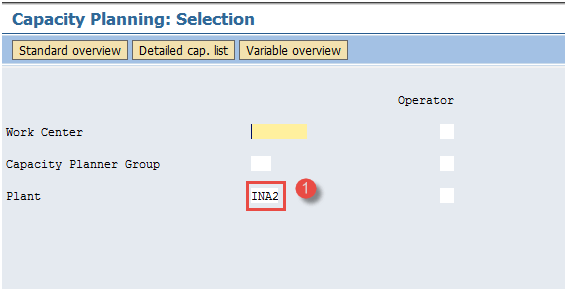
After filling in all the fields, click  to go to the next screen.
Step 2) In this screen, the capacity situation at the work center can be seen. The standard overview lists one row per period.
- Check the capacity requirement (generated from production orders), the available capacity (determined from the work center master data) and the capacity load percentage at the work center.

A load above 100 percent in any period is the signal to move to leveling.
How to Do Capacity Leveling in SAP PP (CM21)
Capacity leveling is done through the planning table. You dispatch the orders to the work center in the sequence in which they are supposed to be processed on the shop floor.
Step 1) From the SAP Easy Access screen, open transaction CM21.
- Input the plant for which you want to level capacity.

After filling in all the fields, click the execute button at the top to go to the next screen.
Step 2) In this screen, you can see the orders pool at the bottom and the work center pool in the upper half of the planning table.
- Check the several orders in the orders pool.
- Check the list of work centers in the work centers pool.

Step 3) In the same planning table screen, select the data as given below.
- Select one order from the orders pool.
- Click the dispatch button to assign that order to the work center.

Step 4) In the same screen, confirm that the dispatch was accepted.
- Check the dispatched order in the work center pool. Similarly, you can dispatch the other orders to the work center pool, and they shift adjacent to the previously dispatched orders.

This is how you can do capacity leveling. CM01 and CM21 are the two transactions used most often, but they belong to a larger family.
SAP Capacity Planning Transaction Codes
Each evaluation transaction is simply a different overall profile over the same data, which is why the selection screens look identical. The leveling transactions differ in the view they open — work center view or order view, graphical or tabular.
| T-code | Description | Typical use |
|---|---|---|
| CM01 | Capacity planning: work center load | Standard evaluation of load versus available capacity (overall profile SAPX911) |
| CM02 | Capacity planning: orders | Shows which orders create the load at the work center |
| CM03 | Capacity planning: pool | Lists the operations not yet dispatched |
| CM04 | Capacity planning: backlog | Requirements whose dates already lie in the past |
| CM05 | Capacity planning: overload | Only the periods where the load exceeds the available capacity |
| CM21 | Capacity leveling: SFC planning table (graphical) | Dispatch operations onto a work center, work center view |
| CM22 | Capacity leveling: SFC planning table (tabular) | Same leveling function in a tabular planning table |
| CM25 | Capacity leveling: variable | Freely defined leveling layout for a custom selection |
| CM38 | Capacity leveling: long-term planning | Levels the simulative requirements from a long term planning scenario |
| CM50 | Capacity leveling: SFC work center list | Work center list view that shows the available capacity |
The SAP menu path is Logistics → Production → Capacity Planning, which then splits into Evaluation and Leveling. In SAP S/4HANA these CM transactions remain available inside the compatibility scope, and SAP positions the Fiori apps Manage Work Center Capacity, Monitor Capacity Utilization and the Capacity Scheduling Table as their successors.
Troubleshooting Capacity Planning Errors
Most capacity planning problems are master data problems rather than transaction problems. Work through the list below before assuming the evaluation is wrong.
- Ensure that the right control key, with the “capacity requirement” indicator, is placed in the operation data in the routing. An operation without it is scheduled but creates no load.
- Ensure that in the Capacities tab of the work center, the “relevant to finite scheduling” indicator is flagged. Otherwise the operation cannot be dispatched in the planning table.
- An empty CM01 result usually means the evaluation period lies outside the order dates, or that the work center has no available capacity maintained in its capacity header.
- A load far above 100 percent straight after an MRP run is expected rather than an error, because MRP plans with infinite capacity. Leveling in CM21 is the corrective step.
- If a dispatch is rejected with a date conflict, review the finiteness and date settings in the leveling profile, or move the operation to an alternative work center.
