
Long Term Planning (LTP) in SAP PP: MS04, MS31, MD61
 Editorial Team
⚡ Smart Summary
Long Term Planning in SAP PP simulates a future demand and supply situation across every BOM level, so planners can test capacity, material availability and vendor coverage without touching the operative plan.
SAP PP Long Term Planning (LTP)
Long Term Planning (LTP) in SAP PP is used to simulate the future demand and supply situation at all BOM levels. Its main function is to check the capacity situation, the material requirement and the ability of vendors to supply the material in the required time.
This is not an operative run but a simulative one: the actual planning situation is not affected, and the capacity situation of the work centers can be seen well ahead of time. A plant can therefore decide early whether additional machines are needed to cope with capacity bottlenecks.
- LTP is nothing but an MRP run in a simulation version, used to simulate the production plan for the future.
- The plan can be transferred from the simulative version to the operative version “00” (actual planning) if the simulation shows that all capacity and requirements can be fulfilled.
- The purchasing department can also use the outcome. Future requirement quantities help buyers estimate purchase orders and negotiate delivery schedules and contracts with vendors.
- Vendors benefit from long-term planning results as well, because they are sent a preview of the estimated future purchase orders and delivery schedules.
- A Planned Independent Requirement (PIR) version can be either active or inactive. For LTP the version must be inactive, because it is simulative. Only an active PIR version is taken into operative planning (MRP).
- Existing master data can be used for LTP, but it is also possible to maintain different master data (a separate BOM and routing) for LTP.
- To delete long-term planning data, delete the planning scenario. The whole cycle can then be re-run with new requirements in another inactive version.
- Long-term planning data can also transfer routing activity quantities to the respective cost centers. Controlling divides the cost center budget value by the activity quantity from the LTP run to calculate the activity price, which feeds the standard cost calculation.
How to Create an Inactive Version of Independent Requirements in SAP
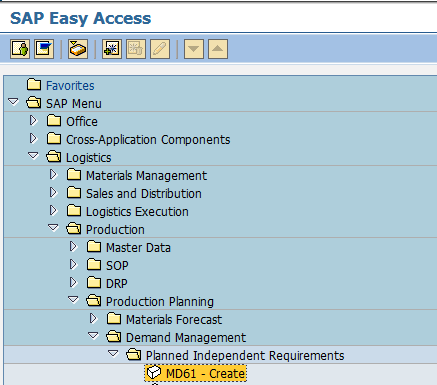
Step 1) From SAP Easy Access, open transaction MD61.
- Enter the material code for which the requirement needs to be created.
- Enter the Plant code.
- Enter version “02”, the inactive version, so that the requirements are considered in the long-term planning run and not in MRP.
- Enter the Planning horizon dates for which demand needs to be created.
- Enter the planning period as month, M.
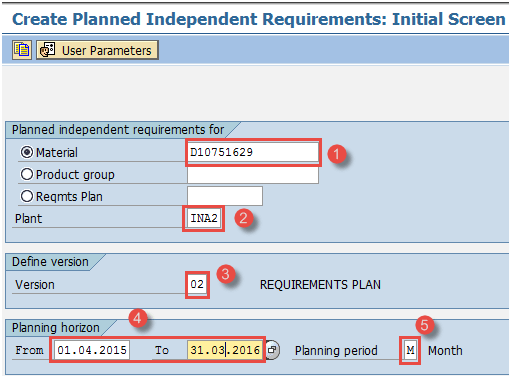
After filling in all the fields, click  or press Enter to go to the next screen.
Step 2) In this screen, we input the requirement quantity of the material in monthly buckets.
- Version “02” is shown and the Active check box is unflagged, which means this is an inactive, simulative requirement that is considered in the LTP run only.
- Enter the requirement quantity in monthly buckets.

Click  to save after entering all the data. The system shows the message
  .
.
How to Create Planning Scenario in SAP PP
A planning scenario is required for the long-term planning run. The annual simulative requirements, in the form of PIRs, are assigned to it, together with a BOM selection ID so the run explodes the relevant BOM. Current stock and existing planned receipts can be included or excluded.
Step 1) From the SAP Easy Access screen, open transaction MS31.
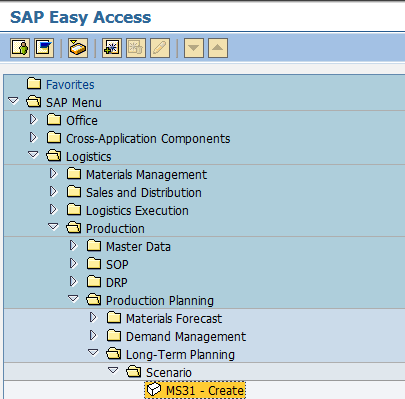
Enter the Planning scenario (numeric or alphanumeric, as you choose) and give the scenario a description.  Press Enter on the keyboard to move to the next screen.
Step 2) In this screen:
- Enter the planning periods for which the LTP run needs to take place.
- Keep Opening stock blank, which means the current stock is not considered in the LTP run.
- BOM selection ID “01” means the active BOM is exploded in the LTP run.

Step 3) In the same screen:
- Press the “Planned independent requirements” button at the top; a small pop-up window appears.
- In the pop-up screen, enter version “02” and the planning periods.

Step 4) In the same screen:
- Press the “Plants” button at the top; a small pop-up screen appears.
- Enter your manufacturing Plant code.
- Press the “Confirm” button after verifying all the details.

Step 5) In the same screen:
- Press the “Release + save” button, and the planning file entries are generated.
- Click “Yes” in the pop-up window to release the scenario.

On clicking Yes, the system asks whether the planning file entries should be created online or in the background.
Step 6) In this screen:
- Planning file entries are generated. Click the “Immediately” button to generate the entries.

Messages are generated about the planning file entries, which means the system has identified the number of materials relevant for the long-term planning run.

You can close this screen or move back to the SAP Easy Access screen.
How to Run Long Term Planning (LTP) in SAP PP
Step 1) In transaction MS02, we take the LTP run and enter the required details.

- Enter your planning scenario.
- Enter the material code.
- Enter your manufacturing Plant code for which you want to take the run.
- Enter Processing key as “NETCH” (net change in total horizon).
- Enter “1” in MRP List, so the system creates an MRP list for later analysis of the run.
- Enter Planning mode “1”, as we are taking an LTP run.
- Enter Scheduling indicator “2”, so LTP performs lead time scheduling and uses the routing times to calculate the duration of the simulative planned order.
- Enter “1” to use the settings from the planning scenario, which means firmed receipts are not considered in the LTP run.
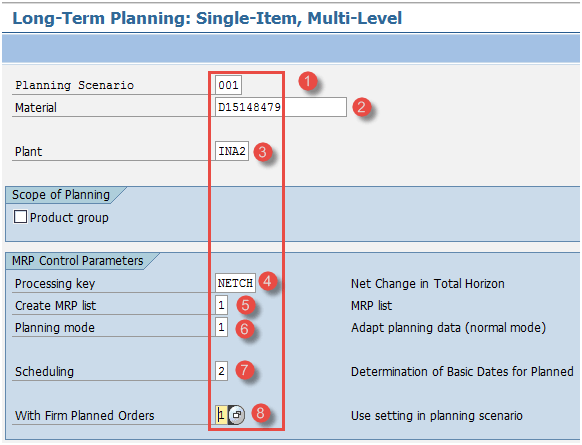
Press Enter twice to start the LTP run. The system takes some time and then issues messages about the planning result.
Step 2) Check the procurement proposals status. In this screen:
- Check the messages about the number of procurement proposals created.

How to Check Stock/Requirement List in SAP
This list shows the requirements (the inactive PIRs) and the receipt elements, such as simulative planned orders, for the planning scenario. It shows simulative data only, not the real-time operative data.
Step 1) In transaction MS04:
- Enter the Planning scenario.
- Enter the material code.
- Enter the Plant code.

Press Enter to move to the next screen.
Step 2) In this screen:
- Check whether the planned orders were generated against the PIR, and check the rescheduling dates in those planned orders. These are simulative planned orders and have nothing to do with real-time data.

How to Check Capacity Situation in SAP
Step 1) From SAP Easy Access, open transaction CM38 to check the capacity requirement at the work center. The work center is loaded with the simulative planned orders, which produce capacity requirements expressed in time.
- Enter the planning scenario.
- Enter the plant code.

Press Enter to move to the next screen.
Step 2) In this screen:
- Check the capacity load at the work center, which is the ratio of the capacity requirement (in hours) to the available capacity (in hours).

How to Analyze Simulative Purchase Info System in SAP
LTP generates planned orders instead of purchase requisitions, and those planned orders carry no source of supply. The vendor can still be seen in the standard information system reports.
After the LTP activity, a new version of the PURCHIS information system is created.
Step 1) In transaction MS70:
- Enter the Planning scenario.
- Select the option “Standard/moving avg. price”, which means the simulative planned orders are valued at standard or moving average price.
- Unmark “Test mode” and execute. Version info structure 001 is created automatically.

On execution, the system updates the purchasing information system in version 001 with the simulative purchase order quantity and value, so buyers can plan raw materials for the whole year and negotiate with suppliers.
Step 2) In transaction MCEC, you can see the updates to the purchasing information system made in the previous step. The order quantity can be seen vendor by vendor for a given period, all in the simulation version.
- Enter the Planning scenario.
- Enter your plant code.
- Enter the period to analyze.

Press the execute button or F8 to run the report.
Step 3) This screen displays the anticipated purchase quantity and value for raw materials, based on the simulative annual production plan.
- Check the PO quantity and value in the simulation version.

Troubleshooting Long Term Planning Errors
- All PP master data, such as the BOM and the routing, must be in place. Without it, the run cannot drill down to the lowest BOM level, that is, the raw materials.
- Enter the PIR quantity in the inactive version to avoid any conflict with real data.
- If the run plans nothing, check that the scenario was released. Planning file entries are only created when the scenario is released and saved.
- If a material is missing from the result, confirm that its plant is assigned to the scenario and that the PIR version matches the one assigned in MS31.
