
SAP Demand Management Tutorial: MD61, MD62, MD04, MD74, MD75
 Editorial Team
⚡ Smart Summary
SAP Demand Management uses Planned Independent Requirements to forecast and plan production quantities. This resource explains how to create, change, display, and delete PIRs using transactions MD61, MD62, MD04, MD74, and MD75, and how planning strategies shape demand.
What is Planned Independent Requirement (PIR)?
Planned Independent Requirements (PIR) are used to perform Demand Management functions.
A Planned Independent Requirement contains one planned quantity and one date for a material, or one planned quantity split over time according to dates.
- PIR version “00” has an active indicator, which specifies that requirements would be considered in Material Requirement Planning (MRP).
- If you want to maintain a number of versions of planned independent requirements, but do not want to include all versions in the material requirement planning run, you can set some versions to active and others to inactive, which could be used for simulations in Long Term Planning.
- PIRs are associated with a requirement type which is driven from planning strategies in the material master, which determines the method of planning – Make to Stock or Make to Order.
- PIRs are displayed in the stock requirement list so that the planner can see and plan the production based on it.
- PIRs are generally used in a Make-to-Stock environment where the business wants to build stock based on the forecast and not on sales orders.
Impact of Planning Strategies
- Planning strategies are broadly categorized into Make to Stock (MTS) and Make to Order (MTO).
Make to Stock
- Make-to-stock production is implemented if you produce stock without waiting for sales orders to arrive, because you want to deliver to your customers immediately with materials from that stock later on. You might even want to build stock without having sales orders, if you predict that there might be customer demand in the near future.
- Make-to-stock strategies are usually associated with a lot-size key or a rounding value. For example, you may want to produce the entire amount for the whole month once a month only, or you may want to produce the exact PIR quantity.
- In Planning Strategy 10, only the PIR quantity is considered for the MRP run and sales orders are completely ignored. The PIR is reduced when you deliver the stock to the customer. PIR has requirement type LSF.
- In Planning Strategy 40, the maximum of the two (PIR and sales orders) is considered for MRP and the PIR is reduced as soon as sales orders are entered. PIR has requirement type VSF.
Make to Order
- You do not want to produce finished products until you receive a sales order from the customer.
- PIRs are not considered in MTO, and only sales orders are considered in MRP.
- You produce sales-order stock and can deliver to the specific customer only, unlike in the MTS scenario.
- Planning Strategy 20 is widely used for the make-to-order process, and Strategy 25 is used for MTO with variants where the customer asks for variants in products.
How to Create Planned Independent Requirement (PIR)
Step 1) From the SAP Easy Access screen, open transaction MD61.
- Enter a single material or Reqmts plan (for multiple materials) for which demand needs to be created.
- Enter the MRP area and Plant Code “INA2”.
- Enter version as “00”, which is the active version, and requirements would be considered in the MRP run.
- Enter the planning horizon dates for which demand needs to be created.
- Enter the planning period as month M.

After filling in all the fields, click  or press Enter to go to the next screen.
Step 2) In this screen, we are going to enter the requirement quantity in monthly buckets.
- Version “00” and the Active check box flagged would come as default, which means it is an active requirement and would be considered in the MRP run.
- Enter the requirement quantity in monthly buckets.

Click  to save after filling in all data; the system will show a message
  .
.
- If you want to delete the demand of one material, click
 of the row and click the delete button
  .
.
 of the row and click the delete button
  .
.


How to Change PIR
Step 1) From the SAP Easy Access screen, open transaction MD62.
- Enter the parent material for which the PIR needs to be changed.
- Enter the Plant Code.
- Enter version as “00”.
- Input the planning horizon dates with the planning period as month M.
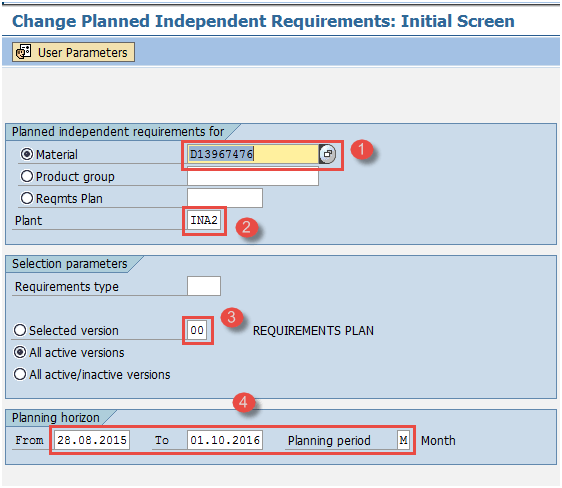
Step 2) After filling in all the fields, click  to go to the next screen.
- Change the requirement quantity to 900 as shown below.

After finishing all modifications, click  to save the PIR. The system will show a message like
  at the lower-left corner.
How to display Stock/Requirement List
Step 1) From the SAP Easy Access screen, open transaction MD04.

- Enter the material for which the stock/requirement list needs to be displayed.
- Enter the Plant Code.

Step 2) After filling in all the fields, click  to go to the next screen, and the stock/requirement list is displayed.
- Display the stock/requirements list of the material, where you can see the PIR (requirement type VSF driven from planning strategy 40 in the material master MRP3 view) quantity of 1000 EA reduced to 939 by sales orders.

How to delete PIR data
Step 1) From the SAP Easy Access screen, open transaction MD74/MD75.

- Enter the Plant Code.
- Enter the key date before which you need to delete the whole PIR data of the plant if no material is selected in the screen.
- Flag the Record history, Delete inactive version, and Create list check boxes.

Click the execute button to run the report and move to the next screen.
Step 2) In the next screen, you will see the messages regarding deletion of PIR.
- Check the messages regarding deletion of PIR.

Troubleshooting
- There might be a case wherein the material master record does not exist. For this, you need to create the material master for the material before creating the PIR.
- Ensure the right planning strategy is in place in the material master, which drives the requirement type of the PIR, and based on that the PIR is considered in the MRP run.
