
Data Types in R with Example
 Editorial Team
⚡ Smart Summary
Data types in R define how values are stored in memory, and operators decide what R can do with them. Vectors, variables, arithmetic, relational, logical and assignment operators are covered here with runnable examples.
What are the Data Types in R?
Following are the Data Types or Data Structures in R Programming:
- Scalars
- Vectors (numerical, character, logical)
- Matrices
- Data frames
- Lists
That list mixes two related ideas, and separating them makes the rest of this page easier to follow. A data type describes what a single value is — a number, a piece of text, a TRUE or a FALSE. A data structure describes how many values are held together and in what shape. Scalars, vectors, matrices, data frames and lists are structures; the values inside them still belong to one of R’s basic types.
| Structure | Dimensions | Mixed types allowed? | Typical use |
|---|---|---|---|
| Scalar | Length-1 vector | No | A single measurement or flag |
| Vector | 1 | No | A column of readings of one type |
| Matrix | 2 | No | Numeric grids and linear algebra |
| Data frame | 2 | Yes, one type per column | Tabular datasets |
| List | 1, but nestable | Yes, anything per element | Model results and mixed containers |
R has no separate scalar type: a scalar is simply a vector of length one, which is why so much R code is written for whole vectors at once.
Basic Data Types in R
Every value in R belongs to one of a small set of basic (atomic) types:
- 4.5 is a decimal value called numerics.
- 4 looks like a whole number, but R still stores it as a double. Write 4L when a true integer is required.
- TRUE or FALSE is a Boolean value, called a logical in R.
- The value inside ” ” or ‘ ‘ is text (a string). Those values are called characters.
Two further types complete the set. Complex values such as 3+2i hold a real and an imaginary part, and raw values hold bytes. Both appear rarely in day-to-day analysis, but they are listed in the base R typeof() documentation alongside the four common types.
| Type | Example value | class() returns | typeof() returns |
|---|---|---|---|
| Logical | TRUE | logical | logical |
| Integer | 4L | integer | integer |
| Double (numeric) | 4.5 | numeric | double |
| Character | "R is Fantastic" | character | character |
| Complex | 3+2i | complex | complex |
| Raw | as.raw(10) | raw | raw |
We can check the type of a variable with the class function.
Example 1: Check a Numeric Variable
# Declare variables of different types
# Numeric
x <- 28
class(x)
Output:
## [1] "numeric"
Example 2: Check a Character Variable
# String
y <- "R is Fantastic"
class(y)
Output:
## [1] "character"
Example 3: Check a Logical Variable
# Boolean
z <- TRUE
class(z)
Output:
## [1] "logical"
Note that class() answers "numeric" for 28 even though 28 has no decimal part. R stored it as a double, and only typeof() reveals that. The next difference worth learning is how those values get names.
Variables in R
Variables are one of the basic building blocks in R that store values, and they matter to anyone doing data science work. A variable in R can store a number, an object, a statistical result, a vector, a dataset or a model prediction — basically anything R outputs. We can use that variable later simply by calling the name of the variable.
To declare a variable in R, we need to assign a variable name. The name must not contain a space. We can use _ to join two words.
Names may contain letters, digits, dots and underscores, but they must start with a letter or a dot, and reserved words such as TRUE, FALSE and NULL cannot be used as names. To add a value to the variable, use <- or =.
Here is the syntax:
# First way to declare a variable:  use the `<-`
name_of_variable <- value
# Second way to declare a variable:  use the `=`
name_of_variable = value
In the command line, we can write the following codes to see what happens:
Example 1: Assign a Value and Print It
# Print variable x
x <- 42
x
Output:
## [1] 42
Example 2: Declare a Second Variable
y  <- 10
y
Output:
## [1] 10
Example 3: Use Two Variables in One Expression
# We call x and y and apply a subtraction
x-y
Output:
## [1] 32
A variable that holds several values of the same type is a vector, which is the structure almost every R function expects.
Vectors in R
A vector is a one-dimensional collection in which every element shares the same type. We can create a vector with all the basic R data types learned earlier. The simplest way to build a vector in R is to use the c() function.
Example 1: Create a Numeric Vector
# Numerical
vec_num <- c(1, 10, 49)
vec_num
Output:
## [1] 1 10 49
Example 2: Create a Character Vector
# Character
vec_chr <- c("a", "b", "c")
vec_chr
Output:
## [1] "a" "b" "c"
Example 3: Create a Logical Vector
# Boolean
vec_bool <-  c(TRUE, FALSE, TRUE)
vec_bool
Output:
##[1] TRUE FALSE TRUE
If c() receives a mix of types, it does not fail. It quietly coerces every element up to the most general type present, so c(1, "a", TRUE) becomes a character vector. We can also do arithmetic calculations on vectors in R.
Example 4: Add Two Vectors Element by Element
# Create the vectors
vect_1 <- c(1, 3, 5)
vect_2 <- c(2, 4, 6)
# Take the sum of A_vector and B_vector
sum_vect <- vect_1 + vect_2
# Print out total_vector
sum_vect
Output:
[1] 3 7 11
The addition worked element by element because both vectors have the same length. When the lengths differ, R recycles the shorter vector, repeating it until it matches the longer one, and warns only when the longer length is not a multiple of the shorter.
Example 5: Slice the First Five Elements
In R, it is possible to slice a vector. On some occasions, we are interested in only the first five elements of a vector. We can use the [1:5] command to extract the values 1 to 5.
# Slice the first five rows of the vector
slice_vector <- c(1,2,3,4,5,6,7,8,9,10)
slice_vector[1:5]
Output:
## [1] 1 2 3 4 5
Example 6: Build a Range with the Colon Operator
The shortest way to create a range of values is to use the colon operator (:) between two numbers. For instance, from the above example, we can write c(1:10) to create a vector of values from one to ten.
# Faster way to create adjacent values
c(1:10)
Output:
## [1] 1 2 3 4 5 6 7 8 9 10
Because a vector silently changes type when it is mixed, it pays to know how to inspect and convert types on demand.
How to Check and Convert Data Types in R
Three families of functions answer the three questions that come up constantly: what is this, is this a given type, and can this become another type.
| Function family | Question it answers | Examples |
|---|---|---|
| class(), typeof(), mode() | What type is this value? | class(28), typeof(28), mode(28) |
| is.*() | Is this value of type X? | is.numeric(), is.character(), is.logical() |
| as.*() | Can this value become type X? | as.numeric(), as.character(), as.integer() |
| str() | What does this object look like overall? | str(vec_num) |
# Three different views of the same value
x <- 28
class(x)      # "numeric"  -- the class used for method dispatch
typeof(x)     # "double"   -- how R stores the value internally
mode(x)       # "numeric"  -- the older S-style mode

# Ask a yes/no question about a type
is.numeric(x)     # TRUE
is.character(x)   # FALSE

# Convert between types
as.character(x)   # "28"
as.integer("28")  # 28 stored as an integer
as.numeric("abc") # NA, with a coercion warning
Two rules explain most surprises here. First, class() reports the class used for method dispatch while typeof() reports the internal storage, which is why 28 is "numeric" to one and "double" to the other. Second, a conversion that cannot succeed does not stop the script: as.numeric("abc") returns NA and prints a coercion warning, so silent NAs after an import are almost always a type problem. The same logic drives factors, which store categories as integer codes plus a table of levels.
With the types settled, the operators that act on them are next.
R Arithmetic Operators
We will first see the basic arithmetic operators in R. Following are the arithmetic operators in R programming and what they stand for:
| Operator | Description |
|---|---|
| + | Addition |
| – | Subtraction |
| * | Multiplication |
| / | Division |
| ^ or ** | Exponentiation |
| %% | Modulo (remainder after division) |
| %/% | Integer division (quotient, remainder discarded) |
Every one of these operators is vectorised, so the same expression works on a single value or on a whole column.
Example 1: Addition
# An addition
3 + 4
Output:
## [1] 7
You can easily copy and paste the above R code into the RStudio Console. In this article the output is shown on lines that begin with ##. For instance, if we write the code print("Guru99") the console prints [1] "Guru99", which this page would show as ## [1] "Guru99".
The ## marks a line of printed output, and the number in the square bracket ([1]) is the index of the first value on that line, not part of the result.
Sentences starting with # are comments. We can use # inside an R script to add any note we want, and R ignores it at run time.
Example 2: Multiplication
# A multiplication
3*5
Output:
## [1] 15
Example 3: Division
# A division
(5+5)/2
Output:
## [1] 5
Example 4: Exponentiation
# Exponentiation
2^5
Output:
## [1] 32
Example 5: Modulo
# Modulo
28%%6
Output:
## [1] 4
Arithmetic produces numbers. The next group of operators produces TRUE and FALSE instead.
R Relational (Comparison) Operators
Relational operators compare two values and return a logical result. They are the operators that build the conditions used for filtering, and they are vectorised in exactly the same way as the arithmetic operators.
| Operator | Description |
|---|---|
| > | Greater than |
| < | Less than |
| >= | Greater than or equal to |
| <= | Less than or equal to |
| == | Exactly equal to |
| != | Not equal to |
a <- 10
b <- 3

a > b     # TRUE
a < b     # FALSE
a >= 10   # TRUE
a <= 3    # FALSE
a == b    # FALSE
a != b    # TRUE

# Relational operators are vectorised
scores <- c(45, 78, 90, 62)
scores >= 60   # FALSE TRUE TRUE TRUE
Two habits save time here. Use == for comparison and <- for assignment, because a single = inside a condition is a common beginner error. And avoid == on doubles: floating-point rounding means 0.1 + 0.2 == 0.3 is FALSE, so isTRUE(all.equal(0.1 + 0.2, 0.3)) is the safe test. Comparisons on sorted data frames follow the same rules.
R Logical Operators
With logical operators, we want to return values inside the vector based on logical conditions. The table below lists the logical operators available in R.
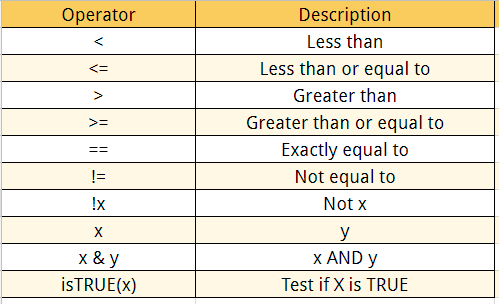
The logical statements in R are wrapped inside the []. We can add as many conditional statements as we like, but we need to include them in parentheses. We can follow this structure to create a conditional statement:
variable_name[(conditional_statement)]
With variable_name referring to the variable we want to use for the statement, we create the logical statement, for example variable_name > 0. Finally, we use the square brackets to finalize the logical statement. Below is an example of a logical statement.
Example 1: Compare Every Element of a Vector
# Create a vector from 1 to 10
logical_vector <- c(1:10)
logical_vector>5
Output:
## [1]FALSE FALSE FALSE FALSE FALSE TRUE TRUE TRUE TRUE TRUE
In the output above, R reads each value and compares it to the statement logical_vector>5. If the value is strictly greater than five, then the condition is TRUE, otherwise FALSE. R returns a vector of TRUE and FALSE.
Example 2: Keep Only the Elements That Match
In the example below, we want to extract the values that only meet the condition ‘is strictly greater than five’. For that, we can wrap the condition inside square brackets preceded by the vector containing the values.
# Print value strictly above 5
logical_vector[(logical_vector>5)]
Output:
## [1] 6 7 8 9 10
Example 3: Combine Two Conditions
# Print 5 and 6
logical_vector <- c(1:10)
logical_vector[(logical_vector>4) & (logical_vector<7)]
Output:
## [1] 5 6
Example 3 uses the single ampersand & on purpose. The single-character operators & and | compare vectors element by element and return a vector, which is what subsetting needs. The double forms && and || return one value and belong in if() and while() conditions. Since R 4.3.0, passing an argument longer than one element to && or || is an error rather than a warning, so the two families are no longer interchangeable. The ! operator negates a condition, and xor() gives exclusive OR.
R Assignment Operators
Assignment operators bind a value to a name. R offers more of them than most languages, and the differences matter once code moves into functions.
| Operator | Description |
|---|---|
| <- | Left assignment, the idiomatic choice in R |
| = | Left assignment, but normally reserved for function arguments |
| -> | Right assignment, valid but rarely used |
| <<- | Superassignment that searches enclosing environments |
| ->> | Right superassignment |
# Left assignment -- the idiomatic form
count <- 5

# Equals sign: works, but reserve it for function arguments
count = 5
round(3.14159, digits = 2)

# Right assignment
5 -> count

# Superassignment, used inside functions to reach an outer scope
count <<- 5
Style guides recommend <- for creating objects and = for naming arguments inside a call, because the two roles then stay visually distinct. Use <<- sparingly: it changes an object outside the current function and makes code harder to reason about. Once assignment and types are comfortable, the next steps are importing real data and reshaping it with dplyr; the R language overview puts the whole toolchain in context.
