
Docker Tutorial for Beginners: Basics, Architecture, Containers
 Editorial Team
⚡ Smart Summary
Docker is a containerization platform that packages applications and their dependencies into portable, lightweight containers. This overview explains Docker architecture, installation on Ubuntu, essential commands, and how containers differ from traditional virtual machines for faster software delivery.
Docker is one of the most popular containerization platforms used in modern DevOps and cloud workflows. This Docker tutorial for beginners explains what Docker is, how the Docker architecture works, how to install Docker on Ubuntu, and the basic commands used to manage images and containers.
What is Docker?
Docker is a software development platform for virtualization that lets multiple operating systems run on the same host. It helps you separate infrastructure from applications so you can deliver software quickly. Unlike hypervisors, which are used to create virtual machines (VMs), Docker performs virtualization at the system level using units called Docker containers.
Docker containers run on top of the host operating system, as shown in the image below. This improves both efficiency and security. You can also run more containers than virtual machines on the same infrastructure, because containers use fewer resources.
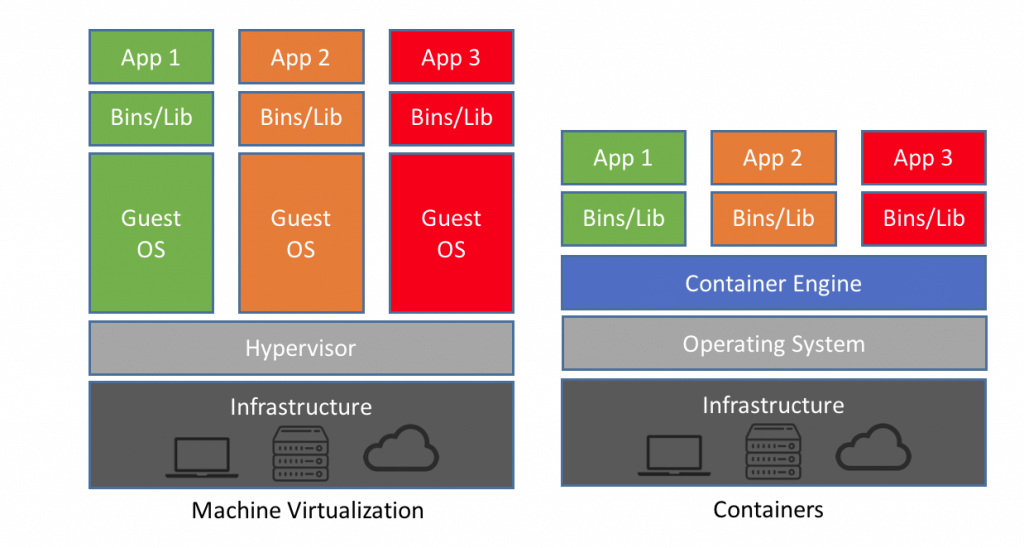
Unlike VMs, which can communicate directly with the host hardware (for example, an Ethernet adapter that creates more virtual adapters), Docker containers run in an isolated environment on top of the host OS. Even if your host runs Windows, you can run Linux images inside containers with the help of Hyper-V, which automatically creates a small VM to virtualize the base image.
Now that you know what Docker is, let us look at the main reasons teams choose it.
Why use Docker?
Here are the key reasons to use Docker:
- Docker is software used for virtualization, allowing multiple operating systems to run on the same host.
- Docker is a client-server application, which means clients communicate with a server.
- Docker images act as the “source code” for containers; you use them to build.
- Docker supports two types of registries: public and private.
- Containers are the organizational units of Docker. In simple terms, an image is a template and a container is a copy of that template, so you can run multiple containers from the same image.
These benefits come from the way Docker is designed. The following section breaks down the Docker architecture and its core components.
Docker Architecture
Now, in this Docker container tutorial, let us look at the main components of the Docker architecture.

Docker Engine
Docker is a client-server application, which means we have clients that relay requests to a server. The Docker daemon, called dockerd, is the Docker engine that represents the server. The daemon and the clients can run on the same or a remote host, and they communicate through a command-line client binary and a full RESTful API that interacts with dockerd.
Docker Images
Docker images are the “source code” for our containers; we use them to build containers. Images can have software pre-installed, which speeds up deployment. They are portable, and you can use existing images or build your own.
Docker Registries
Docker stores the images we build in registries. There are public and private registries. Docker has a public registry called Docker Hub, where you can also store images privately. Docker Hub has millions of images that you can start using right away.
Docker Containers
Containers are the organizational units of Docker and one of its basic concepts. When we build an image and run it, we are running it inside a container. The container analogy is used because of the portability of the software running inside it: you can move, “ship”, modify, manage, create, or destroy it, just as cargo ships handle real containers.
In simple terms, an image is a template, and a container is a copy of that template. You can have multiple containers (copies) of the same image.
The interaction between these different components shows how Docker container technology works together. Commands such as docker pull and docker run, which we cover later, let you manage this workflow.
With the architecture in mind, let us install Docker so you can try these components yourself.
How to install Docker on Linux/Ubuntu
Below is a step-by-step Docker installation process on Linux/Ubuntu:
Step 1) To install Docker, you need the Docker team’s DEB packages. First, some prerequisite Ubuntu packages are required. Use the command below to install them.
$ sudo apt-get install \
apt-transport-https \
ca-certificates curl \
software-properties-common
*the sign “\” is not necessary it’s used for the new line, if want you can write the command without using “\” in one line only.
Step 2) Add the official Docker GPG key with the fingerprint. Use the below Docker command to enter the GPG key.
$ curl -fsSL https://download.docker.com/linux/ubuntu/gpg | sudo apt-key add -
Step 3) Next, add the Docker APT repository using the command below.
$ sudo add-apt-repository \
"deb [arch=amd64] https://download.docker.com/linux/ubuntu \
$(lsb_release -cs) \
stable"
You may be prompted to confirm that you wish to add the repository and have the GPG key automatically added to your host. The lsb_release command should populate the Ubuntu distribution version of your host.
Step 4) After adding the GPG key, update the APT sources using the below Docker command.
$ sudo apt-get update
You can now install the Docker package itself.
Step 5) Once the APT sources are updated, start installing the Docker packages on Ubuntu using the below Docker command.
$ sudo apt-get install docker-ce
The command above installs Docker and other required packages. Before Docker 1.8.0, the package name was lxc-docker, and between Docker 1.8 and 1.13, the package name was docker-engine.
NOTE: Docker for Windows requires Windows 10 Pro or Enterprise version 14393, or Windows Server 2016 RTM, to run.
How to use Docker using basic Docker Commands
Here is how to use Docker with a few basic Docker commands.
The most basic command you should run after installing Docker is docker info, as mentioned earlier.
$ sudo docker info
You should get a result similar to the following.

As shown in the Docker example above, we can see information about Docker containers: how many are running, paused, or stopped, and how many images have been downloaded. Now let us get our first image.
$ sudo docker pull alpine
With this command, we are telling Docker to download the image alpine, pulling it from the public registry in the latest version, which is set by default.
*alpine is a minimal Docker image based on Alpine Linux with a complete package index and only 5 MB in size.
If we want to run the image as a container, we use the following command.
$ sudo docker run -i -t alpine /bin/bash
Running the command sends us directly to the alpine terminal. The -i flag keeps STDIN open from the container even when you are not attached to it; this persistent standard input is one half of what you need for an interactive shell. The -t flag is the other half and instructs Docker to assign a pseudo-tty to the container. Together they give us an interactive shell in the new container. We exit the container with a simple exit command.
Now, in this Docker basics tutorial, we can try running an Ubuntu image.
$ sudo docker run -it ubuntu /bin/bash
Notice that Docker checks for the image locally, and if it is not there, the image is pulled from the image library automatically. Once again, we have an interactive shell running. We can also name containers as we run them.
$ sudo docker run –-name our_container -it ubuntu /bin/bash
Then we exit again. We can also run a container we previously created without an interactive shell.
$ sudo docker start container_name
And we stop the container by writing docker stop container_name.
$ sudo docker stop container_name
If we want to see all running containers, we simply run the following.
$ docker ps
For all containers, we add “-a” at the end of the same command, like docker ps -a. This command shows the container ID, which image it uses, when it was created, its running status, exposed ports, and a randomly generated name for easier management.
When we run containers, we often want to know how many resources they are using. For that purpose, we can use the following command.
$ docker stats
You can also see which images you have downloaded locally, along with information about them.
$ sudo docker images
The command in the Docker example above displays each Docker image with a tag showing the image version, a distinctive image ID, the creation date, and the image size.
To understand why containers are such an improvement, it helps to look at how virtualization evolved.
What is Virtualization?
Earlier, deploying a service was slow and painful. Developers would write code, and then the operations team would deploy it on bare-metal machines, where they had to watch out for library versions, patches, and language compilers so the code would work. If there were bugs or errors, the process would start all over again: the developers would fix the issue, and the operations team would redeploy.
Things improved with the creation of hypervisors. Hypervisors run multiple virtual machines, or VMs, on the same host, which may be running or turned off. VMs greatly reduced the waiting time for deploying code and fixing bugs, but the real game changer was Docker containers.
Docker’s popularity is also driven by orchestration tools that manage containers at scale, such as Kubernetes. Before moving on, here is a quick reference of the most important Docker commands.
Important Docker Commands
Below are the important Docker commands:
| Command | Description |
|---|---|
| docker info | Information Command |
| docker pull | Download an image |
| docker run -i -t image_name /bin/bash | Run image as a container |
| docker start our_container | Start container |
| docker stop container_name | Stop container |
| docker ps | List of all running containers |
| docker stats | Container information |
| docker images | List of images downloaded |
| Docker Cleanup | Kill all running containers. |
Also, read these Docker job interview questions and answers for freshers as well as experienced professionals.
