
How to Display Organizational Structure in SAP
 Editorial Team
⚡ Smart Summary
Displaying Organizational Structure with Positions in SAP HR reveals the complete hierarchy of organizational units and the staffed positions beneath them. This resource explains Organizational Management objects, the benefits, and the transaction code and steps to run the report.
Though SAP provides a wide array of reports to view your OM related data, the best and easiest of all reports is to view Organizational Structure with Positions.
What is Organizational Structure in SAP HR?
In SAP HR, the Organizational Structure is a graphical representation of how a company is arranged into units, positions, and reporting lines. It is maintained in the Organizational Management (OM) module and forms the backbone of the entire Human Capital Management system. Every department, team, and role is modeled as an object, and these objects are linked together through relationships that describe who reports to whom.
The Organizational Structure with Positions extends this view by attaching individual positions—and the employees who hold them—to each organizational unit. This lets an administrator see, in a single report, the complete hierarchy from the top-level company down to each staffed position. Because the structure is time-dependent, SAP stores a validity period for every object and relationship, so you can view the organization as it existed on any past date or as it is planned for the future.
Understanding this structure is essential before running reports, because time evaluation, payroll, and personnel administration all draw on the same organizational data.
Key Objects in SAP Organizational Management
SAP Organizational Management is built from a small set of standard object types. Each object is identified by a two-character key and can be linked to the others to build the full hierarchy:
- Organizational Unit (O): Represents a department, division, or team. Organizational units are linked to each other to create the reporting hierarchy.
- Position (S): A single, individual seat in the organization, such as “Payroll Administrator.” A position belongs to one organizational unit and can be held by an employee.
- Job (C): A general classification or template, such as “Manager” or “Consultant,” from which many positions can be created.
- Person (P): The employee who occupies a position. The person object links Organizational Management to Personnel Administration.
- Cost Center (K): An external Finance object assigned to organizational units or positions so that personnel costs are posted correctly.
These objects, joined by relationships, allow the Organizational Structure with Positions report to display both the hierarchy and the people who staff it.
Benefits of Displaying Organizational Structure with Positions
Displaying the Organizational Structure with Positions gives HR teams a clear, up-to-date picture of how the workforce is organized. Instead of reading raw table data, managers see the hierarchy visually, which makes it far easier to spot vacant positions, duplicated roles, or reporting lines that no longer match the business.
The report is also a practical planning tool. Because it is time-dependent, you can compare the structure on different dates to review reorganizations or model future changes before they are implemented.
Key benefits include:
- Fast visibility of every organizational unit and the positions beneath it.
- Easy identification of unfilled positions that still need to be staffed.
- A reliable foundation for downstream processes such as time management and payroll.
- Support for audits and headcount reporting through accurate, dated snapshots.
Because the same organizational data drives many other SAP HR processes, keeping this structure accurate benefits the entire Human Capital Management landscape.
How to Check Organization Structure in SAP
In the SAP transaction code box, Enter transaction S_AHR_61016494
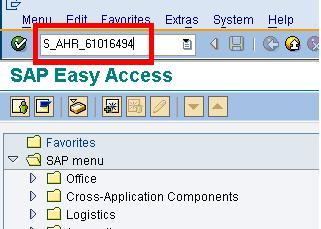
In the next SAP screen,

- Enter the Organizational Unit. You can search for the Org Unit if required
- Select the Reporting Period. In case you do not want to run the report for a period, select Key date, which will run the report for the particular date you have selected
- Select Status, which gives you the option to select the Plan version.

Click Execute
The report output is shown as follows –

