
PA30 & PA20 Tcode in SAP: Create & Change Infotype
 Editorial Team
⚡ Smart Summary
SAP PA30 and PA20 allow HR administrators to create, display, change, copy, delete, and review infotype records for employee master data management within the system.

How to Create an Infotype
Step 1) In the SAP command prompt, enter transaction PA30.
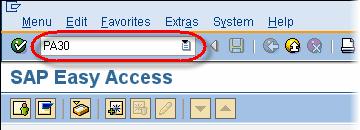
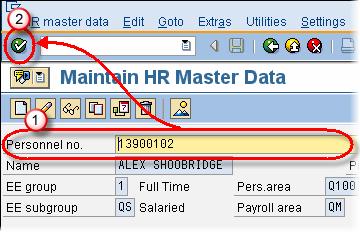
Step 2) In the next SAP screen:
- Enter the Personnel number.
- Click the Enter button.
- Select the relevant tab to view related infotypes.
- Select the infotype for which you wish to create a new record.

Step 3) Click the Create button.

Step 4) In the next SAP screen:
- Enter the Start and End dates for the new record.
- Enter data in the fields, ensuring all mandatory fields are completed.

Step 5) Click the Save button. The record is created.

How to Display an Infotype
Step 1) To display an infotype in SAP, use transaction PA30 or PA20.
Step 2) In the SAP command prompt:
- Enter transaction PA20.
- Click the Enter button.

Step 3) In the next SAP screen:
- Enter the Personnel number.
- Click the Enter button.

- Select the relevant tab to view related infotypes.
- Highlight the infotype you wish to display.

Step 4) Click the Display button.

Step 5) The infotype is displayed. SAP grays out all fields so no changes can be made.

How to Change an Infotype
Step 1) To change an infotype in SAP, use transaction PA30 or PA20.
Step 2) In the SAP command prompt, enter transaction PA30.
Step 3) In the next SAP screen:
- Enter the Personnel number.
- Click the Enter button.
- Select the relevant tab to view related infotypes.
- Select the infotype you wish to change.

Step 4) Click the Change button.
Step 5) In the next SAP screen, update the infotype fields as required.

Step 6) Click the Save button. The record is updated.
How to Copy an Infotype
Step 1) In the SAP command prompt, enter transaction PA30.
Step 2) In the next SAP screen:
- Enter the Personnel number.
- Click the Enter button.
- Select the relevant tab to view related infotypes.
- Select the infotype you wish to copy.
Step 3) Click the Copy button.

Step 4) In the next SAP screen:
- Set the validity dates for the new record.
- Specify any changes needed in the copied record.

Step 5) Click the Save button. The record is copied.
How to Delete an Infotype
Step 1) In the SAP command prompt, enter transaction PA30.
Step 2) In the next SAP screen:
- Enter the Personnel number.
- Click the Enter button.
- Select the relevant tab to view related infotypes.
- Select the infotype you wish to delete.

Step 3) Click the Delete button.

Step 4) In the confirmation screen, click the Delete button again.

Step 5) Click the Enter button. The record is deleted.
How to Display Overview of an Infotype
Step 1) In the SAP command prompt, enter transaction PA30.
Step 2) In the next SAP screen:
- Enter the Personnel number.
- Click the Enter button.
- Select the relevant tab to view related infotypes.
- Select the infotype for which you wish to see an overview.

Step 3) Select the period for the overview.

Step 4) Click the Overview button.

Step 5) The next SAP screen displays all time-delimited records for the infotype (in this example, IT14).

