
SAP SD: Create Material Master Data
 Editorial Team
⚡ Smart Summary
Material master data in SAP SD holds all the information needed to sell a material, organized into views. This resource explains creating a material master with transaction MM01, the key sales views, and the MM01, MM02, and MM03 transactions.
What Is a Material Master in SAP?
The material master is the central source of information for a material in SAP. It holds every detail the business needs to procure, store, produce, sell, and account for that material, and it is shared by every module rather than duplicated. Because so many teams use the same record, the data is organized into views, and each view is maintained by the department that owns it.
For example, the Basic Data view holds general information such as the description and unit of measure, the Sales views hold data for selling, the Purchasing view holds buying data, and the Accounting view holds valuation. A single material number ties all of these views together. This tutorial focuses on the sales views, which a Sales and Distribution consultant maintains so that the material can be quoted, ordered, delivered, and invoiced. Creating the material correctly at the start avoids errors later in the order-to-cash process.
Key Sales Views in the Material Master
When you create a material for selling, only some of the many material master views are relevant. The following views carry the data that the sales process depends on:
- Basic Data 1: General data such as the material description, base unit of measure, material group, and division.
- Sales: Sales Org Data 1: Sales organization and distribution channel data, including the sales unit, delivering plant, and tax classification.
- Sales: Sales Org Data 2: Additional sales data such as the material statistics group and item category group.
- Sales: General/Plant Data: Shipping data such as the transportation group, loading group, and availability check.
- Sales Text: Free text that can be printed on sales documents for the customer.
Costing and Accounting views are often maintained alongside these, because a material usually needs a valuation class before it can be saved. Maintaining the right views keeps the material ready for the full order-to-cash cycle.
Create Material Master Data
Purpose: This procedure is used to manually create a material master for different views. Here, the sales view is used.
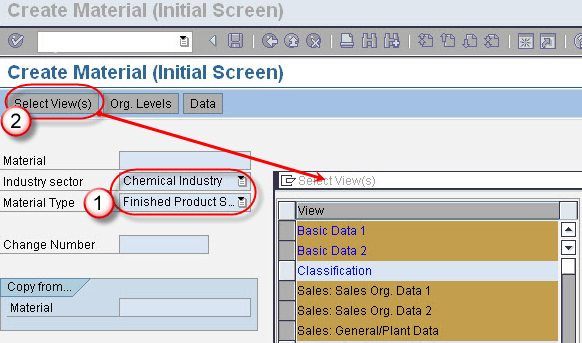
Step 1) Open transaction MM01, “Create Material”.
- Enter the industry sector and material type.
- Click on the Select View(s) button. A pop-up window appears. In the pop-up window, select the views for which the material is to be created and click on the check button.
Step 2) Now a screen appears with all the selected views as tabs.
- Select the Basic Data 1 tab.
- Enter the material description.
- Enter the Base Unit of Measure.
- Enter the material group.
- Enter the division.

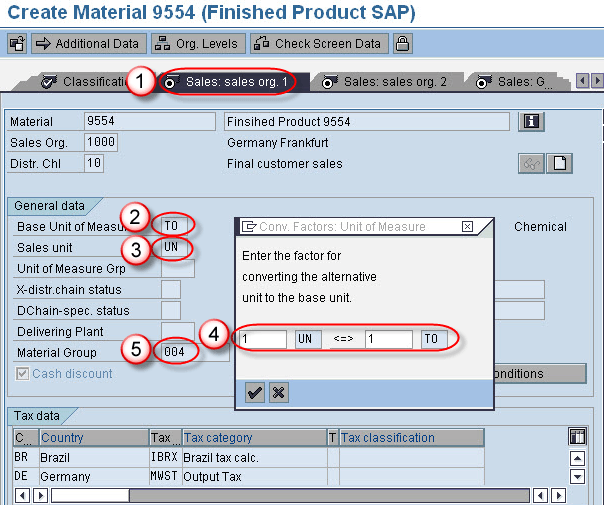
Step 3) Maintain the Sales Organization 1 view.
- Select the Sales Org 1 tab screen.
- The base unit of measure is displayed.
- Enter the Sales unit.
- A pop-up window appears for conversion factors; enter the conversion factors.
- The material group is displayed.
Step 4) Maintain the Sales: General/Plant view.
- Select the Sales: General/Plant tab screen.
- Enter the Transportation group.
- Enter the Loading group.

Step 5) Click on the tab list icon.

A list of all tabs appears. Select the Costing 2 tab from the list, then:
- Enter the valuation class for the material in the selected view.

Step 6) Click on the Save button. A message “Material 9554 Created” is displayed.

MM01, MM02, and MM03: Create, Change, and Display
SAP uses a family of transaction codes to manage the material master throughout its life. MM01 creates the material, while two related codes handle later changes and reviews of the same record. Because all three transactions work on the same material number, the record you create in MM01 is instantly available in MM02 and MM03 across every module that uses it.
| T-Code | Action | When to use it |
|---|---|---|
| MM01 | Create | Create a new material and maintain its views |
| MM02 | Change | Update an existing material, or extend it to new views or organizational levels |
| MM03 | Display | View the material master without changing anything |
Use MM01 once to bring a material into the system, then MM02 whenever data changes or a new view is required, such as extending the material to another sales organization. Reach for MM03 for a quick, safe look at the current values, since display mode cannot alter the record. Many organizations restrict change access through MM02 to trained master-data users, while display access through MM03 is shared widely so that anyone can check a material safely.
