
VBA Controls in Excel: Form & ActiveX
 Editorial Team
⚡ Smart Summary
VBA Controls in Excel are the interactive elements, such as buttons, check boxes, and text boxes, that build a graphical user interface. This page explains Form controls, ActiveX controls, how the two families differ, and a step-by-step ActiveX command button example.
VBA Controls: VBA Form Control & ActiveX Controls in Excel
VBA Form/GUI controls in Excel
GUI is the acronym for Graphical User Interface. The GUI is the part of the program that the user interacts with. A GUI is made up of controls. These Excel VBA controls can be used in a Form. The following table shows some of the most commonly used GUI VBA controls.
| S/N | Control | Description |
|---|---|---|
| 1 | Command | Used to execute code |
| 2 | Combo Box | Used to present a drop down list to the users |
| 3 | Check Box | Used for true or false values. Multiple check boxes can have true value at the same time. |
| 4 | List Box | Used to present a simple list to the users |
| 5 | Text Box | Used to accept user input |
| 6 | Scroll Bar | Used for to provide a scrollbar for navigation purposes. |
| 7 | Spin Button | Used to increment or decrease numeric values by clicking on up or down arrows that appear in the spin button |
| 8 | Option Button | Used for true or false values. Only one option button can have a true value at a time. |
| 9 | Label | Used to display static text to the user |
| 10 | Image | Used to display images |
| 11 | Toggle Button | Button that has pressed and un-pressed states. |
In the VBA GUI control,
- Click on the developer tab
- Click on Insert Drop down button
You will get the following drop down panel

If you hover the mouse over VBA form controls, the name of the control will appear as shown below

Adding GUI controls to a spreadsheet
We will now add a command button to our workbook, for that we have to
- Click on Insert drop down
- Click on Command Button (ActiveX Control) as shown in the image above
- Drag and draw the button on the sheet

Setting GUI control properties
We will now set the caption of the button to something more descriptive

- Right click on the equal button that we have just created
- Select properties menu
- You will get the following properties window

- Set the name property to btnButton. The name property is used to identify the control in the code window. btn is the prefix for the button.
- Set the Caption property to Click Me. The text in the caption property is what the users will see on the button.
Close the window when you are done.
You will get the following results.

Difference Between Form Controls and ActiveX Controls
Excel offers two families of controls, and choosing the right one keeps a project simple. Form controls are built into Excel and run a single assigned macro, while ActiveX controls are programmable objects that respond to many events through VBA code. The table below compares the two.
| Feature | Form Controls | ActiveX Controls |
|---|---|---|
| Setup | Simple; assign one macro to the control | Requires VBA event code to respond |
| Properties | Limited set of options | Extensive, including font, colour, and behaviour |
| Events | Single action on click | Many events such as Click, Change, and GotFocus |
| Compatibility | Works on Windows and Mac Excel | Works on Windows Excel only |
| Best suited for | Quick, simple worksheet tasks | Interactive and dynamic user forms |
In short, use a Form control when a single macro is enough, and choose an ActiveX control when the interface needs rich properties or must react to several user events.
Prerequisite
Before building the ActiveX example, prepare the workbook so the controls are available and the macros can be saved.
Configure Microsoft Excel
As we see in previous tutorial, make sure your ribbon will have “Developer” icon as shown here.

Now, rename sheet1 to “VBA Operator” as shown in screen-shot below. Save the workbook in an Excel Macro-Enabled Workbook (*.xlsm) file extension. (see the image below)

After that, click on Save button.
How to use ActiveX control in VBA
With the workbook ready, we can add a working ActiveX button. In this section of ActiveX control Excel, we will see how to incorporate ‘commandclick’ button in VBA and execute a program using the button.
Step 1) In this step, click the option “insert button” from the Active X Control. Then select the command button option from it.

Step 2) To insert “clickcommandbutton1” drag the mouse cursor to Excel sheet.

Step 3) Then right click on the command button and select option “View Code”.

Step 4) Check you are on the right sheet. A code editor will open. Enter your code.
- In code, we defined range A1 to A10.
- This range defines the cell number in the Excel sheet from “A1 to A10.”
- Next, we define the string “Guru99 VBA Tutorial” in code
- So, when you click on “command button” in excel. It should print “Guru99 VBA Tutorial” in the cell range “A1 to A10.”

Step 5) In next step, save code file and then exit the editor. To return to the Excel file click the Excel sheet icon  on the extreme left.

Step 6) In Excel sheet, you will see Design Mode tab is on. Make sure it is “OFF” or else your code will not work.
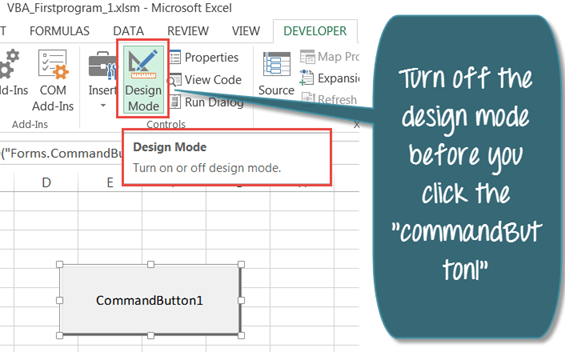
Step 7) When design mode is off, there will be no green highlight on it. Now you can Click on the command button.

Step 8) Click on “CommandButton1”. It will print “Guru99 VBA Tutorial” in the cell range “A1 to A10”.

Download Excel containing above code
Common ActiveX Control Events in VBA
An ActiveX control is powerful because it reacts to events, which are actions the user performs on the control. Each event runs its own subroutine, so the same button can behave differently depending on what the user does. The most common events are listed below.
- Click – runs the code when the user clicks the control, the event used in the example above.
- Change – runs when the value of a control changes, such as typing in a text box or picking a combo box item.
- GotFocus / LostFocus – runs when the control gains or loses focus, useful for validating input.
- KeyPress – runs when the user presses a key while the control is active.
- MouseMove – runs when the mouse pointer moves over the control.
- DblClick – runs when the user double-clicks the control.
To add code for any event, switch on Design Mode, right-click the control, choose View Code, and select the event from the drop-down list at the top of the code window.
