
Analytical Privileges in SAP HANA: How to Create?
 Editorial Team
⚡ Smart Summary
Analytic privileges in SAP HANA add row-level authorization on top of object privileges, so two users querying the same information view see only the records their assigned restrictions allow inside SAP HANA Studio.

What Are Analytic Privileges in SAP HANA?
Analytic privileges restrict a user to the data that user is authorised to see, so they are a core part of SAP HANA security.
SQL privileges grant authorisation at object level, not at record level. A user who holds SELECT on a view can read every row in it. Where a row-level restriction is needed, an analytic privilege is used instead.
Analytic privileges provide that authorisation on the following information views.
An analytic privilege is created below and assigned to the user “ABHI_TEST”, so that the user can see data for the company with value 1000 only. Both privileges are needed together: the object privilege opens the view, and the analytic privilege decides which rows come back.
How to Create an Analytic Privilege in SAP HANA
The six steps below run in SAP HANA Studio, from creating the privilege to testing it with a second user.
Step 1) Go to Analytic Privileges. Right-click the Modelling package, then choose New –> Analytic Privileges, as shown below.

Step 2) The New pop-up appears. Enter the analytic privilege details shown below.
- Enter the analytic privilege name and label.
- The package name is selected automatically.
- The selection option creates a new privilege.

In the next step, the analytic privilege editor is displayed for adding and editing privileges.
Step 3) Click the ‘OK’ button. The analytic privilege editor opens, and the reference model is selected first.
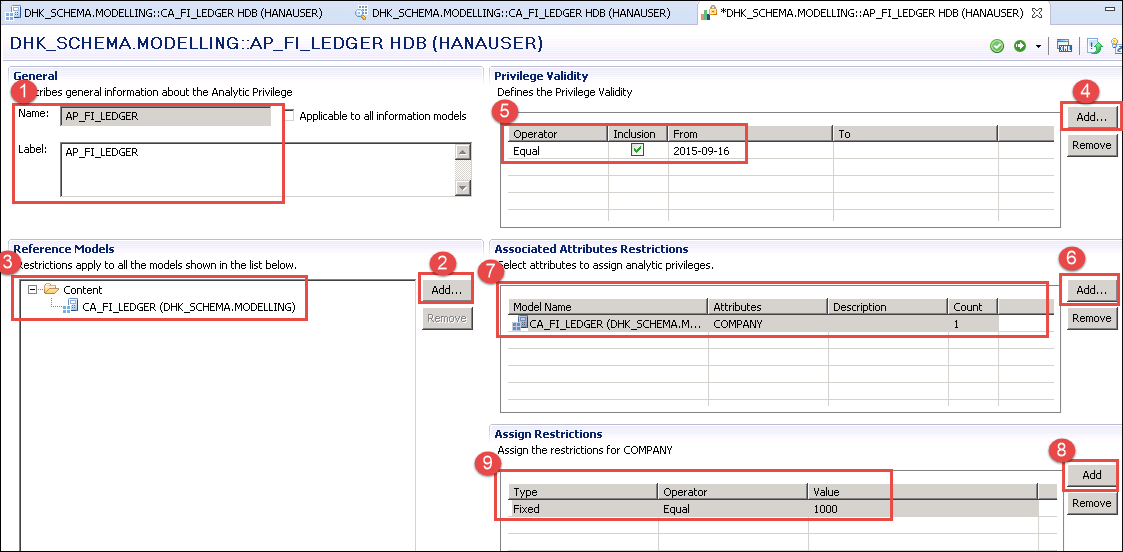
- The General section displays the name and the label.
- Click the “Add” button in the Reference Models section, as shown below.
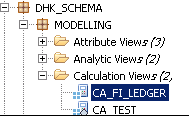
- Select the calculation view (CA_FI_LEDGER) created earlier.
The validity and the attribute restriction are then defined in the same editor.
- Click the Add button to create the validity of the privilege.
- Assign the privilege validity.
- Click the Add button to select the attribute that carries the restriction.
- Select the attribute Company.
- Click the add button to assign a value to that attribute.
- Assign the value by selecting the type or operator and the value. Here the user is restricted to data of the calculation view for company 1000 only, as shown below.
Validate and activate the analytic privilege. It is then created in the Analytic Privileges folder under the Modelling package, as shown below.

Step 4) Assign the analytic privilege to the user “ABHI_TEST”, who already holds privileges on the Modelling package. Double-click the user “ABHI_TEST” under Security -> Users.
- Select the Analytic Privileges tab.
- Click the “+” button.
- A pop-up for Select Analytic Privileges is displayed. Enter the name of the analytic privilege created earlier.
- Select the analytic privilege.
- Click the OK button, as shown below.

The analytic privilege is added to the user, as shown below.

Step 5) Deploy the change to the user by clicking the deploy button. A message is displayed stating that user ‘ABHI_TEST’ was changed, as shown below.

Step 6) Check the analytic privilege. Log on as “ABHI_TEST” from the HANAUSER system to confirm that the assignment works.
- Select the HDB (HANAUSER) current system and right-click it.
- Select “Add System with Different User”, then enter the user name and password for “ABHI_TEST”, as shown below.
- A system HDB (ABHI_TEST) is added to the system list.

The ABHI_TEST user does not have full access to the data of the calculation view created by HANAUSER, because HANAUSER created an analytic privilege restricting that view to company 1000 and assigned it to ABHI_TEST.
Go to the Content folder -> select the package -> calculation view (CA_FI_LEDGER) -> right-click -> Data Preview. The data preview screen is displayed as below.

Data in the calculation view is restricted to company code 1000, which confirms that the analytic privilege is active for that user.
Classic XML and SQL Analytic Privileges Compared
Two kinds of analytic privilege exist, and the choice matters for any new development. The editor shown above creates the classic, XML-based privilege. SQL analytic privileges were introduced in SAP HANA 1.0 SPS 10 and express the same restriction as a SQL filter condition.
| Aspect | Classic (XML-based) | SQL analytic privilege |
|---|---|---|
| Definition | Maintained graphically in the modeler and stored as an XML design-time object. | Defined by a SQL filter condition, so complex logic stays readable. |
| Conditions | Attribute restrictions with simple operators. | Full SQL expressions, including nested and combined conditions. |
| Status | Deprecated as of SAP HANA 2.0 SPS 02. | Recommended for every new privilege. |
| Availability | Not available in SAP HANA Cloud. | Supported in SAP HANA 2.0 and SAP HANA Cloud. |
The SAP HANA modeler ships a migration activity that converts classic XML-based privileges into SQL-based ones, so existing restrictions do not have to be rewritten by hand. In SAP HANA Cloud the privilege becomes a design-time artefact inside an HDI container and reaches the user through a role rather than through the user editor.
How Analytic Privilege Restrictions Are Evaluated
Knowing how the conditions combine avoids restrictions that return either too much or nothing at all.
- Several values listed for one attribute are combined with a logical OR, so a user may see company 1000 or company 2000.
- Restrictions on different attributes are combined with a logical AND, so company and country both have to match.
- When a user holds several analytic privileges on the same view, the results are added together, which widens rather than narrows access.
- A static restriction stores fixed values, while a dynamic restriction reads the permitted values at runtime from a procedure, so one privilege can serve many users.
A view is only checked when its Apply Privileges property names the privilege type, and the check runs in addition to the SELECT object privilege. Column views generated by activation live in the _SYS_BIC schema, and the effective restrictions of a user can be read from the EFFECTIVE_STRUCTURED_PRIVILEGES system view.
Common Analytic Privilege Errors and Fixes
Most authorisation problems on an information view come from one of the situations below.
- Not authorized error on a view. The user holds the analytic privilege but not SELECT on the generated column view, or on the underlying schema. Grant both.
- The preview returns no rows. The restricted attribute holds no matching value, or the validity period of the privilege has already ended.
- The restriction is ignored. The privilege was created but never activated, or the view does not have its Apply Privileges property set.
- The change has no effect. The assignment was not deployed, or the user session started before the deployment and has to reconnect.
- Everything is visible anyway. The user holds _SYS_BI_CP_ALL, which grants unrestricted access to every information view and should stay out of production roles.
Grant analytic privileges through roles rather than directly to users, so the same restriction can be reviewed, transported and revoked in one place. Modeling context for the protected views is covered in the SAP HANA modeling and SAP HANA guides.
