
Java Hello World Program
 Editorial Team
⚡ Smart Summary
Java Hello World Program walks new developers through writing, compiling, and running their first Java application on Windows using only Notepad, the JDK, and the command prompt for a clean, beginner-friendly introduction.
What Is the Java Hello World Program?
The Java Hello World Program is the traditional first exercise for anyone learning Java. It is a tiny class that prints the text Hello World to the console and demonstrates the core moving parts of every Java application: a class declaration, a main method, and an output statement. Writing and running this program confirms that the JDK is installed correctly and that the javac compiler and java runtime are reachable from your terminal.
Software You Need Before You Start
You need the following two pieces of software to create your first Java program.
1. The Java SE Development Kit
Install a current JDK release. JDK 17 and JDK 21 are long-term-support (LTS) versions and remain the recommended choices for new learners in 2026. Please refer to our previous tutorial to download and install JDK.
2. A Text Editor
In this Java Hello World example, we use Notepad. It is a simple editor included with the Windows operating system. You can use a different text editor like Notepad++, Visual Studio Code, or an online Java compiler.
Hello World Java – Your First Java Program Video
This video will help you learn how to start a Java program.
Click here if the video is not accessible
Steps to Compile and Run the Hello World Program in Java
Here is a step-by-step process on how to write, compile, and run your first Java program.
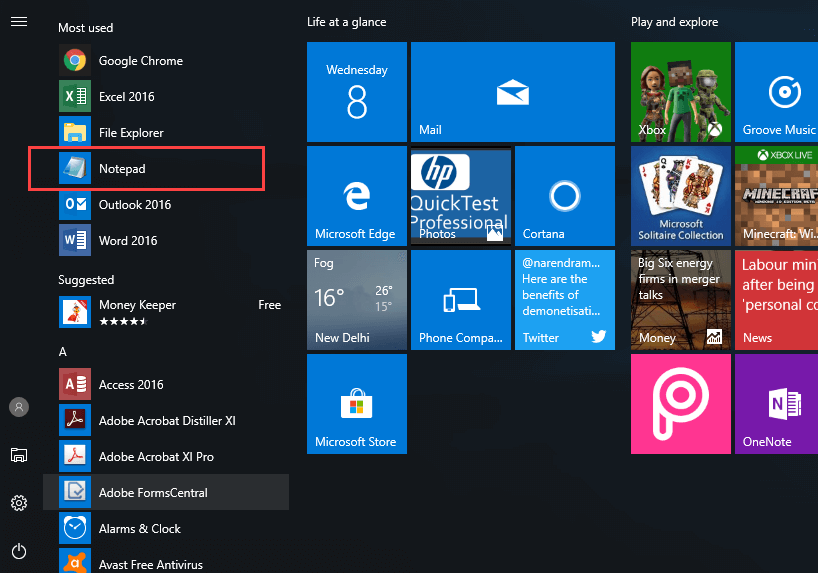
Step 1) Open Notepad from the Start menu by selecting Programs > Accessories > Notepad.
Step 2) Create the source code for your Hello World program in Java.
- Declare a class with the name A.
- Declare the main method public static void main(String args[]){.
- Now type System.out.println(“Hello World”);, which will print Hello World in Java.

class A {
 public static void main(String args[]){
     System.out.println("Hello World");
 }
}
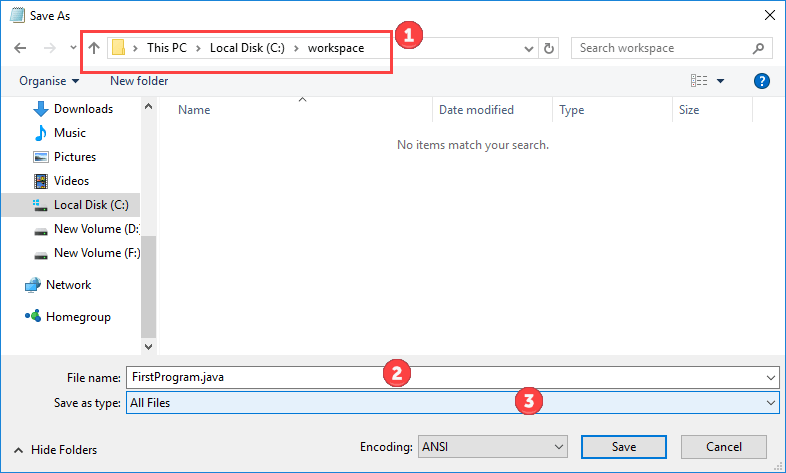
Step 3) Save the file for your Java Hello World program as FirstProgram.java. Make sure to select the file type as All Files while saving the file in your working folder C:\workspace.
Step 4) Open the command prompt. Go to the directory C:\workspace. Compile the code of your Hello World Java program using the command:
javac FirstProgram.java

Verifying the Compiled Class File
Step 5) If you look in your working folder, you can see that a file named A.class has been created. This file holds the platform-independent bytecode produced by javac.

Step 6) To execute the code, enter the command java followed by the class name. The expected output Hello World is displayed.
java A

Note: Java is a case-sensitive programming language. All code, commands, and file names should use consistent casing. FirstProgram is not the same as firstprogram.
Step 7) If you copy and paste the same code into an IDE like Eclipse, compiling and execution are handled with the click of a button. Using an IDE is convenient and improves productivity, but since you are learning Java, we recommend you stick with Notepad for simple Java program execution.

What Is a Command Line Argument in Java?
A command line argument in Java is information that is passed to the program when it is executed. The information passed is stored in the String array that is supplied to the main() method, and each value is stored as a string. It is the data that directly follows the program’s name on the command line when it is launched.
Example
While running a class Demo, you can specify command line arguments as follows.
java Demo arg1 arg2 arg3 ...
Command Line Arguments in Java: Important Points
- Command line arguments can be used to specify configuration information while launching your application.
- There is no restriction on the number of Java command line arguments. You can specify any number of arguments.
- Information is passed as strings.
- The values are captured in the String args array of your main method.
Example: Learn Java Command Line Arguments
Step 1) Copy the following code into an editor.
class Demo{
     public static void main(String args[]){
         System.out.println("Argument one = "+args[0]);
         System.out.println("Argument two = "+args[1]);
    }
}
Step 2) Save and compile the code.
Step 3) Run the code as java Demo apple orange.

Step 4) You should see the following output.

