
File Permissions in Linux / Unix: How to Read, Write & Change
 Editorial Team
⚡ Smart Summary
File permissions in Linux and Unix control who can read, write, and execute each file, protecting a multi-user system through two layers: ownership, which assigns a user, group, and others, and the read, write, and execute permission bits.
File permissions in Linux and Unix decide who may read, modify, or run each file, which keeps a shared, multi-user system secure. This page walks through file ownership, the read, write, and execute permissions, and the commands that change them.
Linux is a clone of Unix, the multi-user operating system that can be accessed by many users simultaneously. Linux can also be used on mainframes and servers without any modification. But this raises security concerns, as an unsolicited or malicious user can corrupt, change, or remove crucial data. For effective security, Linux divides authorization into two levels:
- Ownership
- Permission
The concept of file permission and ownership is crucial in Linux. Here, we explain Linux permissions and ownership and discuss both of them. Let us start with ownership.
Linux File Ownership
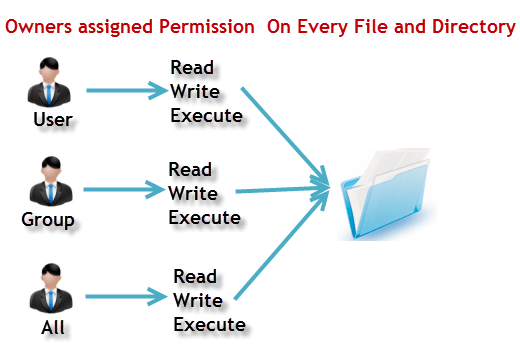
Every file and directory on your Unix/Linux system is assigned three types of owner, given below. The diagram below shows how ownership maps to the user, the group, and others.
User
A user is the owner of the file. By default, the person who created a file becomes its owner. Hence, a user is also sometimes called an owner.
Group
A user group can contain multiple users. All users belonging to a group have the same Linux group permissions to the file. Suppose you have a project in which a number of people require access to a file. Instead of manually assigning permissions to each user, you can add all the users to a group and assign group permission to the file, so that only these group members, and no one else, can read or modify the files.
Other
Any other user who has access to a file. This person has neither created the file nor belongs to a user group that could own the file. Practically, it means everybody else. Hence, when you set the permission for others, it is also referred to as setting permissions for the world.
Now the big question arises: how does Linux distinguish between these three user types so that a user ‘A’ cannot affect a file that contains some other user ‘B’s’ vital information or data? It is like not wanting a colleague who works on your Linux computer to view your images. This is where permissions come in, and they define user behavior.
Let us understand the permission system on Linux.
Linux File Permissions
Every file and directory in your Unix/Linux system has the following three permissions defined for all three owners discussed above.
- Read: This permission gives you the authority to open and read a file. Read permission on a directory gives you the ability to list its contents.
- Write: The write permission gives you the authority to modify the contents of a file. The write permission on a directory gives you the authority to add, remove, and rename files stored in the directory. Consider a scenario where you have write permission on a file but do not have write permission on the directory where the file is stored. You will be able to modify the file contents, but you will not be able to rename, move, or remove the file from the directory.
- Execute: In Windows, an executable program usually has a “.exe” extension, which you can easily run. In Unix/Linux, you cannot run a program unless the execute permission is set. If the execute permission is not set, you might still be able to see or modify the program code (provided read and write permissions are set), but not run it.
Let us see file permissions in Linux with examples. Running ls -l on the terminal gives:
ls -l
The screenshot below shows the permission string in a long listing.

Here, we have highlighted ‘-rw-rw-r–‘, and this odd-looking code is the one that tells us about the Unix permissions given to the owner, the user group, and the world.
Here, the first ‘-‘ implies that we have selected a file. The icon below marks a regular file.

Otherwise, if it were a directory, a ‘d’ would have been shown, as in the listing below.

The characters are pretty easy to remember.
- r = read permission
- w = write permission
- x = execute permission
- – = no permission
Let us look at it this way. The first part of the code is ‘rw-‘. This suggests that the owner ‘Home’ can:
- Read the file
- Write or edit the file
The owner cannot execute the file, since the execute bit is set to ‘-‘. The icon below shows the execute bit cleared to a dash.

By design, many Linux distributions such as Fedora, CentOS, and Ubuntu add a user to a group with the same name as the user. Thus, a user ‘tom’ is added to a group named ‘tom’.
The second part is ‘rw-‘. It is for the user group ‘Home’, and group members can:
- Read the file
- Write or edit the file
The third part is for the world, which means any user. It says ‘r–‘. This means the user can only:
- Read the file
The breakdown below maps each part of the permission string to the owner, the group, and the world.
.png)
Changing file/directory permissions in Linux Using the ‘chmod’ command
Say you do not want a colleague to see your personal images. This can be achieved by changing file permissions.
We can use the ‘chmod’ command, which stands for ‘change mode’. Using the command, we can set permissions (read, write, execute) on a file or directory for the owner, the group, and the world.
Syntax:
chmod permissions filename
There are two ways to use the command:
- Absolute mode
- Symbolic mode
Absolute (Numeric) Mode in Linux
In this mode, file permissions are not represented as characters but as a three-digit octal number. The table below gives the numbers for all permission types.
| Number | Permission Type | Symbol |
|---|---|---|
| 0 | No Permission | — |
| 1 | Execute | –x |
| 2 | Write | -w- |
| 3 | Execute + Write | -wx |
| 4 | Read | r– |
| 5 | Read + Execute | r-x |
| 6 | Read + Write | rw- |
| 7 | Read + Write + Execute | rwx |
Let us see the chmod command in action, as shown in the terminal window below.
.png)
In the terminal window above, we have changed the permissions of the file ‘sample’ to ‘764’. The ‘764’ absolute code says the following:
- Owner can read, write, and execute.
- User group can read and write.
- World can only read.
This is shown as ‘-rwxrw-r–‘, as in the result below.
.png)
This is how you can change user permissions in Linux on a file by assigning an absolute number.
Symbolic Mode in Linux
In absolute mode, you change permissions for all three owners. In symbolic mode, you can modify the permissions of a specific owner. It makes use of mathematical symbols to modify the Unix file permissions.
| Operator | Description |
|---|---|
| + | Adds a permission to a file or directory |
| – | Removes the permission |
| = | Sets the permission and overrides the permissions set earlier |
The various owners are represented as follows.
| User | Denotations |
|---|---|
| u | user/owner |
| g | group |
| o | other |
| a | all |
We will not be using permissions in numbers like 755 but characters like rwx. Let us look at the example shown below.
.png)
Changing Ownership and Group in Linux
For changing the ownership of a file or directory, you can use the following command:
chown user filename
In case you want to change the user as well as the group for a file or directory, use the command:
chown user:group filename
Let us see this in action, as shown below.
.png)
In case you want to change the group owner only, use the command:
chgrp group_name filename
‘chgrp’ stands for change group. The screenshot below shows the chgrp command in use.

Tip
- The file /etc/group contains all the groups defined on the system.
- You can use the command “groups” to find all the groups you are a member of, as shown below.

- You can use the command newgrp to work as a member of a group other than your default group, as shown below.

- You cannot have two groups owning the same file.
- You do not have nested groups in Linux. One group cannot be a sub-group of another.
- x — executing a directory means being allowed to “enter” a directory and gain possible access to sub-directories.
- There are other permissions that you can set on files and directories, which will be covered in a later advanced tutorial.
