
Input Output Redirection in Linux/Unix Examples
 Editorial Team
⚡ Smart Summary
Redirection in Linux and Unix changes where a command reads input or sends output, swapping the keyboard and screen for files or devices using operators such as the greater-than sign, the less-than sign, and the append operator.

Redirection is one of the most useful features of the Linux and Unix shell, because it lets you decide where a command reads its input and sends its output. This page explains output, input, and error redirection with worked examples.
What is Redirection?
Redirection is a feature in Linux such that, when executing a command, you can change the standard input and output devices. The basic workflow of any Linux command is that it takes an input and gives an output.
- The standard input (stdin) device is the keyboard.
- The standard output (stdout) device is the screen.
With redirection, the standard input and output above can be changed.
Output Redirection
The graphic below marks the start of the output redirection examples.

The ‘>’ symbol is used for output (STDOUT) redirection.
Example:
ls -al > listings
Here the output of the command ls -al is redirected to the file “listings” instead of your screen. The screenshot below shows the result.

Note: Use the correct file name while redirecting command output to a file. If a file with the same name already exists, the redirected command deletes its contents and then overwrites it.
If you do not want a file to be overwritten but want to add more content to an existing file, then use the ‘>>’ operator. The screenshot below shows content appended with ‘>>’.

You can redirect standard output not just to files, but also to devices.
$ cat music.mp3 > /dev/audio
The cat command reads the file music.mp3 and sends the output to /dev/audio, which is the audio device. If the sound configuration on your PC is correct, this command plays the file music.mp3.
Input redirection
The graphic below introduces input redirection.

The ‘<‘ symbol is used for input (STDIN) redirection.
Example: The mail program in Linux can help you send emails from the terminal.
You can type the contents of the email using the keyboard, the standard input device. But if you want to attach a file to the email, you can use the input redirection operator in the following format.
mail -s "Subject" to-address < Filename
The screenshot below shows the mail command reading a file as its input.

This attaches the file to the email, and it is sent to the recipient.
The examples above were simple. Now look at some advanced redirection techniques that make use of file descriptors.
File Descriptors (FD)
In Linux and Unix, everything is a file. Regular files, directories, and even devices are files. Every file has an associated number called a file descriptor (FD).
The diagram below shows the standard streams and their file descriptors.
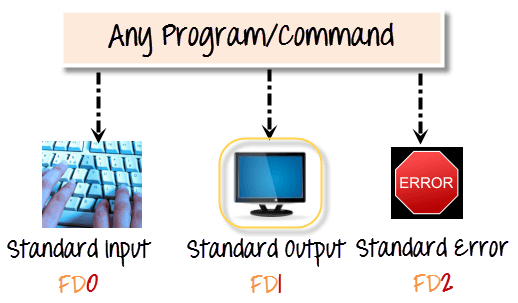
Your screen also has a file descriptor. When a program is executed, the output is sent to the file descriptor of the screen, and you see the program output on your monitor. If the output were sent to the file descriptor of the printer, the program output would be printed.
Error Redirection
Whenever you execute a program or command at the terminal, three files are always open, namely standard input, standard output, and standard error.
These files are always present whenever a program runs. As explained before, a file descriptor is associated with each of these files.
| File | File Descriptor |
|---|---|
| Standard Input STDIN | 0 |
| Standard Output STDOUT | 1 |
| Standard Error STDERR | 2 |
By default, the error stream is displayed on the screen. Error redirection routes the errors to a file other than the screen.
Why Error Redirection?
Error redirection is one of the very popular features of Unix and Linux.
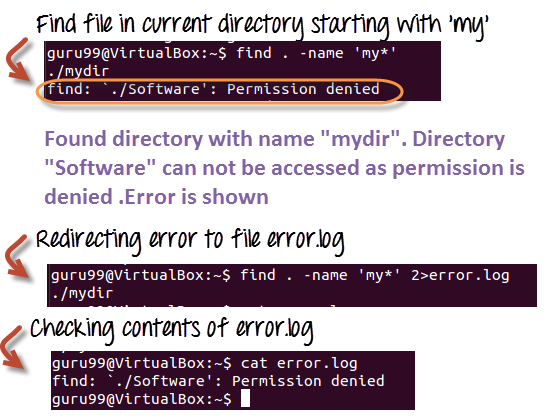
Frequent Unix users will know that many commands give you massive amounts of errors. For instance, while searching for files, one typically gets permission denied errors, which usually do not help the person searching for a particular file. While executing shell scripts, you often do not want error messages cluttering up the normal program output.
The solution is to redirect the error messages to a file.
Example 1
$ myprogram 2>errorsfile
The screenshot below shows this command in the terminal.

Above, we are executing a program named myprogram. The file descriptor for standard error is 2. Using “2>”, we redirect the error output to a file named “errorsfile”. Thus, the program output is not cluttered with errors.
Example 2
Here is another example that uses the find statement.
find . -name 'my*' 2>error.log
Using the find command, we are searching the current directory “.” for a file whose name starts with “my”, and sending any errors to error.log.
Example 3: Let us look at a more complex example.
Server administrators frequently list directories and store both error and standard output in a file, which can be processed later. Here is the command.
ls Documents ABC> dirlist 2>&1
The diagram below shows both streams being captured in one file.
Here:
- 2>&1 means that STDERR is redirected to the same target as STDOUT (which is the file dirlist).
- The error output is redirected to standard output, which in turn is redirected to the file dirlist. Hence, both streams are written to the file dirlist.
The diagram below summarizes how input, output, and error redirection fit together.
.png)
