
Linux/Unix Virtual Terminal
 Editorial Team
⚡ Smart Summary
Virtual terminals are text-based consoles that let several users run commands on one Linux computer at the same time, each logging in separately, switching with keyboard shortcuts, and working entirely without a mouse.
Because Linux is a multi-user operating system, several people can work on the same machine at once. Virtual terminals make this possible by providing separate text-based login sessions, so different users can run commands side by side without a graphical desktop.
What are Virtual Terminals?
Virtual terminals are similar to the terminal that you have been using so far. They are used for executing commands and providing input. The only difference is that you cannot use the mouse with a virtual terminal, so you need to know the keyboard shortcuts.
The image below shows the familiar Linux terminal that a virtual terminal closely resembles.

Virtual terminals enable a number of users to work on different programs at the same time on the same computer. This is one of the most distinguished features of Linux.
Let us learn how to access and use them.
Starting a Virtual Terminal
Usually, there are six (default) virtual terminals on a Linux operating system, and you can log into each one as a different user to conduct different tasks. The steps to launch a virtual terminal are:
Step 1) Press Ctrl+Alt+F1 to open a virtual terminal, as shown below.

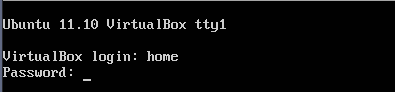
Step 2) Enter your user ID and password at the login prompt.
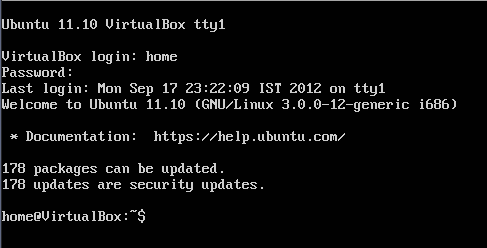
Step 3) The virtual terminal is now ready to work on.
Navigating through Virtual Terminals
You can navigate between the six virtual terminals using the following key combination.
Ctrl + Alt + F (1 to 6) key
F1 is the first virtual terminal, while F6 is the last. You can keep a session open on all of them at the same time.
To check which virtual terminal you are working on, note the tty value shown at the top of the screen.

tty is the teletype number, which you can also find by typing the command “tty”.

The seventh terminal
The seventh terminal is the one we have been using so far in the Linux tutorials. It can be accessed by pressing the key combination given below.
Ctrl + Alt + F7
On many modern Linux distributions the graphical desktop instead runs on the first or second virtual terminal, so the exact function key that returns you to the desktop can vary from one system to another.
Virtual Terminal shortcuts
These are some of the shortcuts that you should be aware of while working on virtual terminals and other Linux command sessions.
| Shortcut | Function |
|---|---|
| Home or Ctrl + a | Move the cursor to the start of the current line |
| End or Ctrl + e | Move the cursor to the end of the current line |
| Tab | Autocomplete commands |
| Ctrl + u | Erase the current line |
| Ctrl + w | Delete the word before the cursor |
| Ctrl + k | Delete the line from the cursor position to the end |
| reset | Reset the terminal |
| history | List of commands executed by the user |
| Arrow up | Scroll up in history and press Enter to execute |
| Arrow down | Scroll down in history and press Enter to execute |
| Ctrl + d | Log out from the terminal |
| Ctrl + Alt + Del | Reboot the system |
The virtual terminal below shows a working command session where these shortcuts apply.

