
How to Download Tableau Public (Free)
 David Carter
⚡ Smart Summary
Download and Install Tableau guides beginners through both editions: the free Tableau Public for personal projects and Tableau Desktop for professional analytics. The walkthrough covers system setup, registration, workspace orientation, and navigation across worksheets, dashboards, and stories.

Difference Between Tableau Public and Tableau Desktop
Tableau ships in two editions for different audiences:
- Tableau Public (Free)
- Tableau Desktop (Commercial)
The table below compares them across pricing, data access, and intended usage.
| Tableau Desktop | Tableau Public | |
|---|---|---|
| Pricing | Tableau Creator subscription (paid; check the official Tableau pricing page for current rates) | Free and openly available |
| Data Source Connection | Connect to any data source, including databases, cloud apps, and web data | Connect to Excel, text, and a limited set of file formats |
| Publish/Save | Save locally and publish to Tableau Server or Tableau Cloud | Publish only to the public Tableau Public profile |
| OS | Windows and Mac | Windows and Mac |
| Security | Data and visualizations are private and secured | Workbooks are public; not suitable for confidential data |
| Usage | Professional and enterprise analytics | Personal projects, learning, and portfolio sharing |
| Data Extract | Extract data from many sources and store as a Tableau extract (.hyper) file | Limited to Excel and text-based sources only |
Note: To follow examples in these tutorials, you will need access to Tableau Desktop. The steps below cover installing Tableau Desktop on a Windows machine, which includes a 14-day trial.
How to Download and Install Tableau Public
If you only need to explore Tableau or build sample dashboards, the free Tableau Public version is the fastest path. Follow these four steps to install it on Windows.
Step 1) Visit https://public.tableau.com/en-us/s/download in your browser. Enter your email and click “DOWNLOAD THE APP“.

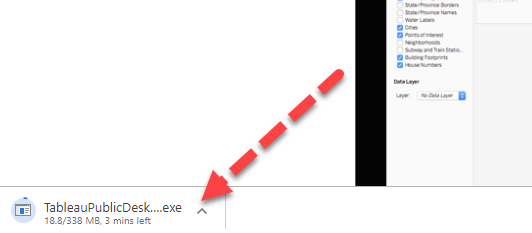
Step 2) The Tableau Public .exe file begins downloading for Windows by default. You can monitor progress in the bottom-left corner of the browser.
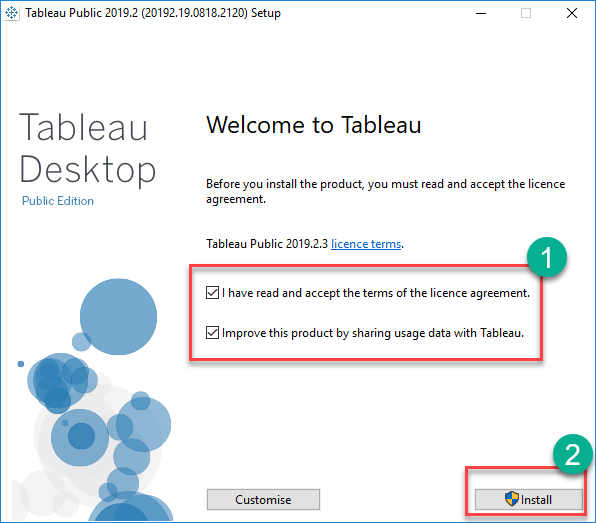
Step 3) Open the downloaded file. Accept the terms and conditions and click “Install“.
Step 4) After installation completes, the Tableau Public Start Screen is displayed.

How to Download and Install Tableau Desktop
For full data source connectivity, governed publishing, and enterprise analytics, install Tableau Desktop with a 14-day free trial.
Step 1) Open https://www.tableau.com/products/desktop in your browser.

Step 2) Click the “TRY NOW” button in the top-right corner.

Step 3) The next page asks for your email. Enter it and click “DOWNLOAD FREE TRIAL“.

Step 4) The Tableau Desktop installer (.exe) downloads in the background. Watch the progress in the bottom-left corner of the browser.

Step 5) Open the downloaded file, accept the terms and conditions, and click “Install“.

Step 6) A User Account Control prompt may ask for administrator approval. Click “Yes” to allow installation.
Step 7) Once the download and installation complete, launch Tableau Desktop.
Step 8) In the Registration window:
- Click “Activate Tableau” and enter your license details.
- If you do not have a license yet, fill in your work credentials.
- Click “Start Trial Now“.

Step 9) Wait for the registration process to finish.

Step 10) The Tableau Desktop Start Screen appears.
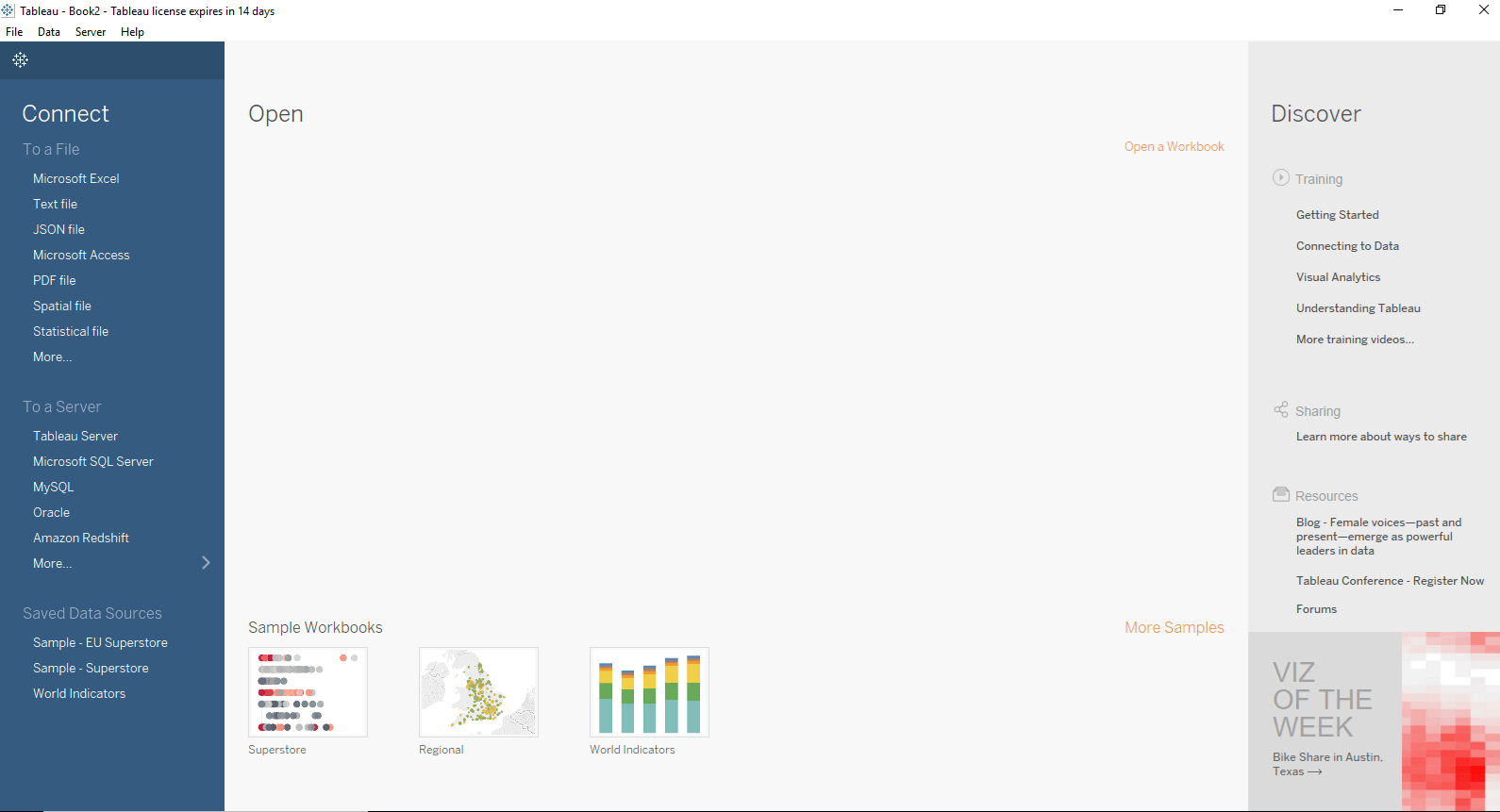
You are now ready to use Tableau Desktop on your Windows system.
Tableau Desktop Workspace and Navigation Overview
After launch, choose File > New to open a Tableau workspace. The interface is divided into shelves, panels, and the worksheet canvas. Each element listed below has a specific role when you build a visualization.

Menu Bar: Holds File, Data, Worksheet, Dashboard, Story, Analysis, Map, Format, Server, and Window options. These cover saving, data connections, exports, table calculations, and design controls for worksheets, dashboards, and stories.
Toolbar Icons: Located below the menu bar; provide quick access to undo, redo, save, new data source, and slideshow actions.
Dimension Shelf: Shows categorical fields (such as region or product) from the connected data source.
Measure Shelf: Lists numeric fields available for aggregation and analysis.
Sets and Parameters Shelf: Displays user-defined sets and parameters; supports editing existing entries.
Page Shelf: Animates the visualization across discrete values when a relevant filter is dropped here.
Filter Shelf: Restricts the data shown in the visualization based on dimensions or measures placed on it.
Marks Card: Controls the visual encoding (color, size, shape, path, label, and tooltip) used to design the chart.
Worksheet: The canvas where the actual visualization is built and viewed.
Tableau Repository: Stores files related to Tableau Desktop, including Bookmarks, Connectors, Datasources, Extensions, Logs, Mapsources, Services, Shapes, TabOnlineSyncClient, and Workbooks. The default path on Windows is C:\Users\<User>\Documents\My Tableau Repository.

Tableau Workbook Navigation
The bottom of the workspace provides navigation tabs that let you organize the workbook into multiple analytical surfaces.

Data Source: Add a new data source or modify an existing one using the Data Source tab at the bottom of the window.
Current Sheet: Displays the active sheet name. All sheets, dashboards, and storyboards in the workbook are listed in this row.
New Sheet: Creates a new worksheet inside the workbook.
New Dashboard: Creates a new dashboard, used to combine several worksheets into one interactive layout.
New Storyboard: Creates a new storyboard, ideal for guided narratives that walk an audience through a sequence of insights.
Common Issues During Tableau Installation
A clean Windows machine can still throw errors. The fixes below cover the common ones:
- Installer Blocked by Antivirus: Allow-list the .exe and rerun as Administrator.
- Insufficient Disk Space: Free at least 1.5 GB on the system drive before installing.
- Trial Activation Fails: Confirm system clock and time zone, and check for network proxies.
- 32-bit Compatibility: Tableau requires 64-bit Windows 10 or 11; 32-bit systems are not supported.
- Mac Apple Silicon: Download the M1/M2 native build to avoid Rosetta translation issues.
