
Crontab in Linux: Job Scheduling EXAMPLES
 Editorial Team
⚡ Smart Summary
Crontab in Linux schedules commands to run automatically at fixed times, dates, or intervals using the cron daemon, letting administrators automate backups, log cleanup, notifications, and routine system maintenance without any manual intervention.

Crontab, short for cron table, is the configuration file and command that drive Linux job scheduling. The sections below explain the crontab format, the commands to add, list, and remove jobs, the special @ strings, and ready-to-use scheduling examples.
What is crontab?
Cron is named after the Greek word “Chronos”, meaning time. It is a system process (a daemon) that automatically performs tasks on a set schedule. Cron is a set of commands used for running regular scheduled tasks. Crontab stands for “cron table”, and it lets you use the cron job scheduler to execute those tasks.
Crontab is also the name of the program used to edit that schedule. It is driven by a crontab file — a configuration file that lists the shell commands to run periodically on the specified schedule.
Why Use Cron Jobs?
Here are the main reasons for using cron jobs in Linux:
- Takes scheduled backups of log files or databases.
- Deletes old log files automatically.
- Archives and purges database tables.
- Sends notification emails such as newsletters or password-expiration reminders.
- Performs regular clean-up of cached data.
- Automates repetitive Unix and Linux jobs.
- Automates routine system maintenance.
How to use cron in Linux?
The Linux system package includes a useful task scheduler named crontab. Crontab is popular because a job can be scheduled to run as the root user, which makes automated system changes easier. You simply change the task once and then wait until it is triggered again on schedule.
Linux Crontab Format
A Linux crontab entry has six fields. The first five fields define the time and date of execution, and the sixth field holds the command to run.
Crontab syntax:
[Minute] [hour]
[Day_of_the_Month]
[Month_of_the_Year]
[Day_of_the_Week]
[command]
The diagram below maps each asterisk in a crontab entry to the field it controls, from minute through day of the week, followed by the command to execute.
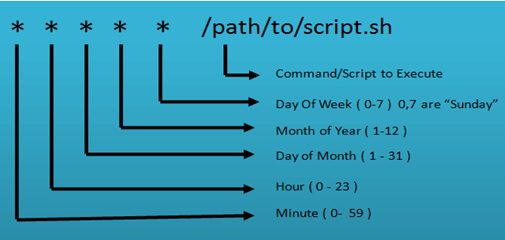
The five time fields accept these values: minute (0–59), hour (0–23), day of the month (1–31), month (1–12 or jan–dec), and day of the week (0–7, where 0 and 7 both mean Sunday). You control each field with these special characters:
- Asterisk (*): Matches every possible value for that field.
- Define a range: Use a hyphen to set a range, such as 1-10, 30-40, jan-mar, or mon-wed.
- Define multiple ranges: Use commas to combine ranges, such as apr-jun,oct-dec.
How to Add/Modify Crontab
Users can edit their own crontab jobs with the following crontab command. The -u option targets a specific user’s crontab, so supply the username as shown in the later examples:
$ crontab -u -e
The command above opens the personal crontab configuration for your system, which you can edit in your default text editor.
There is no need to restart cron; it picks up your changes automatically. To view your current jobs, use:
$ crontab -l
To remove your crontab tasks, use the following command:
$ crontab -r
To add or update a job in the crontab, use the command below:
crontab -e
To edit another user’s crontab, name the user with the -u option:
crontab -u username -e
How to List Crontab
To view the crontab entries of the current user:
crontab -l
To view the crontab entries of a specific user:
crontab -u username -l
Important Crontab Examples
Here are some important, ready-to-use examples of crontab schedules:
| Description | Command |
|---|---|
| Runs the various scheduling jobs. The command below executes at 7 AM and 5 PM daily. |
0 7,17 * * * /scripts/script.sh
|
| Executes a cron job every 5 minutes. |
*/5* * * * * /scripts/script.sh
|
| Executes the task every Monday at 5 AM. This is helpful for weekly tasks like system clean-up. |
0 5 * * mon /scripts/script.sh
|
| Runs your script at a 3-minute interval. |
*/3 * * * * /scripts/monitor.sh
|
| Schedules a cron job that executes in specific months — here, February, June, and September. |
* * * feb,jun,sep * /script/script.sh
|
| Executes on selected days. This example runs each Monday and Wednesday at 5 PM. |
0 17 * * mon,wed /script/script.sh
|
| Allows cron to execute on the first Saturday of every month. |
0 2 * * sat [ $(date +%d) -le 06 ] && /script/script.sh |
| Runs a script at a 6-hour interval, configured as below. |
0 */6 * * * /scripts/script.sh
|
| Schedules a task to execute twice on Monday and Tuesday. Use the following settings to do it. |
0 4,17 * * mon,tue /scripts/script.sh
|
| Schedules a cron job to execute every 15 seconds. |
* * * * * /scripts/script.sh * * * * * sleep 15; /scripts/script.sh |
| Schedules tasks on a yearly basis. @yearly is similar to “0 0 1 1 *”. It runs the task once a year at midnight on January 1 — handy for New Year greetings. |
@yearly /scripts/script.sh
|
| Runs tasks on a monthly basis. @monthly is similar to “0 0 1 * *”. It runs the task at midnight on the first day of each month. |
@monthly /scripts/script.sh
|
| Executes multiple tasks using a single cron entry. |
* * * * * /scripts/script.sh; /scripts/scrit2.sh |
| Schedules tasks on a weekly basis. @weekly is similar to “0 0 * * 0”. It runs weekly tasks such as system cleanup at midnight every Sunday. |
@weekly /bin/script.sh
|
| Schedules tasks on a daily basis. @daily is similar to “0 0 * * *”. It runs the task once a day at midnight. |
@daily /scripts/script.sh
|
| Runs tasks on an hourly basis. @hourly is similar to “0 * * * *”. It runs the task at the start of every hour. |
@hourly /scripts/script.sh
|
| Runs tasks on system reboot. @reboot is useful for tasks the system should run at startup, letting background jobs begin automatically. |
@reboot /scripts/script.sh
|
