
10 Best FREE AI Video Generators (2026)
 Editorial Team

Ever tried picking a video tool and immediately felt completely overwhelmed? Many promises of magic results, yet deliver inaccurate outputs and unstable automation. I often see beginners trapped by broken workflows and confusing integrations. Some tools even introduce security vulnerabilities, risking leaks and compliance headaches. Others waste hours rendering garbage clips or producing data inconsistencies everywhere. Bad choices quietly drain budgets, delay campaigns, and frustrate entire teams. Hence, you should look for carefully tested tools to restore reliability, speed production, and protect critical workflows.
I spent 146 hours researching and stress-testing today’s AI video generators. I evaluated 14 platforms before narrowing down reliable options worth recommending. Here are the 12 Best Free AI video Generator tools available. Every recommendation comes from firsthand testing and is backed by repeatable benchmarks today. I cover key features, pros, cons, and how to get these tools free for you to choose wisely. Read more…

Adobe Premiere Pro CC is a video editing platform with AI tools. It supports AI-assisted video generation, editing, captions, and automated scene detection. It fits teams producing marketing clips, tutorials, or short AI videos.
Best AI Video Generators Tools (Free & Paid)
| Tools | AI Video Generation Capability | Best For | Free Plan/Trial | Link |
|---|---|---|---|---|
Adobe Premiere Pro CC |
AI-assisted editing, object masking, effects automation | Professional video editing & AI-assisted production | 7-day free trial available | Learn More |
 HeyGen |
AI avatar videos, text-to-video, multilingual narration | AI spokesperson and avatar-based explainer videos | Lifetime Free Basic Plan | Learn More |
 Topaz Video Enhance AI |
AI video upscaling and enhancement | Improving video quality, upscaling to higher resolution | Free trial available | Learn More |
 Adobe Firefly |
AI text-to-video and image-to-video generation | Generating short AI video clips from text prompts | Free plan available | Learn More |
 Picwand |
Text-to-video, image-to-video, model selection, and video enhancement | AI ads, cinematic clips, anime, and social videos | Free credits through new user rewards | Learn More |
1) Adobe Premiere Pro CC
Adobe Premiere Pro CC is a video editing platform with AI tools. It supports AI-assisted video generation, editing, captions, and automated scene detection. Many creators rely on its stable workflow, plugins, and Adobe ecosystem. It fits teams producing marketing clips, tutorials, or short AI videos.
I noticed its AI captioning and auto-reframing speed editing tasks noticeably. Beginners often use templates and AI features to assemble quick social videos. For example, during pre-release content checks, automated captions quickly reveal timing mistakes. That small automation saves hours when polishing multiple short AI videos.
AI Video Editing: Edit clips intelligently
Text-Based Editing: Edit using transcript
Auto Caption Generation: Generate captions automatically
Free Trial: 7-days free trial
Features:
- Timeline-Based Editing Control: Premiere Pro uses a layered timeline for precise video arrangement. You can trim clips, shift scenes, and sync audio quickly. This helps beginners understand editing structure while keeping control.
- Auto Reframe for Multiple Platforms: Auto Reframe analyzes motion and resizes video for new formats. This saves time when publishing one video across multiple platforms. I often use it when converting widescreen footage to vertical.
- Multi-Camera Editing Mode: Multi-camera mode lets you sync footage from several cameras easily. You can switch angles during playback instead of cutting manually. This speeds editing for interviews, podcasts, and event recordings.
- Lumetri Color Grading Tools: Lumetri tools allow detailed color adjustments directly inside the editor. You can balance exposure, match clips, or apply color styles. I rely on this when footage from cameras looks inconsistent.
- Integrated Audio Cleanup Tools: Premiere Pro includes tools for reducing noise and balancing dialogue. You can repair background hum without exporting to separate software. This keeps audio adjustments fast while editing the timeline.
- Proxy Editing for Large Video Files: Proxy workflows create lightweight copies of large video files. Editing stays smooth even when the original footage is high resolution. In my experience, this prevents lag on longer projects.
- Motion Graphics Template Support: Premiere Pro supports reusable motion graphics templates for titles. You can drop them into projects and edit text quickly. This helps beginners add professional intros without learning animation tools.
- Project Organization: Premiere Pro organizes media using bins, labels, and searchable metadata. You can group footage, music, and graphics for faster editing. I have noticed this prevents confusion during large editing sessions.
Pros
Cons
How to Get It Free?
Step 1) Go to the Adobe Premiere Pro page on the Adobe website and click Free Trial.
Step 2) Sign in with an Adobe account or create a new one, then download the Creative Cloud app to install Adobe Premiere Pro.
Step 3) Adobe Premiere Pro offers a 7-day free trial with full features, after which it converts to a paid Creative Cloud subscription unless you cancel.
7-Days Free Trial
2) HeyGen
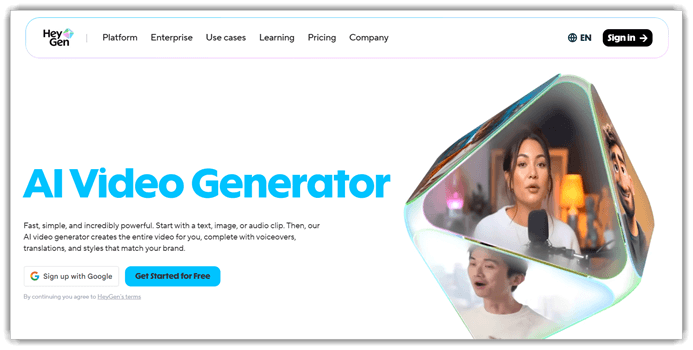
HeyGen is an AI video generator that converts scripts into avatar videos. It supports text-to-video, AI avatars, and multilingual voice narration. Creators generate videos without cameras, editing software, or studio equipment. The platform also offers a free plan for basic AI video creation.
I tested HeyGen while creating short explainers from simple scripts. The avatar lip-sync and voice timing felt surprisingly natural. Imagine preparing product walkthrough videos before an upcoming feature release. Instead of recording presenters, you generate consistent AI spokesperson videos quickly.
Features:
- Script-to-Video Avatar Generation: Hygen converts written scripts into talking avatar videos automatically. You paste text and choose a presenter style. This helps beginners create explainers without cameras or recording.
- Voice and Language Dubbing: Hygen can translate scripts and generate synchronized voiceovers. The avatar’s mouth movement adjusts to match translated speech. This simplifies producing multilingual training or marketing videos.
- Custom Avatar Library: Users can choose from a library of realistic presenters. Each avatar delivers scripts naturally with gestures and expressions. I often use this when quick presenter videos are needed.
- Scene and Slide Builder: Hygen lets users arrange scenes like slides in a timeline. You can add text blocks, images, or screen captures. This keeps instructional videos structured and easier to follow.
- Script Preview: The editor estimates speaking duration while you write. This prevents scenes from running too long or too short. In my experience, this saves significant editing time later.
- Brand Kit for Video Consistency: Users can store logos, fonts, and colors inside projects. These assets automatically appear when building new video scenes. This keeps tutorials and marketing clips visually consistent.
- Template-Based Video Creation: Hygen includes ready templates for tutorials, product demos, and announcements. Users replace placeholder scripts and visuals quickly. I have noticed beginners produce usable videos within minutes.
- Batch Video Generation: Hygen can generate multiple videos from one script template. You swap names, products, or messages using simple variables. This helps create personalized outreach or localized marketing videos.
Pros
Cons
How to Get It Free?
Step 1) Go to the HeyGen website and create a free account using your email or Google login.
Step 2) After signing up, open the dashboard and start generating your first AI video using HeyGen’s templates and avatars.
Step 3) HeyGen offers a free plan that lets you create up to 3 videos per month (up to 3 minutes each) with 720p export.
Lifetime Free Basic Plan
3) Topaz Video Enhance AI
Topaz Video Enhance AI is an AI-powered video enhancement tool designed to improve footage quality. It focuses on video upscaling, denoising, stabilization, and frame interpolation. The software can restore old clips or upscale videos to 4K resolution. It runs locally on desktop systems and processes files privately. These AI models recreate missing details instead of stretching pixels. This approach produces sharper footage and smoother motion.
I tested it while improving low-resolution clips during video automation experiments. The enhancement workflow felt smooth and surprisingly consistent during batch processing. Imagine preparing marketing videos before a product launch deadline. Some footage looks noisy and slightly blurry. Using AI upscaling and noise reduction, the tool restores clarity quickly. Teams can reuse older recordings without reshooting expensive scenes.

Features:
- AI Video Upscaling: Topaz Video Enhance AI increases video resolution using trained enhancement models. This allows users to convert older low-resolution clips into sharper high-resolution footage. It helps preserve useful footage that would otherwise look outdated.
- Frame Interpolation for Smoother Motion: This feature generates additional frames between existing frames automatically. Users can convert lower frame rate footage into smoother motion video. This is useful when restoring archival clips or improving slow-motion scenes.
- Automatic Noise Reduction: Topaz Video Enhance AI analyzes frames to identify digital noise and compression artifacts. It then removes unwanted grain while preserving visible detail. In my experience, this greatly improves videos recorded in poor lighting conditions.
- Detail Recovery Enhancement: This feature reconstructs fine textures such as hair, skin, and fabric patterns. Many users rely on this when improving footage captured with older cameras. It produces clearer visuals without making the image look artificially sharpened.
- Batch Video Processing: You can process multiple video files in one workflow. The tool applies the same enhancement settings across selected clips automatically. I often rely on this when upgrading large libraries of archived footage.
- AI Model Selection: Topaz Video Enhance AI includes multiple enhancement models designed for different scenarios. Users can select models optimized for animation, film scans, or compressed videos. This improves results without requiring complex manual adjustments.
- Preview Comparison Mode: This feature displays enhanced and original frames side by side. Users can quickly compare the improvements before exporting the final video. I have noticed this helps avoid wasting time rendering incorrect settings.
- Export Optimization Controls: Topaz Video Enhance AI allows users to adjust output resolution, frame rate, and codec. This helps tailor the final video for editing software or online platforms. It prevents unnecessary re-encoding later in the workflow.
Pros
Cons
How to Get It Free?
Step 1) Visit the official Topaz Labs website and open the Topaz Video Enhance AI product page. Download the desktop app for Windows or macOS.
Step 2) Install the software and launch it on your computer. Import a short video to test the AI enhancement features.
Step 3) Choose the free demo/trial mode when prompted; Topaz Video Enhance AI lets you try its features before buying, though exports may include a watermark during the trial.
Free Trial Available
4) Adobe Firefly
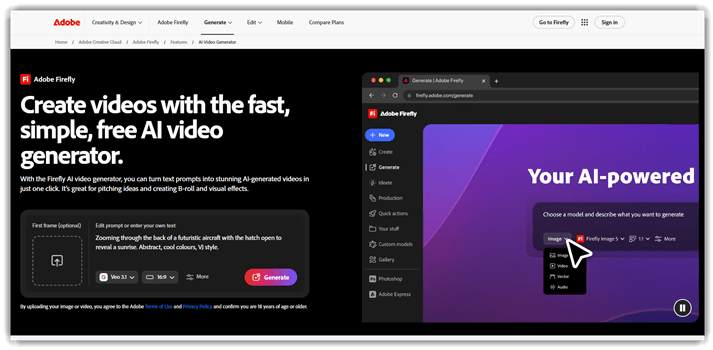
Adobe Firefly is an AI video generator that turns text prompts and still images into short cinematic clips. It runs on the Firefly Video Model and also supports partner models like Google Veo, Sora, and Pika. Creators can generate B-roll, motion graphics, and atmospheric effects without filming anything. Every clip is designed to be commercially safe for marketing and client work.
I tested Adobe Firefly while generating quick B-roll for a product explainer. The text-to-video prompts translated into clean clips surprisingly fast during my runs. Imagine needing a five-second shot of drifting smoke right before a launch video. Instead of sourcing stock footage, I described the scene and generated several usable variations in minutes.
Features:
- Text to Video Generation: Adobe Firefly turns written prompts into short video clips automatically. You describe a scene, action, or mood and it renders the motion for you. This helps creators produce B-roll without filming anything.
- Image to Video Animation: Firefly can add motion, camera movement, and environmental animation to a single still image. You upload a picture and it brings the scene to life. I use this when I want movement from just one product shot.
- Firefly Video Model: The native Firefly Video Model generates graphic, text-based, and nature-rich B-roll clips. It handles plants, animals, landscapes, and atmospheric scenes cleanly. This keeps the output consistent and commercially safe.
- Partner Model Access: Firefly lets you switch between the Firefly model and partner models like Google Veo, Sora, and Pika. You can pick the engine that best fits each shot. This gives flexibility without ever leaving the Adobe interface.
- Camera and Motion Controls: A motion reference option extracts camera movements such as pans, zooms, and tilts from an uploaded video. You can reuse that same motion inside generated clips. In my experience, this makes AI footage feel far more intentional.
- Aspect Ratio and Shot Framing: You can set a specific aspect ratio and manually choose the shot size before generating. This keeps clips ready for social, widescreen, or vertical formats. It saves a lot of reframing time later.
- Atmospheric Element Generation: Firefly can create fire, smoke, dust, and water elements against black or green backgrounds. These clips drop straight into your compositing workflow. This is useful for adding effects without buying stock footage.
- 4K MP4 Export: Generated videos download as MP4 files at up to 4K resolution. Each clip runs about five seconds, which is ideal for B-roll and transitions. This makes them easy to drop into any editor.
Pros
Cons
How to Get It Free?
Step 1) Go to the Adobe Firefly website and sign in with a free Adobe account.
Step 2) Open the Text to Video or Image to Video tool from the Firefly dashboard.
Step 3) Use the free plan, which includes a limited number of video generations each month; upgrade to a paid Firefly plan for more credits and premium partner models.
Free Plan Available
5) Picwand
Picwand is an all-in-one AI video generator that turns text prompts and still images into polished video clips. It supports AI ads, cinematic scenes, anime-style animation, viral short-form content, and video enhancement in one workspace. Creators can choose from multiple generation models and build content for TikTok, Instagram Reels, YouTube Shorts, Facebook, and other platforms. This makes it practical for marketers, educators, online stores, and creators who want flexible AI video production without a complicated editing stack.
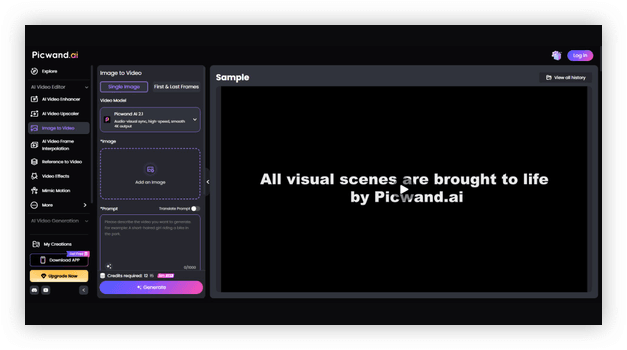
I tested Picwand’s image-to-video workflow while comparing tools for quick campaign concepts. The single-image and first-and-last-frame controls made it easy to shape motion before generation, while the model selector helped me match the output style to the project. For example, I could turn a static product shot into several social-ad concepts, review the movement, and regenerate the strongest idea without arranging a full shoot. I found this especially useful when a team needed fast visual options for early creative review.
Features:
- Text-to-Video Generation: I can describe a scene, subject, mood, and action in a prompt and let Picwand turn it into a video. This helps me prototype visual ideas without filming or building every shot manually.
- Image-to-Video Animation: Picwand animates a still image with AI-generated motion while preserving the main subject. I use it to turn product photos, illustrations, and campaign artwork into short clips for social media.
- First and Last Frame Control: I can provide starting and ending frames to guide how a video changes over time. This gives me more control over transitions and makes the final movement easier to plan.
- Multiple AI Video Models: The platform brings together Picwand AI, Seedance, Wan, PixVerse, Luma, Vidu, Veo, and Runway options. I can compare models inside one workflow and choose the one that best matches the realism, motion, or style I need.
- AI Ad Generator: Picwand turns static product visuals into story-driven promotional videos for several social platforms. I find this useful when I need multiple ad concepts quickly without coordinating a camera crew.
- Anime and Cinematic Styles: I can create anime-inspired scenes or more realistic movie-style sequences from text and images. The style flexibility helps me test different creative directions before committing to a campaign.
- Video Enhancement and Upscaling: Picwand includes AI video enhancement, upscaling, and frame-interpolation tools alongside generation. I can improve clarity and motion without exporting the clip to a separate utility.
- Cross-Platform Workflow: Picwand works online and across Windows, Mac, iOS, and Android. I can start a project on one device and keep the same credit-based workflow available on the others.
Pros
Cons
How to Get It Free?
Step 1) Visit the Picwand website and create a free account.
Step 2) Claim free credits through new-user rewards and in-app activities, then open a text-to-video or image-to-video tool to create your first clip.
Step 3) Continue with free credits or upgrade when needed. Picwand’s monthly plan starts at $14.90, and its official pricing page states a 30-day money-back guarantee for quality problems.
Free Credits Available
6) Riverside
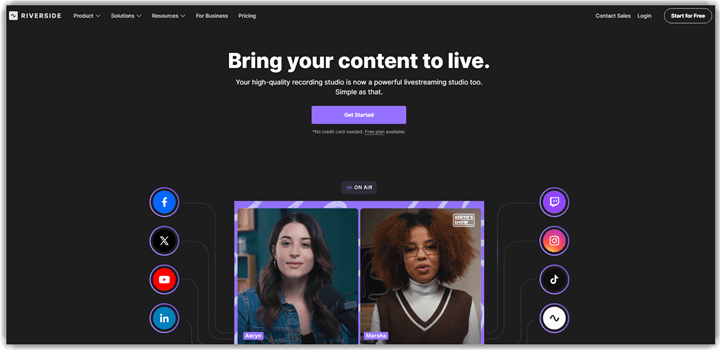
Riverside is an AI-powered recording platform designed for creating professional-quality video and audio content. It records locally on each participant’s device, ensuring studio-quality output up to 4K resolution regardless of internet connection quality. The platform uses AI to transcribe, caption, and edit recordings automatically. Many creators rely on it for podcasts, interviews, and remote video production. Its browser-based interface removes the need for heavy desktop software.
I find the platform’s AI-driven editing capabilities particularly impressive for rapid content creation. Imagine recording a remote interview with multiple guests across different locations. Riverside captures each participant’s audio and video locally, so even unstable internet does not hurt quality. After recording, AI tools generate transcripts, captions, and short clips automatically. This workflow saves hours of manual editing for teams producing regular content.
Features:
- AI-Powered Transcription and Captioning: Riverside automatically transcribes recordings and generates captions in over 100 languages. This helps creators repurpose content for global audiences quickly. I often rely on this when producing multilingual podcast episodes.
- Local Recording for Lossless Quality: The platform records video at up to 4K and audio at 48kHz WAV directly on each participant’s device. This ensures studio-quality output regardless of internet stability. Many remote teams rely on this to avoid connection-related quality loss.
- Separate Audio and Video Tracks: Riverside captures individual audio and video tracks for each participant separately. This gives editors full control during post-production. I have noticed this makes balancing audio levels much easier across multiple speakers.
- AI Magic Clips: This feature automatically identifies highlights and creates short-form content from long recordings. Users can generate social media clips without manual trimming. It helps creators repurpose interviews and podcasts into shareable segments quickly.
- Built-In Teleprompter and Screen Sharing: Riverside includes a built-in teleprompter for scripted recordings and supports screen sharing during sessions. This helps presenters deliver polished content without switching between tools. In my experience, this keeps recording sessions organized and efficient.
- Live Streaming Integration: The platform supports live streaming to popular platforms directly from the recording interface. Users can broadcast interviews or shows while simultaneously capturing high-quality local recordings. This dual workflow saves time for creators who publish both live and edited content.
Pros
Cons
How to Get It Free?
Step 1) Visit the official Riverside website and click on the Sign Up Free button.
Step 2) Create an account using your email or sign up with Google to access the recording dashboard.
Step 3) Use the free plan which includes basic recording, transcription, and AI editing features with limited monthly recording hours.
14 Days Free Trial
7) PowerDirector
PowerDirector is an AI-powered video generator and editor designed for beginners. It helps users quickly create videos using AI Auto Edit, templates, and effects. The software supports AI video generation, enhancements, and automated editing workflows. Many creators rely on it for producing polished videos without complex tools. Its interface stays simple while still offering powerful editing capabilities. A free version also exists, making experimentation easy for new creators.
I noticed the AI Auto Edit workflow quickly organizes clips into polished videos. Imagine preparing short marketing clips before a product launch the next morning. Instead of manual editing, you import clips and choose a template. The tool automatically selects highlights and builds a clean sequence. You then refine transitions, captions, and effects before publishing. This workflow saves time when producing regular social media content.

Features:
- AI Text-to-Video Generation: PowerDirector lets you create short video scenes using text prompts. The system generates motion, lighting, and atmosphere automatically. This helps beginners turn simple ideas into usable visual clips quickly.
- Speech-to-Text Editing Workflow: This feature converts spoken dialogue into an editable transcript automatically. You can trim clips directly by editing the text lines. I often use this when cutting interviews or tutorial recordings.
- Multi-Track Timeline Editing: PowerDirector allows users to layer video, audio, titles, and effects simultaneously. This helps organize complex projects without losing track of clips. Many creators rely on this to build structured video sequences.
- AI Video and Audio Enhancement: The software automatically improves video sharpness and cleans noisy audio tracks. This helps restore footage recorded in less controlled environments. I have noticed this saves significant time during post-production.
- Auto Highlight Video Creator: This feature analyzes clips and identifies the most engaging moments. It assembles them into a ready-to-share video automatically. Beginners can quickly create polished highlight videos without manual editing.
- Object Removal: PowerDirector includes tools that remove backgrounds and isolate subjects in footage. This allows creators to replace environments or add visual overlays easily. It simplifies green-screen style editing for non-experts.
- Effects & Templates: Users can apply transitions, titles, stickers, and animation effects directly to clips. These templates help structure videos visually without complex design work. I often rely on them for quick social media edits.
- AI Image-to-Video Animation: This feature converts static photos into short animated video segments. The system adds movement, depth, and ambient effects automatically. This helps transform simple images into engaging storytelling visuals.
Pros
Cons
How to Get It Free?
Step 1) Go to the official PowerDirector website and open the download or product page.
Step 2) Enter your email and download the installer to set up PowerDirector on your device.
Step 3) Use the free PowerDirector Essential version, which is free to download and use with limited features and a watermark on exported videos.
Free Version Available
8) VEGAS Pro
Vegas Pro is a professional video editing platform for AI-assisted production workflows. It supports AI video generation, timeline editing, and automated effects. Creators use it to assemble clips, enhance footage, and automate editing tasks. Its mature ecosystem and long history make Vegas Pro dependable for production.
I have tested it while evaluating tools for fast AI video workflows. Rendering felt stable, and automated enhancements processed clips surprisingly quickly during tests. Imagine preparing short marketing videos before a product release deadline tomorrow morning. AI tools speed up trimming, captions, and visual polish across multiple versions quickly.
Features:
- AI-Assisted Video Editing: VEGAS Pro includes AI tools that automate common editing tasks. You can remove background noise or stabilize shaky footage quickly. This saves time when preparing videos for publishing.
- Advanced Timeline Editing: VEGAS Pro allows precise editing directly within a flexible timeline workspace. You can trim clips, layer media, and adjust timing accurately. This helps users build structured video sequences without complex workflows.
- Automatic Scene Detection: This feature identifies scene changes within long video recordings automatically. You can split clips into segments for easier editing. I often rely on this when organizing interviews or event footage.
- Integrated Color Grading Tools: VEGAS Pro provides professional color correction and grading controls. Users can adjust exposure, contrast, and color balance across multiple clips. This ensures visual consistency throughout the final video.
- Built-In Audio Editing Controls: This feature lets users edit and enhance audio directly within the video timeline. You can balance levels, remove noise, and apply effects. In my experience, this prevents constant switching between separate audio tools.
- Motion Tracking: VEGAS Pro tracks moving objects and applies effects that follow them automatically. You can attach graphics, blur faces, or highlight subjects. This helps create polished visual storytelling without complex manual animation.
- Multicam Editing Workspace: This feature allows users to edit footage captured from multiple cameras simultaneously. You can switch between camera angles during playback. I have noticed it speeds up editing for interviews and live recordings.
- Render Templates and Export Controls: VEGAS Pro includes predefined export settings for different platforms and resolutions. You can render videos optimized for web, social media, or broadcast. This reduces guesswork when preparing final video files.
Pros
Cons
How to Get It Free?
Step 1) Visit the official VEGAS Pro website and open the product page.
Step 2) Click the Free Trial or Download Trial option and create an account if prompted.
Step 3) Download VEGAS Pro and use the fully functional 30-day free trial before deciding whether to purchase or subscribe.
Link: https://www.vegascreativesoftware.com/us/vegas-pro/
9) Gemini AI video generator powered by Veo 3.1
Gemini AI video generator powered by Veo 3.1 creates short videos using text-to-video and image-to-video generation. It runs on Google’s Veo 3.1 model, producing realistic motion and native audio. Users simply describe scenes and generate short cinematic clips instantly. The tool focuses on high-quality visuals, consistent motion, and simple prompts. It works inside the Gemini interface for quick content creation. Generated videos typically include synchronized sound effects and dialogue.
I tested it while experimenting with quick concept videos for tutorials. The prompt-to-video workflow felt surprisingly smooth during several creative iterations. Imagine drafting a short explainer clip before publishing a tutorial. You describe the scene, generate a sample video, then refine visuals. Creators can quickly preview storytelling ideas before producing full videos. This makes AI video prototyping easier for beginners exploring creative automation.
Features:
- Prompt-to-Video Generation: Gemini AI video generator powered by Veo 3.1 converts written prompts into short videos automatically. You describe scenes, actions, or moods. This helps beginners create visual content without filming or editing.
- Scene Expansion: This feature expands simple prompts into structured scene descriptions. It suggests camera angles, movement, and atmosphere. I have noticed this improves results when prompts initially feel too vague.
- Context-Aware Motion Generation: Gemini AI video generator powered by Veo 3.1 predicts natural motion between frames. Characters and objects move consistently across scenes. This reduces unnatural transitions that often appear in AI-generated videos.
- Iterative Prompt Refinement: You can adjust prompts and regenerate specific video segments quickly. This allows users to refine storytelling or visual style gradually. In my experience, iteration is essential for getting usable results.
- Reference-Based Visual Styling: Users can provide reference images or descriptive style cues. The system aligns lighting, color tone, and environment. This helps creators maintain a consistent visual identity across multiple generated clips.
- Scene Continuity Management: The tool maintains character appearance, objects, and background continuity across shots. I often rely on this when generating multi-scene stories. It prevents distracting visual changes between clips.
- Script-to-Storyboard Conversion: Gemini AI video generator powered by Veo 3.1 converts short scripts into visual scene sequences. Each segment receives suggested framing and pacing. This helps creators plan structured videos without manual storyboarding.
- Rapid Concept Prototyping: This feature generates quick visual drafts for ideas before production. Creators can test concepts within minutes. Many users rely on this to validate creative directions early.
Pros
Cons
How to Get It Free?
Step 1) Visit the Gemini video generation page and sign in with your Google account to access the Gemini AI tools.
Step 2) Open the Gemini app and explore video creation features powered by Veo models.
Step 3) Start the Google AI Pro trial, which currently offers the first month free and unlocks limited access to Gemini AI video generation with Veo 3.1 Fast.
Link: https://gemini.google/overview/video-generation/
10) VEED
VEED is a browser-based platform for creating videos using AI text-to-video tools. It converts prompts, scripts, or articles into complete videos with visuals. The platform also includes AI avatars, voiceovers, subtitles, and editing tools. These features work together inside a simple online editor. Beginners can quickly generate polished videos without learning complex software.
I found the workflow surprisingly smooth while generating quick explainer videos. It handled scripts and visuals without slowing my editing flow. Imagine preparing a tutorial video before publishing a new feature. You paste your script and generate scenes instantly. The tool adds narration, subtitles, and matching visuals automatically. That saves hours normally spent recording, editing, and assembling clips.
Features:
- AI Video Script Generator: VEED allows users to generate video scripts directly from short prompts or ideas. This helps beginners quickly structure content before recording or editing. It reduces planning time and removes common writer’s block issues.
- Browser-Based Video Editor: VEED provides a full video editor that runs entirely in the browser. You can trim clips, adjust timing, and arrange scenes easily. This simplifies editing for users who prefer not installing desktop software.
- Automatic Subtitle Generation: VEED can automatically create subtitles by detecting spoken dialogue in videos. This helps creators make content accessible and easier to follow. It also saves hours normally spent typing captions manually.
- AI Voiceover Creator: This feature converts written scripts into natural-sounding voiceovers inside the editor. I have noticed this is useful when recording narration is inconvenient. It allows creators to produce videos without microphones or recording setups.
- Text-to-Video Creation: VEED allows users to turn written prompts into simple visual videos. You can generate scenes, captions, and narration automatically. This helps beginners create explainer videos without complex editing knowledge.
- Brand Asset Management: Users can store logos, colors, and fonts within VEED for repeated projects. I often rely on this when producing multiple videos quickly. It keeps visual branding consistent across different videos.
- Content Repurposing Tools: VEED lets users convert long videos into shorter clips for social media. You can quickly trim highlights or change aspect ratios. This helps creators reuse existing content across multiple platforms efficiently.
- Screen and Webcam Recording: VEED includes built in recording for screens, webcams, or both simultaneously. In my experience, this works well for tutorials or product demonstrations. It removes the need for separate recording software.
Pros
Cons
How to Get It Free?
Step 1) Go to the VEED website and click Start for free to open the signup page.
Step 2) Create a free VEED account using your email or Google login to access the online video editor.
Step 3) Use VEED’s free plan, which lets you create and export videos with basic tools, though exports include a watermark and are limited to about 720p resolution and short videos.
Link: https://www.veed.io/
Comparison between the Best Free AI Video Generator Tools
| Features | Adobe Premiere Pro CC | HeyGen | Topaz | Adobe Firefly |
| HD export quality | ✔️ | ✔️ | ✔️ | ✔️ |
| Commercial use allowed | ✔️ | ✔️ | ✔️ | ✔️ |
| Fast render speed | ✔️ | ✔️ | ❌ | ✔️ |
| Third-party integrations | ✔️ | ❌ | ❌ | ✔️ |
What is an AI video generator, and how does it work?
An AI video generator is a tool that turns text, images, or prompts into videos. It uses machine learning models to create scenes, motion, voiceovers, subtitles, or avatars. Most tools ask for a short prompt, then build a draft video automatically. Some also let you edit timing, style, and background music. For beginners, this removes much of the hard production work. It is like having a tiny video team inside your browser, minus the coffee breaks. Free AI video generators usually offer limited exports, shorter videos, or watermarks.
Are free AI video generators good enough for professional content?
Free tools can work for basic professional content, but there are trade-offs. Many free AI video generators create solid videos for social posts, explainer clips, product intros, and internal updates. They are usually fast and beginner-friendly. Still, paid plans often unlock better export quality, longer video lengths, and more custom branding. For polished client work, those limits may become annoying quickly. Free tools are best for testing ideas and building volume. They can look professional, but they still need your judgment. AI helps a lot, but it does not replace taste.
Can you create videos from text prompts using free AI tools?
Yes, many AI tools now support text-to-video generation on free plans. You type a prompt, script, or short description, and the tool builds scenes automatically. Some tools add voiceovers, transitions, or captions without extra work. Results vary because prompt quality affects output quality. Clear prompts usually produce better structure and visuals. Free tools may restrict video length or daily usage, but the core feature is often available. This is one reason these platforms are growing fast. Writing a decent prompt now does half the heavy lifting for basic video creation.
What future trends should you expect from AI video generators?
The next wave will likely focus on better realism, smarter editing, and deeper automation. Expect stronger AI avatars, more natural voice synthesis, and faster prompt-to-video results. Tools will probably improve scene consistency and brand customization, too. Workflow automation should also get better through integrations with content calendars, publishing tools, and creative platforms. More teams will use AI for first drafts, then refine videos manually. That hybrid model is practical and scalable. The future is not AI replacing creators completely. It is AI removing repetitive work so creators can think bigger.
Verdict
After testing a range of AI video generation and enhancement tools, I found three platforms that consistently delivered better results in terms of control, output quality, and overall editing experience.
- Adobe Premiere Pro CC: I relied on Adobe Premiere Pro CC the most. Its AI-powered editing tools, timeline precision, and plugin ecosystem gave me the most control while producing professional-grade video output.
- HeyGen: HeyGen turns plain scripts into polished AI avatar videos with natural lip-sync and multilingual narration. Its free basic plan makes it my pick for spokesperson-style explainers when there is no time to film.
- Topaz Video Enhance AI: What impressed me about Topaz Video Enhance AI was its remarkable upscaling quality. It restored blurry footage and enhanced resolution in ways most automated video tools simply could not match.
FAQs
Adobe Premiere Pro CC is a video editing platform with AI tools. It supports AI-assisted video generation, editing, captions, and automated scene detection. It fits teams producing marketing clips, tutorials, or short AI videos.
