
5 BEST AI Productivity Tools (2026)
 Editorial Team
Sorting through today’s productivity tools can feel less like getting organized and more like collecting new problems. One app promises speed but delivers poor results, another buries simple tasks behind a confusing interface, and others waste hours on setup, hide important limitations until you pay, or perform inconsistently when work gets serious. That mess adds up to missed deadlines, broken focus, and systems you stop trusting. What most people miss is that the best choice is not the one with the loudest hype. It is the one that fits how you actually work, removes friction, and keeps delivering when your workload grows. Once that becomes clear, the whole decision feels lighter and a lot more useful.
I spent more than 140 hours researching the market and evaluating 14 options across different use cases, pricing models, and workflows. After rigorous testing, I shortlisted 5 Best AI Productivity Tools options based on firsthand evaluation, standout features, clear pros and cons, and backed by practical performance in everyday work. Keep reading, and the right fit should start looking much easier to spot. Read more…
Best AI Productivity Tools: Top Picks!
| Tool Name | Best For | Top Features | Free/Trial Plans | Link |
|---|---|---|---|---|
| Connecteam | Managing deskless teams efficiently | Employee scheduling, task automation, time tracking, communication hub | Free plan available; Paid plans start with a 14-day free trial | Learn More |
| Intelogos | Workforce analytics & behavior insights | Productivity tracking, AI analytics, behavior insights, screenshots | Free trial available (7 days) | Learn More |
| Time Doctor | Remote team monitoring & insights | Time tracking, distraction alerts, screenshots, productivity reports | Free trial 14 days | Learn More |
| Monday.com | Visual project & workflow management | Visual dashboards, automation, AI blocks, integrations | Free plan available; 14-day free trial for paid tiers | Learn More |
| ClickUp | All-in-one AI productivity workspace | Task management, AI assistant, docs, automation | Free plan available | Learn More |
1) Connecteam
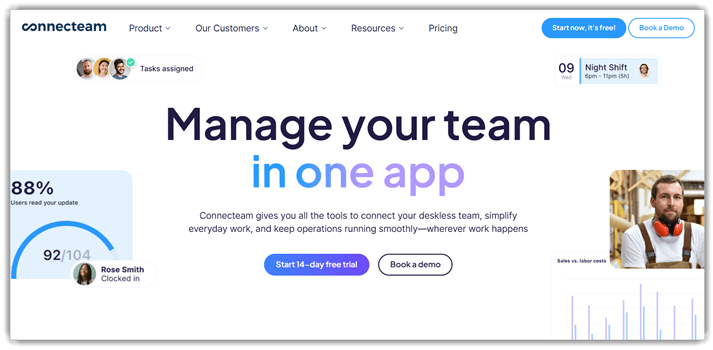
Connecteam is a workforce management platform supporting operational tracking and workflow testing. It enables task management, time tracking, and internal communication validation workflows. Teams use it to monitor processes and ensure consistency across daily operations. Its structured dashboards and automation features make coordination reliable for distributed teams.
I noticed its workflows remained stable during repeated task automation cycles. For example, teams can validate task completion steps before deploying updated processes. This helps catch inconsistencies early when managing field operations or remote teams. The platform also offers a free plan for small teams starting workflows.
Features:
- Task Management: Connecteam allows users to assign tasks with deadlines and detailed instructions. This helps teams understand expectations clearly. It reduces back-and-forth communication and keeps work moving without constant supervision.
- Time Tracking: This feature lets employees clock in and out directly from mobile devices. I have noticed it works well for remote teams. It minimizes manual timesheets and improves payroll accuracy.
- Employee Scheduling: You can create and share shift schedules with drag-and-drop tools. This helps managers plan coverage quickly. It also reduces scheduling conflicts and last-minute confusion among staff.
- In-App Communication: Connecteam provides chat, updates, and announcements within a single platform. I often rely on this when coordinating distributed teams. It keeps conversations organized and reduces dependence on external messaging apps.
- Training Modules: This feature allows users to build structured onboarding and training courses. Many users rely on this for consistent employee education. It ensures new hires learn processes without requiring repeated manual guidance.
- Forms & Checklists: You can create digital forms for inspections, reports, or daily tasks. This helps standardize workflows across teams. It reduces paperwork and ensures important steps are not skipped.
- Performance Tracking: Connecteam enables managers to monitor task completion and employee activity. In my experience, this highlights productivity gaps early. It helps teams adjust workloads and improve accountability.
- Workflow Automation: This feature automates repetitive processes like reminders and approvals. It saves time on routine administrative tasks. It also ensures that important actions are not delayed or forgotten.
Pros
Cons
Pricing:
Connecteam offers a free plan for small teams plus paid tiers starting at $29/month with a 14-day free trial.
| Plan | Pricing |
|---|---|
| Small Business Plan | Free (up to 10 users) |
| Basic | $29/month (yearly) or $35/month (monthly) |
| Expert | $99/month (yearly) or $119/month (monthly) |
2) Intelogos
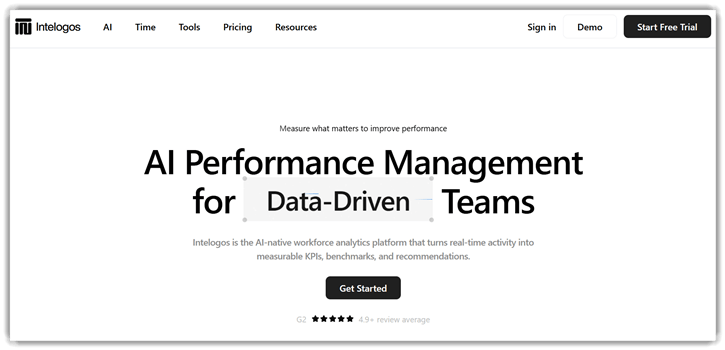
Intelogos is an AI-powered platform designed for productivity analytics and monitoring. It tracks work patterns, application usage, and team performance insights. The tool supports behavior analysis rather than traditional software testing workflows. Its reliability comes from continuous data collection and clear visual reporting dashboards.
I found its dashboards intuitive when reviewing team productivity trends quickly. During a sprint, you can monitor activity changes before release deadlines. It helps identify inefficiencies while validating workflow consistency across distributed teams. The platform also offers a free trial, useful for early evaluation.
Features:
- Activity Tracking: Intelogos records employee activity across apps and devices in real time. This helps managers understand how work hours are actually spent. It reduces guesswork when evaluating productivity patterns.
- Productivity Scores: This feature calculates productivity levels based on activity data and work behavior. You can quickly identify high and low performance trends. I have seen this help teams address inefficiencies without manual tracking.
- Behavior Insights: Intelogos analyzes work habits to highlight patterns like focus time or distractions. This helps users understand when they perform best. It makes improving daily workflows more data-driven and less subjective.
- Team Monitoring: This feature provides a centralized view of team performance and engagement levels. Managers can track progress without constant check-ins. I often rely on this to spot workload imbalances early.
- Time Analysis: Intelogos breaks down how time is spent across tasks and applications. This helps users identify time leaks or unproductive routines. It allows better planning based on actual work behavior.
- Anomaly Detection: The system flags unusual activity patterns that may indicate burnout or disengagement. This helps teams act before issues escalate. In my experience, early signals like this are often overlooked.
- Performance Reports: Intelogos generates detailed reports on individual and team productivity over time. These reports make performance reviews more objective. They also help track improvements after workflow changes.
- Workflow Optimization: This feature suggests ways to improve efficiency based on collected data insights. You can adjust processes using real usage patterns. It helps turn raw data into practical productivity improvements.
Pros
Cons
Pricing:
Intelogos offers a 7-day free trial with no free plan; paid plans start at $10 per user/month.
| Plan | Pricing |
|---|---|
| Analytics | $10/user/month (monthly) • $8/user/month (annual) |
| AI Intelligence | $15/user/month (monthly) • $12/user/month (annual) |
| Enterprise | Custom Pricing |
3) Time Doctor
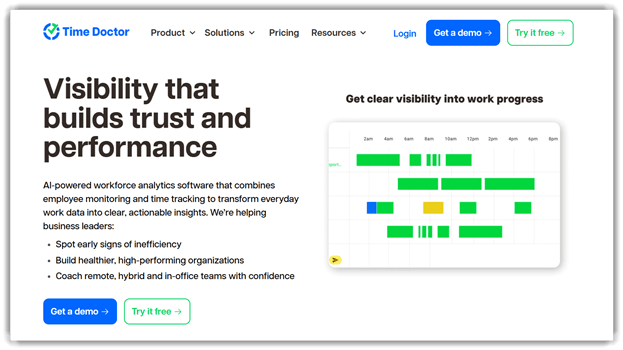
Time Doctor is a productivity tracking tool designed for teams and individuals. It supports time tracking, activity monitoring, and basic workflow analytics. Teams use it for performance insights and maintaining consistent work patterns. Its reports and integrations make it reliable for daily productivity evaluation.
I noticed the tracking stayed accurate without slowing my system noticeably. For example, during regression testing cycles, teams monitor time spent fixing bugs. This helps identify bottlenecks and improve testing workflow efficiency quickly. It also offers a free plan, useful for small teams starting out.
Features:
- Time Tracking: Time Doctor records active work hours automatically or manually. This helps users understand exactly where time is spent. It reduces guesswork when reviewing daily productivity patterns.
- Activity Monitoring: The tool tracks keyboard and mouse activity during work sessions. This helps identify periods of distraction or inactivity. I have noticed this is useful for spotting hidden productivity gaps.
- Website Usage: Time Doctor logs websites and apps used during tracked sessions. This helps users see which tools consume the most time. It makes it easier to reduce unnecessary browsing during work hours.
- Distraction Alerts: The system sends alerts when users visit non-work-related websites. This feature nudges users back to focused tasks quickly. In my experience, it works well for maintaining consistent attention.
- Task Breakdown: Users can assign time entries to specific tasks or projects. This helps organize work into measurable units. It becomes easier to estimate future timelines based on past effort.
- Productivity Reports: Time Doctor generates detailed reports on time usage and activity levels. These reports highlight patterns across days or weeks. Many users rely on this for making informed workflow adjustments.
- Payroll Integration: The tool converts tracked hours into payroll-ready data automatically. This reduces manual calculations for teams and freelancers. It ensures payments are based on verified work time.
- Work Timeline: Time Doctor provides a visual timeline of daily work activity. I often rely on this to review how my day actually unfolded. It helps identify inefficient time blocks and improve scheduling.
Pros
Cons
Pricing:
Time Doctor offers three paid plans with monthly and yearly billing, plus a 14-day free trial, but no free plan.
| Plan | Pricing |
|---|---|
| Basic | $8/user/month or $80/user/year |
| Standard | $14/user/month or $140/user/year |
| Premium | $20/user/month or $200/user/year |
4) Monday.com
Monday.com is a work management platform supporting structured testing workflows. It helps teams organize test cases, track bugs, and manage releases. Built-in automation, dashboards, and integrations improve visibility across testing activities. Its flexible boards adapt easily to manual and lightweight automation testing.
In my use, workflows stayed stable while syncing results from multiple tools. For example, a team prepares regression tests before a scheduled product release. They update test statuses, assign issues, and track fixes inside shared boards. The platform offers a free plan, easing adoption for smaller teams.
Features:
- Custom Workflows: Monday.com lets users build workflows using boards, columns, and automation rules. You can map tasks exactly to your process. This reduces manual coordination and keeps work structured across teams.
- Task Tracking: This feature tracks task progress using statuses, timelines, and owners. You can quickly see what is pending or delayed. I often rely on this to avoid missing deadlines.
- Automation Rules: Monday.com allows users to automate repetitive actions like status updates or notifications. You can reduce manual follow-ups significantly. This helps teams stay aligned without constant checking.
- Visual Views: This feature offers multiple views, such as Kanban, timeline, and calendar. You can switch perspectives depending on your task type. I have noticed this helps teams understand workload distribution clearly.
- Collaboration Tools: Monday.com enables team members to comment, tag, and share updates within tasks. Conversations stay connected to work items. This reduces scattered communication across emails and chat tools.
- Data Insights: This feature summarizes project data into visual charts and reports. You can identify delays or bottlenecks early. Many users rely on this to make better planning decisions.
- Template Library: Monday.com provides ready-made templates for projects, marketing, and operations. You can start quickly without building from scratch. This is useful when setting up workflows for the first time.
- Integration Hub: This feature connects Monday.com with tools like Slack, Google Drive, and email. You can centralize updates from different platforms. In my experience, this reduces context switching during daily work.
Pros
Cons
Pricing:
Monday.com offers a free plan for individuals, plus paid plans starting at per-user monthly or discounted annual billing.
| Plan | Pricing |
|---|---|
| Free | Free |
| Basic | $12/user/month (monthly) • $9/user/month (billed yearly) |
| Pro | $24/user/month (monthly) • $19/user/month (billed yearly) |
5) ClickUp
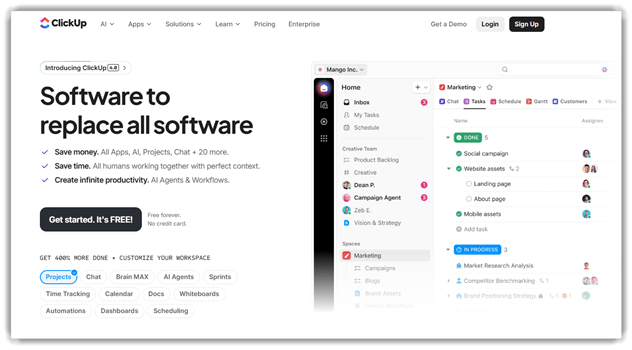
ClickUp is an all-in-one productivity platform for managing tasks, workflows, and collaboration. It supports planning, tracking, and organizing work across testing and development processes. Teams rely on its customizable dashboards, automation, and integrations for consistent workflows. A free plan makes it accessible for beginners exploring structured productivity tools.
I noticed its automation handled repetitive updates smoothly during active testing cycles. Imagine preparing regression tasks before a release with multiple parallel testing stages. ClickUp helps assign tasks, track progress, and centralize updates across teams. This keeps workflows organized while reducing manual coordination during testing activities.
Features:
- Task Hierarchy: ClickUp lets users break projects into tasks, subtasks, and checklists. This helps organize complex work into smaller steps. You can track progress without losing context.
- Custom Views: You can switch between list, board, calendar, or timeline views. This helps users see the same work in different formats. I often rely on this when managing deadlines visually.
- Status Tracking: ClickUp allows users to create custom task statuses for workflows. This helps teams reflect real processes instead of generic stages. It makes progress tracking clearer and more accurate.
- Automation Rules: This feature lets users trigger actions based on task changes. For example, assigning tasks automatically when status updates occur. This reduces repetitive manual updates during daily workflows.
- Time Logging: Users can track time spent on tasks directly within ClickUp. This helps measure effort across projects. In my experience, this improves planning accuracy for future work.
- Docs Collaboration: ClickUp includes built-in documents linked directly to tasks and projects. This helps teams keep notes, instructions, and updates in one place. It reduces switching between tools.
- Goal Tracking: Users can set measurable goals and link tasks to them. This helps connect daily work to bigger objectives. I have noticed this keeps teams aligned on priorities.
- Workload View: ClickUp shows team capacity based on assigned tasks and deadlines. This helps prevent overload and uneven distribution. Managers can adjust assignments before bottlenecks appear.
Pros
Cons
Pricing:
ClickUp offers a Free Forever plan with no credit card, plus paid tiers starting from $10/user/month.
| Plan | Pricing |
|---|---|
| Free Forever | $0 |
| Unlimited | $10/user/month (monthly) or $7/user/month (yearly) |
| Business | $19/user/month (monthly) or $12/user/month (yearly) |
Comparison Between the Best AI Productivity Tools
| Feature | Connecteam | Intelogos | Time Doctor | monday.com | ClickUp |
| AI workflows | ✔️ | ✔️ | ✔️ | ✔️ | ✔️ |
| Easy setup | ✔️ | ✔️ | ✔️ | ✔️ | ✔️ |
| Clear pricing | ✔️ | ✔️ | ✔️ | ✔️ | ✔️ |
| 24/7 support | ✔️ | ❌ | ✔️ | ✔️ | ✔️ |
| Certified security | ✔️ | ❌ | ✔️ | ✔️ | ✔️ |
| Broad integrations | ✔️ | ❌ | ✔️ | ✔️ | ✔️ |
Can AI productivity tools integrate with existing workflows and software?
Most AI productivity tools support integration with popular business applications easily. They connect with tools like Google Workspace, Slack, and CRM systems. This ensures seamless workflow automation without disrupting existing processes significantly. APIs and plugins allow customization based on specific business requirements. Integration improves efficiency by reducing data silos and manual transfers. It also enables real time updates across different platforms instantly. Businesses can adopt AI tools without rebuilding their entire tech stack. This flexibility makes AI adoption more practical and scalable.
Are AI productivity tools safe and secure to use?
Security remains a major concern when using AI productivity tools regularly. Most reputable platforms use encryption to protect user data effectively. They also follow strict compliance standards like GDPR and SOC certifications. However, users must review privacy policies before adopting any tool carefully. Avoid sharing sensitive data without understanding platform security measures fully. Many tools offer role-based access control for team environments. Regular updates also help address vulnerabilities and improve system reliability. Choosing trusted providers ensures safer usage and better long-term protection.
How do AI productivity tools compare with traditional productivity apps?
AI productivity tools differ greatly from traditional software solutions available. Traditional apps require manual input and constant human supervision daily. AI tools automate tasks and suggest improvements proactively using data insights. This reduces workload and increases efficiency across multiple workflows consistently. Traditional tools are static, while AI tools continuously evolve and learn. Collaboration features in AI tools are often more advanced and dynamic. Businesses gain faster results and better accuracy using AI powered solutions. This comparison highlights why many teams shift toward AI based productivity systems.
How do AI productivity tools work behind the scenes?
AI productivity tools operate using data, algorithms, and predictive modeling systems. They analyze user inputs and learn patterns over time automatically. These tools rely on natural language processing for text based tasks. Some platforms also use computer vision for image related workflows. The system improves accuracy through continuous feedback and training cycles. Cloud computing helps process large datasets quickly and efficiently. Integration with existing apps ensures seamless workflow automation. Understanding this process helps users trust and adopt AI tools confidently.
How Do We Select the Best AI Productivity Tools?
At Guru99, we carefully evaluate tools to ensure quality and reliability. Our team spends time researching, testing, and comparing tools. We focus on delivering accurate and practical recommendations for users.
- Usability Testing: We evaluate how easy the tool is to use. We ensure beginners can navigate without confusion.
- Feature Analysis: We compare features to check real-world usefulness. We prioritize tools offering automation and smart insights.
- Performance Evaluation: We test speed and reliability under different conditions. We ensure tools perform consistently during daily use.
- Integration Capability: We check compatibility with popular apps and workflows. We ensure seamless integration across platforms.
- Security Standards: We review data protection measures carefully. We ensure tools meet modern security requirements.
- Pricing and Value: We analyze cost versus benefits provided. We ensure users get value for their investment.
- User Feedback Review: We study real user experiences and ratings. We ensure recommendations reflect actual user satisfaction.
This approach helps us recommend only the most reliable tools.
What common problems occur with AI productivity tools, and how to fix them?
Users may face issues while using AI productivity tools, especially during setup or integration.
- Issue: The tool does not integrate properly with existing apps, causing workflow disruptions.
Solution: The user should verify API permissions and update integrations. Proper configuration settings and documentation review usually resolve compatibility issues effectively. - Issue: AI suggestions are inaccurate or irrelevant for specific tasks frequently.
Solution: The system should be trained with more user input and feedback. Continuous usage helps improve accuracy through machine learning refinement over time. - Issue: Performance becomes slow when handling large data or multiple tasks simultaneously.
Solution: The user should optimize system resources and reduce workload. Upgrading plans or improving hardware can enhance overall performance significantly. - Issue: Data privacy concerns arise due to unclear security policies in tools.
Solution: The user should choose tools with transparent privacy policies. Enabling encryption and access controls improves data protection and security compliance.
Verdict
After testing a range of AI productivity tools in real workflows, I found a few that consistently improved visibility, efficiency, and team coordination without adding unnecessary complexity.
- Connecteam: I relied on Connecteam for daily operations and found its all-in-one dashboard especially effective for managing non-desk teams without juggling multiple apps.
- Intelogos: What stood out to me was Intelogos’ deep behavioral insights. It gave me a clearer picture of productivity patterns that most tools completely overlooked.
- Time Doctor: I appreciated how Time Doctor kept tracking simple yet precise. It helped me quickly identify time leaks and improve accountability across tasks without constant oversight.
