Variants in SAP save the selection parameters entered on a report’s input screen, removing the need to retype criteria each time the report runs, and can be created, retrieved, and deleted for almost any SAP report with a Save button.
💾 Variant Defined: A variant stores selection-screen parameters for a SAP report so criteria do not need re-entry on every run.
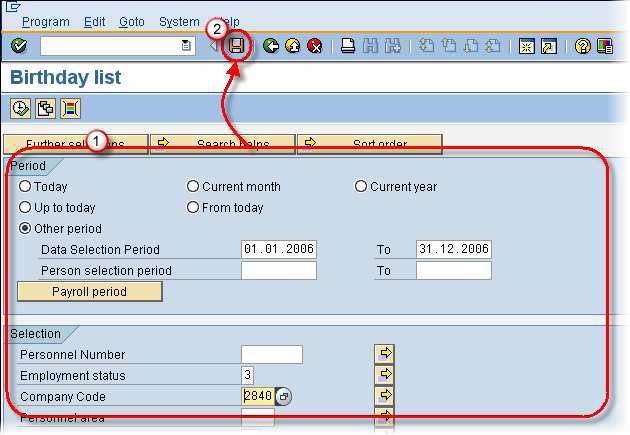
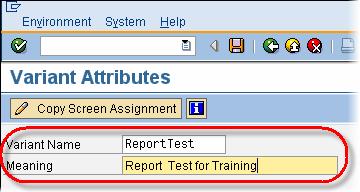
➕ Creating a Variant: Enter selection values, click Save, then provide a variant name and description to store the configuration.
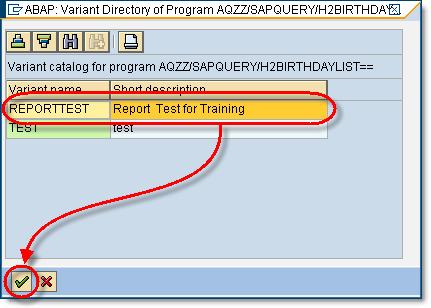
📥 Retrieving a Variant: Use the Get Variant button, highlight the desired variant, and confirm to repopulate the report selection criteria.
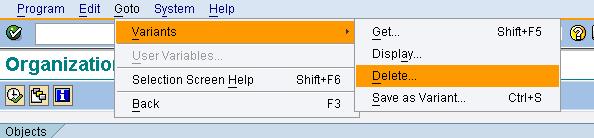
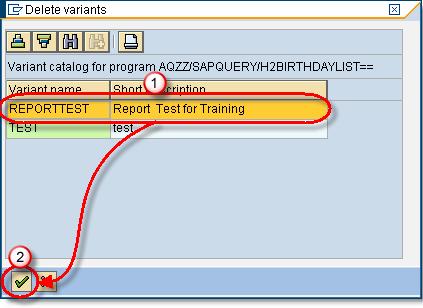
🗑️ Deleting a Variant: Choose GoTo > Variants > Delete, select the variant, and confirm deletion for the current client or all clients.
🔐 Availability Note: Variants work on any report with a Save button, though administrators may restrict some transactions for security.
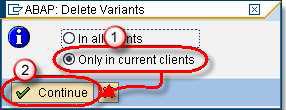
Select the “only in current client” radio button. (All Clients option will delete the variant across ALL clients)
Click Continue
Variant is deleted.
FAQs
Yes. Open the report, retrieve the variant with Get Variant, adjust the selection criteria, and save it again using the same variant name to overwrite the existing values.
A user-specific variant is protected for a single user, while a standard variant is available to all users. The protection setting is defined in the variant attributes screen.
Variants are usually managed directly within each report using the Save and Get Variant buttons. Transaction SE38 or SA38 can also be used to maintain variants for ABAP programs.
AI can suggest optimal selection criteria, detect unused or duplicate variants, and recommend variant cleanup. This reduces clutter and helps users run reports faster with consistent, relevant parameters.
Yes. AI can analyze user roles and past report usage to automatically apply the most relevant variant, reducing manual selection and improving reporting efficiency for routine SAP tasks.
Summarize this post with:
Stay Updated on AIGet Weekly AI Skills, Trends, Actionable Advice.
Sign up for the newsletter
You have successfully subscribed. Please check your inbox.

 Editorial Team
 Save Button is available in the SAP Menu bar for the report.