
How to Run a SAP Reports?
 Editorial Team
⚡ Smart Summary
SAP reports are executable ABAP programs that read data from the database and display it on screen, using a selection screen to filter the population, period, and layout before the ALV output is generated.
What is an SAP Report?
An SAP report is an executable ABAP program that reads data from the database and generates output based on the filter criteria selected by the end user on the selection screen. Execution of an SAP report almost never updates the database — reports are read-only by design, which makes them safe to run in production during business hours.
The various categories of reports are:
- Standard SAP reports — shipped by SAP inside the core modules (for example, RPCALCU0 in Payroll or RM07DOCS in MM).
- Custom reports — Z-programs developed by your organisation to cover local requirements not addressed by standard reports.
- Ad hoc queries — SAP Query (SQ01/SQ02/SQ03) or the newer QuickViewer (SQVI) that let functional users build a report without ABAP code.
Ways to Execute an SAP Report
Standard reports usually sit behind a functional transaction code (for example, S_PH0_48000510 for Payroll Accounts). When a menu path is not available you can still start any program directly. The three most common launch points are:
- SA38 — ABAP Program Execution: Enter the program name, pick a variant if one exists, and press F8 to run it. SA38 is the fastest way for end users to reach a report they know by program name.
- SE38 — ABAP Editor: Developers open the source in SE38 and press F8 to execute. SE38 also lets you attach a variant, activate a debug session, or maintain the selection screen texts.
- SE93 or Favourites: Save the transaction code or the program plus variant as a favourite, or wrap the program in a parameter transaction created in SE93, so business users can launch it from the SAP Easy Access menu.
The following elements must be set while executing any SAP report on the selection screen.
Select a Period
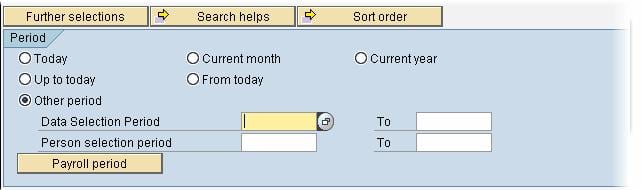
Select a period for which the report will run — for example, Today (only current day’s data), Up to Today (all data of the past up to today), Current Month, or Current Year.
You can also select the Other Period radio button and specify a custom From and To date for the reporting horizon.
For payroll and HR reports you can also click the Payroll Period button and specify a payroll period as the time period for which your output will be generated.


Select a Population
You can limit the number of records or people the report processes by entering different selection criteria on the input screen.

You can add extra selection criteria fields to your report by clicking Further Selections.

- Under Selection Options, tick the fields you would like to add to the selection area on the report.
- Click the Arrow button to move them to the right column.

The selected field will now appear in the Selection Fields list. Click the check mark to return to the selection screen.

The new selection field will appear in the report screen next to the original ones.

Restrict Selection Values in the Input Screen
You can include both ranges and single values in your report. Click the Multiple Selection button (the right-arrow icon) next to any field.

The next SAP screen allows you to:
- Enter multiple single values which will be included.
- Enter a range of values which will be included.
- Enter multiple single values which will be excluded.
- Enter a range of values which will be excluded.

You can further restrict selection criteria by using selection options — for example, equal to, not equal to, greater than, less than, or pattern matches with wildcards (* and +).

Save and Reuse Variants
A variant is a saved set of selection-screen values. Once you fill the selection screen for a report you run often, save the values as a variant so you or a background job can reuse them later without retyping.
- On the selection screen, fill in every field you want to preserve.
- Choose Goto → Variants → Save as Variant (or press Ctrl+S).
- Enter a variant name (start Z or Y for custom variants), a meaning, and set attributes such as Protect Variant or Only for Background Processing if required.
- Save. The variant is stored in tables VARI and VARID and is transportable across systems.
Next time you run the report from SA38 or SE38, enter the variant name in the Variant field or click the Get Variant button (Shift+F5) to load it before pressing F8.
Format SAP Report Output
Once you have executed your report, you can easily modify the layout for the output generated (sorting, summations, graphics, and so on) using the ALV toolbar shown below.
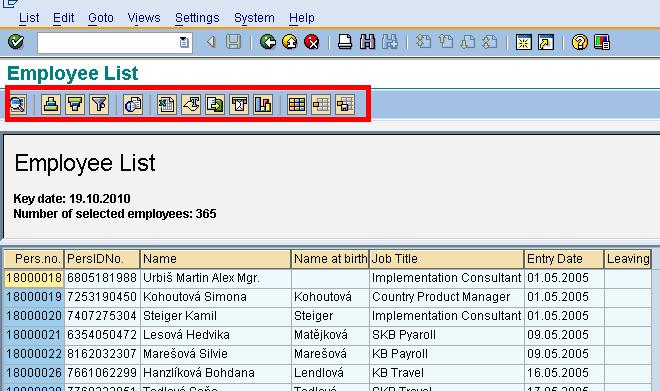
You can also save the output to your local hard disk using the following steps.
- Click List.
- Choose Export.
- Select Local File.

- Select the format (unconverted text, spreadsheet, rich text, HTML) desired.
- Click the green check to continue.

Enter the Directory, File Name and click Generate. The report will be saved to the chosen path.

Run an SAP Report in Background
Long-running reports should be executed in background instead of dialog. Background jobs release your SAP GUI session, respect the 60-minute dialog timeout, and let you schedule the same report on a recurring basis.
- From the selection screen — choose Program → Execute in Background (F9). Select an output device (SAP printer name such as LOCL), and either Immediate or a Date/Time start. Then choose Save — the job runs under your user with your default authorisations.
- From SM36 — Define Background Job: Give the job a name, set the class (A/B/C for priority), define the start condition (immediate, date/time, event, or after a predecessor job), then add a Step of type ABAP Program, pick the program and a variant. Save.
- Monitor with SM37 — Job Overview: Filter by user, job name, or status (Scheduled, Released, Ready, Active, Finished, Cancelled), select the job, and view the spool output or job log.
For recurring runs (daily payroll accounts, monthly aging), always attach a variant so the job runs with a controlled set of inputs, and use a technical background user rather than a personal user ID.
Common SAP Report Errors and Fixes
The most common issues on the selection screen and during report execution are:
- Timeout in dialog (TIME_OUT dump in ST22) — run the report in background via F9 or SM36 instead.
- Authorisation failure (S_TCODE or S_PROGRAM) — check SU53 immediately after the error and ask the security team to add the missing object.
- No data selected — verify the period and population, and check that the variant was not saved with a stale date range. Load a fresh variant if the report supports date variables (D dynamic date).
- ALV layout does not match expectation — choose Settings → Layout → Choose to load a saved layout, or Settings → Layout → Save to persist your columns/sort/subtotal choices.
- Report runs but export to Excel is empty — ensure the ALV grid is displayed (not a classical list), and use List → Export → Spreadsheet. Classical lists must be exported via System → List → Save → Local File.
- Background job stays in Ready — no free background work processes; check RZ12/SM50 or ask Basis to add BGD processes.
