
Selenium Python Tutorial with WebDriver (Example)
 Krishna Rungta
⚡ Smart Summary
Selenium with Python pairs the WebDriver automation library with Python concise syntax to test web applications across Firefox, Chrome, and Internet Explorer. This walkthrough configures PyDev in Eclipse, writes login scripts, and explains why teams prefer Python over Java.
Selenium with Python
Selenium supports Python and thus can be utilized as Selenium WebDriver with Python for testing.
- Python is easy compared to other programming languages, having far less verbose syntax.
- The Python APIs empower you to connect with the browser through Selenium.
- Selenium sends the standard Python commands to different browsers, despite variation in their browser design.
You can run Selenium with Python scripts for Firefox, Chrome, IE, etc. on different operating systems.
What is Python?
Python is a high-level object-oriented scripting language. It is designed in a user-friendly manner. Python uses simple English keywords, which are easy to interpret. It has fewer syntax complications than any other programming language.
See some of the examples in the table below.
| Keyword | Meaning | Usage |
|---|---|---|
| elif | Else if | Else if |
| else | Else | if: X; elif: Y; else: J |
| except | Do this, if an exception happens | except ValueError, a: print a |
| exec | Run string as Python | exec ‘print “hello world !”‘ |
What is Selenium?
Selenium is a tool to test your web application. You can do this in various ways, for instance:
- Permit it to tap on buttons.
- Enter content in forms.
- Skim your site to check whether everything is “OK” and so on.
How to Install and Configure PyDev in Eclipse
PyDev is the Python development environment for Eclipse.
Step 1) Go to Eclipse Marketplace. Help > Install New Software.

The next step is to install the “pydev IDE” for Eclipse.
Step 2) In this step:
- Search for “http://pydev.org/updates” in Work with, and then
- Select all listed items and click on Next twice.
- Accept the License Agreement and click Finish.

Step 3) You may encounter a Security Warning. Click on “Install Anyway”.

Step 4) Set preferences so you can use Python as per the project need. Go to Window > Preferences > PyDev > Interpreter > Python Interpreter.

Set the default Python Interpreter, just as you set the Java compiler for running Java code. To change the interpreter name, click the Browse for python/pypy exe button.

Step 5) In this step, give the “interpreter name” and the “exe” file path of Python.
- Click on ‘Browse’ and find python.exe where you installed Python.
- Click the ‘OK’ button.
- Select all the folders and click on OK.
- Click on “Apply and Close”.

Step 6) Make a new project in Python. In this step:
- Right click PyDev Package Explorer > New.
- Select option others.

- Select “PyDev > PyDev Project”.
- Press the ‘Next’ button.

- Name your project.
- Click “Finish”.

You can see the new Python (PyDev) project is created.
Step 7) After creating the ‘PyDev Project’, you will create a new Python package.
- Right click on Project > New > PyDev Package.
- Name your package and click Finish.
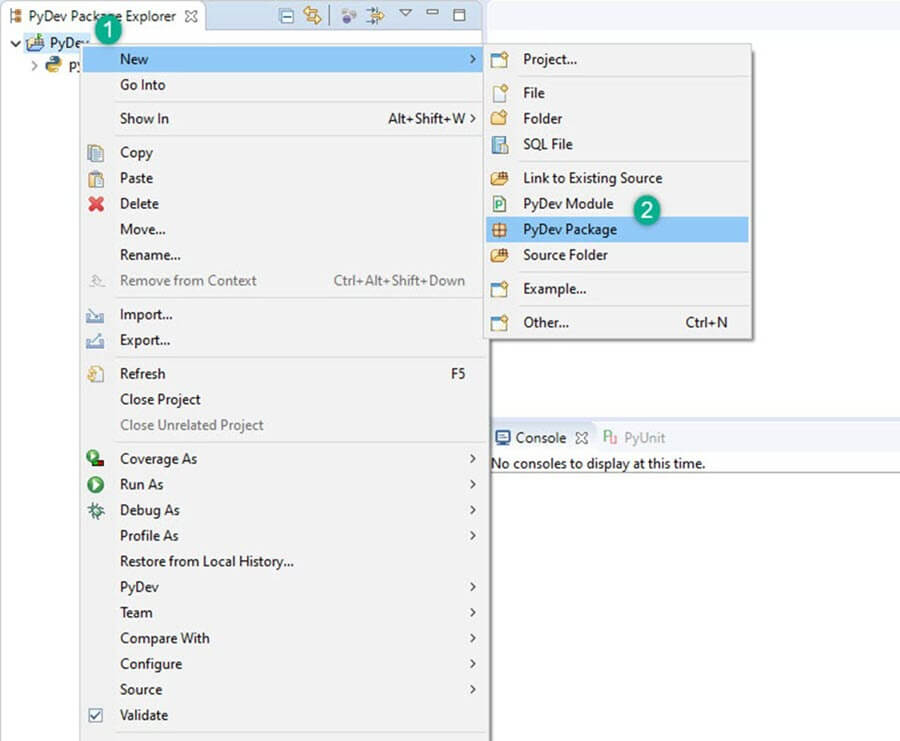

Step 8) If you see in the below screenshot, a new package is created.

Next, create a PyDev module. The module contains Python files for initialization, whose functions can be imported into another module, avoiding re-writing the program.
Step 9) Create a new PyDev module. Right click on package > New > PyDev module.

Name your module and click “Finish”.

Select Empty Template and click “OK”.

Step 10) Write your code for Selenium with Python as shown below.

How to Create Test Scripts in Selenium with Python
In this Selenium WebDriver with Python example, we did automation for the “Facebook login page” using the Firefox driver.
Selenium with Python Example 1: Login into Facebook
from selenium import webdriver
from selenium.webdriver.common.keys import Keys
user_name = "YOUR EMAILID"
password = "YOUR PASSWORD"
driver = webdriver.Firefox()
driver.get("https://www.facebook.com")
element = driver.find_element_by_id("email")
element.send_keys(user_name)
element = driver.find_element_by_id("pass")
element.send_keys(password)
element.send_keys(Keys.RETURN)
element.close()
Snapshot of the Code

Explanation of the code
- Code line 1: From the selenium module, import webdriver.
- Code line 2: From the selenium module, import Keys.
- Code line 3: user_name is a variable used to store the value of the username.
- Code line 4: The variable “password” will be used to store the value of the password.
- Code line 5: Initialize “Firefox” by making an object of it.
- Code line 6: The “driver.get” method navigates to the page given by the URL. WebDriver waits until the page has fully loaded before returning control to your script.
- Code line 7: Find the textbox element where the “email” has to be written.
- Code line 8: Send the values to the email section.
- Code line 9: Same for the password.
- Code line 10: Send values to the password section.
- Code line 11: element.send_keys(Keys.RETURN) presses enter after the values are inserted.
- Code line 12: Close.
Output: The values of the username “guru99” and password are entered.

The Facebook page will log in with the email and password. Page opened (see image below).

Selenium with Python Example 2: Login into Facebook & Check Title
In this example, we will open a login page, fill in the required fields “username” and “password”, and check the page title.
from selenium import webdriver
from selenium.webdriver.support.ui import WebDriverWait
# Step 1) Open Firefox
browser = webdriver.Firefox()
# Step 2) Navigate to Facebook
browser.get("http://www.facebook.com")
# Step 3) Search & Enter the Email or Phone field & Enter Password
username = browser.find_element_by_id("email")
password = browser.find_element_by_id("pass")
submit   = browser.find_element_by_id("loginbutton")
username.send_keys("YOUR EMAILID")
password.send_keys("YOUR PASSWORD")
# Step 4) Click Login
submit.click()
wait = WebDriverWait( browser, 5 )
page_title = browser.title
assert page_title == "Facebook"
Snapshot of the code

Explanation of the code:
- Code line 1-2: Import selenium packages.
- Code line 4: Initialize Firefox by creating an object.
- Code line 6: Get the login page (Facebook).
- Code line 8-10: Fetch username, password input boxes and the submit button.
- Code line 11-12: Enter data into the username and password input boxes.
- Code line 14: Click on the “Submit” button.
- Code line 15: Create a wait object with a timeout of 5 seconds.
- Code line 16: Capture the title from the “browser” object.
- Code line 17: Test the captured title string with “Facebook”.
Why to choose Python over Java in Selenium
A few points that favor Python over Java to use with Selenium are:
- Java programs tend to run slower compared to Python programs.
- Java uses traditional braces to start and end blocks, while Python uses indentation.
- Java employs static typing, while Python is dynamically typed.
- Python is simpler and more compact compared to Java.
