
Material Master Views in SAP
 Editorial Team
⚡ Smart Summary
Material Master Views in SAP organize every detail of a material across departments, including sales, purchasing, production, warehousing, accounting, and quality. Each view holds specific data used by SAP modules to control real business processes accurately.

In this tutorial, we will cover all the Material Master Views (MM Views) in SAP along with their implications on vital processes in the standard SAP system. You will see how each view is created, its obligatory data, its optional fields, and how its creation reflects in the system. For easy reference, the clickable Table of Contents below will take you directly to each section.
What is the Material Master in SAP?
The Material Master in SAP is the central repository that stores every piece of information needed to manage a material across all business functions. It acts as the single source of truth used by modules such as Materials Management (MM), Sales and Distribution (SD), Production Planning (PP), Quality Management (QM), Warehouse Management (WM), Financial Accounting (FI), and Controlling (CO).
Each material in SAP is represented by a unique number and is structured into multiple Views. A View is a logical grouping of data fields used by a specific department. For example, the Accounting View contains valuation and price control data needed by the finance team, while the MRP Views contain planning parameters used by production planners.
This separation ensures that each department maintains only the fields relevant to its responsibilities, while still working with a unified material record. The Material Master is created and maintained primarily through transaction codes MM01 (Create), MM02 (Change), and MM03 (Display).



Why are Material Master Views Important?
Material Master Views are important because they decide how a material behaves throughout the entire business process. Without correctly maintained views, the SAP system cannot execute sales, procurement, production, or financial postings reliably.
Each view enforces the data quality required by the connected module. For example, sales staff cannot quote or deliver a product unless the Sales Organization Views are extended. Purchasing cannot raise a purchase order without the Purchasing View. Production cannot run MRP without the MRP Views. Accounting cannot value stock without the Accounting View.
Properly maintained views also reduce operational risk. Missing or incorrect entries lead to delivery delays, wrong pricing, blocked production orders, incorrect inventory valuation, and compliance issues. As a result, the role of a Material Master specialist is critical because the accuracy of their data directly affects every downstream transaction in SAP.
Basic Views
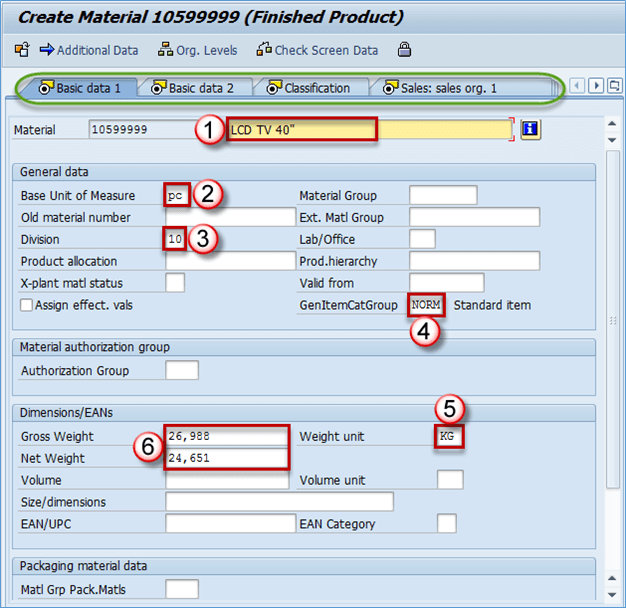
Basic Views contain general information about the material that applies across the organization. They are maintained at the client level, which means the data is valid for every plant and storage location. Obligatory fields that must be populated before saving are listed below.
- Material description: LCD TV 40″ – this can be maintained in multiple languages.
- Base unit of measure (Base UOM): PCS – the unit of measure in which the material stock is managed. For a TV set, this is naturally a piece, but you can also use meter, kilogram, or any unit defined in the system.
- Division: 10 – the division assigned to the material. You can create divisions such as 10, 20, 30, and 40 for finished goods, trading goods, services, and other materials. Division 10 is selected here because the material is a finished good.
- General item category group: NORM – Standard item. This indicator influences sales and stock transfer processing because it controls item category determination.
- Weight unit: Kg – the unit in which product weight is entered.
- Gross weight: 26.988 – gross weight of one unit of the product in the weight unit.
- Net weight: 24.651 – net weight of one unit of the product in the weight unit.
Basic data – optional fields
Material group: the material group can be entered here for reporting and grouping purposes.
Product hierarchy: this field is used in Sales and Distribution and is also maintained in Sales Organization 1 view.
EAN/UPC: the Material EAN code. Besides barcoding, it is also used in Warehouse Management as a unique identifier for the material and package combination. One material can have several barcodes — one for the base unit of measure, and one for each alternative unit of measure if needed.
Note: In the upper section of the screen (marked in green), you can see the views available for the current material. You can navigate by clicking on the appropriate view name.
Classification View
Once basic data is captured, materials can also be classified to support faster retrieval based on shared characteristics. For example, when you have many TV sets with different dimensions and colors, you can create two classes, Dimension and Color, and later use them to filter all black TV sets or all TV sets of a specific dimension.
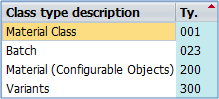
Class types available in standard SAP
By choosing Material Class 001, you extend the material for that class type. You then add a class to the material. A class called General could include two characteristics: Color and Dimension, or any other attributes you need to categorize or search materials in MM and other modules. After the class is assigned, you can maintain the characteristic values.

Assigning a class and maintaining values for characteristics
It is good practice to include the color of the product in the material description as well, because it is very helpful for users in Sales orders, Warehouse picking and putaway, Purchasing, and Production Planning. After maintaining the values, you can save the changes.
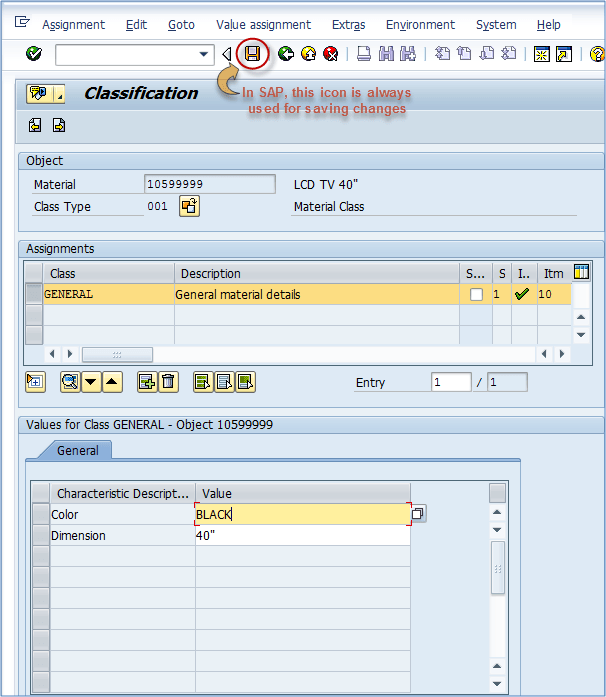
Saving Classification view
Sales Organization Data 1
After classifying the material, the next step is to enable it for sales. When you choose this view, a screen with organizational levels appears where you can select the Plant, Sales Organization, and Distribution Channel to extend the material to.
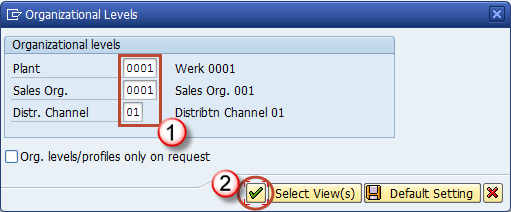
After confirming the organizational levels, you are presented with a screen containing data related to sales activities. The only mandatory field is the Delivery Unit. Other fields are optional but may be required to use advanced features. For example, to use a dynamic rounding profile (customized by an SD consultant), the Rounding profile field must be maintained.
The most important aspect of sales views is that they make the material available for sale. Once they are extended, SD users can sell the material through that Sales Organization and Distribution Channel. To understand Sales Organization better, think of it as an office that sells products. Inside that office, some people sell within the home country using distribution channel 01, while others sell abroad through an export department using distribution channel 02. The screen below shows the fields available in Sales Organization 1 View.
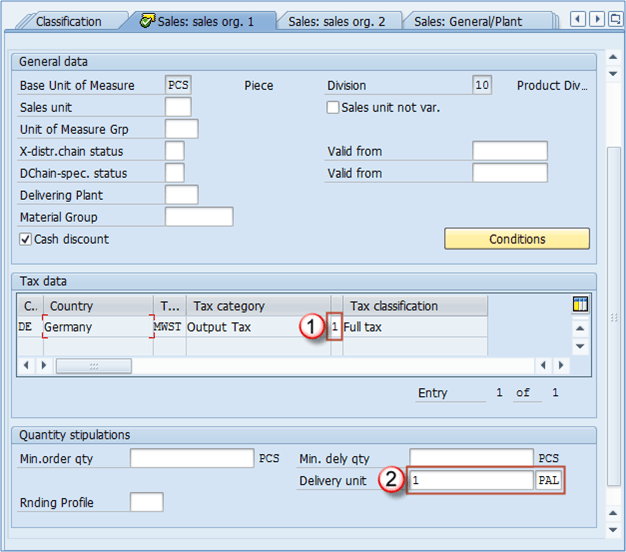
- Tax category/indicator: For internal sales, set a full tax indicator since tax applies to domestic sales. For export, set it to 0 – No Tax. The exact policy depends on the country, but most countries follow this practice. If the material is liable for VAT internally, the tax rate (VK11) is 0 for exports.
- Delivery unit: usually the first alternative unit of measure (box, pallet, etc.). In our example we use 1 PAL (pallet). It does not mean you can sell only full pallets — single pieces can still be sold, and the system simply indicates that the material is delivered as 12 pieces per pallet.
- Base unit of measure: grayed out as it is defined in Basic Data 1 and cannot be changed later.
- Division: the division you just selected in the organizational levels screen.
- Sales unit: if blank, the system assumes the base unit of measure. If you specify a value such as PAL, an entered quantity of 4 is interpreted as 4 pallets instead of 4 pieces.
- Sales unit not variable: used when the material must be sold only in the defined sales unit. If you set Sales unit to PAL and tick this box, the salesperson can sell only in PAL. This option is used rarely.
- Unit of measure group: used with dynamic rounding profile; it represents a group of units of measure allowed for this material.
- Material group: the same material group discussed in Basic Data view.
- Min. order qty: minimum order quantity accepted for the material.
- Min. dely. qty: minimum delivery quantity accepted for the material.
- Rounding profile: specific rounding profile created by SD consultants.
Sales Organization Data 2
Using the same organizational levels, you can now create Sales Organization Data 2 View. This view holds mostly statistical and grouping data linked to the same Sales Organization and Distribution Channel.
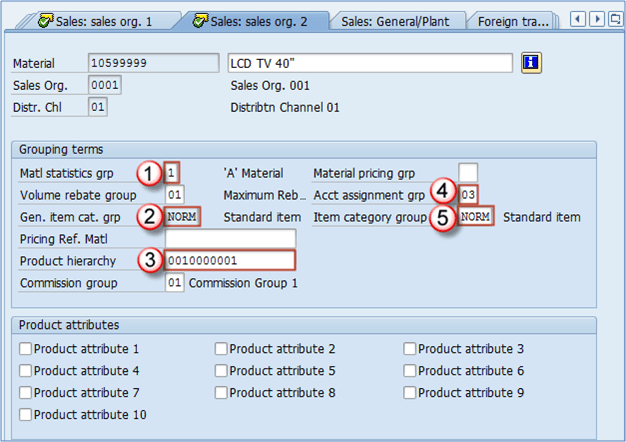
Important Sales Organization Data 2 View fields
- Material statistics group: determines if the material is included in statistical transactions in the SD module (MCSI). It is usually set to 1.
- General item category group: the default item category group based on material type settings. It cannot be changed.
- Product hierarchy: used for reporting so sales management can analyze data by hierarchy. It consists of two levels. For example, the first level could be LCD TVs containing second levels LCD TV 40″, LCD TV 32″, and LCD TV 26″. Another first level could be Plasma TV with second levels Plasma TV 22″, Plasma TV 32″, and Plasma TV 40″. Every first level has unique second levels.
- Account assignment group: defines the Accounting requirements for the material. Different materials such as finished goods, trading goods, and services are not accounted for in the same way. This field is a key integration point with FI/CO modules.
- Item category group: copied from the General item cat. grp field, but linked to a specific distribution channel. It can be changed to manage the same material differently in various sales channels (for example, foreign sales).
Product hierarchy — choosing the appropriate hierarchy from a predefined list: Maintaining product hierarchy can be challenging because it appears as a long list of numbers. The Sales & Distribution team should supply this information. To browse, click the possible-entries button to open the selection screen:
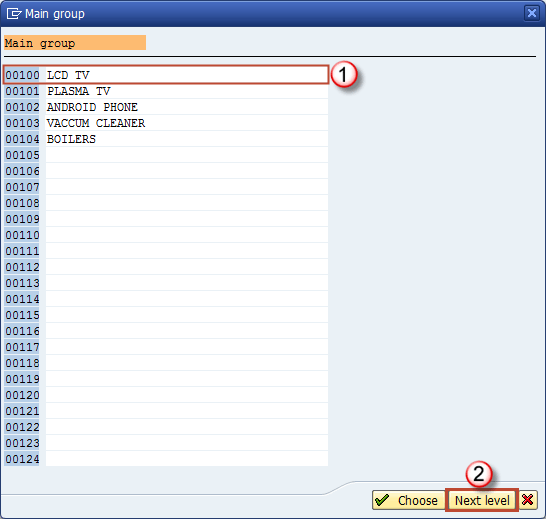
First level of hierarchy
After selecting the first level, click the Next Level button. You are taken to a screen with possible entries for the second level. The header indicates which first level you have selected — in this example, 00100 – LCD TV.
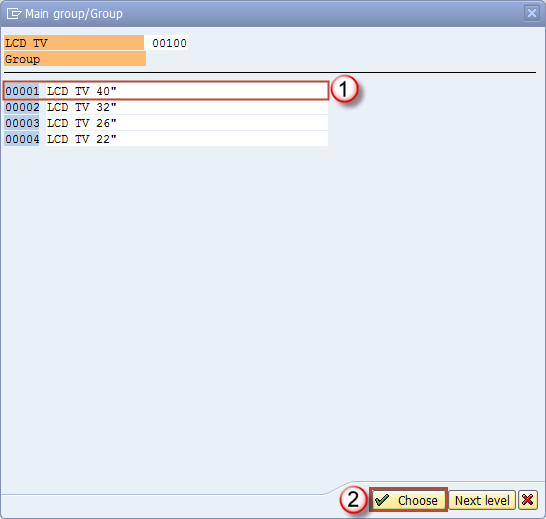
Second level of hierarchy
The final selected hierarchy appears as shown below.

Product hierarchy on Sales Organization Data 2 View
Other fields in Sales Organization Data 2 View
- Volume rebate group: a group used for rebate settlement (maximum rebate, low rebate, etc.). Settings depend on the SD module and are provided by the SD team.
- Pricing Reference Material: the material master record used as a reference for pricing purposes.
- Commission group: you can assign the same commission group to multiple materials if the commission rate is the same.
- Material pricing group: groups materials with the same pricing procedure. SD condition records can be created based on this field, combined with the customer number to form a condition.
- Product attributes: assign attributes to a material and verify whether a customer accepts a given product attribute.
Sales General / Plant View
Sales-related details continue at the plant level in this view, which holds general sales characteristics of the material.
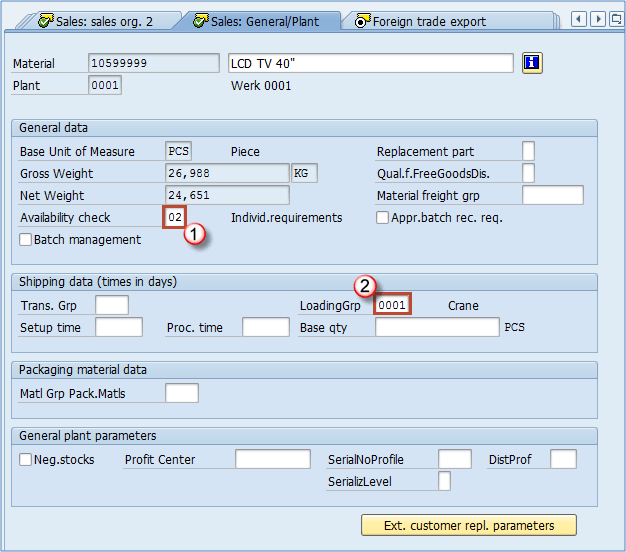
Mandatory fields
- Availability check: an essential attribute that defines the stock availability check method. The customizing team defines these methods, which can include stock at storage locations, quantities in process and production orders, planned orders, transfers toward the plant, and more.
- Loading group: a critical field used in shipping point determination.
Optional fields in Sales – General / Plant View
- Replacement part: defines if the material is a replacement part.
- Material freight group: groups materials according to freight code and class.
- Batch management: indicates whether the material is managed in batches.
- Approved batch record required: determines whether batch approval must be submitted before the batch can move from restricted to unrestricted stock.
- Transportation group: groups materials with similar transportation needs, used in SD for route scheduling in sales orders and deliveries. Example: fragile items grouped separately from regular items.
- Setup time, Process time, Base quantity: these three fields calculate time consumed for shipping. Setup time is the time to set up devices for shipping. Process time is the processing time per base quantity (the third field).
- Material group – Packaging materials: groups materials with similar packaging needs.
- Negative stocks: if ticked, negative stocks are allowed for the material in this plant. This also requires settings by the MM consultant at the storage location level.
- Profit center: assigns a profit center to the material for the controlling module. Profit made from the material is assigned to this profit center.
- Serial number profile and Serialization level: control product serialization, including the profile used and the level (by material number, etc.).
- Distribution profile: indicates where incoming (procured) merchandise will be distributed in the plant.
Foreign Trade / Export View
For materials shipped internationally, the Foreign Trade / Export View captures freight, foreign trade, and export-related information.
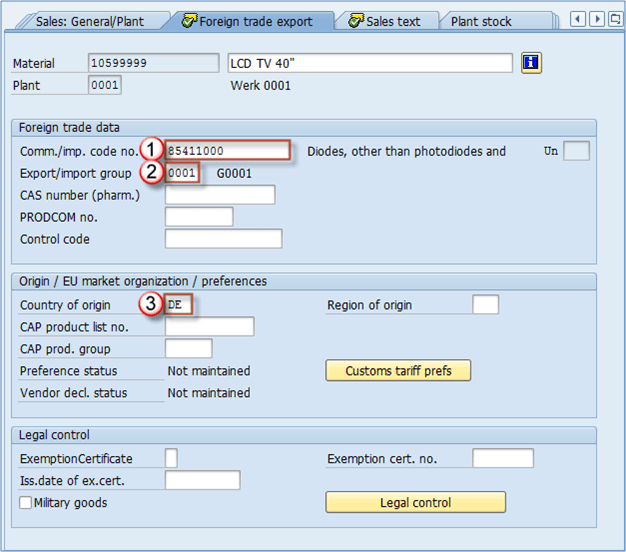
Mandatory fields in this view are:
- Commodity Code / Import Code Number for Foreign Trade: contains a commodity code or tariff number. It is a unique standardized code for a specific type of goods.
- Export import group: the system can use export/import groups to propose an export procedure for export/import processes in SAP.
- Country of origin: the country where the material was produced. For in-house finished goods, enter your own country code (for example, DE – Germany).
Other fields
All sales characteristics are typically supplied by the sales department (sales and freight). The Material Master specialist maintains them accurately. Additional fields include:
- CAS number: used only for pharmaceutical products.
- PRODCOM no.: used only in EU countries for statistical purposes in production.
- Control code: consumption tax control code in foreign trade.
- Region of origin: region inside the country (Bavaria, Hessen, etc.).
- CAP product list no.: the material number in the EU market products group list, if applicable.
- CAP product group: a product group from the CAP product list.
- Exemption certificate: indicates whether the material has a certificate stating it does not need an export license.
- Exemption cert. number: the number of the exemption certificate.
- Issuing date of exempt. cert.: issuing date for the exemption certificate.
- Military goods: a checkbox indicating whether the material is mainly used for military purposes.
Sales Text View
The Sales Text View lets you define a sales item text for the material in multiple languages for use in sales documents. The text can be a general explanation about the material or text maintained at the distribution channel level. If maintained, it appears at the item level in all sales documents and on the printed versions.

MRP View 1
MRP Views are mostly maintained for production purposes. The required information is supplied by an MRP controller or a member of the production planning team. The only mandatory field in MRP 1 View is Planning type. The most important fields used in a productive environment are explained below.
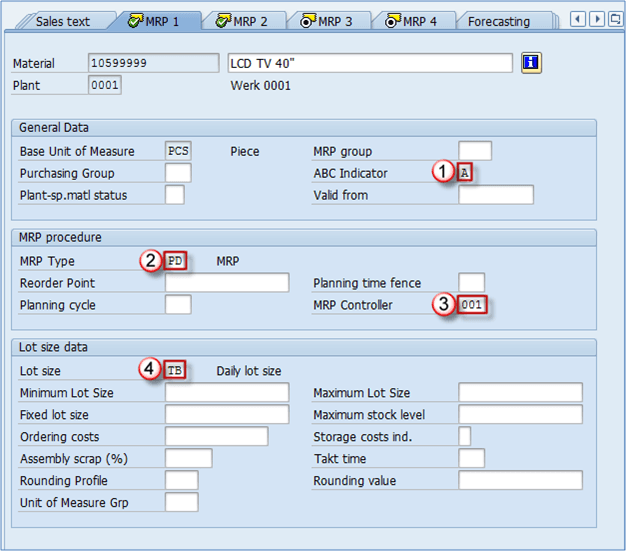
Purchasing group: defines the default purchasing group for procurement. It is not maintained here because the example material is a finished product produced in-house. It will be set for materials that are actually purchased.
- ABC indicator: shows the importance of the material in terms of stock availability. Common values are: A – most important; must be available whenever a customer requests it; B – less important; usually available but short stockouts are tolerated; C – least important. Some companies use extra categories: N – new material, not yet evaluated; S – produced only on customer request; D – like S but with a small safety stock for urgent needs (material safety stock).
- MRP type: various MRP types can be used. In this example, the controller signaled PD, which is the default for most SAP installations.
- MRP controller: the controller responsible for producing the material. They manage MRP view data, MRP results, and production planning. In some structures, MRP controllers maintain these views themselves.
- Lot size: defines the procedure used by the system to calculate procurement or production quantity.
Other fields in this view
- MRP group: groups materials with the same MRP control parameters (strategy group, consumption mode, etc.). If blank, the system uses the material group from Basic Data 1 during MRP runs.
- Plant-Specific Material Status: indicates the usability of the material in special functions; for example, the material can be marked for Testing or set as discontinued so MRP ignores it.
- Reorder Point: stock level at which MRP creates a new procurement or production order.
- Planning cycle: the planning cycle defined in customizing and assigned to the material; it may represent the day on which planning is performed.
- Minimum and Maximum lot size, Fixed lot size: boundaries for lot size or a fixed quantity to be used.
- Ordering costs: fixed cost per order in company code currency, used to compute optimal lot size.
- Rounding Profile and Unit of Measure Group: work like the sales view counterparts but apply to purchasing or production.
- Rounding value: used in procurement for rounding the procurement quantity to a multiple of the value entered here.
MRP View 2
MRP View 2 builds on MRP View 1 and focuses on Procurement, Scheduling, and Net Requirements Calculation.
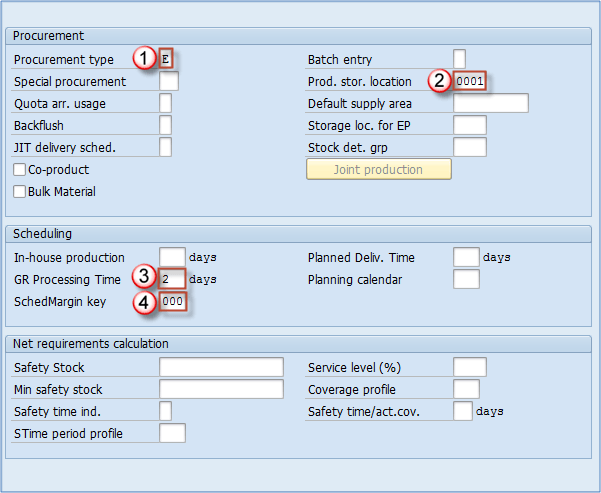
- Procurement type: defines whether the material is produced internally (our case), procured externally, both, or not procured at all.
- Production storage location: the storage location copied into production documents. For a production component, it is the location from which the goods issue is posted; for a produced material, it is the location for goods receipt.
- Goods Receipt Processing Time in Days: the time in days required for goods to be inspected and stored.
- Schedule margin key: a key used to determine floats required for scheduling an order. It is defined in customizing and supplied by the MRP controller or PP administrator.
Other fields in this view
- Special procurement: overrides the procurement type.
- Batch entry: indicates when batch determination should be executed.
- Default supply area: proposed supply area for the material, mostly used for KANBAN.
- Backflush: determines whether the backflush indicator is set in the production order.
- Storage location for external procurement: storage location proposed in the purchase requisition.
- Stock determination group: combines with the stock determination rule to form the stock determination strategy key.
- Co-product: if ticked, indicates the material can also act as a co-product.
- Bulk material: identifies a bill of materials item as a bulk material; requirements for bulk materials are not MRP relevant.
- Safety stock: quantity in base UOM used as safety stock. Minimum safety stock: the safety stock is never allowed to drop below this value.
MRP View 3
MRP View 3 adds several planning-related fields used by demand forecasting and planning strategies.
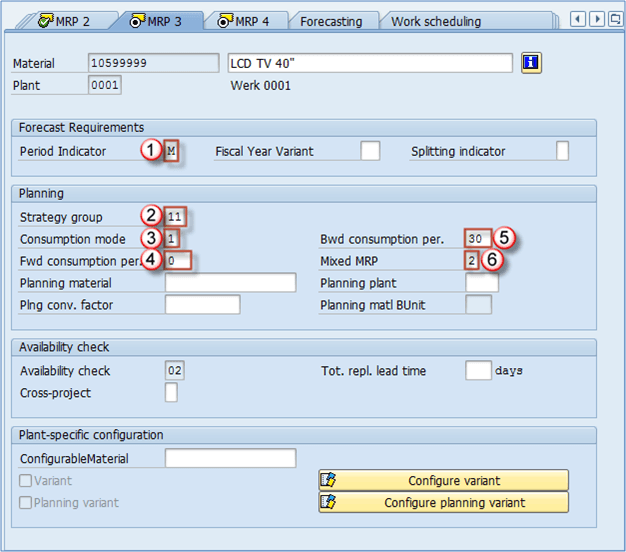
- Period indicator: indicates if the material is planned/forecast monthly, weekly, yearly, or daily. Most commonly set to monthly.
- Strategy group: groups planning strategies such as Make to Order or Make to Stock. Material types and ABC classification typically drive the choice.
- Consumption mode: controls how the system consumes requirements. In backward mode, sales orders, dependent requirements, and reservations consume planned independent requirements that lie before the requirements date. In forward mode, they consume planned independent requirements that lie after the requirements date.
- Forward consumption period: number of days as a consumption threshold in forward consumption mode (1–999, usually a few days). Our example uses 0 because we apply backward consumption.
- Backward consumption period: same as forward but for backward consumption mode.
- Mixed MRP: defines if the material is available for subassembly planning and gross requirements planning.
Other fields in MRP 3 View
Planning material: used only with the planning strategy “planning with planning material.”
MRP 4 View
MRP 4 View is the only MRP view maintained at the Plant / Storage location level. It does not have as many valuable fields as previous MRP views, but it contains three useful indicators that can optimize processes in some modules.
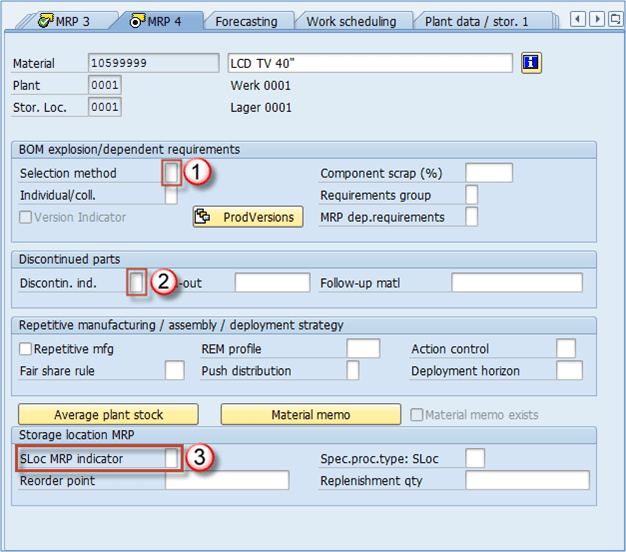
- Selection method: when using BOMs for production, this field governs the selection of alternative BOMs. Selection type can be by order quantity, production version, or explosion date.
- Discontinued indicator: select the discontinued part indicator if applicable.
- SLoc MRP indicator: the most powerful indicator in this view. It indicates whether the storage location (in this example 0001 – Lager 0001) is relevant for MRP. This influences both MRP and ATP (available to promise). The default (empty) means the storage location is included in MRP and ATP. Indicator 1 excludes the stock from both MRP and ATP. Indicator 2 manages the location stock separately from plant stock.
The most obvious example for using these indicators is a rejects storage location. When the LCD TV 40″ comes off the production line, it can be fully functional or it can have a flaw. Functional units go to location 0001 and are sellable. Out of 3,000 produced units, 10 may have defects that quality control rejects, so they go to location 0003 (rejects). In MRP 4 view, indicator 1 is maintained for the rejects location 0003 so the sales team does not see this stock as available. Only the 2,990 functional pieces stay available on location 0001, which keeps the empty indicator (included in MRP/ATP).
MRP Views at a Glance
| MRP View | Primary Purpose | Key Fields |
|---|---|---|
| MRP 1 | Basic MRP parameters & lot sizing | MRP Type, MRP Controller, Lot Size, Reorder Point |
| MRP 2 | Procurement and scheduling | Procurement Type, GR Processing Time, Safety Stock |
| MRP 3 | Demand forecasting and planning strategy | Strategy Group, Consumption Mode, Period Indicator |
| MRP 4 | Storage location relevance to MRP/ATP | SLoc MRP Indicator, Discontinued Indicator |
Work Scheduling View
Production uses Work Scheduling View to control how production and process orders are scheduled. A production schedule determines how capacity requirements are calculated for all materials during a scheduling run. You can also activate batch management here if the material is handled in batches (quantities with slightly different characteristics). Batch management can be activated in several other views as well.

- Production schedule profile: defines the process flow in PP or PP-PI and adds controls such as automatic goods receipt. Customized by the PP consultant.
- Underdeliver tolerance: allowed percentage of quantity to be under-delivered.
- Overdeliver tolerance: allowed percentage of quantity to exceed for a production or process order. The unlimited box allows unlimited over-delivery.
- Setup time: time required to set up and tear down work center resources (lot size independent).
- Processing time: processing time for the base quantity.
- Base quantity: used for processing and in-house production time. In this example, processing time refers to the time needed to process 48 pieces.
Plant data – Storage 1 View
The warehouse administration team supplies the data for Plant data – Storage 1 View. It captures storage-related data valid at the plant level. The essential fields are explained below.
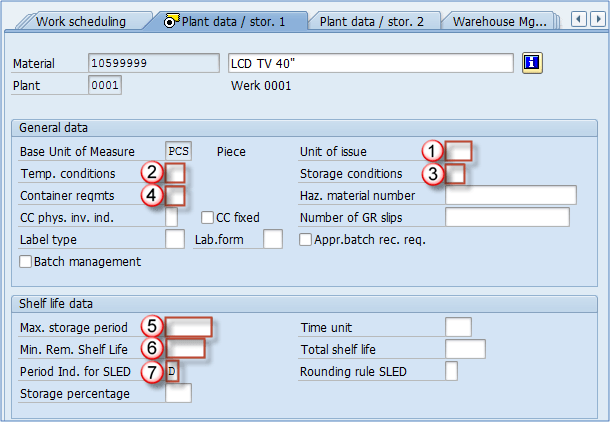
- Unit of issue: the unit in which the material is issued from any storage location within the plant (except warehouse-managed locations where a different setting overrides this value).
- Temperature conditions: temperature and atmospheric conditions required for storing the material.
- Storage conditions: storage conditions required by the material.
- Container requirements: type and conditions of the container used to ship the material.
- Max. storage period: maximum period the material can be stored.
- Minimum remaining shelf life: minimum remaining time required for the material to be stored. If the remaining time is shorter, the system denies the goods receipt.
- Period indicator for SLED: unit of time for Minimum remaining shelf life. D = days, M = months, etc.
Plant data – Storage 2 View
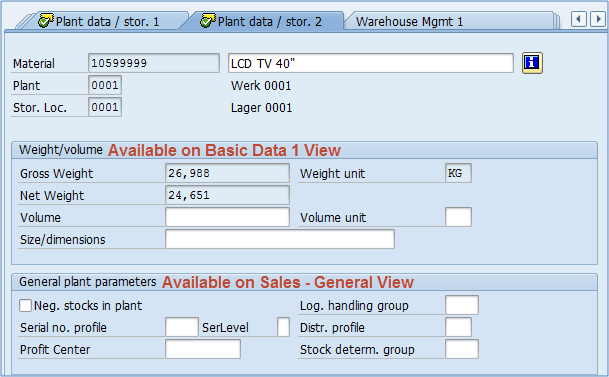
The fields in this view repeat from Basic View 1 (Weight/Volume section) and Sales – General (General Plant Parameters section). They have already been explained in those sections.
Warehouse Management 1 View
Warehouse Management 1 View is maintained at the Plant / Warehouse Number level. The warehouse number is the top hierarchy level in SAP Warehouse Management. In the image below, position 1 represents the plant and position 2 represents the warehouse number for which the material is extended. The warehouse management administration team supplies the information for this view.
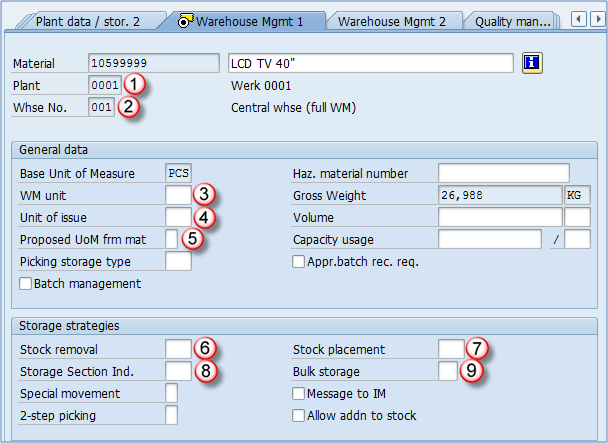
- Plant: organizational level.
- Warehouse number: organizational level.
- WM unit: the unit used across warehouse management. Every WM document uses this unit regardless of the original document UOM. If a delivery is created for 12 pieces of LCD TV 40″ and WM unit is PAL, the transfer order shows 1 PAL.
- Unit of issue: already covered in Plant Data – Storage 1 View.
- Proposed UoM for material: determines which UOM should be used in WM together with WM unit. Possible values include Unit of Issue, Order unit, WM unit of measure, base unit of measure, and conditional options.
- Stock removal strategy: a customized strategy applied to the material. For example: first try to remove from high-rack storage, then bulk storage. Used during picking for deliveries or reservations.
- Stock placement strategy: same idea in the opposite direction — used when placing stock from production into the warehouse so the system searches storage types in the right order.
- Storage section indicator: prevents placement in storage bins of a specific section (for example smaller bins).
- Bulk storage indicator: used for a special bulk storage capacity case.
- Other fields include special movement indicator, two-step picking, and the option to add to existing stock in a storage bin already containing this material.
These settings are complex and require in-depth knowledge of Warehouse Management.
Warehouse Management 2 View
Warehouse Management 2 View extends the previous view with one additional organizational level. The first section holds palletization data (quantities and pallet types). The lower section contains storage-type-related settings.
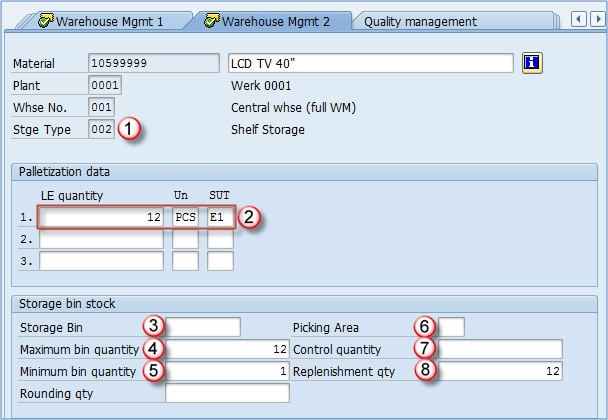
- Storage type: the storage type for which the material is extended. In this case, the LCD TV is stored in shelf storage (the strategy already selected in WM 1).
- Palletization data: defines how the material is packed onto storage units. For example, 12 pieces on a Euro pallet 1 m high (defined as E1 in our system).
- Storage bin: maintained if you want the material stored in a predefined bin. In our case, the system proposes a bin during putaway.
- Maximum bin quantity: typically taken from palletization data (12 PCS in our case). The system will not allow more than 12 PCS in one bin.
- Minimum bin quantity: maintained only when replenishment is active for the storage type (fixed bin storage). If stock falls below this, replenishment is triggered.
- Picking area: like storage sections, picking areas group storage bins for picking.
- Control quantity: instructs the system to skip a storage type if the picking requirement exceeds this quantity, then move to the next type in the stock removal strategy.
- Replenishment quantity: quantity replenished when needed. We replenish a full pallet (12 pieces).
Quality management View
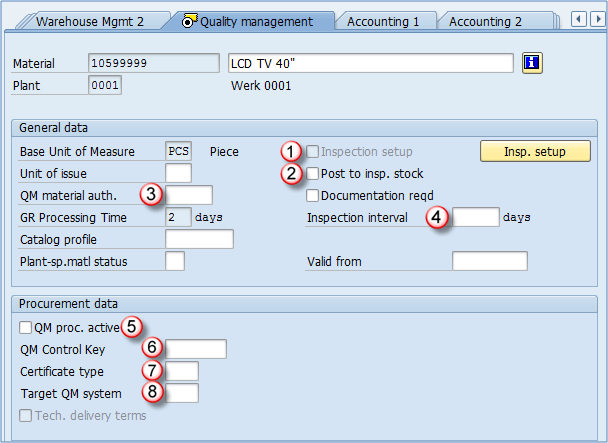
Quality Management View captures material settings for inspection processes in the QM module. Administrators of that module are responsible for providing the information needed to maintain this view.
- Inspection setup: indicates whether at least one inspection type is set up. Steps are: A click the Inspection Setup button, B choose the inspection type predefined by the QM team, and C confirm changes.
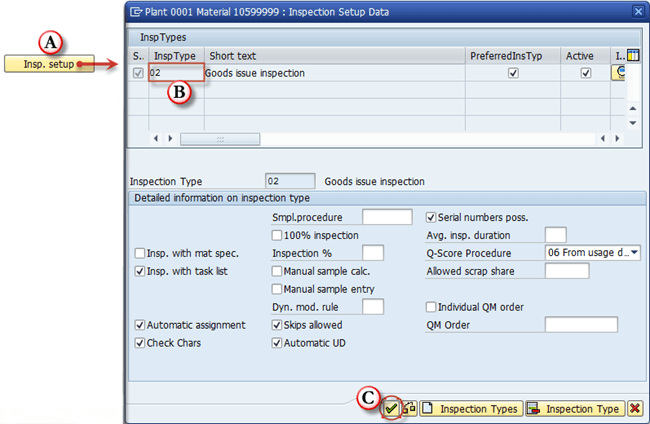
Choosing the inspection type on a sub-screen of Quality Management view
- Post to inspection stock: specifies whether the material is subject to quality inspection. If ticked, an inspection lot is created for the assigned inspection type.
- Material authorization group: defines authorizations for QM users by group, useful when different users inspect different materials.
- Inspection interval (in days): interval between recurring inspections of the same batch.
- QM in Procurement active: activates Quality Management for the material in the procurement process.
- QM control key: defines conditions for quality inspection in procurement. You can set delivery block, invoice block, and other blocks until inspection is done. Entries are predefined by the consultant in customizing.
- Certificate type: quality certificate type, predefined in customizing by the QM consultant.
- Target QM system: required QM system from the vendor (for example, ISO 9001 or other standards).
Accounting 1 View
Accounting 1 View determines how the accounting for the material is processed. The data is supplied by the FI/CO team and is supported by background customizing from the FI/CO consultant.
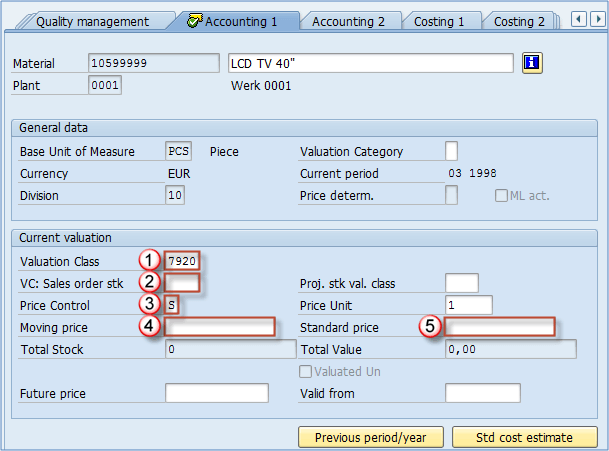
- Valuation class: influenced by material type in most systems. Examples: 7920 (SAP default for finished goods), 7900 for HALB, and 3000 for ROH.
- Valuation Class for sales order stock: can override the default valuation class. Not recommended.
- Price control: indicates the internal price type. It can be S (standard cost) or V (moving average / variable price). S is generally used for finished goods, V for trading goods, but settings depend on SD/FI/CO preferences.
- Moving price: populated when price control is V.
- Standard price: populated when price control is S. Controlling teams can use transactions to generate these prices automatically from production and purchase orders.
- Valuation Category: determines whether stocks of the material are valuated jointly or separately.
Accounting 2 View
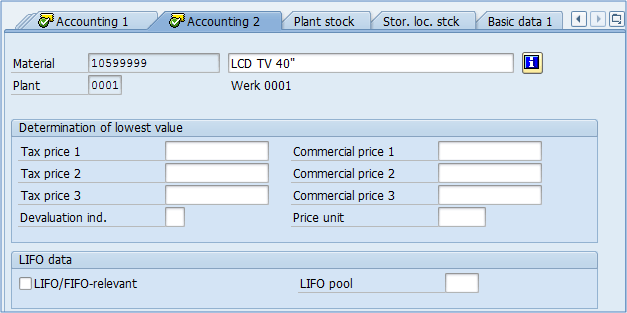
Accounting 2 View is rarely used in productive environments; most fields are usually left empty. It contains special tax information that seldom applies. The view also covers determination of the lowest material value and material devaluation through its status (moving, slow moving, etc.). If your Financial Accounting department uses this view, they will supply the data to maintain it.
Costing 1 View
Costing 1 View is used to determine product cost. It accepts several inputs, but for production the most important is the costing lot size. The optimal lot size for product cost estimation is set here. A product produced in a 100-piece lot has different costs than one produced in a 3,700-piece lot due to fixed expenses such as tool setup. For example, the per-piece cost might be 126 USD in a small lot versus 111 USD in a large lot. Production must plan activities and stock levels so the lot size remains close to the optimal.
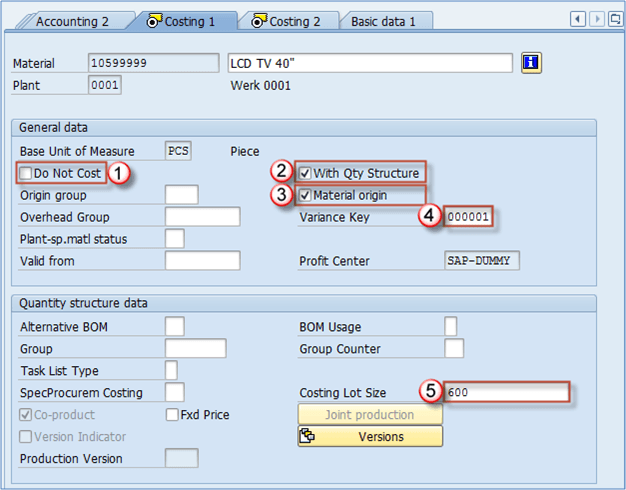
- Do Not Cost: if ticked, no costing is estimated. Material cost, sales order cost, and procurement alternatives are not created. Leave blank to allow costing.
- With quantity structure: indicates whether quantity structure data is used for cost estimation (lot size and quantity information).
- Material origin: indicates whether the material number should be assigned to the cost element item in the CO module.
- Variance key: determines how cost variance is calculated.
- Costing lot size: only useful if “With Qty structure” is ticked. It determines the lot quantity for the cost estimate.
Costing 2 View
Costing 2 View, shown in the Valuation Data section, repeats fields already covered in Accounting 1 View. Additional fields capture planned prices (the standard cost estimate is copied to Planned Price if Standard Cost Estimate is ticked and created).

Purchasing View
Purchasing View contains several fields already present in earlier views (Freight group, Plant-specific material status, etc.). It also adds a few fields that are unique to purchasing.
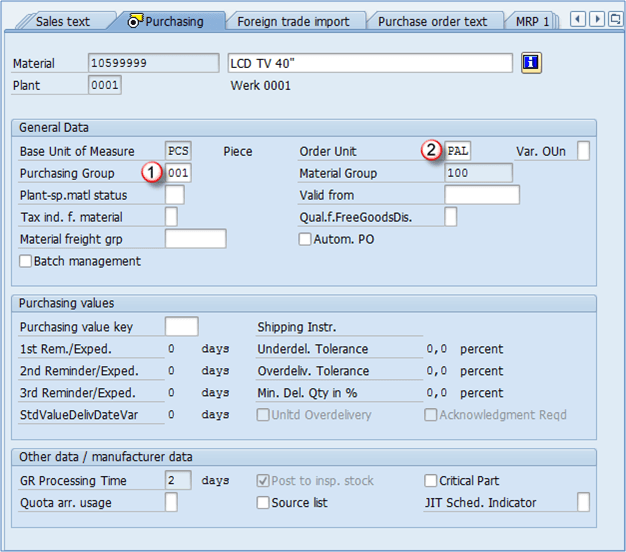
- Purchasing group: define various purchasing groups such as raw material purchasing, trading goods purchasing, service purchasing, etc. This value becomes the default for all items entered in purchasing documents.
- Order unit: default unit used for ordering the material. If the default is PAL, a quantity of 10 means 10 pallets (120 pieces). The Purchasing values section requires only the Purchasing value key, maintained in customizing, which carries underdelivery and overdelivery tolerances and other values into this section.
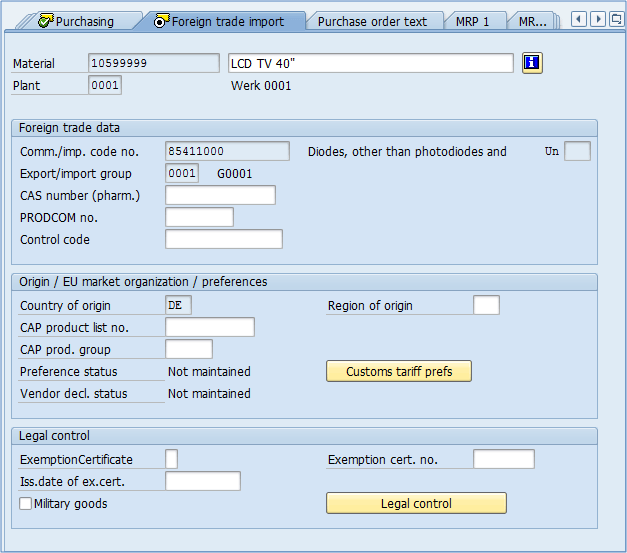
Foreign Trade Import View
The Foreign Trade Import View is identical in structure to the Foreign Trade Export View, but it captures the equivalent information for imported materials.
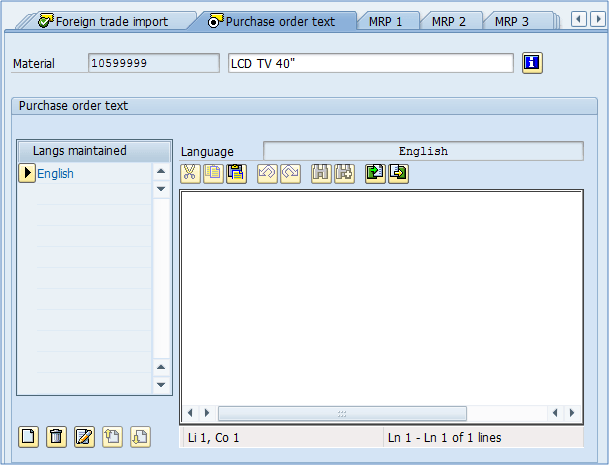
Purchase order text View
The Purchase Order Text View mirrors the Sales Text View but is used to maintain text snippets that appear on purchase orders.
Additional data
In addition to the standard Material Master Views, there is another level of maintenance in the MM01 transaction that has no organizational level reference. From any View in the Material Master, you can choose the Additional Data button.

Button for switching to additional data maintenance
Once selected, the Main Data button returns you to MM Views.
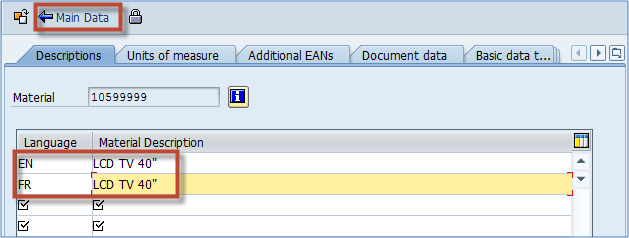
Product descriptions for various languages in additional data
The first tab in additional data handles material description. You have already maintained a description on Basic View 1 in the default (logon) language. Additional Data lets you define descriptions in other languages — for example, French. If a customer from France accepts only the French product name, you must define it here and set the communication language to French in the SD module (an integration point between MM and SD).
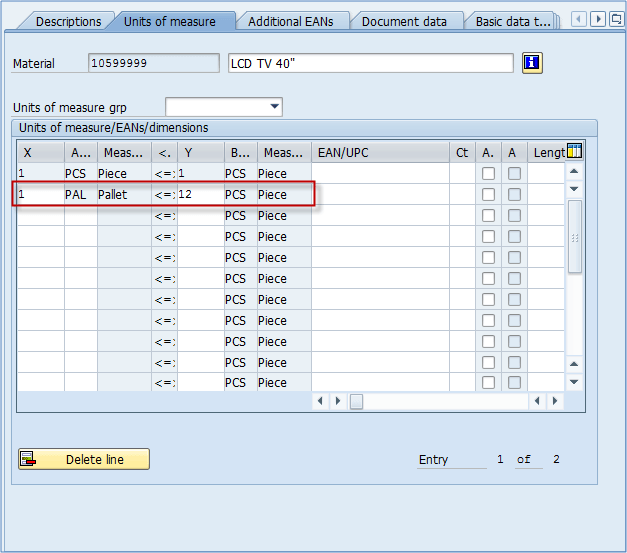
The second tab handles alternative units of measure. There is a record for 1 PCS, which equals 1 PCS (the base UOM), and a second record for 1 PAL, which equals 12 PCS — meaning the LCD TV 40″ is packaged 12 pieces per pallet. You can add any number of alternative UOMs and delete them with the Delete Line button. You can also maintain EAN codes for all units of measure. In the SD module, sales orders can be created using any UOM maintained in the material master. Practically, creating a sales order for 12 pieces or for 1 pallet is equivalent.
Best Practices for Maintaining Material Master Views
Maintaining Material Master Views correctly is critical because the data flows into nearly every SAP transaction. The following best practices, used in successful SAP implementations, help avoid common pitfalls and improve data quality at scale.
- Define ownership of each view. Assign each Material Master view to a department or role — for example, MRP views to the MRP Controller, Accounting views to FI/CO, and Sales views to SD. Clear ownership prevents data conflicts and ensures the most knowledgeable people maintain the data they understand best.
- Standardize material types and views. Use SAP material types such as FERT (finished goods), HALB (semi-finished), and ROH (raw materials) to enforce consistent valuation classes, view requirements, and field selection. This reduces the risk of incomplete records reaching production.
- Use transaction MM17 for mass changes. Manual changes across thousands of materials are error-prone. The MM17 mass maintenance transaction allows bulk updates with traceability and a single audit point.
- Validate critical fields before save. Configure field selection groups so mandatory fields such as Base UOM, Material Group, Valuation Class, MRP Type, and Loading Group are enforced at creation. Catching errors before save eliminates downstream rework.
- Govern changes through workflow. Use the Material Master change documents and an SAP workflow approval process for sensitive fields such as Price Control, Valuation Class, and ABC indicator. This adds traceability and accountability.
- Leverage AI-driven validation. In SAP S/4HANA, machine learning models can flag inconsistent data and recommend corrections in real time. Adopting these features improves data quality without manual auditing of every record.
- Document and train regularly. Provide a maintenance manual that lists each view, its owner, and the meaning of each field. Conduct refresher sessions every six to twelve months, especially after SAP S/4HANA upgrades that change view structure.
Following these practices keeps the Material Master clean, reduces production incidents, and shortens audit cycles by months in mature SAP organizations.
