
MM01 Tcode in SAP: How to Create Material Master?
 Editorial Team
⚡ Smart Summary
MM01 Tcode in SAP enables the creation of Material Master records by defining industry sector, material type, views, and organizational levels. This walkthrough explains every input field, view selection, and organizational mapping required to register a new material across SAP modules accurately.

What is Material Master in SAP?
The Material Master is the central repository in SAP that stores every detail about the materials a company procures, produces, stores, or sells. Before a new material is used in any SAP transaction, its characteristics must be defined to control its behavior across procurement, sales, production, inventory, and accounting modules. A correctly maintained Material Master ensures consistent data across the enterprise.
Why Create Material Master Records?
Material Master records standardize how information flows between SAP modules. Without this central record, transactions such as purchase orders, sales orders, goods receipts, and inventory valuation cannot reference accurate data. Every material in SAP is created using one of two methods:
- Transaction MM01 – the standard interactive method used in productive environments.
- Mass creation – typically used once during data migration from a legacy system into SAP ERP.
This tutorial focuses on transaction MM01. Mass creation is an advanced technique covered later, once you are comfortable with material master views and organizational levels.



How to Create Material Master in SAP MM
Follow the step-by-step process below to create a Material Master record in SAP using transaction MM01.
Step 1) Enter Industry Sector and Material Type
Launch transaction MM01. The initial screen contains a small set of fields that record the basic identity of the material being created.
- Enter Industry Sector (commonly used: M – Mechanical Engineering).
- Enter Material Type. Typical values include FERT (finished product), ROH (raw material), HALB (semi-finished), and HAWA (trading goods). Choose the type that best matches the material.
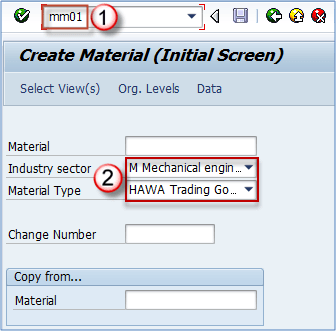
Note: The Material Number is an alphanumeric key that uniquely identifies the material in SAP. It can be assigned automatically by the system or entered manually, depending on the material type. For example, HAWA typically allows manual numbering, while FERT is usually configured for automatic numbering. These rules are set by the MM consultant during the implementation phase.
Step 2) Click on Select View(s)
Once the basic identity is captured, decide which views (data segments) should be created for the material.
- Click Select View(s) to display the list of available views.
- Select Basic Data 1.
- Select Sales Org Data 1. You can always extend the Material Master later if a view was missed.
- Click the Check Mark to confirm. A button labeled “Select All” is also available, although it is rarely used in productive environments because most materials need only a subset of views.

Note: The list of selectable views depends on the material type. In most systems certain views are disabled for specific material types — for example, MRP views are often disabled for trading goods (HAWA).
Step 3) Enter Organizational Levels and Click the Check Button
The next screen requests the Organizational Levels that apply to the views selected in Step 2. Typical inputs include Plant, Storage Location, Sales Organization, and Distribution Channel.
- Enter the relevant Organizational Levels.
- Click the Check button to validate the entries and continue to the data entry screens.
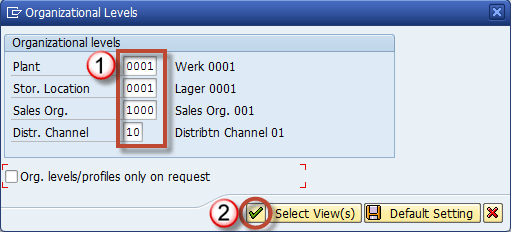
Material Master Views and Organizational Levels Reference
The table below maps every Material Master view to the Organizational Levels you must enter when maintaining that view. Use it as a quick reference while completing Step 3.
| Material Master View | Organizational Levels |
|---|---|
| Basic Data (1 & 2) | None |
| Classification | None |
| Sales Organization Data (1 & 2) | Plant, Sales Organization, Distribution Channel |
| Sales General Plant | Plant |
| Foreign Trade – Export Data | Plant |
| Purchasing | Plant |
| MRP Views | Plant, Storage Location, MRP Profile |
| Forecasting | Plant, Forecasting Profile |
| Work Scheduling | Plant |
| General Plant Data (Storage 1 & 2) | Plant, Storage Location |
| Warehouse Management 1 | Plant, Warehouse Number |
| Warehouse Management 2 | Plant, Warehouse Number, Storage Type |
| Quality Management | Plant |
| Accounting (1 & 2) | Plant |
| Costing (1 & 2) | Plant |
⚠️ Important: Maintain materials in every organizational level where they will be used. If your company has multiple plants, repeat the MM01 transaction to extend the material to each plant. The same rule applies when several Sales Organization and Distribution Channel combinations exist — every combination requires a separate MM01 run.
