
How to Display Technical Names in SAP
 Editorial Team
⚡ Smart Summary
Technical names in SAP are the transaction codes shown beside menu entries. Turning them on through Extras and Settings in the SAP Easy Access menu helps users learn and reuse transaction codes for faster navigation.
What are Technical Names in SAP?
A technical name in SAP is the transaction code that identifies a function, such as VA01 for creating a sales order or FK01 for creating a vendor. By default the SAP Easy Access menu shows only descriptive text, hiding these codes. Displaying the technical name places the code beside every menu entry so users can see exactly which transaction each item launches.
Knowing the transaction code lets users type it directly into the command field instead of clicking through folders, which is the fastest way to navigate SAP.
Display Technical Names in SAP
The following SAP tutorial will allow you to view the transaction codes next to the transaction names in both the SAP Easy Access menu and the User menu.
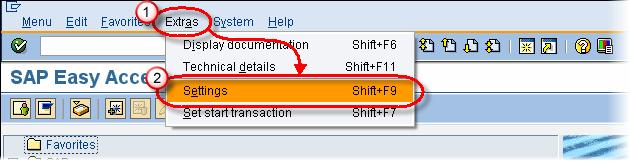
In the SAP Menu Bar
- Click Extras
- Click Settings
In the next Settings Screen of SAP
- Flag – Display Technical Name Checkbox
- Click Enter

You will observe the following change in the user menu-
| BEFORE | AFTER |
|---|---|
 |
 |
Why Display Technical Names?
Showing transaction codes turns the menu into a learning tool and a productivity shortcut. New users see the code behind each task and gradually memorize the ones they use most. Experienced users confirm they are opening the right transaction, which reduces mistakes in similarly named menu entries.
Because the command field accepts these codes directly, displaying technical names bridges the gap between menu-based browsing and fast, code-based navigation, benefiting both beginners and power users.
Best Practices for SAP Navigation
- Learn key codes: Memorize the transaction codes for your most frequent tasks.
- Use the command field: Prefix a code with /n to start it in the same session or /o for a new session.
- Add favorites: Save common transactions under the Favorites folder for quick access.
- Use F4 help: Search for a transaction when you do not know its code.
- Keep technical names on: Leave the setting enabled so codes are always visible.
