
5 BEST AI Workflow Automation Tools (2026)
 Evelyn Clarke
Ever feel stuck choosing tools that promise automation but underdeliver? Perhaps you worry about wasting time on unreliable or confusing systems. Many options suffer from poor performance or inconsistent results. Others bring hidden limitations, weak security, or frustrating compatibility issues. Some platforms drain budgets without delivering real productivity gains. However, the right solution can streamline processes and reduce manual effort. Smart picks also improve accuracy and free time for meaningful work.
I spent over 140 hours researching and testing these solutions. During that time, I evaluated 14 Best AI Workflow Automation Tools options. Each pick includes firsthand analysis and is backed by practical testing insights. You will see key features, honest pros and cons, and limitations. I also explain pricing plans and which users benefit most. Read more…
Best AI Workflow Automation Software & Tools
| Tool Name | Best For | Top Features | Free / Trial Plans | Link |
|---|---|---|---|---|
| Zoho Projects | AI-assisted project workflow management | task automation, Zia AI, Gantt charts, collaboration | Free plan available; 15-day free trial on paid plans | Learn More |
| Miro AI | Visual collaboration with AI workflows | AI brainstorming, visual boards, templates, and real-time collaboration | Free plan available; paid plans trial ~7–14 days (varies by plan) | Learn More |
| Make | No-code visual workflow automation | drag-drop builder, app integrations, scenario automation, API support | Free plan available; no time limit on free tier | Learn More |
| Wrike AI | Enterprise project automation with AI insights | workload prediction, task automation, reporting, collaboration | Free plan available; ~14-day free trial on paid plans | Learn More |
| Zapier | Cross-app AI automation at scale | 8000+ integrations, AI agents, workflow templates, no-code builder | Free plan available; paid plans trial ~14 days | Learn More |
1) Zoho Projects
Zoho Projects is a cloud-based platform for managing testing workflows efficiently. It supports task tracking, automation workflows, and collaboration for QA teams. The tool helps organize test cycles, bugs, and release timelines clearly. Its reliability comes from stable integrations and consistent project visibility features.
I found its dashboards intuitive when coordinating automation and manual testing efforts. During regression testing before releases, teams can assign tasks and track defects. It simplifies communication when validating UI changes across browsers and environments. Beginners benefit from structured workflows that reduce confusion in complex testing cycles.

Features:
- Task Breakdown: Zoho Projects allows users to divide large projects into tasks and subtasks with clear dependencies. This helps users understand what needs to be done first. It reduces confusion when managing multi-step workflows.
- Timeline View: This feature visualizes tasks on a Gantt-style timeline with start and end dates. You can easily adjust schedules by dragging tasks. This helps keep projects aligned with deadlines and dependencies.
- Time Tracking: Zoho Projects lets users log hours manually or through timers while working. I have noticed this is useful for accurately tracking billable work. It helps teams understand where time is actually spent.
- Workflow Rules: This feature automates repetitive actions based on triggers like status changes. For example, tasks can move stages automatically after completion. This reduces manual updates and keeps workflows moving without constant supervision.
- Issue Tracking: Users can log bugs or issues directly within projects and assign them quickly. In my experience, this keeps problem resolution organized and visible. It ensures nothing critical gets overlooked during execution.
- Team Collaboration: Zoho Projects includes discussion threads, comments, and file sharing within tasks. I often rely on this to avoid scattered communication across tools. It keeps all project-related conversations in one place.
- Progress Insights: This feature generates reports on task completion, delays, and workload distribution. Many users rely on this to identify bottlenecks early. It helps make informed decisions without manually reviewing every task.
- Blueprint Automation: Zoho Projects allows users to design structured workflows with predefined steps and approvals. This ensures tasks follow consistent processes every time. It is especially useful for teams handling repetitive project types.
Pros
Cons
Pricing:
Zoho Projects offers a free plan plus affordable paid tiers, with monthly and yearly billing and a limited free trial.
| Plan | Pricing |
|---|---|
| Free | Free |
| Premium | $5/user/month (monthly) • $4/user/month (yearly) |
| Enterprise | $10/user/month (monthly) • $9/user/month (yearly) |
14-Days Free Trial
2) Miro AI
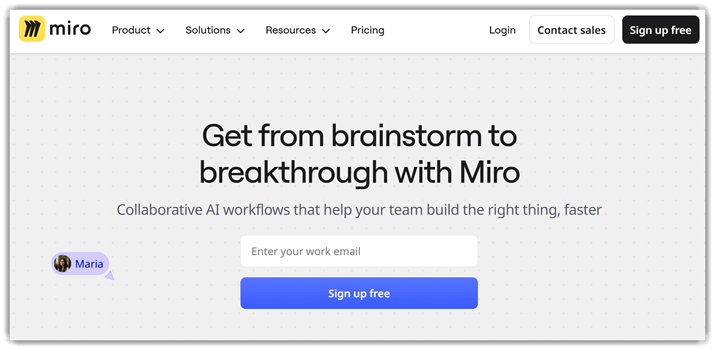
Miro AI is a collaborative platform that enhances visual workflow automation tasks. It supports brainstorming, process mapping, and AI-assisted content generation workflows. Teams use it for planning, testing workflows, and documenting automation strategies. Its reliability comes from real-time collaboration and consistent, structured outputs.
I noticed it quickly organized scattered ideas into actionable testing workflows. For example, a team preparing regression tests can map scenarios visually. Then use AI summaries to refine steps before creating automation scripts. This reduces confusion and keeps testing processes aligned across distributed teams.
Features:
- AI Brainstorming: This feature generates structured ideas from short prompts or rough notes. You can quickly expand concepts into organized clusters. This helps users move past blank-page problems and start faster.
- Diagram Conversion: Miro AI converts written inputs into visual diagrams like flowcharts or mind maps. I have noticed this saves time during early planning stages. It reduces the effort needed to structure complex ideas manually.
- Content Summaries: This feature condenses long boards or discussions into short summaries. You can quickly understand key points without reviewing everything. This helps teams stay aligned and reduces time spent scanning content.
- Sticky Notes Grouping: Miro AI automatically groups related sticky notes based on context and meaning. In my experience, this works well during brainstorming sessions. It helps organize scattered ideas into clear themes quickly.
- Workflow Suggestions: This feature recommends next steps based on current board activity. You can identify logical progressions without overthinking planning. This helps maintain momentum and reduces decision fatigue during projects.
- Meeting Capture: Miro AI captures and structures notes from collaborative sessions in real time. I often rely on this when managing team discussions. It ensures important points are not missed and remain actionable later.
- Task Extraction: This feature identifies action items directly from notes or brainstorming boards. You can convert ideas into tasks without switching tools. This improves follow-through and keeps execution closely tied to planning.
- Template Generation: Miro AI creates customized templates based on your use case or input. This feature helps users start with a relevant structure instead of building from scratch. It speeds up onboarding for new workflows and projects.
Pros
Cons
Pricing:
Miro AI offers a free plan with limited AI usage; paid plans unlock advanced AI workflows and collaboration features.
| Plan | Pricing |
|---|---|
| Free | $0 / unlimited members (always free) |
| Starter | $8/m per member (billed annually) or $10/m per member (billed monthly) |
| Business | $20/m per member (billed annually) or $25/m per member (billed monthly) |
Lifetime Free Basic Plan
3) Make
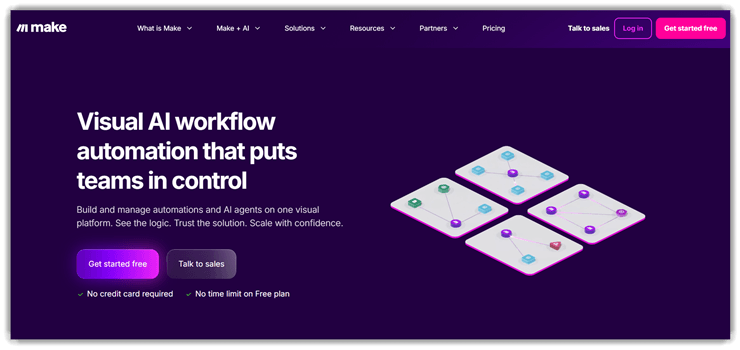
Make is a visual automation platform for building complex workflows. It connects apps, APIs, and services to automate testing processes efficiently. It supports integration testing, data validation, and scheduled workflow executions. Its reliability comes from modular scenarios and clear execution monitoring tools.
I found workflows executed consistently, even with multiple dependent steps configured. For example, you can automate regression checks after deploying new application updates. It validates API responses, triggers alerts, and logs failures automatically. This fits teams needing repeatable testing flows without writing heavy automation code.
Features:
- Scenario Builder: This feature lets users design workflows by visually connecting apps and actions. You can map each step clearly before running automation. This reduces setup errors and improves process understanding.
- Trigger Control: Make allows users to define specific events that start workflows automatically. You can set triggers based on time, app activity, or data changes. This helps ensure tasks run exactly when needed.
- Multi-Step Routing: This feature routes data through multiple paths based on conditions. I have noticed this works well for handling different outcomes automatically. It prevents manual sorting and keeps workflows organized.
- Data Mapping: You can assign data fields between apps without manual copying. Make the input and output clear for each step. This reduces confusion and ensures accurate data transfer across tools.
- Error Handling: This feature detects failed steps and lets you define recovery actions. In my experience, this saves time when workflows break unexpectedly. You can retry, skip, or log errors easily.
- Execution Logs: Make provides detailed logs for every workflow run and step. You can review what happened at each stage of automation. This helps troubleshoot issues and refine processes faster.
- Scheduling Tools: This feature allows workflows to run at specific times or intervals. I often rely on this when automating repetitive daily tasks. It reduces manual effort and ensures consistency.
- Reusable Modules: Users can save parts of workflows as reusable components. This helps replicate common processes without rebuilding them each time. It improves efficiency when managing multiple similar automations.
Pros
Cons
Pricing:
Make offers a free plan with no time limit; paid plans start at $9/month (monthly) for 10,000 credits.
| Plan | Pricing |
|---|---|
| Free | $0/m — up to 1,000 credits/m |
| Core | $9/m (monthly) · $7.65/m (annually, saves 15%+) — 10,000 credits/m |
| Teams | $29/m (monthly) · $24.65/m (annually, saves 15%+) — 10,000 credits/m |
Lifetime Free Basic Plan
4) Wrike AI
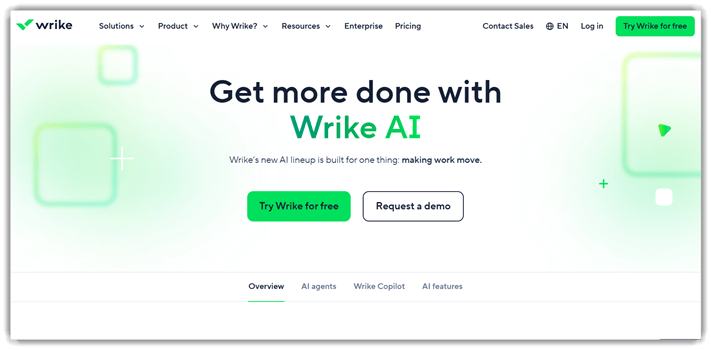
Wrike AI is a workflow automation platform designed for managing complex projects. It supports task automation, project tracking, and collaborative testing workflows. Teams use it to coordinate releases and monitor testing progress reliably. Its structured dashboards and AI insights help reduce manual coordination overhead.
I found its automation flows handled repetitive updates without breaking dependencies. For example, during regression cycles, tasks automatically update after test results completion. This keeps testers aligned when validating UI changes across multiple environments. It fits well for teams needing automation visibility alongside structured testing workflows.
Features:
- Task Breakdown: This feature converts large projects into smaller, manageable tasks automatically. You can quickly assign responsibilities and deadlines. This reduces planning time and keeps work structured from the start.
- Workflow Suggestions: Wrike AI analyzes ongoing tasks and suggests next steps based on progress. I have noticed this helps avoid delays during complex projects. It keeps teams moving without constant manual planning.
- Content Generation: This feature drafts task descriptions, summaries, and updates using existing project data. You can refine outputs instead of writing from scratch. This saves time during documentation and status reporting.
- Progress Insights: Wrike AI highlights project risks by analyzing timelines and workload patterns. Many users rely on this to spot delays early. It helps teams adjust priorities before issues escalate.
- Smart Prioritization: This feature ranks tasks based on urgency, dependencies, and deadlines. In my experience, this helps focus on what actually matters first. It reduces confusion when managing multiple parallel tasks.
- Automated Updates: Wrike AI generates status reports from real-time task activity and changes. You can share updates without manual tracking. This keeps stakeholders informed with minimal effort.
- Resource Planning: This feature evaluates team workload and suggests better task distribution. I often rely on this when balancing multiple projects. It helps prevent burnout and improves overall productivity.
- Search Assistance: Wrike AI lets users find tasks, files, or discussions using natural language queries. This feature helps locate information faster. It reduces time spent navigating complex project structures.
Pros
Cons
Pricing:
Wrike offers a free plan for individuals plus a 14-day free trial (no credit card required); paid plans start at $10/user/month, billed annually.
| Plan | Pricing |
|---|---|
| Free | $0/user/month |
| Team | $10/user/month (billed annually) |
| Business | $25/user/month (billed annually) |
14-Days Free Trial
5) Zapier
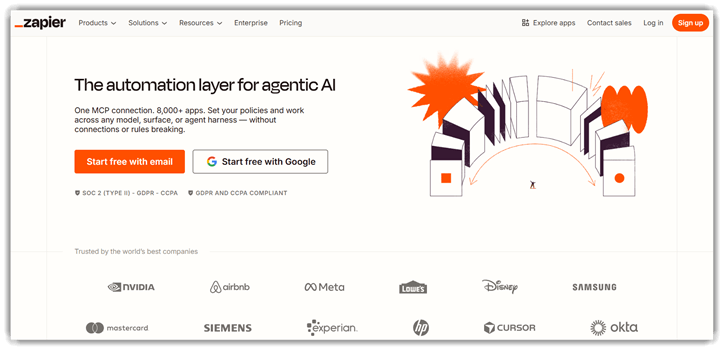
Zapier is a popular workflow automation tool connecting apps without coding. It supports task automation, integration testing, and simple process validation across services. Its reliability comes from stable integrations and consistent execution of automated workflows. It fits well for teams needing lightweight automation within everyday testing pipelines.
I found its trigger-based automation handled workflows smoothly during routine checks. For example, during regression testing, it syncs bug reports automatically across tools. This reduces manual effort while ensuring updates reach testing and development systems. It helps beginners automate repetitive tasks without building complex scripts or integrations.
Features:
- Trigger Setup: This feature lets users define specific events that start automated workflows. You can connect triggers to apps or actions easily. This helps ensure tasks begin exactly when needed without manual checks.
- Action Chains: Zapier allows users to link multiple actions after a trigger fires. You can build step-by-step workflows across tools. This reduces repetitive switching between apps and speeds up multi-step processes.
- App Connections: This feature connects hundreds of apps through a unified interface. You can move data between tools without coding. I have noticed this saves significant time when managing scattered workflows.
- Filter Rules: You can apply conditions to control when a workflow continues. This feature ensures only relevant data moves forward. It helps avoid errors and unnecessary task execution in complex automations.
- Data Mapping: Zapier lets users map fields between different apps during automation. You can align data formats across platforms easily. This ensures accurate information transfer without manual corrections.
- Scheduled Runs: This feature allows workflows to run at specific time intervals. You can automate recurring tasks like reports or reminders. I often rely on this for routine processes that require consistency.
- Error Handling: Zapier provides alerts and logs when workflows fail or stop. You can quickly identify and fix issues. In my experience, this reduces downtime and keeps automations running reliably.
- Template Library: This feature offers pre-built workflows for common use cases. You can start automating tasks without building from scratch. Many users rely on this to learn faster and deploy workflows quickly.
Pros
Cons
Pricing:
Zapier offers a free plan with 100 tasks/month and a 14-day free trial on all paid plans to explore premium features.
| Plan | Pricing |
|---|---|
| Free | $0/month — 100 tasks/month, unlimited Zaps, single user |
| Professional | $19.99/month (billed annually) — 750 tasks/month, multi-step Zaps, AI Copilot |
| Team | $69/month (billed annually) — 2,000 tasks/month, up to 25 users, SAML SSO |
Link: https://zapier.com/
Comparison between the Best Free AI Video Generators
| Tool | Zoho Projects | Miro AI | Make | Wrike AI | Zapier |
| No-code setup | ✔️ | ✔️ | ✔️ | ✔️ | ✔️ |
| Free plan | ✔️ | ✔️ | ✔️ | ✔️ | ✔️ |
| Direct support | ✔️ | ✔️ | ✔️ | ✔️ | ✔️ |
| Enterprise security | ✔️ | ✔️ | ✔️ | ✔️ | ✔️ |
| 1,000+ integrations | ❌ | ❌ | ✔️ | ❌ | ✔️ |
| AI workflow features | ✔️ | ✔️ | ✔️ | ✔️ | ✔️ |
How do AI workflow automation tools compare with traditional automation software?
Traditional automation relies on fixed rules and manual configurations. AI workflow automation tools adapt using data and patterns. This makes them more dynamic and intelligent. Key differences include:
- AI tools learn and improve over time
- Traditional tools require constant manual updates
- AI handles complex, conditional workflows better
Businesses gain flexibility and efficiency using AI solutions. However, traditional tools may still suit simple processes. The choice depends on workflow complexity and scalability needs.
What are the benefits of using AI workflow automation tools?
Using AI automation tools can significantly improve productivity and accuracy. They reduce repetitive work and free up valuable time. Key benefits include:
- Faster task execution across multiple systems
- Reduced human errors in data handling
- Improved decision-making using AI insights
- Cost savings from operational efficiency
These tools also enhance team collaboration by streamlining processes. Businesses can scale operations without increasing workload. This makes them essential for modern digital workflows.
What are the future trends in AI workflow automation tools?
The future of AI workflow automation is focused on smarter and faster systems. Emerging trends include:
- No-code and low-code platforms for easier adoption
- Advanced AI decision engines for complex workflows
- Deeper integration with CI/CD pipelines
- Hyperautomation combining multiple technologies
These trends aim to make automation more accessible and powerful. Businesses will rely more on AI-driven workflows. This will transform how work is managed and executed.
What are common use cases for AI workflow automation tools?
AI automation tools support a wide range of business processes. They are used across industries to improve efficiency and accuracy. Common use cases include:
- Customer support automation using chatbots
- Sales pipeline management and lead tracking
- HR onboarding workflows and document processing
- Marketing campaign automation
These tools handle repetitive tasks while maintaining consistency. They allow teams to focus on strategic work. This increases overall productivity and business growth.
What role does AI play in improving workflow automation?
AI enhances automation by adding intelligence and adaptability. It enables systems to analyze data and make decisions. Key roles of AI include:
- Predictive analysis for better decision-making
- Natural language processing for handling text-based tasks
- Pattern recognition for optimizing workflows
This allows automation to go beyond simple rules. AI can adjust workflows based on changing conditions. This makes processes more efficient and responsive.
Verdict
After testing a range of AI workflow automation tools, I found a few that consistently delivered reliable performance, smart automation, and practical usability across real-world tasks.
- Zoho Projects: I appreciated its structured workflow management and seamless automation features. It handled task dependencies and team collaboration efficiently without overwhelming the interface.
- Miro AI: What stood out was its intelligent assistance and adaptive responses. It streamlined repetitive processes and delivered context-aware automation that felt surprisingly intuitive during testing.
- Make: I found its visual automation builder extremely flexible. It allowed me to design complex workflows with precision while maintaining clarity, even when handling multi-step integrations.
