
AngularJS Controllers with ng-Controller Example
 Editorial Team
⚡ Smart Summary
A Controller in AngularJS holds the business logic of a screen. It receives data through the scope object, processes it, and exposes the result back to the view, keeping presentation markup free of application logic.
What is Controller in AngularJS?
A Controller in AngularJS takes the data from the View, processes the data, and then sends that data across to the view which is displayed to the end user. The Controller holds your core business logic. It uses the data model, carries out the required processing, and then passes the output to the view.
⚠️ Version note: AngularJS (the 1.x branch) reached end of life on 31 December 2021 and receives no further security patches. The concepts below still apply to legacy applications; in modern Angular the same role is filled by a component class rather than a controller.
Knowing what a controller is leaves one question open: how it actually communicates with the view. The next section answers that.
What Controller does from Angular’s Perspective
Following is a simple definition of the working of an AngularJS Controller:

- The controller’s primary responsibility is to control the data which gets passed to the view. The scope and the view have two-way communication.
- View properties and events can call functions on the scope. The snippet below shows the function($scope) declared with the controller plus an internal function returning
$scope.firstNameand$scope.lastNamejoined. In AngularJS, a function defined as a variable is a Method.

- Data passes from the controller to the scope, and then back and forth between the scope and the view.
- The scope exposes the model to the view. The model can be modified via methods defined on the scope, which are triggered by events from the view.
- Controllers should not be used for manipulating the DOM. That is the job of directives.
- Best practice is to base controllers on functionality. If you have an input form that needs a controller, create one called “form controller”.
With the mechanism understood, the next section builds a controller from an empty page.
How to Build a Basic Controller in AngularJS
Below are the steps to create a controller in AngularJS.
Step 1) Create a basic HTML Page
Before creating a controller, the basic HTML page has to be in place. The snippet below is a simple page titled “Event Registration” that references Bootstrap and AngularJS.

- References to the Bootstrap CSS stylesheet, used together with the Bootstrap library.
- A reference to the AngularJS library. Everything done with AngularJS from here on is resolved from this file.
- A reference to the Bootstrap library, which makes certain controls responsive.
⚠️ Correction: the original loaded jQuery and stated that AngularJS depends on it. It does not. AngularJS ships with jqLite, a built-in subset of the jQuery API, and only upgrades to full jQuery if jQuery loads before it. The reference has been removed.
Step 2) Check the files and file structure

- Files are split into two folders as in any conventional web application: “css” for stylesheets and “lib” for JavaScript files.
- bootstrap.css sits in the css folder and gives the site its look and feel.
- angular.js is the main library, downloaded from the AngularJS site and kept in lib.
- app.js will contain the code for the controllers.
Step 3) Use AngularJS code to display the output
The goal here is to display the words “AngularJS” both as plain text and inside a text box when the page is opened in the browser.

<!DOCTYPE html>
<html>
<head>
<meta charset="UTF-8">
<title>Event Registration</title>
<link rel="stylesheet" href="css/bootstrap.css">
</head>
<body>
<h1> Guru99 Global Event</h1>

<div ng-app="DemoApp" ng-controller="DemoController">
Tutorial Name : <input type="text" ng-model="tutorialName"><br>
This tutorial is {{tutorialName}}
</div>

<script src="lib/angular.js"></script>
<script>
var app = angular.module('DemoApp', []);

app.controller('DemoController', ['$scope', function($scope) {
  $scope.tutorialName = "AngularJS";
}]);
</script>
</body>
</html>
Code Explanation:
- ng-app marks this element as the root of an AngularJS application. Attributes prefixed with ng- are built-in directives. “DemoApp” is the name given to the application.
- The div carries ng-controller with the name “DemoController”, which gives that element and everything inside it access to the controller scope.
- ng-model creates the model binding, tying the Tutorial Name text box to the scope property
tutorialName. - The module
DemoAppis created, and the controller assigns a default value of “AngularJS” totutorialName.
⚠️ Corrections applied. The original listing declared chrset="UTF 8", which is neither a valid attribute nor a valid encoding name, and loaded AngularJS twice — once from the CDN and once from lib/angular.js. Loading the library twice re-registers the module system and produces unpredictable behaviour. The dependency array annotation ['$scope', function($scope){…}] was also added, without which the controller breaks the moment the file is minified.
Output:

Because tutorialName was assigned the value “AngularJS”, that value appears in the text box and in the plain text line. A single property is enough for a demonstration; real controllers usually expose behaviour as well, which the next section covers.
How to Define Methods in AngularJS Controllers
Normally one would define multiple methods in a controller to separate the business logic. If the controller had to add two numbers and subtract two numbers, you would create one method for each operation.
The example below defines a custom method inside an AngularJS controller that returns a string.

<!-- The head and library references are unchanged from Step 3 -->
<div ng-app="DemoApp" ng-controller="DemoController">
Tutorial Name : <input type="text" ng-model="tutorialName"><br>
This tutorial is {{tName()}}
</div>

<script>
var app = angular.module('DemoApp', []);

app.controller('DemoController', ['$scope', function($scope) {
  $scope.tutorialName = "AngularJS";

  // A method on the scope, callable from the view as tName()
  $scope.tName = function() {
    return $scope.tutorialName;
  };
}]);
</script>
Code Explanation:
- A function is attached to the scope object as the member
tName. It returns the current value oftutorialName. - The view calls the method with
{{tName()}}. The parentheses matter: without them the expression prints the function itself rather than its result.
⚠️ Correction: the original method read $scope.tName = function() { return $scope.tName; };. That function returns itself, not the tutorial name, so the page rendered a function body instead of text. It now returns $scope.tutorialName.
Output:

So far everything has lived in one file. Production applications keep controllers separate, which is what the next section demonstrates.
AngularJS Controller with ng-Controller Example
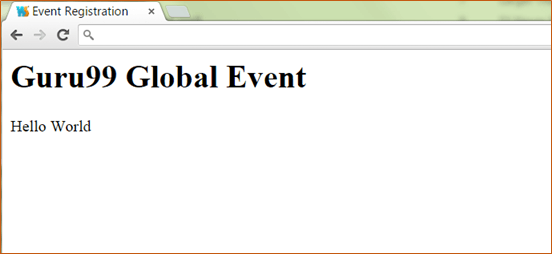
The “HelloWorld” example above placed all functionality in a single file. It is now time to move the controller code into its own file.
Step 1) In the app.js file, add the following code for your controller.

angular.module('app', [])
  .controller('HelloWorldCtrl', ['$scope', function($scope) {
    $scope.message = "Hello World";
  }]);
The above code does the following:
- Defines a module called “app” which holds the controller.
- Creates a controller named “HelloWorldCtrl” that displays a “Hello World” message.
- Uses the scope object to pass information from the controller to the view, in this case a variable called
message.
Step 2) In Sample.html, add a div carrying the ng-controller directive and a reference to the member variable message. Remember to reference app.js, which holds the controller source.

<!DOCTYPE html>
<html ng-app="app">
<head>
<meta charset="UTF-8">
<title>Event Registration</title>
<link rel="stylesheet" href="css/bootstrap.css">
</head>
<body>
<h1> Guru99 Global Event</h1>
<div class="container">
<div ng-controller="HelloWorldCtrl">{{message}}</div>
</div>

<script src="lib/angular.js"></script>
<script src="app.js"></script>
</body>
</html>
⚠️ Correction: app.js must be loaded after angular.js, since it calls angular.module. The original also loaded the library twice and carried the same chrset typo.
Output:
Every example so far has read and written properties directly on $scope. The section below covers the alternative that the AngularJS team recommends instead.
How to Use the controllerAs Syntax in AngularJS
Binding directly to $scope works, but it becomes ambiguous as soon as controllers are nested. A view expression such as {{name}} gives no clue which controller owns name, and because child scopes inherit from parent scopes prototypally, a nested controller that writes to an inherited primitive silently creates its own shadow copy. The controllerAs syntax removes both problems by giving each controller an alias.
Step 1) Alias the controller in the view using the as keyword, then prefix every binding with that alias.
Step 2) Inside the controller, attach properties to this rather than to $scope.
<div ng-controller="DemoController as demo">
Tutorial Name : <input type="text" ng-model="demo.tutorialName">
This tutorial is {{demo.tutorialName}}
</div>

<script>
app.controller('DemoController', function() {
  // 'vm' is captured so nested functions keep the right reference
  var vm = this;
  vm.tutorialName = "AngularJS";

  vm.tName = function() {
    return vm.tutorialName;
  };
});
</script>
Three gains follow. Bindings become self-documenting, because demo.tutorialName names its owner. Nested controllers stop colliding, since a parent aliased outer and a child aliased inner can both expose name. Values also bind through an object rather than a bare primitive, sidestepping the trap where an edit in a child never reaches the parent.
💡 Tip: Capture this into a variable such as vm at the top of the controller. Inside a callback, this refers to something else entirely, and the captured reference keeps the binding correct.
Choosing a binding style is one decision. Deciding what belongs in a controller at all is another, and the comparison below draws that line.
Controller vs Service in AngularJS
Beginners frequently overload the controller with work that belongs in a service. The distinction is lifespan and reuse: a controller exists only while its view is on screen, whereas a service is a singleton that lives for the life of the application.
| Aspect | Controller | Service |
|---|---|---|
| Lifetime | Created and destroyed with the view | Single instance for the whole application |
| Purpose | Prepare data for one view | Shared logic, state and server calls |
| Reusable | No, tied to its view | Yes, injectable anywhere |
| Holds state between views | No, state is lost on navigation | Yes, state persists |
| Typical content | Scope properties and view methods | HTTP calls, caching, business rules |
Keep controllers thin. If two controllers need the same logic, or if a value must survive navigation between views, move it into a service and inject that service where it is needed. A practical test is to ask whether the code would still make sense with the current screen closed. If the answer is yes, it belongs in a service.
