
Create your First Cucumber Script (2 Examples)
 Editorial Team
⚡ Smart Summary
Cucumber Script execution helps you turn plain-language Gherkin scenarios into runnable automated tests using Step Definition files, allowing teams to validate behavior, share intent across stakeholders, and ship reliable BDD-driven projects on Cucumber or Cucumber-JVM.
In this tutorial, you will create Cucumber Scripts to test two scenarios using Gherkin syntax and Step Definition files. Cucumber is a popular BDD framework that connects plain-language Feature files with executable test code so business analysts and developers can collaborate on the same specifications.
Cucumber Script 1: Multiply 2 Numbers
In this first Cucumber example, you will write a simple Feature file that multiplies two numbers and then create a matching Step Definition file in Ruby. The same workflow applies if you use Cucumber-JVM 7.x with Java or Kotlin in IntelliJ IDEA.
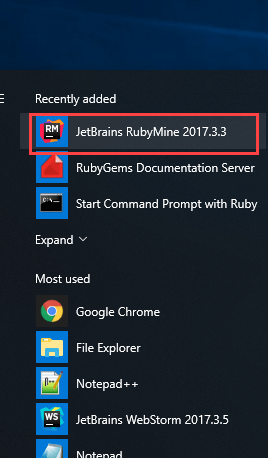
Step 1) Open RubyMine Editor via the Windows start menu.
Step 2) In RubyMine Editor, click on Create New Project.

Step 3) Select the Project location and click “Create.”

Step 4) Create a file directory inside the project root for your Feature files.

Step 5) Name the directory as “features”. Cucumber will scan this folder automatically.

Step 6) Create and Save File in “yourfolder/features/” with name “yourfilename.feature”.
Click here if the video is not accessible
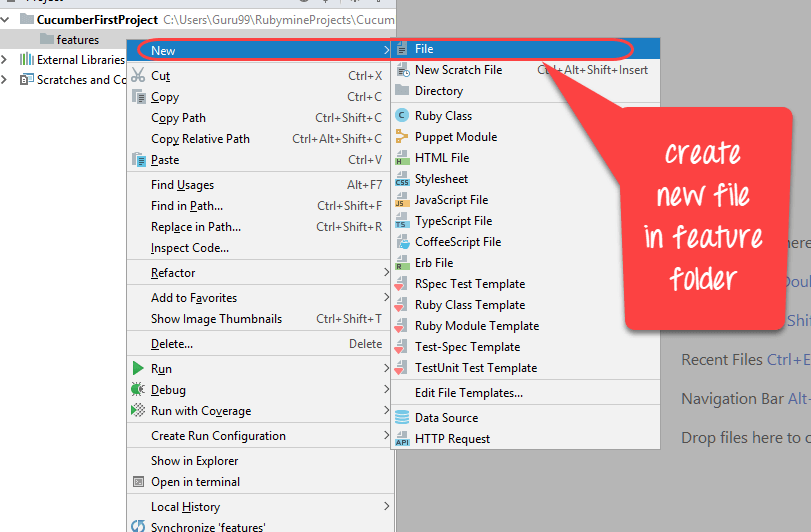

Step 7) To execute the scenario, save the following program inside the Feature file. Note how Gherkin keywords such as Feature, Scenario, Given, When, and Then describe the test behavior.

Code:
Feature: Multiplication
  I multiply two numbers
	Scenario: multiply a and b
	  Given I have variable a
	  And I have variable b
      When I multiplication a and b
      Then I display the Result
Step 8) Now run your first Feature file.
Click on “Start Command Prompt With Ruby”.

The output you receive is shown below.

You will see an error because you must write a Step Definition file that pairs with the Feature file.
Step 9) Create a Step Definition file for your Feature file.
Create a new folder in the RubyMine editor named “step_definition”.

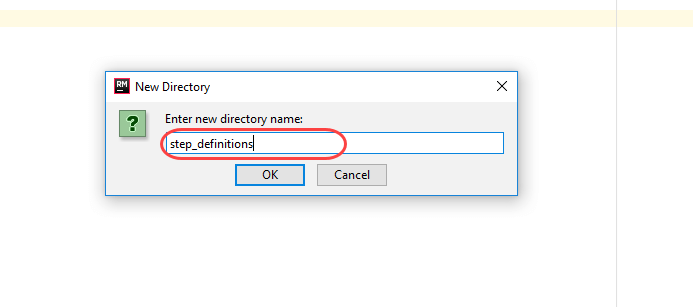
Step 10) Save the file in “yourfolder/features/step_definitions” with name test_step.rb.

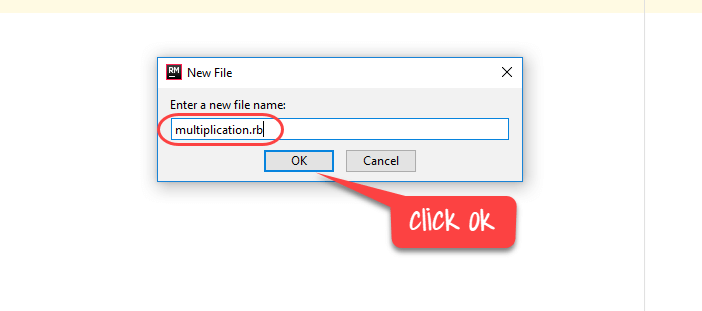
Step 11) Write the following code into the Step Definition file. Each block maps to a Gherkin step from the Feature file.

Code :
Given(/^I have variable a$/) do
  @a = 50
end

And(/^I have variable b$/) do
  @b = 70
end

When(/^I multiplication a and b$/) do
  @mul = @a * @b
end

Then(/^I display the Result$/) do
  puts "Multiplication of #{@a} and #{@b} is #{@mul}"
end
Step 12) Run the Feature file again.

The result is shown below.




Cucumber Script 2: Verify output when Email id is entered or not entered
In this second example, you will use Ruby with Watir to drive a browser and validate two registration scenarios on the Guru99 demo site. The same patterns apply if you adopt Cucumber-JVM 7.x with Selenium WebDriver and Java.
In this example we use Ruby.
Test Scenario: Verify output when Email id is NOT entered.
Test Steps:
- Open Browser
- Go To https://demo.guru99.com/
- Do not enter Email id
- Click Submit
Test Scenario: Verify output when Email id is entered.
Test Steps:
- Open Browser
- Go To https://demo.guru99.com/
- Enter Email Id
- Click Submit
Code in Feature file:
Feature: guru99 Demopage Login
To Login in Demopage we have to enter login details
Scenario: Register On Guru99 Demopage without email
Given I am on the Guru99 homepage
When enter blank details for Register
Then error email shown
Scenario: Register On Guru99 Demopage with valid email
Given I am on the Guru99 homepage
When enter details for Register
Then login details shown
Code in Step Definition file:
require 'watir-webdriver'

require 'colorize'

browser = Watir::Browser.new

Given (/^I am on the Guru99 homepage$/)do

browser.goto "https://demo.guru99.com"

end

When (/^enter blank details for Register$/)do

browser.text_field(:name,"emailid").set(" ")

browser.button(:name,"btnLogin").click

end

Then (/^error email shown$/)do

puts " Email is Required".red

browser.close

end

When (/^enter details for Register$/)do

browser = Watir::Browser.new

browser.goto "https://demo.guru99.com"

browser.text_field(:name,"emailid").set("<a href="mailto:guru99@gmail.com">guru99@gmail.com</a>")

browser.button(:name,"btnLogin").click

end

Then (/^login details shown$/)do

puts " Sucessfully register"

browser.close

end
Run the code in command prompt and you will see the following output.

