
How to Scroll Down or UP Page in Selenium Webdriver
 Krishna Rungta
⚡ Smart Summary
Scrolling a page in Selenium WebDriver uses the JavascriptExecutor interface to run JavaScript scroll commands, because WebDriver manipulates the DOM directly. Four practical scenarios cover scrolling by pixel, to an element, to the page bottom, and horizontally.
Scroll in Selenium
To scroll using Selenium, you can use JavaScriptExecutor interface that helps to execute JavaScript methods through Selenium Webdriver
Syntax:
JavascriptExecutor js = (JavascriptExecutor) driver;
   js.executeScript(Script,Arguments);
- Script – This is the JavaScript that needs to execute.
- Arguments – It is the arguments to the script. It’s optional.
What is a Scrollbar?
A Scrollbar is a lets you move around screen in horizontal or vertical direction if the current page scroll does not fit the visible area of the screen. It is used to move the window up and down.
Selenium Webdriver does not require scroll to perform actions as it manipulates DOM. But in certain web pages, elements only become visible once the user have scrolled to them. In such cases scrolling may be necessary.
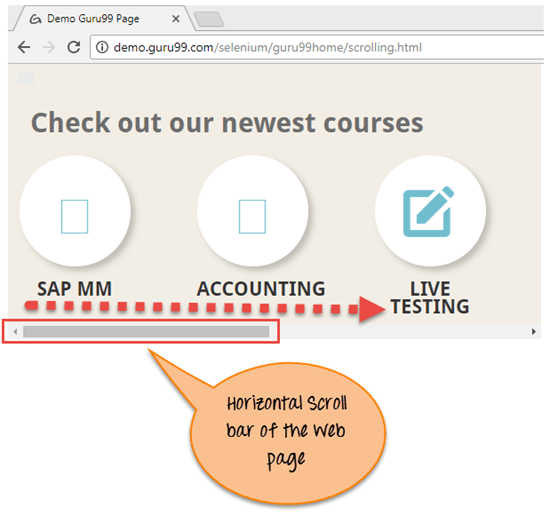
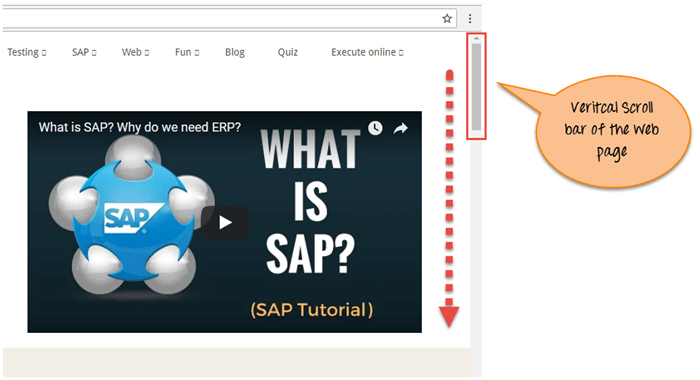
Scroll bar is of two type : Horizontal and vertical scroll bar as shown in below screenshot.
Selenium Script to scroll down the page
Let’s, see the scroll down a web page using the selenium webdriver with following 4 scenarios :
- Scenario 1: To scroll down the web page by pixel.
- Scenario 2: To scroll down the web page by the visibility of the element.
- Scenario 3: To scroll down the web page at the bottom of the page.
- Scenario 4: Horizontal scroll on the web page.
Scenario 1: To scroll down the web page by pixel.
Selenium Script
import org.openqa.selenium.JavascriptExecutor;
import org.openqa.selenium.WebDriver;
import org.openqa.selenium.chrome.ChromeDriver;
import org.testng.annotations.Test;

public class ScrollByPixel {

    WebDriver driver;
    @Test
    public void ByPixel() {
        System.setProperty("webdriver.chrome.driver", "E://Selenium//Selenium_Jars//chromedriver.exe");
        driver = new ChromeDriver();

        JavascriptExecutor js = (JavascriptExecutor) driver;

        // Launch the application
        driver.get("https://demo.guru99.com/test/guru99home/");

        //To maximize the window. This code may not work with Selenium 3 jars. If script fails you can remove the line below
        driver.manage().window().maximize();

        // This  will scroll down the page by  1000 pixel vertical
        js.executeScript("window.scrollBy(0,1000)");
    }
}
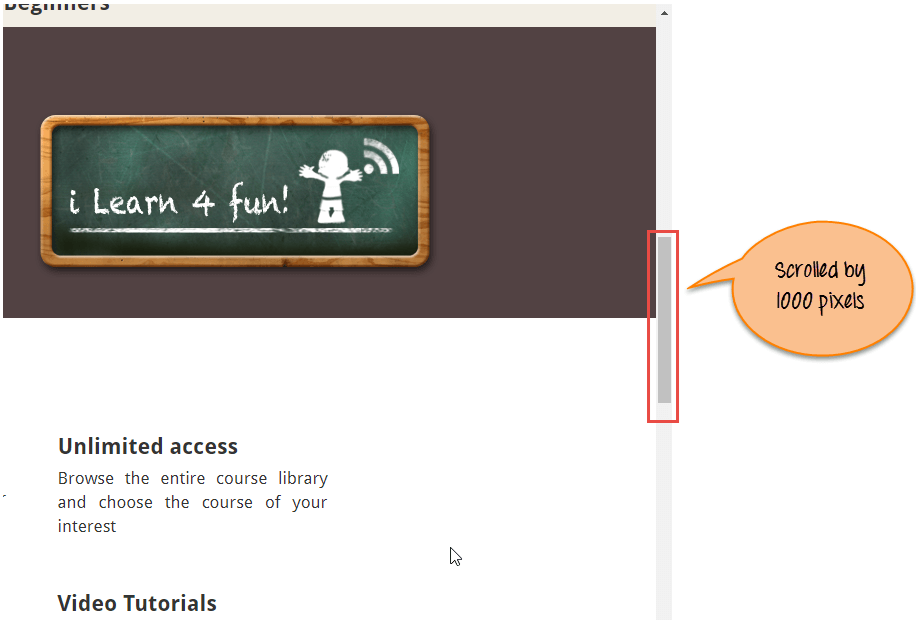
Script Description: In the above code first we launch the given URL in Chrome browser. Next, scroll the page by 1000 pixels through executeScript. Javascript method ScrollBy() scrolls the web page to the specific number of pixels.
The syntax of ScrollBy() methods is :
executeScript("window.scrollBy(x-pixels,y-pixels)");
x-pixels is the number at x-axis, it moves to the left if number is positive and it move to the right if number is negative .y-pixels is the number at y-axis, it moves to the down if number is positive and it move to the up if number is in negative .
Example:
js.executeScript("window.scrollBy(0,1000)"); //Scroll vertically down by 1000 pixels
Output analysis : Here is the output when you execute the above script .
Scenario 2: To scroll down the web page by the visibility of the element.
Selenium Script
import org.openqa.selenium.By;
import org.openqa.selenium.JavascriptExecutor;
import org.openqa.selenium.WebDriver;
import org.openqa.selenium.WebElement;
import org.openqa.selenium.chrome.ChromeDriver;
import org.testng.annotations.Test;

public class ScrollByVisibleElement {

    WebDriver driver;
    @Test
    public void ByVisibleElement() {
        System.setProperty("webdriver.chrome.driver", "G://chromedriver.exe");
        driver = new ChromeDriver();
        JavascriptExecutor js = (JavascriptExecutor) driver;

        //Launch the application
        driver.get("https://demo.guru99.com/test/guru99home/");

        //Find element by link text and store in variable "Element"
        WebElement Element = driver.findElement(By.linkText("Linux"));

        //This will scroll the page till the element is found
        js.executeScript("arguments[0].scrollIntoView();", Element);
    }
}
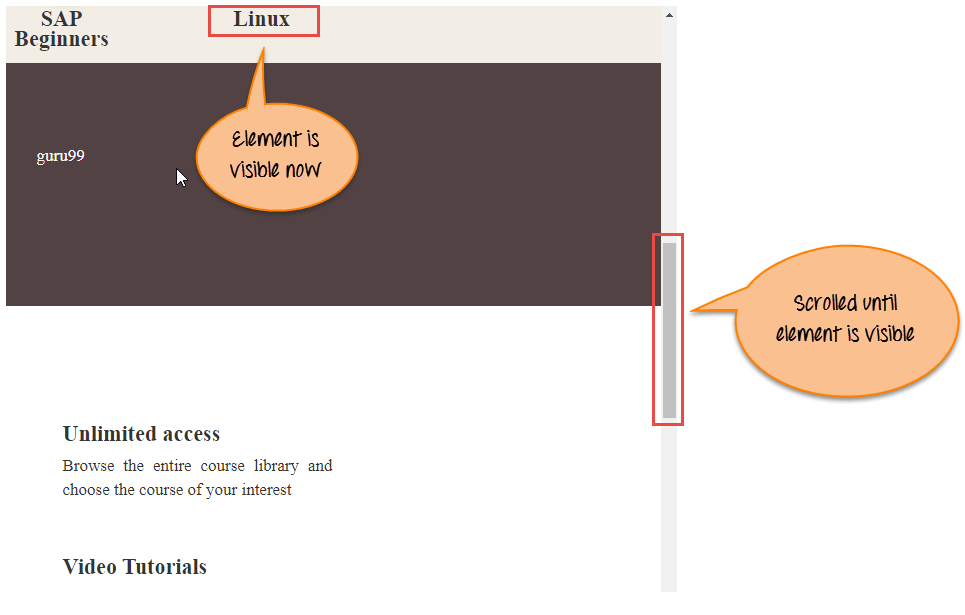
Script Description: In the above code, we first launch the given url in Chrome browser. Next, scroll the page until the mentioned element is visible on the current page. Javascript method scrollIntoView() scrolls the page until the mentioned element is in full view :
js.executeScript("arguments[0].scrollIntoView();",Element );
“arguments[0]” means first index of page starting at 0.
Where an ” Element ” is the locator on the web page.
Output analysis : Here is the output when you execute the above script .
Scenario 3: To scroll down the web page at the bottom of the page.
Selenium Script
import org.openqa.selenium.JavascriptExecutor;
import org.openqa.selenium.WebDriver;
import org.openqa.selenium.chrome.ChromeDriver;
import org.testng.annotations.Test;

public class ScrollByPage {

    WebDriver driver;
    @Test
    public void ByPage() {
        System.setProperty("webdriver.chrome.driver", "E://Selenium//Selenium_Jars//chromedriver.exe");
        driver = new ChromeDriver();

        JavascriptExecutor js = (JavascriptExecutor) driver;

        // Launch the application
        driver.get("https://demo.guru99.com/test/guru99home/");

        //This will scroll the web page till end.
        js.executeScript("window.scrollTo(0, document.body.scrollHeight)");
    }
}
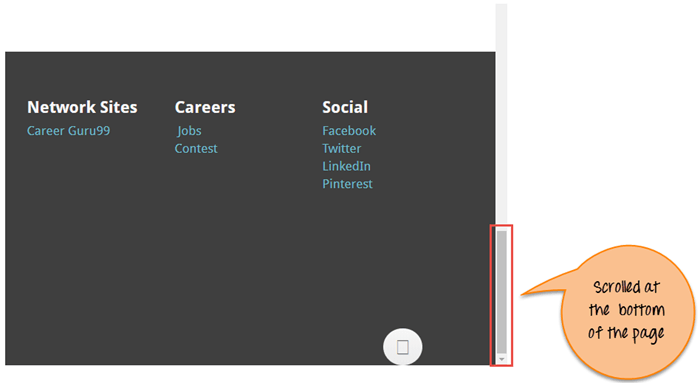
Script Description : In the above code, we first launch the given url in Chrome browser. Next, scroll till the bottom of the page. Javascript method scrollTo() scroll the till the end of the page .
js.executeScript("window.scrollTo(0, document.body.scrollHeight)");
“document.body.scrollHeight” returns the complete height of the body i.e web page.
Output analysis: Here is the output when you execute the above script.
Scenario 4: Horizontal scroll on the web page
Selenium Script
import org.openqa.selenium.By;
import org.openqa.selenium.JavascriptExecutor;
import org.openqa.selenium.WebDriver;
import org.openqa.selenium.WebElement;
import org.openqa.selenium.chrome.ChromeDriver;
import org.testng.annotations.Test;

public class HorizontalScroll {

    WebDriver driver;
    @Test
    public void ScrollHorizontally() {
        System.setProperty("webdriver.chrome.driver", "E://Selenium//Selenium_Jars//chromedriver.exe");
        driver = new ChromeDriver();

        JavascriptExecutor js = (JavascriptExecutor) driver;

        // Launch the application
        driver.get("https://demo.guru99.com/test/guru99home/scrolling.html");

        WebElement Element = driver.findElement(By.linkText("VBScript"));

        //This will scroll the page Horizontally till the element is found
        js.executeScript("arguments[0].scrollIntoView();", Element);
    }
}
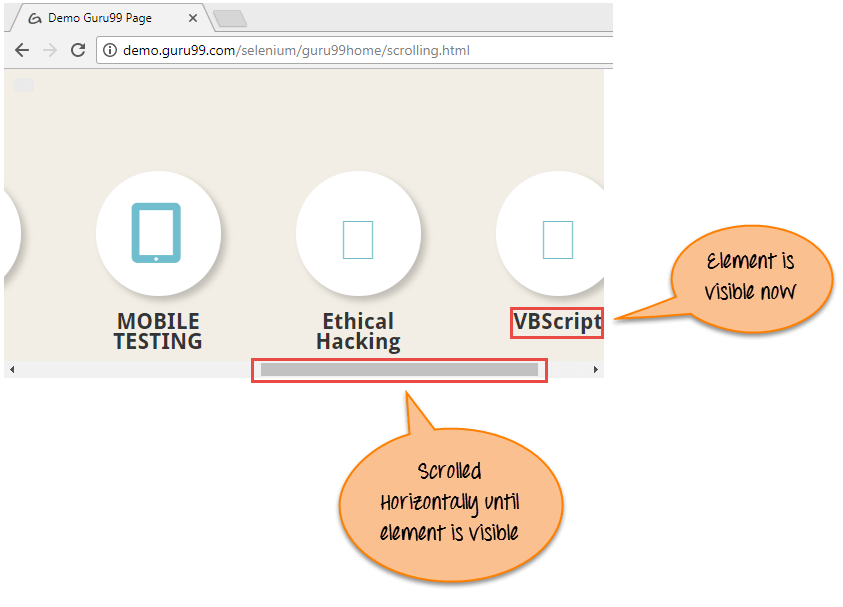
Script Description : In the above code, we first launch the given url in Chrome browser. Next, scroll the page horizontally until the mentioned element is visible on the current page. Javascript method scrollIntoView() scrolls the page until the mentioned element is in full view :
js.executeScript("arguments[0].scrollIntoView();",Element );
Output analysis: Here is the output when you execute the above script.
Learn more about JavaScriptExecutor
