
MongoDB Regular Expression ($regex) with Examples
 Editorial Team
⚡ Smart Summary
MongoDB regular expressions perform pattern matching to find strings inside documents, using the $regex operator, the $options flag for case insensitivity, anchors for exact matches, and slash delimiters when the exact field value is unknown.

Regular expressions are used for pattern matching, which is basically for finding strings within documents.
Sometimes when retrieving documents in a collection, you may not know exactly what the exact Field value to search for. Hence, one can use regular expressions to assist in retrieving data based on pattern matching search values.
Using $regex operator for Pattern matching
The $regex operator in MongoDB is used to search for specific strings in the collection. The following example shows how this can be done.
Let us assume that we have our same Employee collection which has the Field names of “Employeeid” and “EmployeeName”. Let us also assume that we have the following documents in our collection.
| Employee id | Employee Name |
|---|---|
| 22 | NewMartin |
| 2 | Mohan |
| 3 | Joe |
| 4 | MohanR |
| 100 | Guru99 |
| 6 | Gurang |
Here in the below code we have used the $regex operator to specify the search criteria.

db.Employee.find({EmployeeName : {$regex: "Gu" }}).forEach(printjson)
Code Explanation:
- Here we want to find all Employee Names which have the characters ‘Gu’ in it. Hence, we specify the $regex operator to define the search criteria of ‘Gu’.
- The printjson is being used to print each document which is returned by the query in a better way.
If the command is executed successfully, the following Output will be shown:
Output:

The output clearly shows that those documents wherein the Employee Name contains the ‘Gu’ characters are returned.
If suppose your collection has the following documents with an additional document which contained the Employee Name as “Guru999”. If you entered the search criteria as “Guru99”, it would also return the document which had “Guru999”. But suppose if we did not want this and only wanted to return the document with “Guru99”. Then we can do this with exact pattern matching. To do an exact pattern matching, we will use the ^ and $ character. We will add the ^ character in the beginning of the string and $ at the end of the string.
| Employee id | Employee Name |
|---|---|
| 22 | NewMartin |
| 2 | Mohan |
| 3 | Joe |
| 4 | MohanR |
| 100 | Guru99 |
| 6 | Gurang |
| 8 | Guru999 |
The following example shows how this can be done.
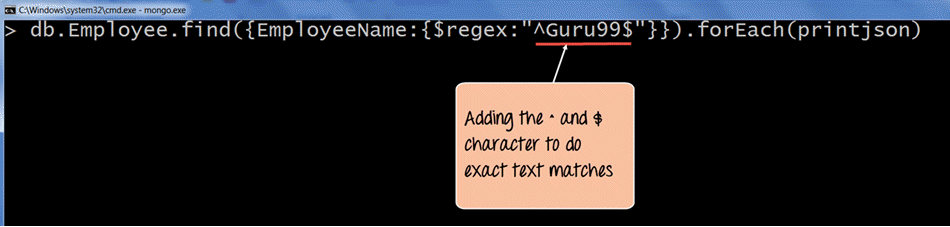
db.Employee.find({EmployeeName : {$regex: "^Guru99$"}}).forEach(printjson)
Code Explanation:
- Here in the search criteria, we are using the ^ and $ character. The ^ is used to make sure that the string starts with a certain character, and $ is used to ensure that the string ends with a certain character. So when the code executes it will fetch only the string with the name “Guru99”.
- The printjson is being used to print each document which is returned by the query in a better way.
If the command is executed successfully, the following Output will be shown:
Output:
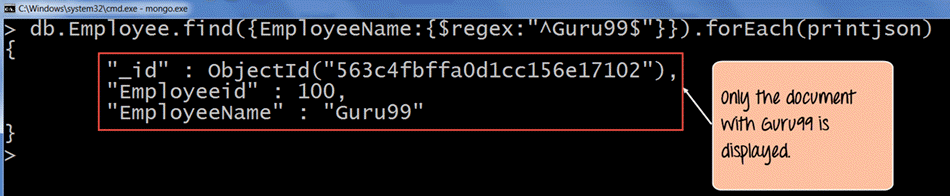
In the output, it is clearly visible that string “Guru99” is fetched.
Pattern Matching with $options
When using the $regex operator one can also provide additional options by using the $options keyword. For example, suppose you wanted to find all the documents which had ‘Gu’ in their Employee Name, irrespective of whether it was case sensitive or insensitive. If such a result is desired, then we need to use the $options with the case insensitivity parameter.
The following example shows how this can be done.
Let us assume that we have our same Employee collection which has the Field names of “Employeeid” and “EmployeeName”.
Let us also assume that we have the following documents in our collection.
| Employee id | Employee Name |
|---|---|
| 22 | NewMartin |
| 2 | Mohan |
| 3 | Joe |
| 4 | MohanR |
| 100 | Guru99 |
| 6 | Gurang |
| 7 | GURU99 |
Now if we run the same query as in the last topic, we would never see the document with “GURU99” in the result. To ensure this comes in the result set, we need to add the $options “i” parameter.
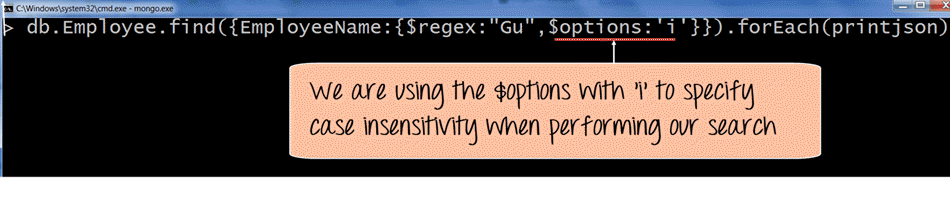
db.Employee.find({EmployeeName:{$regex: "Gu",$options:'i'}}).forEach(printjson)
Code Explanation:
- The $options with the ‘i’ parameter (which means case insensitivity) specifies that we want to carry out the search no matter if we find the letters ‘Gu’ in lower or upper case.
If the command is executed successfully, the following Output will be shown:
Output:
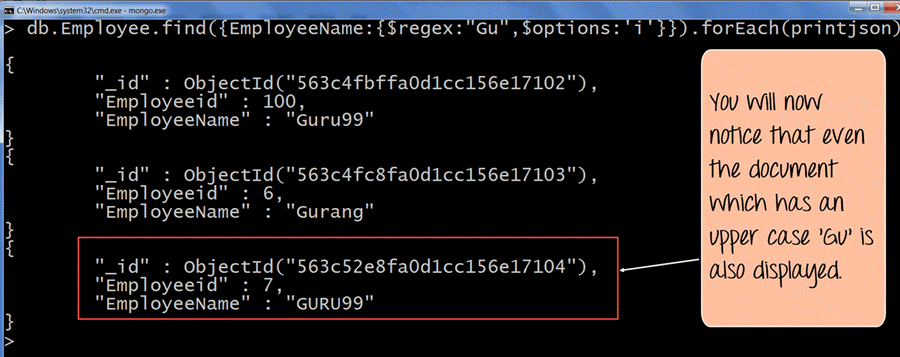
- The output clearly shows that even though one document has the upper case ‘Gu’, the document still gets displayed in the result set.
Pattern matching without the regex operator
One can also do pattern matching without the $regex operator. The following example shows how this can be done.
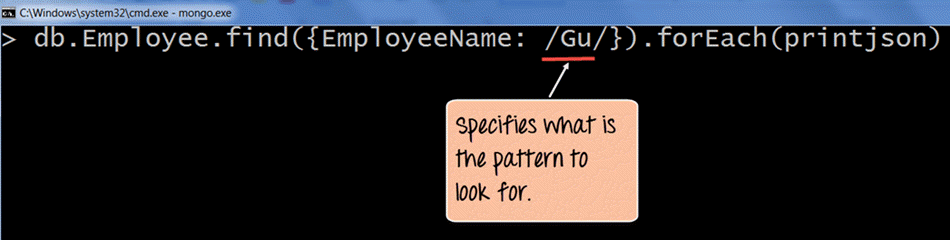
db.Employee.find({EmployeeName: /Gu/}).forEach(printjson)
Code Explanation:
- The “//” delimiters basically mean to specify your search criteria within these delimiters. Hence, we are specifying /Gu/ to again find those documents which have ‘Gu’ in their EmployeeName.
If the command is executed successfully, the following Output will be shown:
Output:
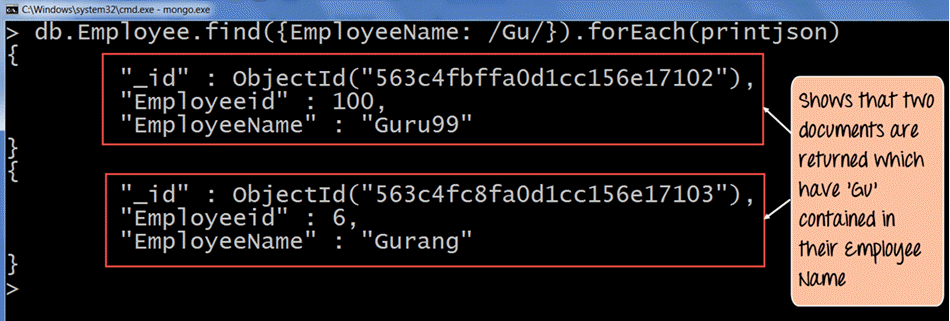
The output clearly shows that those documents wherein the Employee Name contains the ‘Gu’ characters are returned.
Fetching last ‘n’ documents from a collection
There are various ways to get the last n documents in a collection.
Let us look at one of the ways via the following steps.
The following example shows how this can be done.
Let us assume that we have our same Employee collection which has the Field names of “Employeeid” and “EmployeeName”.
Let us also assume that we have the following documents in our collection:
| Employee id | Employee Name |
|---|---|
| 22 | NewMartin |
| 2 | Mohan |
| 3 | Joe |
| 4 | MohanR |
| 100 | Guru99 |
| 6 | Gurang |
| 7 | GURU99 |
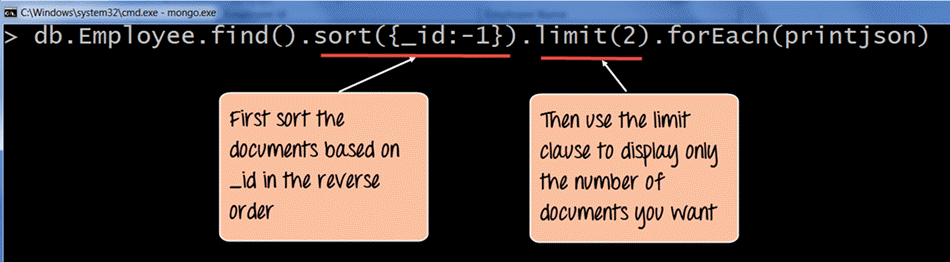
db.Employee.find().sort({_id:-1}).limit(2).forEach(printjson)
Code Explanation:
- When querying for the documents, use the sort function to sort the records in reverse order based on the _id field value in the collection. The -1 basically indicates to sort the documents in reverse order or descending order so that the last document becomes the first document to be displayed.
- Then use the limit clause to just display the number of records you want. Here we have set the limit clause (2), so it will fetch the last two documents.
If the command is executed successfully, the following Output will be shown:
Output:
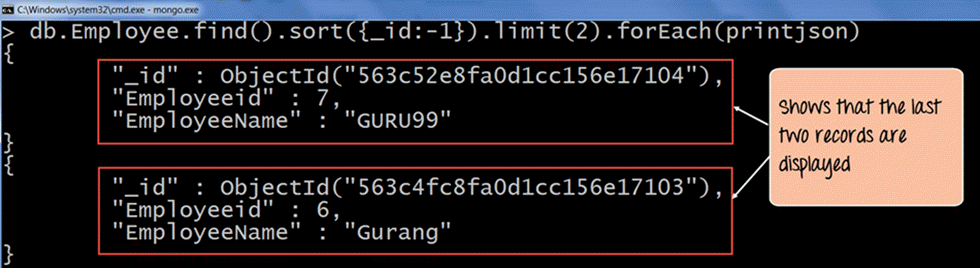
The output clearly shows that the last two documents in the collection are displayed. Hence we have clearly shown that to fetch the last ‘n’ documents in the collection, we can first sort the documents in descending order and then use the limit clause to return the ‘n’ number of documents which are required.
Note: If the search is performed on a string which is greater than say 38,000 characters, it will not display the right results.
