
7 BEST OneStream Live Alternatives (2026)
 Editorial Team
I spent over 180 hours researching and testing 21 different tools, focusing on real-world performance rather than surface-level features. My in-depth research led me to shortlist 7 strong options, each carefully evaluated through firsthand use, feature analysis, and honest pros and cons, all backed by consistent usability insights. If you want clarity without guesswork, the next sections will help you move forward with confidence.
Top OneStream Live Alternatives & Competitors
| Tool Name | Best For | Top Features | Free Trial | Link |
|---|---|---|---|---|
| Restream | Broad multistream reach | • Multistream 30+ channels • Browser studio • Integrated chat |
Free plan (Forever): stream to 2 channels; Paid tiers start ~$16/m; no limited time trial needed — free tier available | Learn More |
| StreamYard | Browser‑based live production | • Easy guest management • Multistream • Branding tools |
Free plan (Forever), Paid plans start ~$44.99/m with a 7‑day trial | Learn More |
| OnTheFly | Simple multistream + record | • Multistream 50+ channels • Scheduling • Analytics |
7‑day free trial available; paid begins ~$18/m (based on typical plans) | Learn More |
| OBS Studio | Free customizable encoder | • Open‑source • Custom scenes • Plugin support |
Free forever (no trial; download & use) | Learn More |
| Wirecast | Pro studio & multi‑camera | • Multi‑camera switching • Advanced production tools • RTMP + multistream |
Free trial available (watermarked), then one‑time or subscription (varies) | Learn More |
1) Restream
Restream is a live streaming tool designed to help users broadcast their content to multiple platforms simultaneously. It supports video streaming, multistreaming, and cross-platform integration, making it ideal for creators or teams managing several live channels. Restream is reliable for its stable streaming performance and wide platform support, including YouTube, Facebook, LinkedIn, and Twitch, among others.
In my experience, Restream allows you to set up and manage multiple streams with minimal configuration. A typical scenario I’ve encountered involves streaming a team’s live presentation to various platforms while ensuring smooth transitions and consistent video quality, all managed from a single dashboard.

Features:
- Multistreaming: Restream sends one live broadcast to several channels at the same time. This saves repeat setup work. It helps creators reach audiences without juggling separate streams.
- Browser Studio: Using Restream Studio, users can host shows directly in a browser. Guests can join without extra software. I have noticed this removes common setup delays.
- Unified Chat: This feature pulls comments from different platforms into one feed. You can reply faster during streams. In my experience, that keeps audience questions from getting missed.
- Scene Layouts: Custom scenes let you prebuild layouts before going live. Overlays, tickers, and QR codes stay ready. This makes branded segments easier to switch.
- Scheduled Replays: Restream can queue, schedule, and loop prerecorded videos as playlists. That keeps content running on time. I often rely on this for demos and announcements.
- Stream Insights: Analytics shows views, chat activity, and stream history across channels. Users can filter recent periods or inspect one broadcast. That makes scheduling and content decisions easier.
Pros
Cons
Pricing:
Restream offers a free plan (2 channels) with no free trial mentioned; paid plans start at $16/m (billed annually).
| Plan | Pricing |
|---|---|
| Free plan | $0/forever |
| Standard | $19/m (monthly) or $16/m billed as $190/year |
| Professional | $49/m (monthly) or $39/m billed as $470/year |
2) StreamYard
StreamYard is a powerful live streaming platform designed for professionals and teams. It simplifies the process of creating and managing live broadcasts, allowing users to stream directly to popular platforms like YouTube, Facebook, and LinkedIn. With its easy-to-use interface and real-time collaboration features, it’s a go-to solution for teams looking to streamline their live events. The tool supports features like multi-streaming, branding options, and guest integration, making it reliable for a variety of broadcasting needs.
From my experience, StreamYard handles multi-user streams with ease, maintaining stability even during high-traffic broadcasts. I recently used it for a team demo session, where it effortlessly supported several speakers joining from different locations. The seamless integration and ease of use made it a great choice for a quick live event, especially when coordinating content from multiple team members in real-time.

Features:
- Live Stream Customization: This feature allows you to adjust on-screen elements like overlays, backgrounds, and lower thirds during live broadcasts. You can tailor the look to match your brand or theme, making your stream more engaging. This flexibility makes it easier to maintain a professional appearance, even on the fly.
- Multistreaming: StreamYard supports broadcasting to multiple platforms simultaneously, including YouTube, Facebook, and LinkedIn. It simplifies the process of reaching a larger audience with minimal extra effort. This reduces time spent managing different broadcasts and helps you extend your reach.
- Guest Invitations: You can invite guests to join your live streams via a simple link. Guests can join from any device, making collaboration seamless. This feature eliminates the need for complicated setups or third-party software, speeding up guest participation.
- On-screen Comments: StreamYard allows you to display live comments from your viewers directly on the stream. You can engage with your audience in real-time by responding to questions or feedback. This helps build community interaction and encourages more engagement during live broadcasts.
- Recording Capability: With StreamYard, you can record your live streams for later use or repurposing. After the broadcast, recordings are automatically saved, and you can download them. This feature ensures that you never lose valuable content and can repurpose it for on-demand access.
- Overlay Templates: StreamYard provides customizable templates for overlays, banners, and branding. You can quickly add and switch between these templates during a broadcast. This helps maintain a polished presentation while keeping things fresh and visually appealing without interruption.
Pros
Cons
Pricing:
StreamYard has a free plan with no trial; paid plans start at $44.99/month (Core). A 7-day money-back guarantee applies to the first charge.
| Plan | Pricing |
|---|---|
| Free | $0/month |
| Core | $44.99/month (or $35.99/month billed annually) |
| Advanced | $88.99/month (or $68.99/month billed annually) |
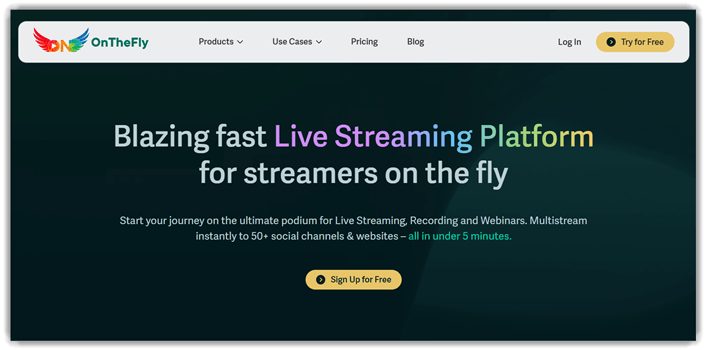
3) OnTheFly
OnTheFly is a versatile automated testing platform designed for streaming applications. It supports both functional and performance testing, allowing teams to quickly validate video streaming quality, latency, and interactions. Known for its reliable real-time testing capabilities, OnTheFly excels in ensuring smooth playback across various devices and network conditions.
From my experience, the tool integrates seamlessly with existing CI/CD pipelines, making it ideal for continuous testing. For instance, it can automate performance testing during peak traffic simulations, ensuring streaming services maintain stability before a major launch.
Features:
- Customizable Templates: This feature allows users to create and save templates tailored to specific workflows. By reducing the need to start from scratch each time, it speeds up project setup. I often use this to quickly apply the same structure to different tasks, ensuring consistency.
- Automated Data Sync: OnTheFly syncs your data across devices in real-time. This functionality ensures that any changes made on one device are instantly available on others. It saves time and prevents the confusion of outdated data.
- Real-Time Collaboration: This feature lets multiple users edit and contribute to a project simultaneously. It keeps all contributors on the same page with automatic updates and notifications. Many teams use this to streamline teamwork and avoid versioning conflicts.
- Detailed Reporting: Users can generate custom reports based on specific criteria. The tool automatically compiles data into easy-to-read formats for further analysis. I rely on this feature to identify trends and performance metrics quickly.
- Smart Search: The search bar offers predictive results based on keywords, past searches, and frequent actions. This helps reduce the time spent finding files or specific actions, making navigation much more intuitive.
- Task Prioritization: With drag-and-drop functionality, users can organize tasks by urgency or importance. This makes it easier to focus on critical tasks first and align workflows accordingly.
Pros
Cons
Pricing:
OnTheFly offers a free plan (Stream Sampler at ₹0) plus a 7-day free trial for webinar features; paid plans start at ₹2,143/month.
| Plan | Pricing |
|---|---|
| Stream Sampler | ₹0 (Free) |
| Broadcast Pro | ₹2,143/m (monthly); yearly saves 20% |
| Live Maestro | ₹5,143/m (monthly); yearly saves 20% |
Link: https://www.onthefly.stream/
4) OBS Studio
OBS Studio is an open-source software primarily designed for video recording and live streaming. It supports live streaming, screen recording, and video mixing across various platforms like Twitch, YouTube, and Facebook. Known for its flexibility and robust performance, OBS Studio has become a go-to tool for content creators and professional streamers, offering high-quality video output and extensive plugin support.
From my experience, it handles multi-source video feeds smoothly without lag, even during high-quality live broadcasts. For example, when automating live streaming setups for virtual events, OBS Studio allows you to seamlessly switch between scenes, add overlays, and manage audio inputs without missing a beat.

Features:
- High-Quality Streaming: OBS Studio supports high-definition streaming with customizable settings. You can stream in up to 4K resolution with configurable bit rates. This helps you deliver clear, professional-level streams with minimal performance loss.
- Scene Transitions: This feature allows you to create seamless scene transitions. You can use wipes, fades, or custom transitions for smooth scene changes. It helps maintain a polished and dynamic viewing experience for your audience.
- Multi-Source Integration: OBS Studio supports various input sources, including cameras, media files, and external devices. This gives you the flexibility to create complex scenes by combining different sources into one unified stream. It enables users to produce more engaging and interactive broadcasts.
- Audio Control: Users can control multiple audio tracks in real-time with individual volume sliders and filters. I rely on this feature to adjust the mic and system audio independently. It ensures that each sound source is balanced perfectly for the audience.
- Customizable Hotkeys: OBS Studio allows the setup of hotkeys for switching scenes, starting or stopping streams, and more. Many users find this crucial for enhancing live broadcast management. It helps reduce the time spent navigating the interface during live sessions.
- Stream Monitoring: With OBS Studio’s built-in monitoring tools, users can check the health of their streams. It displays stats such as frame rate, bitrate, and CPU usage. This helps avoid stream interruptions and ensures optimal performance while broadcasting.
Pros
Cons
Pricing:
OBS Studio is 100% free with no paid tiers, no free trial needed, and no credit card required — just download and use.
Link: https://obsproject.com/
5) Wirecast
Wirecast is a robust video streaming and live production tool designed to help users broadcast high-quality content. It supports live video encoding, switching, and streaming, making it ideal for events, webinars, or social media broadcasts. Known for its reliable performance and user-friendly interface, Wirecast is a widely trusted choice for professionals needing real-time streaming solutions.
In my experience, it integrates smoothly with multiple streaming platforms, providing consistent results without glitches. Whether you’re automating the setup for a webinar or streaming a live event, Wirecast ensures a seamless experience—I’ve used it to set up live broadcasts with minimal downtime and effort.

Features:
- Built-in Templates: With a range of customizable templates, Wirecast makes it easier for users to create polished live streams. Users can quickly choose a template, adjust settings, and enhance their streams without having to design every element from scratch. This feature reduces the time spent on stream design.
- Real-Time Preview: Users can preview their broadcast live, making adjustments before going on air. This allows them to make last-minute tweaks to graphics, transitions, or audio settings. It improves broadcast quality by preventing on-air errors and ensuring content looks polished.
- Instant Replay: Wirecast offers a feature to replay clips during a live stream, which is particularly useful for sports or events. Users can queue up replays quickly, giving their viewers a better experience by showing significant moments again without delay. It adds an interactive layer to broadcasts.
- Dynamic Transitions: This feature lets users apply smooth transitions between scenes during a live broadcast. Whether it’s a fade, slide, or cut, these transitions help maintain a professional flow in streams. This can improve the overall visual appeal and engagement during broadcasts.
- Automated Streaming: Wirecast includes automation tools for scheduling and broadcasting content without constant manual intervention. Users can set up streams to go live at predetermined times or even loop content. This feature is perfect for regular content creators who want to reduce the manual effort involved.
- Cloud Integration: Wirecast allows for integration with cloud services, enabling users to store and share their streams remotely. It is a great option for teams that need to access broadcasts from different locations. This cloud connectivity also provides backup options for live content.
Pros
Cons
Pricing:
Wirecast starts at $399/year (Studio plan); no free plan, but a FREE trial is available with no stated time limit — it runs as an unlicensed version with watermarks until purchased.
| Plan | Pricing |
|---|---|
| Wirecast Studio | $399/year (billed annually) or $79/month (billed monthly) |
| Wirecast Pro | $499/year (billed annually) or $99/month (billed monthly) |
6) Lightstream
Lightstream is a live streaming platform designed to simplify the process of creating high-quality broadcasts. It supports live stream production, customizable overlays, and multi-platform streaming, allowing users to broadcast seamlessly across channels like YouTube, Facebook, and Twitch. It’s reliable because of its intuitive interface and cloud-based production, ensuring smooth operation even during complex live events.
In my experience, Lightstream makes it incredibly easy to integrate multiple video sources without a heavy technical setup. I’ve used it to handle live streaming for product demos, where I switched between presentations and camera views, and it performed consistently without lag or downtime.

Features:
- Scene Transitions: Lightstream offers seamless transitions between scenes during a live stream. Users can set up multiple pre-configured scenes and switch between them with a single click. This helps create a professional flow, ensuring smoother and more engaging broadcasts.
- Remote Guest Integration: You can invite guests to join your stream remotely, with a simple link. This feature is beneficial for interviews or collaborative broadcasts. It ensures a seamless experience, without worrying about complex video call setups or delays.
- Multi-source Video Inputs: Users can pull in multiple video sources, like pre-recorded content, overlays, or remote guests, all in real-time. This feature makes it easy to create dynamic broadcasts by mixing various media types. I find it especially useful for adding layers of interactivity.
- Advanced Analytics: Lightstream provides real-time viewer data during broadcasts. You can monitor audience engagement, viewer counts, and stream quality. It helps optimize future streams by offering insight into what works and what needs improvement.
- Automated Scene Switching: Lightstream’s automatic scene switching feature transitions based on your content. For example, it can switch scenes when a new video starts or a guest speaks. This automation reduces manual control and allows for more focus on content, enhancing overall stream quality.
Pros
Cons
Pricing:
Lightstream offers both a free and a paid plan, with a free trial available. The free plan includes core features but with limitations. The paid plan offers more features and an annual discount.
| Plan | Pricing |
|---|---|
| Free | $0 (Core Studio features, 720p) |
| Premium | $12/month or $9/month (annual) |
Link: https://golightstream.com/
7) XSplit
XSplit is a live streaming and recording studio for creators. It supports multistreaming, scene layouts, overlays, and flexible source management. That makes it useful for polished broadcasts, webinars, and presentations. Its broad platform support and extensive setup options give it a dependable range.
I’ve found its workflow surprisingly smooth when juggling scenes and audio. Before a release webinar, I could rehearse transitions and record backups. That helps catch layout mistakes before the live session starts. For teams leaving OneStream, XSplit fits better when production control matters.

Features:
- Multiple Source Integration: This feature allows you to combine various media sources, such as webcams, images, and even browser windows. It simplifies the process of adding different types of content into one stream. I rely on this to show diverse media types seamlessly during a live session.
- Advanced Audio Controls: With XSplit, you can independently adjust the volume of individual audio sources, such as game sounds or microphone input. This feature helps balance your stream’s audio levels, ensuring a clear and engaging broadcast without distraction.
- Scene Transitions: XSplit offers smooth scene transitions, making your stream feel more dynamic. You can set up custom transitions between different scenes, adding visual interest. This enhances the viewer experience, keeping your content flowing smoothly without jarring shifts.
- Automated Scene Switching: XSplit allows you to automate scene changes based on predefined hotkeys or external triggers. This streamlines your workflow by eliminating manual scene adjustments. In my experience, it’s especially useful when you’re managing multiple streams or shows at once.
- Customizable Overlays: XSplit lets you create and use personalized overlays with text, logos, and alerts. It helps give your stream a unique look without requiring external graphic design software. This keeps your broadcasts branded and visually consistent.
- Live Stream Scheduling: XSplit includes an integrated scheduling tool that lets you plan and automate stream starts. This feature ensures your audience knows when to tune in. Many users rely on this to increase engagement by notifying followers ahead of time.
Pros
Cons
Pricing:
XSplit Broadcaster offers a free plan (720p, no watermark) plus paid tiers starting at $14.99/month, with no free trial mentioned.
| Plan | Pricing |
|---|---|
| Free | $0 |
| Monthly | $14.99/month |
| Yearly | $59.99/year (~$5/month) |
| Lifetime | $139.99 (one-time) |
Link: https://www.xsplit.com/broadcaster
Feature Comparison Table: OneStream Alternatives
| Tool | Restream | StreamYard | OnTheFly | OBS Studio |
| User-Friendly Interface | ✔️ | ✔️ | ✔️ | ❌ |
| Free Plan Available | ✔️ | ✔️ | ✔️ | ✔️ |
| Multistreaming | ✔️ | ✔️ | ✔️ | ❌ |
| Integrations | ✔️ | ✔️ | ✔️ | ✔️ |
| Scalability | ✔️ | ✔️ | ❌ | ❌ |
Why Do You Need a OneStream Live Alternative?
There are several reasons why users might seek a OneStream Live alternative. While OneStream Live is a popular streaming platform, it may not be the perfect fit for every user. Alternatives offer features like better customization, more affordable pricing plans, or enhanced streaming quality for specific needs.
For instance, if you’re looking for more advanced multi-streaming options or a platform with greater integration capabilities, exploring alternatives can provide the flexibility and functionality you require. Additionally, some users might prefer alternatives with better customer support, user-friendly interfaces, or tools that fit unique streaming requirements.
How to Switch from OneStream to Another Platform?
Switching from OneStream Live to another streaming platform is straightforward but requires careful planning. First, choose the alternative platform that best meets your needs, considering factors like features, pricing, and user experience. After selecting a new platform, export your content from OneStream, such as video files, stream settings, and broadcast schedules.
Next, sign up for the alternative service and configure the necessary streaming settings, ensuring compatibility with your hardware and software. Test the stream to ensure everything works smoothly before going live. Finally, inform your audience about the transition to avoid disruptions in your broadcast schedule.
How do OneStream Alternatives compare with other media players?
When comparing OneStream alternatives to other media players, it is essential to consider key features like interface simplicity, system resource usage, and streaming quality. While most media players support multiple streams, OneStream players specialize in providing a streamlined experience for users who need to focus on one stream. In contrast, multi-stream players are ideal for those managing various media sources simultaneously. Comparing the two depends on the specific use case: for singular, uninterrupted playback, OneStream players are often the go-to option.
How Do We Select the Best OneStream Alternative?
At Guru99, our team has put in hours of research to identify the best OneStream alternatives available. By analyzing user feedback, industry expert reviews, and testing performance, we ensure that we recommend only the highest-quality options. We make sure each product aligns with the needs of both novice and experienced users.
- User Interface: Our testers prioritize easy navigation and intuitive controls for users of all experience levels.
- Compatibility: We assess the compatibility of the player with popular formats, ensuring broader accessibility for users.
- Streaming Quality: Experts focus on testing stream resolution and buffering speeds to ensure seamless playback.
- Resource Efficiency: The team ensures that players do not overload system resources and maintain optimal performance.
Verdict
After thoroughly testing several OneStream alternatives, I came across three platforms that consistently delivered exceptional results in terms of ease of use, flexibility, and features. Here’s my top selection of the best alternatives.
- Restream: Restream impressed me with its robust multi-platform streaming capabilities. I was able to stream simultaneously across various platforms without any hassle, making it ideal for anyone needing reach and simplicity.
- StreamYard: StreamYard stood out for its user-friendly interface and excellent guest management. It was by far the most intuitive, with seamless integration and a professional finish for live streaming.
- OnTheFly: OnTheFly wowed me with its customization options. This tool provided an unmatched level of control over stream settings, giving me the flexibility to tailor broadcasts to my exact needs.
