
12 BEST Coding Apps & Software for PC (2026)
 Editorial Team

Ever wondered why coding sometimes feels harder than it should be, even with the right setup? Often, the problem isn’t you—it’s the software you rely on. Poor-quality coding tools can crash unexpectedly, slow down large projects, miss syntax highlights, or fail at debugging. They can also limit integrations, lag during compilation, and even corrupt files. These issues drain productivity and creativity alike. The right coding software transforms this chaos into clarity, helping you code faster and smarter.
I spent over 155 hours researching and testing 30+ coding tools to curate this list of the 10 best options for Windows users. Backed by real hands-on experience, this guide covers each tool’s standout features, pros and cons, and pricing. Every detail was reviewed for accuracy and transparency. Take a few minutes to read through the entire article to find the tool that truly fits your workflow. Read more…

Dreamweaver is a popular Web Development IDE Tool. This tool helps you to create, publish, and manage websites. It offers flexible coding, Seamless Live View editing, Multi-monitor, and Redesigned. You can create a website that fits any screen size.
10 BEST Coding Apps & Software for PC. Top Picks!
| Tool | Key Feature | Free Trial / Cost | Link |
|---|---|---|---|
👍 Dreamweaver |
Responsive web-design + live-browser preview | 7 days free trial | Learn More |
 👍 Zoho Creator |
AI and low-code development | 15 days free trial | Learn More |
 👍 YouWare |
AI-powered coding platform | Lifetime Free Basic Plan | Learn More |
 Notepad++ |
Lightweight, fast and free Win32 editor | Free | Learn More |
 Visual Studio Code |
Built-in Git, IntelliSense & rich extension ecosystem | Free | Learn More |
1) Dreamweaver
Dreamweaver is an advanced web development IDE designed for building, publishing, and managing responsive websites. I’ve always appreciated how seamlessly it integrates with Adobe Creative Cloud, allowing smooth asset transfers and real-time previews. Its syntax-highlighting, intelligent code-completion, and flexible live-editing features make it perfect for both front-end and back-end coding.
When I worked on a cross-device portfolio site, Dreamweaver’s responsive design tools and real-time browser previews ensured my layouts adapted beautifully to every screen. It’s an excellent choice for developers who value visual precision and coding control in one workspace.
Supported programming languages: Java, Kotlin, Scala, and Groovy
Drag-and-drop interface: Yes
Supported Platforms: Windows, macOS, Android, and iOS
Free Trial: 7 Days Free Trial
Features:
- Starter Templates: This feature makes getting started with web projects incredibly smooth. You can select from ready-made templates for portfolios, blogs, or eCommerce sites and tailor them to your needs. I’ve personally used it to speed up landing page creation during tight deadlines. It saves tons of setup time and keeps designs consistent across projects.
- Creative Cloud Integration: It seamlessly connects with other Adobe tools like Photoshop and Illustrator, letting you pull assets directly from Creative Cloud Libraries. You’ll notice how effortlessly assets sync across your design workflow. I would recommend organizing your asset folders by project to make your creative pipeline even more efficient.
- Responsive Design Tools: It lets you visually design layouts that adapt perfectly to any device screen size. You can easily toggle between desktop, tablet, and mobile views in real time. While using this feature, one thing I noticed was how intuitive the grid system feels—it’s perfect for fine-tuning breakpoints without diving too deep into CSS.
- Code Editor with Smart Hints: This tool includes an advanced editor supporting HTML, CSS, JavaScript, and more. It highlights syntax, suggests code completions, and detects errors instantly. I have tested this while creating dynamic JS components, and it made troubleshooting noticeably quicker by surfacing potential bugs before deployment.
- Real-Time Browser Preview: You can see your changes live as you code, across multiple browsers and devices. This eliminates the guesswork from front-end adjustments. I suggest keeping a secondary device connected for cross-browser validation—this small habit can catch subtle rendering issues early.
- Git Version Control Integration: Dreamweaver’s built-in Git support simplifies project tracking and collaboration. You can push, pull, and commit directly from the interface without switching tools. During a collaborative campaign project, this feature saved me from overwriting a teammate’s code—proof of how practical version-control integration can be in active development cycles.
Pros
Cons
Pricing:
Dreamweaver provides a 7-day free trial for users who want to explore its features before committing to a paid plan. After the trial, users can choose from flexible subscription options that suit different needs. Below are the most popular and affordable paid plans offered by Dreamweaver.
| Monthly Plan | Annual Plan (Billed Monthly) | Annual Prepaid Plan |
|---|---|---|
| $34.49/month | $22.99/month | $263.88/year |
7 Days Free Trial
2) Zoho Creator
Zoho Creator is an AI-powered low-code platform I relied on to build fully functional business apps without writing everything from scratch. What impressed me most was how its drag-and-drop builder, paired with the easy-to-learn Deluge scripting language, let me move from a rough idea to a working app in a fraction of the usual time. It brings forms, workflows, and reports together in one place, so I never had to juggle separate tools.
While building an internal inventory tracker, I described the logic in plain steps and Zoho Creator’s AI assistant, CoCreator, scaffolded most of the app for me, then generated native iOS and Android versions automatically. For teams that want to ship custom software fast without a full development crew, I found it strikes a strong balance between simplicity and genuine customization.
Supported programming languages: Deluge, JavaScript, HTML, and CSS
Drag-and-drop interface: Yes
Supported Platforms: Web, Android, and iOS
Free Trial: 15 Days Free Trial
Features:
- Drag-and-Drop App Builder: This visual builder let me assemble forms, reports, and pages simply by dragging elements into place. You can design a working app without touching a single line of code. I used it to spin up a client-onboarding app in an afternoon, and it kept the layout clean across web and mobile automatically.
- Deluge Scripting Language: When I needed custom logic, Zoho’s easy-to-grasp Deluge language handled it with readable, business-friendly syntax. You can automate calculations, validations, and integrations without deep programming knowledge. I would recommend reusing Deluge functions across forms to keep your logic consistent and easy to maintain.
- CoCreator AI Assistant: Powered by Zia, this assistant let me generate apps and code blocks from plain voice or text prompts. It noticeably shortened my build time by drafting workflows I only had to refine. While testing it, I noticed it also optimizes and annotates existing code, which made troubleshooting far quicker.
- Native Mobile Apps: Every app I built was instantly available as a native iOS and Android app with no extra work. You can add mobile-first features like barcode scanning, geo-tagging, and e-signature capture. This made on-site data collection genuinely practical for the field teams I set it up for.
- Integrations & Workflow Automation: Zoho Creator connected smoothly with other Zoho apps and third-party services through built-in connectors and REST APIs. You can automate approvals, schedules, and multi-step business processes visually. I suggest mapping your workflow on paper first, as it made the automation setup much faster for me.
- Prebuilt Templates & BI Analytics: I often started projects from Zoho Creator’s ready-made app templates instead of building from zero. You also get built-in business intelligence dashboards to visualize your data. During a sales-tracking build, the analytics view helped me surface trends I would have otherwise missed.
Pros
Cons
Pricing:
Zoho Creator offers a 15-day free trial with no credit card required, plus a free edition for building your first app. Paid plans are billed per user on an annual basis, scaling from an affordable Standard tier up to the Professional plan at $20/user/month and the Enterprise plan at $25/user/month for advanced integrations and analytics. I liked that the per-user pricing let me start small and add seats only as my apps grew.
15 Days Free Trial
3) YouWare
YouWare stands as the world’s popular “vibe coding” platform powered by AI, designed to bridge the vast gap between inspiration and a fully deployed, revenue-generating business. Operating on the philosophy that creativity should not be tethered to a desk or limited by technical proficiency, YouWare provided me with a comprehensive, end-to-end infrastructure.
Whether I was side-hustling and building a service on the subway via the mobile app, or creating internal tools as a professional, the platform translated my natural language into production-ready code. I didn’t need to configure servers, write SQL queries, or understand API protocols. I simply described my vision, and YouWare built the logic, connected payment gateways, and launched the product.

Features:
- Prompt-to-Landing Page: Utilizing natural language processing, I simply described a business idea (e.g., “A waitlist page for a new crypto trading bot”), and YouWare designed, coded, and wrote the copy for a high-converting site instantly for me.
- Intelligent Dashboards: I commanded the system to “build an admin panel to track sales and user signups.” It automatically generated the visual charts and connected them to the underlying database without me needing any manual configuration.
- Image-to-Prototype: Leveraging advanced vision capabilities, YouWare allowed me to snap a photo of a whiteboard sketch or upload a design draft. The system interpreted my visual input and converted it into a functioning, interactive prototype.
- Internal Business Tools: The platform enabled me to create secure CRMs, inventory management systems, or employee portals. With “Auto-fix Mode,” the system automatically detected and self-corrected bugs during my creation process, ensuring stability.
- Figma to Website: This feature seamlessly bridged the gap between my designs and development. I imported high-fidelity Figma designs, and YouWare converted them into clean, deployable code immediately.
Pros
Cons
Pricing:
Simple, Flat Pricing: $20/Month. I got full access to the web and mobile apps, plus the Credit Care refund guarantee. I encountered no hidden fees or tiered backend costs.
Lifetime Free Basic Plan
4) Notepad++
Notepad++ is a lightweight yet feature-rich text and code editor built in C++. I’ve always admired its speed, simplicity, and extensive syntax-highlighting for multiple languages. It’s perfect for developers who prefer clean, distraction-free coding environments with robust plugin support and macro automation.
During a recent debugging session, I used Notepad++ to compare scripts side by side — the multi-view feature and user-defined folding saved hours of work. It’s a must-have for anyone seeking efficient, customizable, and open-source editing for quick code refactoring and testing.

Features:
- Syntax Highlighting: This feature automatically color-codes your syntax across multiple languages like PHP, JavaScript, and CSS. It’s incredibly helpful for spotting typos and logic errors instantly. While editing HTML files, I found the readability and visual clarity outstanding.
- Auto-Completion: It accelerates your coding process by predicting variables and functions as you type. You’ll notice it smartly recognizes language structures and shortens repetitive typing. I suggest refining its keyword list for your preferred frameworks to get even faster completions.
- Macro Recording and Playback: It enables you to record and replay repetitive tasks, saving hours of manual work. I once used it to format thousands of JSON entries, and it worked flawlessly. You can even combine macros for multi-step automation.
- User-Defined Syntax Highlighting: You can easily define your own syntax highlighting rules for specialized languages. I created a configuration for a proprietary scripting format, and it integrated perfectly with code folding. This flexibility makes it a valuable asset for custom workflows.
- Fully Customizable GUI: The interface offers complete control over themes, layout, and workspace organization. While using this feature, one thing I noticed was how effortlessly I could switch between dark and light modes without disrupting performance or focus.
- Plugin Support: The tool lets you expand its capabilities through a wide range of community-built plugins. During one of my PHP debugging sessions, I installed an FTP plugin to sync code live — it streamlined testing and deployment impressively well.
Pros
Cons
Pricing:
It is free to download.
Link: https://notepad-plus-plus.org/
5) Visual Studio Code [VS Code]
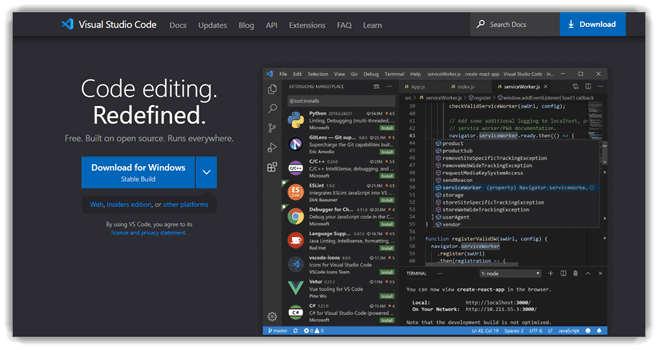
Visual Studio Code is a free, open-source code editor from Microsoft that combines flexibility with performance. It offers advanced syntax-highlighting, intelligent code-completion, debugging tools, and seamless version-control integration—all wrapped in an intuitive interface. Its plugin support and integrated terminal make it adaptable to virtually any development environment.
I particularly appreciate how VS Code streamlines project-scaffolding and refactoring utilities when switching between languages. The linting and testing frameworks help me catch issues early, while the marketplace extensions expand its capabilities, turning it into a full development powerhouse.
Features:
- Git Integration: You’ll find working with Git inside VS Code incredibly smooth. It lets you stage, commit, and push code changes right from the sidebar, reducing dependency on external tools. I’ve often used this to review pull requests seamlessly without leaving the editor.
- Code Refactoring: This feature helps streamline your workflow by offering intelligent suggestions to restructure or optimize your code. It quickly detects redundant variables and imports. While testing it on a TypeScript project, I noticed significant time savings during cleanup.
- Smart Debugger: You can set breakpoints, inspect variables, and monitor watch expressions in real time. I’ve personally used it to debug asynchronous JavaScript functions, and it felt intuitive and precise. It’s particularly effective when handling complex dependency chains.
- Extensions Hub: The marketplace is vast and full of useful plugins that enhance productivity. You can add syntax-highlighting, linting, and container-integration tools effortlessly. I would recommend installing ESLint and GitLens early on for smoother, cleaner workflows.
- Auto-completion: IntelliSense offers context-aware suggestions based on function signatures and variable types. I’ve found it especially helpful in large React projects, predicting accurate snippets before I even finish typing. It truly feels like coding with a co-pilot by your side.
- Live Collaboration: You can collaborate in real time using Live Share, editing and debugging code together from anywhere. I’ve debugged projects with global teammates this way, and latency was almost nonexistent. It’s ideal for remote pair programming and quick code reviews.
Pros
Cons
Pricing:
Free to download
Link: https://code.visualstudio.com/
6) Webuilder
Webuilder is a fast, lightweight, and powerful code editor designed specifically for web developers. It supports multiple languages, including HTML, CSS, JavaScript, PHP, and Python, while offering robust code-completion, debugging tools, and real-time syntax-highlighting. Its plugin support and terminal-emulation features ensure a smooth, integrated coding experience.
What stood out to me was how easily I could modify live files and publish updates directly to the server. The combination of code templates, snippet libraries, and build automation made front-end development tasks faster and more efficient, keeping everything perfectly organized in one workspace.

Features:
- Advanced Coding Environment: This feature brings a sleek, modern interface that feels instantly intuitive for any web developer. It supports syntax-highlighting and auto-completion for HTML, CSS, PHP, and JavaScript, allowing smooth, uninterrupted coding. I found the intelligent suggestions particularly helpful when handling complex functions across multiple frameworks.
- Direct Server Editing: You can easily edit your files directly on a live server without constantly switching to FTP tools. It’s efficient when debugging real-time applications or updating assets on the go. While testing this, I noticed that deploying minor CSS adjustments became nearly instantaneous, saving valuable time during client revisions.
- PHP Editor with Debugging Tools: The built-in PHP editor offers everything from syntax checks to a real-time debugger and beautifier. This setup ensures error-free execution and clean formatting. I would recommend enabling auto-beautify after every save to maintain consistent structure, especially when collaborating on shared PHP modules.
- Code Snippet Library & Templates: It features a customizable library where you can store reusable code blocks and templates. You can assign shortcuts to quickly insert these snippets during rapid development. I once created a library of API call templates that drastically cut down my development time for recurring backend tasks.
- Code Validation and Formatting: This feature helps you validate and format your scripts with a single click. It’s particularly handy when handling multiple contributors on the same project, ensuring uniformity in indentation, linting, and overall readability.
- Real-Time Code Analysis: The live analysis feature instantly highlights syntax errors and logical conflicts. It not only reduces debugging time but also improves accuracy during coding marathons. In one of my recent sessions, this helped catch an unclosed tag within seconds that would have taken hours to trace manually.
Pros
Cons
Pricing:
WeBuilder provides a basic free version that lets users enjoy some standard features but does not offer advanced capabilities. Below are some of the most affordable premium plans offered by WeBuilder.
| Personal | Professional | Team License |
|---|---|---|
| $69.95 | $89.95 | $199.95 |
Link: https://www.webuilderapp.com/
7) NetBeans
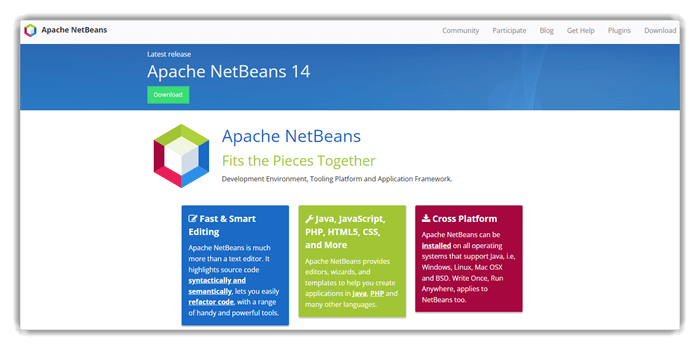
NetBeans is a versatile open-source IDE tailored for Java, PHP, C++, and other major languages. It provides comprehensive project-scaffolding, version-control-integration, and code-completion tools that enhance productivity across complex projects. With intelligent syntax-highlighting, debugging tools, and refactoring utilities, it’s built to handle demanding development tasks efficiently.
From my experience, NetBeans excels at maintaining large codebases without compromising performance. Its cross-platform support, testing frameworks, and build-automation features make it an excellent companion for developers who need reliability, structure, and flexibility all in one place.
Features:
- Advanced Code Intelligence: It’s refreshing how Webuilder combines intelligent syntax-highlighting, auto-completion, and error-detection to create a smooth coding experience. I’ve found it remarkably responsive when switching between HTML, CSS, and PHP files in real time. It even supports dynamic linting, so you catch syntax issues early on.
- Direct Server Editing: You can edit files directly on your live web server or synchronize updates from your local workspace. This eliminates repetitive upload steps. I would recommend setting up automatic sync intervals to keep both versions perfectly aligned without manual intervention.
- Integrated PHP Environment: The built-in PHP editor is extremely efficient, offering debugging-tools, a syntax-beautifier, and context-aware code suggestions. When I was working on a complex form validation script, the instant feedback from the debugger saved hours of troubleshooting. The tool’s real-time syntax checks also make code refactoring effortless.
- Server-Side Scripting Support: Webuilder isn’t limited to front-end code — it supports ASP, Perl, Ruby, and Python seamlessly. This makes it ideal for full-stack web developers who frequently switch environments. I’ve personally used it for testing RESTful API endpoints, and the built-in terminal emulation made executing scripts extremely convenient.
- Seamless Deployment Tools: Webuilder’s publishing features make project deployment straightforward. You can push updates to FTP/SFTP servers or cloud environments in just a few clicks. I once deployed an entire PHP blog directly from the editor, and the automated file synchronization handled version control effortlessly.
- Comprehensive Debugging Panel: The integrated debugging panel is intuitive and well-structured. It allows variable inspection, breakpoint management, and live code tracing across multiple languages. The tool lets you visualize execution flow — an invaluable feature when troubleshooting asynchronous code.
Pros
Cons
Pricing:
You can use it for free
Link: https://netbeans.apache.org/front/main/index.html
8) Bluefish
Bluefish is a fast, cross-platform code editor designed for developers managing multiple files or remote projects. I used it while building a website and was impressed by its syntax-highlighting and code-completion, which made multitasking effortless.
It supports numerous languages, project-scaffolding, and plugin-support, offering power without heavy system load. Its lightweight nature, combined with features like undo/redo and version-control-integration, makes Bluefish ideal for developers who prefer a streamlined yet capable environment for coding and web development.

Features:
- Smart Syntax Coloring: This feature highlights multiple programming languages such as HTML, CSS, and JavaScript, making complex code instantly easier to read. It helps spot syntax and logic errors quickly. I found nested highlighting extremely useful while managing large, multi-language web projects.
- Intelligent Code Suggestions: It predicts and completes code snippets as you type, minimizing repetitive input and typing errors. I noticed it auto-closes brackets and tags flawlessly in HTML and PHP environments, ensuring consistency and accelerating development during lengthy coding sessions and complex project builds.
- Advanced File Management: You can open, edit, and organize dozens of files at once without slowing performance. While managing a big website project, Bluefish handled over 50 documents smoothly. This capability supports multi-language or modular projects efficiently, keeping everything structured and accessible.
- Direct Server Access: It allows editing files via FTP, SFTP, or WebDAV directly from the editor without extra tools. I once fixed a live site instantly using this feature. Always verify your directory paths to prevent overwriting files while editing remotely.
- Adaptive Interface Design: You can customize the layout, toolbars, and wizards to suit your coding workflow. I added HTML and CSS snippets to quick-access buttons, boosting my efficiency significantly. The interface flexibility keeps frequent tasks streamlined and improves long-term workflow consistency across projects.
- Flexible Encoding Support: Bluefish supports UTF-8, Unicode, and various regional encodings for multilingual projects. I edited Japanese and European text files seamlessly without corrupting characters. This ensures flawless collaboration across global teams and maintains data integrity when sharing files internationally.
Pros
Cons
Pricing:
Free to use
Link: https://bluefish.openoffice.nl/index.html
9) VIM
Vim is a keyboard-driven, highly configurable text editor known for speed and precision. When editing complex codebases, I relied on its syntax-highlighting and macro-recording to navigate files quickly and stay focused.
It supports linting, plugin support, and version-control integration, offering limitless customization. Though Vim’s learning curve is steep, its efficiency in refactoring utilities and terminal emulation makes it a powerful tool for developers who value productivity and complete control within their coding environment.

Features:
- Extensive Plugin Support: This feature gives you the freedom to expand Vim’s capabilities beyond standard text editing. You can integrate plugins for syntax-highlighting, debugging-tools, linting, or even version-control-integration. I suggest exploring popular plugin managers like “vim-plug” for easy setup and automated updates — it makes customization effortless.
- Powerful Search and Replace: It allows you to perform advanced pattern-based find-and-replace operations across entire projects. While testing this feature on large codebases, I noticed how regular expressions help refine results with precision. I recommend creating reusable search macros to streamline repetitive refactoring tasks.
- Integration with External Tools: Vim seamlessly connects with compilers, testing frameworks, and dependency management tools. You can even integrate container-integration plugins for Docker or Kubernetes workflows. This tight integration helps developers manage builds, debug sessions, and deploys—all without leaving the editor.
- Macro Recording and Playback: It enables you to automate repetitive tasks effortlessly. I’ve personally used it to reformat hundreds of lines of legacy code with consistent indentation and spacing. The experience saved hours that would have been wasted on manual editing.
- Languages and File Formats: Vim supports hundreds of programming languages, from Python and C++ to Go and Rust. You can switch between file types and maintain consistent syntax-highlighting across them. This flexibility makes it ideal for full-stack projects where multiple tech stacks coexist.
- Command-line Efficiency: Vim’s command-line mode is a powerhouse for experienced developers. It allows precise control through short keystrokes and chaining commands. When I first mastered its modal editing style, I noticed how my code navigation became lightning fast compared to traditional editors.
Pros
Cons
Pricing:
Free to download.
Link: https://www.vim.org/
10) Geany
Geany is a lightweight IDE that blends simplicity with essential coding features like syntax-highlighting, build-automation, and terminal-emulation. I used it for a quick Python project and loved how fast it launched and recognized my code instantly.
Its code-completion, plugin-support, and cross-language flexibility make it perfect for small-to-medium projects. With efficient project-scaffolding and real-time feedback, Geany offers a practical balance between minimalism and power, ideal for developers who want speed without sacrificing capability.

Features:
- Lightweight & Efficient Performance: It’s genuinely impressive how light Geany feels, even when working with multiple large files simultaneously. I’ve used it to compile small C projects, and the tool maintained seamless responsiveness throughout. This efficiency makes it ideal for developers seeking performance without bloat.
- Syntax Highlighting & Code Completion: This allows effortless readability and structure when coding across different languages. It supports syntax-highlighting and code-completion for numerous filetypes, which makes debugging faster. I noticed while testing this that enabling line markers significantly speeds up navigation between code blocks.
- Integrated Build System: You can quickly compile and run your programs without leaving the editor, thanks to Geany’s built-in build-automation setup. It smartly integrates makefiles and project commands, reducing repetitive terminal tasks. I would recommend customizing the build commands for each project type to optimize the workflow.
- Plugin Support & Extensibility: Geany’s plugin ecosystem is one of its hidden gems. From project-scaffolding to code-linting and refactoring-utilities, these plugins extend functionality significantly. I suggest exploring the “Geany Plugins” pack—adding version-control-integration and terminal-emulation transformed my setup into a mini-IDE.
- Integrated Terminal & Console Output: It includes an embedded terminal-emulation feature, letting you execute scripts, run compilers, or even check Git logs directly within the workspace. When I used this during testing Python scripts, it saved constant window switching—keeping my focus undisturbed.
- Project Management Tools: It organizes large codebases through a well-structured sidebar and project preferences. You can define indentation settings, project paths, and build parameters all from one window. While using this one thing, I noticed—it simplifies dependency management across multiple files without confusing directory structures.
Pros
Cons
Pricing:
Free to use.
Link: https://www.geany.org
11) Emacs
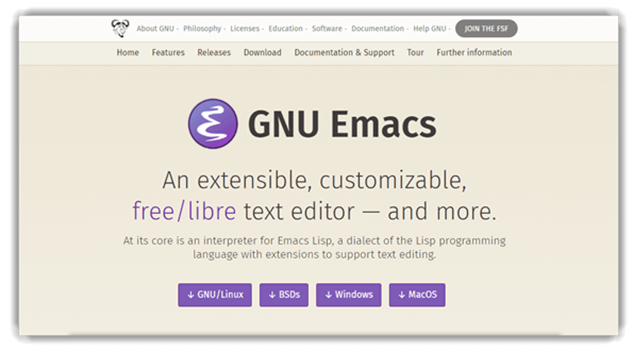
Emacs is a highly customizable and extensible text editor built for developers who want complete control over their coding environment. From syntax-highlighting and code-completion to terminal-emulation and version-control-integration, it offers a powerful foundation for coding in multiple languages. Its flexible Emacs Lisp scripting system lets you shape the interface and behavior to suit any workflow.
I’ve often felt a sense of mastery using Emacs — the moment I configured build-automation and refactoring-utilities exactly the way I wanted, coding became effortless. Whether you’re writing shell scripts or managing complex projects, Emacs adapts like no other tool.
Features:
- Built-in Documentation: This feature makes Emacs feel like a self-teaching tool. Every command and function comes with detailed built-in help, saving hours of searching online. I often use it to look up function behavior mid-coding without breaking focus. It’s a big productivity booster for those who enjoy exploring while coding.
- Full Unicode Support: It ensures seamless multilingual code editing and text manipulation. You can work with various human scripts, from Japanese to Arabic, without compatibility issues. I once used this while editing international configuration files, and it maintained perfect formatting throughout. It’s a subtle yet essential strength of Emacs.
- Customization with Emacs Lisp: This feature transforms Emacs into far more than a text editor—it’s a programmable workspace. You can write or tweak Emacs Lisp scripts to automate tasks, create macros, and redefine workflows. I suggest exploring existing Lisp snippets online; many can dramatically simplify repetitive development routines.
- Extension Packaging System: It allows quick installation and management of plugins, ensuring Emacs evolves with your needs. I’ve added syntax-highlighting packs, debugging tools, and even Git version-control integration with just a few commands. While testing this feature, I noticed that using curated repositories like MELPA keeps the setup cleaner and more stable over time.
- Version Control Integration: It integrates seamlessly with Git and other version-control systems, letting you manage commits, branches, and merges without leaving the editor. During team sprints, I’ve used Magit (Emacs’ Git interface), and it made handling complex merges significantly smoother. It’s an underrated yet powerful advantage for collaborative developers.
- Refactoring and Syntax Highlighting: Emacs provides intelligent syntax-highlighting and customizable refactoring utilities across multiple languages. This makes spotting errors or deprecated syntax intuitive. I recall working on a large Python project where its color-coded blocks helped me instantly detect misaligned indents before running any linting tools.
Pros
Cons
Pricing:
Free to download.
Link: https://www.gnu.org/software/emacs/
12) TextMate
TextMate is a lightweight yet capable code editor that brings modern editing power to a clean, distraction-free interface. It features syntax-highlighting, snippets, and powerful search functions that make editing both swift and intuitive. With plugin support and version-control integration, it smoothly fits into any development pipeline, supporting multiple programming languages with precision.
I found TextMate particularly effective during a multi-language project where its code-completion and linting tools helped me maintain clean, consistent code. Its minimal design and build-automation capabilities make it perfect for developers who value speed, flexibility, and focus.

Features:
- Auto-Indent for Common Actions: This feature smartly aligns your code, keeping indentation consistent across different programming languages. It minimizes formatting errors when handling complex nested structures. I’ve found it especially useful while editing JSON and Python files where indentation is critical.
- CSS-like Selectors for Scoping: It lets you apply targeted actions using CSS-like selectors to control syntax highlighting, snippets, and indentation. While using this feature, I noticed how it makes customization easy for large multi-language projects by keeping language-specific rules neatly separated.
- Dynamic Outline for Multi-file Projects: This feature automatically generates a dynamic outline for all files in your project, helping you navigate sections faster. It’s ideal for large codebases or documentation projects. I recommend grouping related functions under logical headings to improve visibility when switching between files.
- Function Pop-up for Quick Navigation: You can instantly access any function or class in your script through a quick pop-up list. It’s a timesaver when debugging or refactoring long scripts. I often use it while editing API controllers to jump between endpoints effortlessly without losing focus.
- Run Shell Commands Within a Document: TextMate lets you execute shell commands directly from the editor, saving you from constantly switching to the terminal. I’ve used it to quickly lint files, run compilers, or push Git commits without breaking my workflow. It’s a fantastic integration for developers working on automation-heavy tasks.
- Snippet and Bundle Support: TextMate provides a rich bundle and snippet system that adapts to nearly any language or framework. I suggest exploring community-contributed bundles— they drastically speed up repetitive coding tasks like generating boilerplate HTML or common Python patterns.
Pros
Cons
Pricing:
It is free to use.
Download link: http://macromates.com/
Feature Comparison: Coding Apps & Software for PC
Here is a comparison table that can help you compare all of the tools above:
| Feature | Dreamweaver | Zoho Creator | YouWare | Notepad++ |
|---|---|---|---|---|
| Platform Support (Windows/Linux/macOS) | ✔️ | ✔️ | ✔️ | ✔️ |
| Syntax Highlighting | ✔️ | ✔️ | ✔️ | ✔️ |
| Code Auto-Completion | ✔️ | ✔️ | ✔️ | Limited |
| Integrated Debugger | Limited | Limited | ✔️ | ❌ |
| Version Control Integration (Git, SVN | Limited | Limited | ✔️ | ❌ |
| Plugin / Extension Support | ✔️ | ✔️ | ✔️ | ✔️ |
| Code Validation / Linting | ✔️ | ✔️ | ✔️ | Limited |
| Project Management Tools | ✔️ | ✔️ | ✔️ | ✔️ |
| Built-in FTP / Deployment Tools | ✔️ | ✔️ | ✔️ | ❌ |
How Do Coding Apps Differ from IDEs?
While both coding apps and IDEs help you write code, they serve slightly different purposes. Coding apps (like Notepad++ or Sublime Text) focus on lightweight editing, syntax highlighting, and quick execution. IDEs (like NetBeans or IntelliJ IDEA) go further—offering debugging, version control, testing, and project management tools in one suite. Think of a code editor as your sketchpad, and an IDE as your workshop. If you work on small scripts or websites, a coding app is enough. But for larger applications with multiple dependencies, an IDE ensures efficiency and organization.
Which Free Coding Apps Are Best for Beginners?
If you’re just starting out, Notepad++, Visual Studio Code (VS Code), and Geany are excellent free options. Notepad++ is lightweight and perfect for simple coding tasks, while VS Code offers a polished interface, tons of extensions, and support for nearly every language. Geany sits comfortably in between—simple yet powerful, ideal for small projects. These editors include features like syntax highlighting, auto-completion, and debugging, helping beginners learn faster. Since they’re free, you can experiment with each one and find which layout and tools you prefer. Starting with one of these ensures a smooth learning curve.
Are Cross-Platform Coding Apps Better Than OS-Specific Ones?
Generally, yes. Cross-platform apps like NetBeans and Geany let you code on Windows, Mac, and Linux with the same experience everywhere. This consistency is crucial if you switch devices or collaborate with a team using different OSs. However, Windows-only tools like Notepad++ or Webuilder may offer deeper OS integration and faster performance. The choice depends on your workflow—if you’re working solo on Windows, an OS-specific tool might be fine. But if you’re collaborating or deploying across systems, go cross-platform.
How Did We Select the Best Coding Apps & Software for PC?
Guru99 is a trusted source because we spent over 155 hours researching and testing 30+ coding tools to curate this list of the 10 best options for Windows users. Backed by real, hands-on experience, our guide ensures each tool’s features, pros, cons, and pricing are analyzed with complete accuracy and transparency.
- Ease of Use: Our team prioritized tools that offer intuitive interfaces and smooth navigation to enhance productivity for beginners and experienced coders alike.
- Performance and Speed: We assessed how efficiently each app handled large codebases, multi-language projects, and real-time debugging tasks.
- Language Support: Our reviewers focused on tools that support a wide range of programming languages, catering to diverse developer needs.
- Customization Options: We shortlisted software offering flexible UI themes, extensions, and plugin integrations for a personalized coding environment.
- Debugging and Testing Tools: The experts evaluated each app’s debugging capabilities, testing frameworks, and version control support.
- Community and Support: We considered platforms backed by active developer communities and strong customer support for troubleshooting and learning.
- Cross-Platform Compatibility: Our team selected tools that seamlessly operate on Windows and sync well with macOS or Linux environments.
- Collaboration Features: The reviewers preferred tools that facilitate real-time collaboration, code sharing, and team-based development workflows.
- Security and Reliability: We verified the apps’ data protection measures, stability, and frequency of updates to ensure long-term reliability.
- Value for Money: Our research group compared pricing structures, free versions, and premium plans to identify tools that offer the best return on investment.
FAQs
Dreamweaver is a popular Web Development IDE Tool. This tool helps you to create, publish, and manage websites. It offers flexible coding, Seamless Live View editing, Multi-monitor, and Redesigned. You can create a website that fits any screen size.
