
6 Best AI Task Management Software (2026)
 Editorial Team
I spent over 180 hours researching the space and evaluating 21 options, from minimalist to enterprise platforms. I also did a firsthand evaluation of setup, everyday workflows, and the quality of AI assistance to see what holds up under real use. After rigorous testing, I shortlisted the 6 Best AI Task Management Software options with clear features, practical pros and cons, and backed by evidence where claims matched outcomes. Keep reading to find the right fit without second-guessing.
Best AI Task Management Software: Top Picks!
| Tool Name | Best For | Top Features | Free/Trial Plans | Link |
|---|---|---|---|---|
| Zoho Projects | Budget-friendly project planning with automation | Task automation, Gantt charts, time tracking | Free plan (up to 5 users) | Learn More |
| Jira Service Management | IT service workflows with AI-assisted support | Incident management, SLAs, automation rules, and AI triage | Free plan (up to 3 agents) | Learn More |
| Monday.com | Visual team task tracking with AI assistance | AI automations, custom workflows, and dashboards | Free plan (up to 2 seats) | Learn More |
| Smartsheet | Spreadsheet-style work management for teams | Grid views, automation, reporting, and resource management | Free Trial: 30 days | Learn More |
| Wrike | Enterprise-grade project execution and intake | Request forms, AI insights, proofing, workload views | Free plan (1 shared space) | Learn More |
1) Zoho Projects
Zoho Projects is a project and task management tool. It supports testing work through task tracking, issue tracking, and automation blueprints. Teams can plan work using Gantt charts and dependencies. It stays reliable with clear roles, audit-friendly updates, and stable workflows.
I have used Zoho Projects to coordinate regression runs. The custom statuses kept test progress visible during sprints. Before release, you can log UI bugs as issues. Then link them to tasks, owners, and due dates.

Features:
- Task Tracking: Zoho Projects structures work into tasks, subtasks, and milestones. It helps teams assign owners and due dates quickly. You can track testing to-dos without losing context.
- Issue Tracker: This feature logs bugs as issues with priorities and assignees. It helps testers report steps and attach evidence fast. Developers can route fixes without messy spreadsheets.
- Gantt Planning: You can map schedules using Gantt timelines and dependencies. It helps spot bottlenecks before test cycles start. Teams can adjust dates without rewriting the whole plan.
- Blueprint Flows: Zoho Projects lets you define status transitions with task blueprints. It helps enforce required steps, such as review before completion. This reduces skipped QA gates.
- Time Logs: Users can record time spent on tasks and test runs. It helps forecast effort for future regression cycles. Managers can review approvals when timesheets are required.
- Custom Modules: This lets you model QA artifacts as custom modules. It helps track items like test cases or environments. You can avoid separate trackers.
- Zia Actions: Zoho Projects includes Zia for summaries, translation, and task creation. It helps turn meeting notes into actionable tasks quickly. The summaries speed up handoffs.
- MCP Server: Using the Zoho MCP Server, AI models can access project data safely. It helps execute actions from natural language instructions. This reduces manual clicks when updating test progress.
Pros
Cons
Pricing:
Free plan available for up to 5 users, plus a 15-day free trial.
| Plan | Pricing |
|---|---|
| Free | Up to 5 users |
| Premium | $4 |
| Enterprise | $9 |
2) Jira Service Management
Jira Service Management is a service desk and work intake tool. It helps teams track requests, incidents, and changes in one place. For testing teams, it supports bug triage, release approvals, and linking issues. It is widely used because it fits the Atlassian ecosystem. You can standardize workflows with request types, queues, and clear ownership.
I have used it to keep regression sign-offs visible and traceable. During a pre-release cycle, testers can file UI defects. They can route tickets to the right queue. Automation can assign owners, request logs, and update statuses. This keeps task handoffs consistent while developers push fixes.

Features:
- Request Portals: Jira Service Management lets users submit work through a portal. Forms capture required details upfront. This reduces back-and-forth during bug reports and test requests.
- Queues: This feature groups incoming tickets into actionable queues. Agents triage by priority, type, or SLA. It keeps regression blockers from getting buried.
- Workflow Builder: You can model approvals and states using drag-and-drop workflows. Rules enforce required steps before deployment. This helps teams prevent unreviewed changes from reaching production.
- Automation Rules: Using this feature, you can auto-assign issues and add watchers. It can request logs or environment details automatically. It cuts repetitive ticket handling.
- Incident Response: Jira Service Management supports alerts, on-call schedules, and escalation paths. It links incidents to related work items. This helps testers validate fixes under real incident timelines.
- Knowledge Base: This connects tickets to help articles. Suggested articles deflect repeated questions from testers and users. It speeds up environment setup troubleshooting.
- Asset Management: It tracks assets and service dependencies in one system. Users can link incidents to impacted components. This clarifies which integrations need focused testing.
- Change Controls: It supports change approvals and risk-aware workflows. Deployment gating can require sign-off before release. This helps enforce final regression completion.
Pros
Cons
Pricing:
Free plan is available; paid plans start at $20 per agent/month.
| Plan | Pricing |
|---|---|
| Free | Free forever for 3 agents — $0 |
| Standard | $20 per agent/month |
| Premium | $51.42 per agent/month |
3) Monday.com
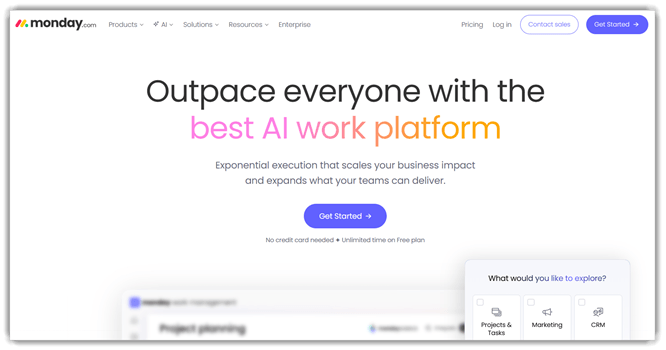
Monday.com is a work management platform that organizes tasks, owners, and timelines. For testing teams, it supports test planning, bug triage, and release checklists using boards. You can track runs with status columns, dependencies, and due dates. Dashboards roll up progress, blockers, and risk indicators quickly. Automations reduce manual handoffs between QA, dev, and product teams.
I have used Monday.com to keep regression work visible daily. During pre-release testing, I create a board per sprint. Each test case becomes an item with steps attached. Automations notify owners when statuses change or deadlines slip. When UI changes land, I tag impacted suites fast. The team reviews dashboards before go or no-go calls.
Features:
- Boards: Monday.com lets you structure tests as items with owners. You can add status, priority, and blockers in columns. This keeps execution progress visible.
- Templates: This feature starts you with QA-ready boards for repeats. Users can copy sprint, bug triage, or release checklists quickly. It reduces setup time.
- Automations: Monday.com triggers actions when a status or date changes. It can assign owners, post reminders, or move items automatically. This cuts manual follow-ups.
- Forms: Testers submit bug reports through a form. Submissions create items with consistent fields and attachments. It reduces missing reproduction details.
- Docs: You can write test charters and link them to boards. Tables can sync with live board data for updates. This helps with release notes.
- Dashboards: This rolls up multiple boards into one view. It shows workload, overdue items, and execution status trends. It helps spot risks early.
- Integrations: Many users connect CI tools, chat apps, and email alerts. Updates can be posted to channels when runs fail or bugs reopen. It keeps teams aligned.
- AI Assistance: Monday.com includes AI work capabilities like Sidekick. It can summarize updates and suggest next steps from context. It speeds up triage notes.
Pros
Cons
Pricing:
Pricing includes a Free plan; paid plans start at €9 seat/month billed annually.
| Plan | Pricing |
|---|---|
| Free | €0 (free forever), up to 2 seats |
| Basic | €9 seat/month, billed annually |
| Standard | €12 seat/month, billed annually |
4) Smartsheet
Smartsheet is a work management platform for planning tasks. It supports testing work through test plans, bug tracking, and releases. Teams rely on reports, dashboards, and forms for shared visibility. It is widely used for cross-team delivery and structured execution. You can model QA work in grids, boards, and timelines.
I have found that Smartsheet automation rules stay stable during busy sprints. During pre-release regression, you can log failures via forms. Then route them to owners with alerts and approvals. Use reports to track blockers across builds and environments. Dashboards keep stakeholders aligned without chasing status updates.

Features:
- Work Views: Smartsheet lets you switch between grid, board, Gantt, and calendar. It helps teams match task tracking to workflow. Beginners avoid forcing one layout.
- Intake Forms: This feature captures bug reports and test requests consistently. You can require fields like environment, build, and steps. It reduces back-and-forth clarifications later.
- Automation Rules: Smartsheet triggers alerts, reminders, and status changes automatically. It reduces manual follow-ups. This is useful for overdue test tasks.
- Approval Flows: You can route test sign-offs and release checks for approval. It records who approved and when. That helps audits and releases confidence.
- Cross-Sheet Links: It links test cases to defects and releases. It helps keep references current across sheets. This prevents duplicate bug entries.
- Reports Filters: Users can build reports that pull only relevant testing rows. It surfaces open blockers, failed cases, or untriaged bugs. Teams get a focused daily view.
- Dashboards Widgets: Smartsheet dashboards display QA progress with charts and key metrics. You can show pass rates, remaining tests, and risks. Stakeholders self-serve status quickly.
- AI Assistance: Smartsheet includes AI for formulas, texts, and charts. It helps summarize updates and draft test notes faster. It speeds status reporting.
Pros
Cons
Pricing:
The cheapest paid plan is Pro at $12 per Member/month; free trial available.
| Plan | Pricing |
|---|---|
| Pro | $12/month (monthly) or $9/month (yearly) |
| Business | $24/month (monthly) or $19/month (yearly) |
| Enterprise | Custom pricing |
5) Wrike
Wrike is a work management tool for planning tasks. It helps testing teams coordinate test cycles and releases. You can track bugs, owners, and due dates centrally. It supports manual testing workflows and automation handoffs. Teams rely on it for structured requests, approvals, and visibility.
I have used Wrike to organize regression work reliably. Its dashboards stayed consistent as priorities shifted quickly. Before a release, testers can log failed checks. Developers can pick issues, then attach fixes. The team can confirm retests with clear status updates.

Features:
- Request Forms: Wrike lets you build intake forms for new work. It routes submissions to the right project automatically. This reduces missing details in bug or test requests.
- Custom Workflows: This feature creates statuses matching your QA process. You can model steps like Ready, Testing, Blocked, and Done. It keeps handoffs clear during busy release windows.
- AI Summaries: It generates short summaries of long comment threads. This helps beginners catch up without reading everything. It reduces review time before standups.
- Gantt Scheduling: Wrike provides interactive Gantt timelines for projects. You can adjust dependencies when dates slip. This helps prevent last-minute test crunches.
- Dashboards: Users can build dashboards showing assigned work and blockers. You can filter by sprint, component, or owner. This helps spot stalled retest tasks.
- Table Tracking: Wrike includes a spreadsheet-like table view for tasks. You can bulk edit owners, dates, or fields quickly. It helps when importing test case execution results.
- Automation Rules: Using this feature, you can auto-assign tasks by status. It can move items when a prerequisite finishes. This reduces manual triage during regression cycles.
- Resource Planning: This maps workload across people and time. You can see over-allocated testers early. It helps rebalance coverage before deadlines get tight.
Pros
Cons
Pricing:
Free plan starts at $0 user/month, and there is a Free 14-day trial available.
| Plan | Pricing |
|---|---|
| Free | $0 user/month |
| Team | $10 user/month |
| Business | $25 user/month |
6) Notion
Notion is a workspace for managing tasks, docs, and wikis. For testing teams, it supports test planning, test case tracking, and bug triage. You can model QA work with databases, properties, and filtered views. It is widely used because pages stay structured and searchable. Permissions and sharing controls help teams keep QA notes consistent.
I have used Notion to run regression checklists across releases. During a UI update, I track test cases per browser. I link failing steps to screenshots and owner tasks. Filters show what is blocked and what is ready. That keeps daily QA handoffs clear and predictable.

Features:
- Task Databases: Notion stores tasks in databases with custom properties. You can sort by priority, owner, or due date. This keeps test work visible and consistent.
- Views: This feature offers list, board, timeline, and calendar views. Users can switch views without duplicating tasks. It helps match planning to each sprint rhythm.
- Templates: Notion provides reusable templates for QA checklists and test plans. You can clone a clean workflow for each release. This reduces setup time and missed steps.
- Linked Pages: Using this feature, you can link specs, bugs, and test cases together. It creates traceability from the requirement to verification notes. This helps when audits need clear evidence.
- Comments: Notion supports inline comments and page mentions for discussions. It helps reviewers ask questions next to failing steps. This reduces long chat threads.
- Assignments: This assigns owners and status fields per task. You can filter to see only your testing workload. It makes daily standups faster and more focused.
- Automations: Notion can automate simple workflow actions using database rules. You can notify teammates when status changes. It helps reduce manual follow-ups after test runs.
- AI Writing: Notion AI helps draft test plans and summarize meeting notes. It can turn rough notes into structured action items. This is useful after triage calls.
Pros
Cons
Pricing:
Notion has a free $0 per member/month plan. Please refer to the table below for pricing details:
| Plan | Pricing |
|---|---|
| Free | $0 per member/month |
| Plus | $12 per member/month |
| Business | $24 per member/month |
Feature Comparison: Best AI Task Management Software
| Feature | Zoho Projects | Jira SM | Monday.com | Smartsheet |
| AI task suggestions | ✔️ | ✔️ | ✔️ | ✔️ |
| Workflow automation rules | ✔️ | ✔️ | ✔️ | ✔️ |
| Free plan available | ✔️ | ✔️ | ✔️ | ❌ |
| 24/7 support available | ✔️ | ✔️ | ✔️ | ✔️ |
| SSO & access controls | ✔️ | ✔️ | ✔️ | ✔️ |
| Extensive integrations | ✔️ | ✔️ | ✔️ | ✔️ |
What is AI task management software, and how is it different from traditional task apps?
AI task management software uses machine learning to organize work automatically. It can suggest priorities, detect overdue risk, and recommend next steps. Traditional task apps mainly store tasks and reminders. AI tools also summarize updates, turn messages into tasks, and draft status reports. Many tools learn from team behavior over time. This helps reduce manual planning and repetitive clicks. For teams, AI automation can improve consistency across projects. For individuals, it can reduce decision fatigue and missed deadlines significantly.
How does AI prioritize tasks and predict deadlines in task management tools?
Most AI prioritization models combine urgency, effort, dependencies, and calendar availability. The system may review due dates, task history, and workload trends. Some tools scan conversations and documents for hidden deadlines. Many platforms calculate risk scores for slipping milestones. They may suggest breaking large items into smaller tasks. Some also recommend who should handle each task. Better tools let users adjust priority rules and training signals. This keeps planning realistic and aligned with real working patterns.
What integrations matter most for AI task management software in real workflows?
Integrations determine whether AI automation can act on real work. Email and chat integrations help convert conversations into tasks. Calendar integrations improve scheduling accuracy and time blocking. File integrations help AI summarize documents and meeting notes. For engineering teams, Jira, GitHub, and GitLab links support delivery tracking. CRM integrations help sales teams manage follow-ups and renewals. The strongest tools support two-way sync, not one-way imports.
Is AI task management software secure for business and enterprise use?
Security depends on vendor controls and how AI features process data. Check encryption in transit and at rest. Review whether AI training uses your content. Strong vendors offer opt-out settings for model training. Look for SSO, SCIM provisioning, and role-based access controls. Enterprise buyers should request SOC 2, ISO 27001, and GDPR documentation. Also, check data retention policies and admin audit logs.
How can beginners set up AI task management software for daily productivity?
Start with a small structure that stays consistent. Create three lists: Today, This Week, and Backlog. Then enable AI task capture from email and chat. Add recurring tasks for weekly reviews and planning. Use AI suggestions to break large tasks into smaller steps. Keep due dates realistic and aligned with calendar availability. Review AI-generated priorities each morning for two minutes.
What are the benefits of using AI task management software for remote teams?
Remote teams struggle with visibility, alignment, and context switching. AI task management software helps by summarizing activity and highlighting risks early. It can generate status updates from task movement and chat signals. AI can also spot blocked dependencies across time zones. Some tools recommend handoffs and next actions after meetings. This reduces long update calls and repeated questions.
What future trends are shaping AI task management software in 2026 and beyond?
A major trend is agentic AI that can take actions, not only suggest them. Task Management software will create projects from goals, assign work based on capacity, and follow up automatically. Deeper calendar intelligence will predict realistic timelines from past performance. More platforms will connect task data with docs, chats, and code repositories. Expect stronger governance features like policy-based automation and audit-ready AI outputs.
How Do We Select the 6 Best AI Task Management Software?
At Guru99, the team evaluates AI task management tools carefully. Reviews focus on real workflows, repeatable testing, and clear scoring. Guru99 compares usability, AI value, integrations, and total costs. Each tool is tested with practical team tasks. Results are checked for accuracy and reliability. The goal is to help readers choose faster, with fewer mistakes.
- AI usefulness: We measure whether AI automation reduces clicks and planning time. We validate summaries, prioritization, and task extraction quality across common scenarios.
- Ease of setup: Our team checks onboarding, templates, and default workflows. The researchers confirm whether beginners can reach a value within one hour.
- Core task features: The team reviews boards, lists, dependencies, and recurring tasks. Our testers verify notifications, reminders, and mobile experience during daily usage.
- Integrations and sync: Our experts test Slack, email, calendar, and cloud drives. The experts validate two-way sync behavior and duplication risks across platforms.
- Reporting and visibility: We check dashboards, workload views, and status exports. Our team confirms whether managers can detect blockers and capacity issues early.
- Security and admin controls: The researchers review SSO, permissions, and audit logs. Our experts verify vendor claims using security documentation and admin settings.
- Pricing and limits: Our testers compare free tiers, AI quotas, and seat minimums. The team checks hidden costs for automation, integrations, and premium support.
- Support and reliability: We monitor uptime signals and response times. The experts test help resources, community guidance, and escalation paths for enterprise teams.
What are the most common AI task management software problems, and how do you fix them?
AI task tools can fail due to permissions, weak inputs, or sync conflicts. Most issues are fixable through settings, data cleanup, and better integrations. Troubleshooting should start with verifying access scopes and data sources.
- Issue: Tasks created from emails miss deadlines because time zones are incorrectly detected.
Solution: The admin should align account, workspace, and calendar time zones, then re-sync events and retest email-to-task parsing. - Issue: AI summaries include the wrong owners because participants share similar names.
Solution: The workspace should require unique display names and verified emails, then enable identity matching across chat and calendar sources. - Issue: Duplicate tasks appear after enabling Slack and email integrations together.
Solution: The system should apply one capture source per channel, then add deduplication rules using keywords and thread identifiers. - Issue: AI prioritization becomes unreliable after many overdue tasks accumulate in the backlog.
Solution: The team should archive stale items, reset priority rules, and re-train the model using recently completed tasks. - Issue: Automations fail silently because permission scopes were reduced during security hardening.
Solution: The admin should audit integration scopes, restore the minimum required permissions, and monitor logs for repeated failures.
Verdict
After hands-on testing across six AI task managers, I narrowed my verdict to the platforms that felt consistently faster to run, easier to trust, and strongest in real team workflows:
- Zoho Projects: I found it delivered the best value for structured planning. Automations and dependencies were practical, and the interface stayed clean even as projects scaled.
- Jira Service Management: What impressed me most was how well it handled intake-to-resolution work. Triage rules, SLAs, and cross-team visibility made complex request flows feel controlled.
- Monday.com: It stood out for day-to-day execution. I built dashboards quickly, automations reduced routine follow-ups, and the boards remained flexible without becoming messy.
