
6 BEST AI Photo Editing Software & Tools (2026)
 Editorial Team
I spent over 210 hours researching and testing 30+ different options, comparing performance across real-world scenarios and user needs. After rigorous testing, I narrowed it down to 6 best AI photo editing software options, each evaluated through firsthand use, feature depth, pros and cons, and backed by practical insights. If you want clarity without the guesswork, the breakdown ahead will guide you forward.
Best AI Photo Editor Tools & Online Software: Top Picks!
| Tool Name | Best For | Top Features | Free/Trial Plans | Link |
|---|---|---|---|---|
| Adobe Photoshop Express Editor | Quick mobile edits, beginners | AI filters, Auto-fix, Collage tools | Free plan available | Learn More |
| Lightroom | Professional workflow, RAW editing | AI masking, Cloud sync, Presets | 7-day free trial | Learn More |
| TopazLabs | Image enhancement, restoration | AI upscaling, Noise reduction, Sharpening | Free Demo | Learn More |
| DxO PhotoLab | Advanced photo correction, detail accuracy | Lens correction, DeepPRIME AI, RAW processing | 30-day free trial | Learn More |
| PhotoDirector | Beginners, social content creators | AI sky replace, Animation, Face retouch | Free plan | Learn More |
1) Adobe Photoshop Express Editor
Adobe Photoshop Express Editor is a web tool for AI photo editing. It supports image enhancement, filters, and quick adjustments using AI features. The platform feels reliable due to the Adobe ecosystem and consistent performance. It works well for beginners needing simple editing without a complex setup.
I noticed that the workflows stayed smooth even when handling multiple edits quickly. For example, during regression-style checks on images before publishing updates. You can apply consistent filters across batches and validate visual changes easily. This helps ensure assets remain polished across platforms without repetitive manual work.

Features:
- Quick Edits: Adobe Photoshop Express Editor lets users crop, rotate, and resize images within seconds. It helps prepare visuals for social posts or documents without switching tools. This reduces time spent on basic formatting adjustments.
- Auto Enhance: This feature applies automatic adjustments to lighting, contrast, and color balance. In my experience, it quickly improves dull images without requiring manual fine-tuning. It is especially useful when editing multiple photos in batches.
- Background Removal: Users can remove or replace image backgrounds with a single action. It helps create clean product shots or profile images without complex selection tools. This simplifies tasks that usually require advanced editing skills.
- Filter Presets: You can apply preset styles that adjust tones, colors, and textures instantly. This makes it easier to maintain a consistent visual style across multiple images. It also helps beginners achieve polished results without experimentation.
- Text Overlay: This feature allows adding styled text directly onto images with font controls. It helps create quick posters, thumbnails, or announcements without needing separate design software. You can adjust placement and spacing for better visual balance.
- Blemish Fix: Adobe Photoshop Express Editor includes a spot healing tool for removing small imperfections. I often rely on this when cleaning up portraits or product images quickly. It ensures images look clean without spending time on detailed retouching.
Pros
Cons
Pricing:
It has a free version, and you can contact sales if you want to upgrade.
2) Lightroom
Lightroom is an AI-powered photo editor focused on fast, non-destructive adjustments and smart organization for large image libraries. It supports detailed photo enhancement, from exposure and color correction to AI-driven tools like Lens Blur and Generative Remove for removing distractions and refining portraits. Its cloud-based design and consistent results make it a reliable choice for creators who want streamlined editing across devices.
In my experience, Lightroom’s AI-assisted masking and denoise make complex edits feel surprisingly approachable for newcomers. Imagine preparing a batch of product photos before an online launch, using presets for overall look, AI masking to brighten only the subject, and Generative Remove to clean up background distractions. This makes every image look consistent without manual retouching.

Features:
- Photo Organization: Lightroom lets users import, tag, and group images into structured catalogs. This makes it easier to locate specific photos quickly. It reduces the time spent searching across folders and devices. You can also filter images using metadata like date or camera type.
- Non-Destructive Editing: This feature edits photos without altering original image files permanently. You can experiment freely and revert changes anytime. It helps beginners learn editing without risking image quality loss. This approach ensures your original files remain untouched for future use.
- Preset Management: Lightroom allows users to apply saved editing styles with one click. I often rely on presets to maintain a consistent visual tone. This speeds up batch editing across large photo collections. You can also create and share your own presets easily.
- Selective Adjustments: Using this feature, users can edit specific parts of an image precisely. It helps adjust exposure, color, or sharpness in targeted areas. This improves control compared to global edits. It is especially useful for enhancing subjects without affecting backgrounds.
- Cloud Syncing: Lightroom syncs edits and files across devices through cloud storage. This means users can start editing on mobile and continue later. It supports flexible workflows without manual file transfers. Your changes stay updated automatically across all connected devices.
- AI Enhancements: This functionality automatically detects subjects, skies, and backgrounds in images. It helps apply quick adjustments without manual masking. In my experience, this saves significant editing time. It also improves accuracy compared to manual selections.
Pros
Cons
Pricing:
Lightroom offers a free mobile version with basic tools. It also has a 7-day free trial, plus paid plans starting at $11.99/month (annual billing).
| Plan | Pricing |
|---|---|
| Lightroom (1 TB) | $11.99/mo |
| Photography (1TB) | $19.99/mo |
| Creative Cloud Pro | $69.99/mo |
3) TopazLabs
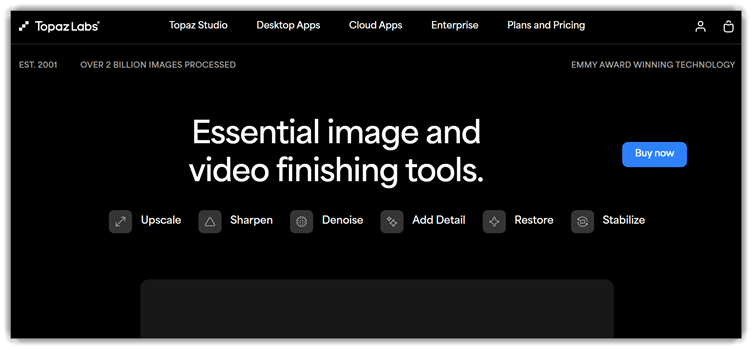
TopazLabs builds AI photo enhancement tools for sharpening, denoising, and upscaling images. It supports photo restoration, detail recovery, and cleanup after difficult shoots. Its reputation comes from specialized models and broad use by professionals. The homepage also highlights local processing and cloud-based enhancement workflows.
In my testing, exports felt consistent, especially with noisy source files. It fits well before release when revised images need fast validation. For example, you can rescue soft product shots before publishing. That helps teams avoid manual retouching across large image batches.
Features:
- AI Image Enhancement: TopazLabs enhances low-quality photos using advanced AI models trained on large datasets. It reconstructs missing details and sharpens edges with impressive accuracy. This helps you improve old or blurry images without complex manual editing steps.
- Noise Reduction: This feature removes digital noise from photos captured in challenging low-light conditions. It preserves fine details while effectively cleaning grainy textures across the image. I have found it especially useful when editing night photography or indoor shots.
- Upscaling Engine: TopazLabs enlarges images without losing clarity by using intelligent AI-based upscaling techniques. It fills in additional pixels based on learned image patterns and structures. This allows you to prepare images confidently for printing or large-format displays.
- Sharpening Tools: The sharpening feature corrects soft or slightly out-of-focus images with targeted adjustments. It analyzes subject edges and enhances definition without affecting the entire image. In my experience, this often rescues photos that would otherwise be discarded.
- Batch Processing: Users can apply enhancements to multiple images simultaneously within a single streamlined workflow. It processes files automatically while maintaining consistent settings across all selected images. This significantly reduces repetitive editing time when working with large photo collections.
- RAW File Support: This functionality supports direct editing of RAW image formats from various professional cameras. It retains original image data while applying enhancements in a non-destructive way. You can maintain maximum image quality throughout the entire editing process.
- Face Recovery: This feature detects and enhances facial details in portraits using specialized AI recognition models. It improves eyes, skin texture, and facial clarity without creating unnatural effects. This helps produce more natural-looking portrait enhancements with minimal manual adjustments.
Pros
Cons
Pricing:
TopazLabs offers monthly subscriptions for AI photo/video tools, with no permanent free plan, but limited demo access is available.
| Plan | Pricing |
|---|---|
| Topaz Studio | $37/month |
| Topaz Studio Pro | $75/month |
4) DxO PhotoLab
DxO PhotoLab is an advanced AI-powered photo editing software for photographers. It supports raw processing, correction, noise reduction, and intelligent adjustments. The tool uses DeepPRIME AI and precise lens correction profiles. It remains reliable due to accurate processing and consistent image output.
I noticed that its AI noise reduction delivered clean results quickly. During regression-style edits, I batch-processed photos before final delivery. It helped validate exposure and color consistency across multiple lighting conditions. Beginners benefit from automatic adjustments while still learning manual controls.

Features:
- RAW Processing: DxO PhotoLab processes RAW files with built-in camera and lens profiles. It automatically corrects distortion and exposure issues. This helps users start editing with a technically clean image base. It reduces the need for early manual corrections significantly.
- Local Adjustments: This feature lets users apply selective edits using control points and brushes. You can adjust brightness or color in specific areas. It helps refine details without affecting the entire photo. This makes targeted edits faster and more controlled.
- Preset Library: DxO PhotoLab offers built-in presets for quick styling and corrections. You can apply a preset and tweak it further if needed. This helps beginners achieve polished results without complex adjustments. It also speeds up experimentation with different visual styles.
- Optical Corrections: The phot editor tool uses lab-tested lens data to fix distortions and sharpness issues. It automatically applies corrections based on the equipment used. This reduces manual adjustments and improves overall image accuracy. You get reliable corrections without needing technical calibration knowledge.
- Color Control: Users can fine-tune colors using HSL and color wheel adjustments. It allows precise control over specific tones in an image. This helps achieve consistent color grading across multiple photos. Adjustments remain predictable across different lighting conditions.
- Batch Editing: This feature applies the same edits across multiple photos at once. I often rely on this when working with large photo sets. It saves time and maintains consistency in editing workflows. This is especially useful for event or travel photography batches.
Pros
Cons
Pricing:
DxO PhotoLab offers a 30-day free trial and one-time paid licenses with no subscription; pricing depends on edition.
| Plan | Pricing |
|---|---|
| Plan 1 | $239.99 |
| Upgrade | $119.99 |
5) PhotoDirector
PhotoDirector is an AI-powered photo editor that focuses on fast, high-quality image enhancement and creative effects for beginners and enthusiasts. It supports AI photo editing tasks like object removal, background changes, image enhancement, and style transfers, making complex edits feel very approachable. The desktop version also includes layer-based adjustments and RAW support, which helps it feel reliable for more serious photo work.
In my experience, its guided and quick AI actions made everyday edits feel smooth and predictable. A typical workflow might be preparing a batch of product images before publishing them, where you quickly remove distracting objects, enhance sharpness, and swap plain backgrounds using AI tools in one session. That kind of scenario shows where PhotoDirector fits nicely into a modern AI photo editing toolkit.

Features:
- AI Object Removal: PhotoDirector lets users erase unwanted objects from photos with a brush tool. It intelligently fills the background area. This helps clean up distractions without needing complex manual editing skills.
- Sky Replacement: Users can replace dull skies with preset or custom options. The tool adjusts lighting and colors automatically. I have noticed this saves time compared to manual masking and blending. It also keeps the overall image looking consistent and realistic.
- Face Retouching: This feature detects facial features and allows precise adjustments like smoothing or reshaping. It keeps edits natural-looking. This helps improve portraits without over-editing or losing detail. You can fine-tune results for different lighting or skin tones.
- Batch Editing: You can apply the same edits across multiple photos at once. This includes filters, color adjustments, and cropping. I often rely on this when working with large photo sets. It significantly reduces repetitive manual editing time.
- AI Style Transfer: This feature applies artistic styles to photos using AI models. Users can transform images into paintings or sketches. It helps create unique visuals without advanced design skills. You can explore different looks quickly before finalizing a style.
- Guided Edits: PhotoDirector provides step-by-step editing tools for common tasks like object removal or color grading. It reduces guesswork. This makes it easier for beginners to achieve consistent results. It also helps users learn editing techniques while working.
Pros
Cons
Pricing:
PhotoDirector offers a free Essential version and a paid 365 subscription starting around $16.86/month.
| Plan | Pricing |
|---|---|
| PhotoDirector 365 for Windows | $16.86/month |
| PhotoDirector 365 for Mac | $16.86/month |
6) Luminar
Luminar is an AI-powered photo editing software focused on creative automation. It offers tools for AI enhancements, sky replacement, and portrait retouching. The platform suits beginners needing fast edits without complex workflows. Its consistent results and simple interface make it reliable.
I found its AI tools handled batch edits surprisingly smoothly. For example, during pre-release image updates, it quickly standardizes visual assets. You can adjust lighting and backgrounds across multiple photos automatically. Luminar also provides a free trial for testing its core features.

Features:
- Sky Replacement: This feature detects the sky area and swaps it with realistic alternatives. You can fix dull photos instantly and match lighting for natural-looking composite results. It also adjusts reflections and tones to maintain visual consistency.
- Portrait Tools: Luminar includes skin smoothing, eye enhancement, and face shaping controls. It helps users refine portraits without over-editing and maintain realistic textures in final images. This ensures portraits still look natural rather than overly processed.
- Scene Templates: Using this feature, users can apply pre-built looks tailored to specific scenes. It speeds up editing workflows when you want consistent styles across multiple photos. This is especially useful when working on themed photo collections.
- Layer Editing: Luminar allows users to stack adjustments using layers and masks. I have noticed this helps isolate edits precisely without affecting the entire image composition. It gives more control when working on complex or detailed edits.
- RAW Editing: Luminar supports direct editing of RAW image files with full detail retention. It helps photographers recover highlights and shadows without degrading image quality. This ensures greater flexibility during post-processing adjustments.
- Lighting Control: This feature adjusts brightness selectively across different depth areas in an image. I have found it useful for enhancing foreground subjects without overexposing backgrounds. It creates more balanced and visually appealing lighting in complex scenes.
Pros
Cons
Pricing:
Luminar Neo offers one-time lifetime licenses starting at $119 with no free plan but a 30-day money-back guarantee.
| Plan | Pricing |
|---|---|
| Perpetual Desktop License | $119 one-time payment |
| Cross-device Perpetual License | $159 one-time payment |
| Perpetual Max License | $179 one-time payment |
Feature Comparison: Top AI Photo Editor Tools
Here’s a comparison table that you can use to compare the tools at a quick glance:
| Feature ↓ / Tool → | Adobe Photoshop Express Editor | Lightroom | Topaz Photo AI | DxO PhotoLab |
| AI Generative Tools | ✔️ | ✔️ | ✔️ | ✔️ |
| Beginner-Friendly UI | ✔️ | ✔️ | ✔️ | ❌ |
| Free Trial Available | ✔️ | ✔️ | ✔️ | ❌ |
| Human Support Access | ✔️ | ✔️ | ✔️ | ✔️ |
| Workflow Plugin Support | ✔️ | ✔️ | ✔️ | ✔️ |
| Team/Admin Controls | ✔️ | ✔️ | ✔️ | ❌ |
What are AI-Photo Editing Software and How Do They Work?
AI photo editing software uses artificial intelligence to automatically enhance, modify, or transform images. These tools rely on technologies like machine learning and computer vision to analyze photos and understand elements such as faces, objects, lighting, and backgrounds. Popular platforms like Adobe Photoshop and Canva integrate AI features that allow users to perform complex edits—like background removal, retouching, or color correction—quickly and with minimal effort.
These tools work by training models, often based on neural networks, on large image datasets. When you upload a photo, the AI detects patterns and segments different parts of the image. It then applies smart adjustments or uses generative AI to create or replace elements. This makes editing faster, more accessible, and increasingly creative, even for beginners.
What Are the Benefits of Using AI Photo Editing Software?
The biggest benefit is speed, but that is not the whole story. AI photo editor tool also lowers the skill barrier for people who are not expert retouchers. Users can improve portraits, remove messy backgrounds, or fix weak lighting with fewer steps.
CyberLink stresses beginner-friendly automation, while Canva focuses on turning complex edits into prompt-based actions. These tools also help businesses create polished product images and campaign visuals faster. Less time spent clicking tiny menus means more time spent shipping actual work. Miracles are rare, but fewer headaches are very real.
How to Troubleshoot the Common Issues of AI Photo Editing Software?
Even strong AI photo editing tools can misfire when images are complex. Most problems come from vague prompts, messy source photos, weak subject separation, or overaggressive enhancement settings. The good news is that many issues have practical fixes.
- Issue: The edited area looks blurry because the selected subject edges were imprecise.
Solution: A tighter manual selection should be created before running the AI edit again. Cleaner boundaries usually improve blending and reduce visible artifacts. - Issue: Generative replacements look unrealistic because the prompt lacks scene-specific detail.
Solution: A more precise prompt should describe lighting, angle, texture, and context. Specific instructions usually produce edits that match the original photo better. - Issue: Background removal fails when hair, shadows, or transparent objects confuse detection.
Solution: The image should be refined with edge tools or masking controls afterward. Photos with stronger contrast also tend to improve detection accuracy. - Issue: Auto enhancement makes skin, colors, or textures look unnaturally polished.
Solution: The enhancement intensity should be reduced and applied in smaller passes. Manual adjustment after AI processing often restores a more believable result. - Issue: Free plans stop working smoothly because credit limits interrupt regular editing.
Solution: Usage limits should be checked before choosing a production workflow. Teams with frequent editing needs usually benefit from predictable paid plans. - Issue: Exported images lose detail because compression settings are too aggressive.
Solution: Higher-resolution export options should be selected whenever available. Final images should also be reviewed at full size before publishing.
How Do We Select the Best AI Photo Editing Software?
At Guru99, we carefully evaluate tools using hands-on testing and expert analysis. Our goal is to provide reliable recommendations that help users choose the best solutions confidently.
- Evaluation Criteria: We analyze usability, performance, and overall editing accuracy carefully.
- Hands-on Testing: Our team tests each tool using real-world photo editing scenarios.
- Feature Analysis: The researchers compare automation, customization, and advanced AI capabilities.
- User Feedback: Our testers review customer experiences and satisfaction ratings thoroughly.
- Performance Benchmarking: The experts measure speed, reliability, and processing efficiency consistently.
- Security Checks: Our experts verify data protection and privacy compliance standards.
- Pricing Review: The team compares pricing plans and overall value for users.
Can AI photo editing software replace professional photo editors?
AI photo editing software can handle many tasks traditionally done by professionals. It automates adjustments like color correction, retouching, and background removal. However, it cannot fully replace human creativity and artistic judgment.
Professional photo editors bring unique styles and detailed control to projects. AI works best as a supporting tool rather than a replacement. Many professionals use AI to speed up workflows efficiently. The combination of AI and human expertise delivers the best results. This balance improves productivity while maintaining high-quality output.
Verdict
After testing a range of AI photo editing tools, I found a few that consistently delivered sharper results, smarter automation, and a smoother editing workflow across different use cases.
- Adobe Photoshop Express Editor: I found it incredibly intuitive for quick edits. Its AI-powered adjustments handled lighting and blemishes well without requiring manual fine-tuning.
- Lightroom: What stood out was its precision. I relied on its AI masking and color grading tools for consistent, professional-looking edits across large photo sets.
- TopazLabs: I was impressed by the quality of its AI enhancements. It noticeably improved image sharpness and resolution, especially when working with low-quality or noisy photos.
