
AngularJS Table: Sort with orderBy & Uppercase Filter
 Editorial Team
⚡ Smart Summary
AngularJS Table sorting, ordering and text formatting all rely on the ng-repeat directive plus a filter expression. This page shows how orderBy, uppercase, filter and $index turn a plain HTML table into a live, data driven grid.
Tables are one of the common elements used in HTML when working with web pages.
Tables in HTML are designed using the HTML tag
- <table> tag – This is the main tag used for displaying the table.
- <tr> – This tag is used for segregating the rows within the table.
- <td> – This tag is used for displaying the actual table data.
- <th> – This is used for the table header data.
Using the above available HTML tags along with AngularJS, we can make it easier to populate table data. In short, the ng-repeat directive is used to fill in table data.
We will look at how to achieve this during this chapter. We will also look at how we can use the orderBy and uppercase filters along with using the $index attribute to display AngularJS table indexes. The first step is the markup itself.
Populate & Display Data in a Table
As we discussed in the introduction to this chapter, the basis for creating the table structure in an HTML page remains the same.
The structure of the table is still created using the normal HTML tags of <table>,<tr> , <td> and <th>. However, the data is populated by using the ng-repeat directive in AngularJS.
Let’s look at a simple example of how we can implement AngularJS tables.
In this example,
We are going to create an AngularJS table which will have course topics along with their descriptions.
Step 1) We will first going to add a “style” tag to our HTML page so that the table can be displayed as a proper table.

- The style tag is added to the HTML page. This is the standard way to add any formatting attributes which are required for HTML elements.
- We are adding two style values to our table.
- One is that there should be a solid border for our AngularJS table and
- Second is that there should be padding put in place for our AngularJS table data.
Step 2) The next step is to write the code to generate the table, and it’s data.

<!DOCTYPE html>
<html>
<head>

    <meta chrset="UTF 8">

</head>
<body>
<title>Event Registration</title>
<style>
    table,th,td{
        border: 1px solid grey;
        padding:5px;
    }
</style>
<script src="https://code.angularjs.org/1.6.9/angular-route.js"></script>
<script src="https://code.angularjs.org/1.6.9/angular.min.js"></script>
<script src="https://code.angularjs.org/1.6.9/angular.js"></script>
<script src="lib/bootstrap.js"></script>
<script src="lib/bootstrap.css"></script>

<h1> Guru99 Global Event</h1>

<div ng-app="DemoApp" ng-controller="DemoController">
    <table>
        <tr ng-repeat="ptutor in tutorial">
            <td>{{ptutor.Name}}</td>
            <td>{{ptutor.Description}}</td>
        </tr>
    </table>
</div>

<script type="text/javascript">
    var app = angular.module('DemoApp',[]);

    app.controller('DemoController',function($scope) {

        $scope.tutorial = [
            {Name:"Controllers",Description :"Controllers in action"},
            {Name:"Models",Description :"Models and binding data"},
            {Name:"Directives",Description :"Flexibility of Directives"}
        ]});
</script>
</body>
</html>
⚠️ Warning: This listing is reproduced exactly as published, and four lines in it are faulty. chrset misspells charset. Three AngularJS builds load at once, which is one too many. lib/bootstrap.js and lib/bootstrap.css do not exist. Keep angular.min.js only.
Code Explanation
- We are first creating a variable called “tutorial” and assigning it some key-value pairs in one step. Each key-value pair will be used as data when displaying the table. The tutorial variable is then assigned to the scope object so that it can be accessed from our view.
- This is the first step in creating a table, and we use the <table> tag.
- For each row of data, we are using the “ng-repeat directive”. This directive goes through each key-value pair in the tutorial scope object by using the variable ptutor.
- Finally, we are using the <td> tag along with the key-value pairs (ptutor.Name and ptutor.Description) to display the AngularJS table data.
If the code is executed successfully, the following Output will be shown when you run your code in the browser.
Output

From the above output,
- We can see that the table is displayed properly with the data from the array of key-value pairs defined in the controller.
- The table data was generated by going through each of the key-value pairs by using the “ng-repeat directive”.
Raw rows are only the starting point, because filters decide how those rows are ordered and formatted.
AngularJS in-built Filter
It’s very common to use the inbuilt filters within AngularJS to change the way the data is displayed in the tables. We have already seen filters in action in an earlier chapter. Let’s have a quick recap of filters before we proceed ahead.
In AngularJS filters are used to format the value of expression before it is displayed to the user. An example of a filter is the ‘uppercase’ filter which takes on a string output and formats the string and displays all the characters in the string as uppercase.
So in the below example, if the value of the variable ‘TutorialName’ is ‘AngularJS’, the output of the below expression will be ‘ANGULARJS’.
{{ TutorialName | uppercase }}
In this section, we will be looking at how the orderBy and uppercase filters can be used in tables in more detail.
Common AngularJS Filters Used With Tables
The table below compares the filters used most often inside an ng-repeat expression.
| Filter | Purpose | Example |
|---|---|---|
| orderBy | Sorts rows by a key | | orderBy : 'Name' |
| filter | Keeps matching rows | | filter : searchText |
| uppercase | Capitalises text | | uppercase |
| lowercase | Lowers text | | lowercase |
| limitTo | Caps row count | | limitTo : 25 |
| currency | Formats money | | currency : '$' |
| date | Formats dates | | date : 'dd MMM yyyy' |
| number | Sets decimals | | number : 2 |
Sorting is the filter readers ask for first, so the orderBy filter comes next.
Sort Table with OrderBy Filter
This filter is used to sort the table based on one of the table columns. In the previous example, the output for our AngularJS table data appeared as shown below.
| Controllers | Controllers in action |
| Models | Models and binding data |
| Directives | Flexibility of Directives |
Let’s look at an example, on how we can use the “orderBy” filter and sort the AngularJS table data using the first column in the table.

<!DOCTYPE html>
<html>
<head>

    <meta chrset="UTF 8">

</head>
<body>
<title>Event Registration</title>
<style>
    table,th,td{
        border: 1px solid grey;
        padding:5px;
    }
</style>
<script src="https://code.angularjs.org/1.6.9/angular-route.js"></script>
<script src="https://code.angularjs.org/1.6.9/angular.min.js"></script>
<script src="https://code.angularjs.org/1.6.9/angular.js"></script>
<script src="lib/bootstrap.js"></script>
<script src="lib/bootstrap.css"></script>

<h1> Guru99 Global Event</h1>

<div ng-app="DemoApp" ng-controller="DemoController">
    <table>
        <tr ng-repeat="ptutor in tutorial | orderBy : 'Name'">
            <td>{{ptutor.Name}}</td>
            <td>{{ptutor.Description}}</td>
        </tr>
    </table>
</div>

<script type="text/javascript">
    var app = angular.module('DemoApp',[]);

    app.controller('DemoController',function($scope) {

        $scope.tutorial = [
            {Name:"Controllers",Description :"Controllers in action"},
            {Name:"Models",Description :"Models and binding data"},
            {Name:"Directives",Description :"Flexibility of Directives"}
        ]});
</script>
</body>
</html>
Code Explanation
- We are using the same code as we did for creating our table, the only difference this time is that we are using the “orderBy” filter along with the ng-repeat directive. In this case, we are saying that we want to order the table by the key “Name”.
If the code is executed successfully, the following Output will be shown when you run your code in the browser.
Output

From the output,
- We can see that the data in the AngularJS table has been sorted as per the data in the first column. The array is declared in the order Controllers, Models, Directives, so without a filter the rows appear in that order. Applying
orderBy : 'Name'arranges the Name values alphabetically, which moves Directives ahead of Models and produces Controllers, Directives, Models.
Sort in Reverse and From Column Headers
The orderBy filter accepts a second argument. Passing true reverses the direction, and storing both the key and that flag on the scope lets a reader re-sort the table by clicking a header, as the orderBy reference describes.
<table>
    <tr>
        <th ng-click="sortKey='Name'; reverse=!reverse">Name</th>
        <th ng-click="sortKey='Description'; reverse=!reverse">Description</th>
    </tr>
    <tr ng-repeat="ptutor in tutorial | orderBy : sortKey : reverse">
        <td>{{ptutor.Name}}</td>
        <td>{{ptutor.Description}}</td>
    </tr>
</table>
Ordering changes the sequence of the rows. The next filter changes how a single column reads.
Display Table with Uppercase Filter
We can also use the uppercase filter to change the data in the AngularJS table to uppercase.
Let’s take a look at an example of how we can achieve this.

<!DOCTYPE html>
<html>
<head>

    <meta chrset="UTF 8">

</head>
<body>
<title>Event Registration</title>
<style>
    table,th,td{
        border: 1px solid grey;
        padding:5px;
    }
</style>
<script src="https://code.angularjs.org/1.6.9/angular-route.js"></script>
<script src="https://code.angularjs.org/1.6.9/angular.min.js"></script>
<script src="https://code.angularjs.org/1.6.9/angular.js"></script>
<script src="lib/bootstrap.js"></script>
<script src="lib/bootstrap.css"></script>

<h1> Guru99 Global Event</h1>

<div ng-app="DemoApp" ng-controller="DemoController">
    <table>
        <tr ng-repeat="ptutor in tutorial">
            <td>{{ptutor.Name | uppercase}}</td>
            <td>{{ptutor.Description}}</td>
        </tr>
    </table>
</div>

<script type="text/javascript">
    var app = angular.module('DemoApp',[]);

    app.controller('DemoController',function($scope) {

        $scope.tutorial = [
            {Name:"Controllers",Description :"Controllers in action"},
            {Name:"Models",Description :"Models and binding data"},
            {Name:"Directives",Description :"Flexibility of Directives"}
        ]});
</script>
</body>
</html>
Code Explanation
- We are using the same code as we did for creating our table, the only difference this time is that we are using the uppercase filter. We are using this filter in conjunction with the “ptutor.Name” so that all of the text in the first column will be displayed in uppercase.
If the code is executed successfully, the following Output will be shown when you run your code in the browser.
Output

From the output,
- We can see that by using the “uppercase” filter, all of the data in the first column is displayed with uppercase characters.
Formatting a column is useful, and readers often want a row number beside it.
Display the Table Index ($index)
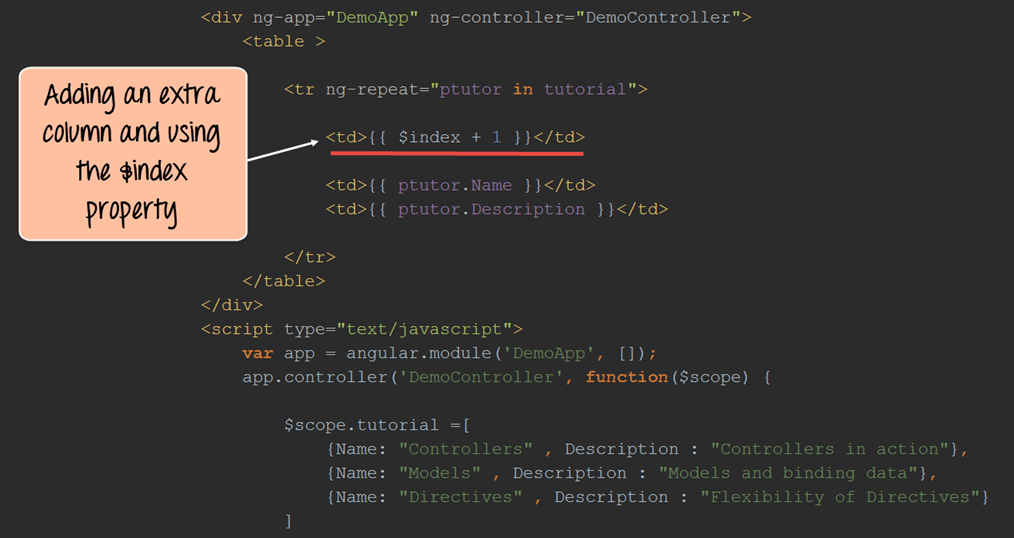
To display the table index, add a <td> with $index.
Let’s take a look at an example of how we can achieve this.
<!DOCTYPE html>
<html>
<head>

    <meta chrset="UTF 8">

</head>
<body>
<title>Event Registration</title>
<style>
    table,th,td{
        border: 1px solid grey;
        padding:5px;
    }
</style>
<script src="https://code.angularjs.org/1.6.9/angular-route.js"></script>
<script src="https://code.angularjs.org/1.6.9/angular.min.js"></script>
<script src="https://code.angularjs.org/1.6.9/angular.js"></script>
<script src="lib/bootstrap.js"></script>
<script src="lib/bootstrap.css"></script>

<h1> Guru99 Global Event</h1>

<div ng-app="DemoApp" ng-controller="DemoController">
    <table>
        <tr ng-repeat="ptutor in tutorial">
            <td>{{$index + 1}}</td>
            <td>{{ptutor.Name}}</td>
            <td>{{ptutor.Description}}</td>
        </tr>
    </table>
</div>

<script type="text/javascript">
    var app = angular.module('DemoApp',[]);

    app.controller('DemoController',function($scope) {

        $scope.tutorial = [
            {Name:"Controllers",Description :"Controllers in action"},
            {Name:"Models",Description :"Models and binding data"},
            {Name:"Directives",Description :"Flexibility of Directives"}
        ]});
</script>
</body>
</html>
Code Explanation
- We are using the same code as we did for creating our table, the only difference this time is that we are adding an extra row to our table to display the index column.In this additional column, we are using the “$index” property provided by AngularJS and then using the +1 operator to increment the index for each row.
If the code is executed successfully, the following Output will be shown when you run your code in the browser.
Output

From the output,
- You can see that an additional column has been created. In this column, we can see the indexes being created for each row.
Three rows fit on one screen. A realistic dataset does not, so readers need a way to search it.
How to Filter and Search AngularJS Table Data
AngularJS ships a filter named filter. Placed after ng-repeat, it compares every item in the array against a value and keeps only the rows that match. Bind that value to a text box with ng-model and the table narrows itself while the reader types, with no event handler and no controller code.
Add a Live Search Box
Add one input above the table and pipe the array through the filter. The two share the same scope property, so AngularJS re-evaluates the expression on every keystroke.
<input type="text" ng-model="searchText" placeholder="Search topics">

<table>
    <tr ng-repeat="ptutor in tutorial | filter : searchText">
        <td>{{ptutor.Name}}</td>
        <td>{{ptutor.Description}}</td>
    </tr>
</table>
Code Explanation:
- The input writes whatever is typed into
searchTexton the scope. filter : searchTextkeeps rows whose Name or Description contains that substring, ignoring case.- To search a single column instead, pass an object:
filter : {Name : searchText}. - Filters chain, so
| filter : searchText | orderBy : 'Name'searches first and then sorts the survivors.
Keep Large Tables Responsive
One common issue encountered during development with AngularJS tables is a large dataset holding a thousand rows or more. The ng-repeat directive creates a scope and a watcher per row, so the page can stop responding. Spread the rows across pages instead, and add track by so existing rows are reused rather than rebuilt.
<tr ng-repeat="ptutor in tutorial | filter : searchText | limitTo : 25 track by ptutor.Name">
