
SAP Client Copy: Local, Remote, Import/Export
 Editorial Team
⚡ Smart Summary
SAP Client Copy transfers client-specific data within the same instance or between different instances using three methods: Local Copy (SCCL), Remote Copy (SCC9), and Client Import/Export (SCC8).

What Is SAP Client Copy?
You can generate a blank client with T-code SCC4. But how do you fill the data in the client? The answer is the client copy.
Client copy means “transferring client-specific data” within the same instance (SID) or between different instances (SID). It can be performed with three different methods:
- Local client copy.
- Remote client copy.
- Client Import/Export.
Below, brief details are given about each client copy method.
Local Client Copy: This method copies client data within the same instance (SID). It is done by T-code SCCL.

Remote Client Copy: This method copies client data between different instances (SID). It is performed by T-code SCC9.

Client Import/Export: This method copies client data between different instances (SID). It is performed by T-code SCC8.
The following table summarizes the key differences between these three methods:
| Feature | Local Copy (SCCL) | Remote Copy (SCC9) | Import/Export (SCC8) |
|---|---|---|---|
| Scope | Same instance | Different instances | Different instances |
| Network Dependency | None | High (RFC required) | Low (file-based) |
| Best For | Small to medium data | Small to medium data | Large databases |



Client Copy Pre-steps
To avoid data inconsistencies, perform these pre-steps before starting a client copy:
1) Disconnect and lock business users (SU10). End sessions of active users through T-code SM04. Verify that no canceled or pending update requests exist.
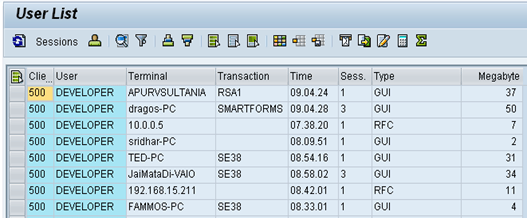
2) Suspend all background jobs.
- Execute T-code SE38 as given below.

- Fill program name with “BTCTRNS1” as shown above.
- Press Execute.

3) For a local copy, the system must have enough space in the database or tablespace. For remote copy, the target system must have enough space. Check space using T-code DB02.

4) To avoid inconsistencies during client copy, users should not be allowed to work in the source client.
5) The rdisp/max_wprun_time parameter should be changed to 2000 seconds as per SAP recommendation. Although you use parallel processes and schedule jobs in background, dialog processes will be used.
Local Client Copy
Local client copy is performed using T-code SCCL. This is the simplest method when copying data within the same system.
Scenario:
- Source Instance & Client: DKM-000
- Target Instance & Client: DKM-202
Step 1) Create an entry for your new target client using T-code SCC4. In this scenario, create client 202 in the DKM system. Log on to this newly created target client (DKM-202) with user SAP* and default password “pass”.
Step 2) Execute T-code SCCL.

Step 3) Select your desired profile, enter the source client, and enter a description.

Step 4) By default, client copy is executed as a single process, which takes a long time. Distribute the workload to parallel (multiple) processes to reduce copying time.
- Select Goto from the menu bar.
- Select Parallel Process. Parallel processes exploit database capacity more effectively.

Step 5) Always execute long-running processes in background mode rather than foreground/dialog mode. Some processes run more quickly in background.
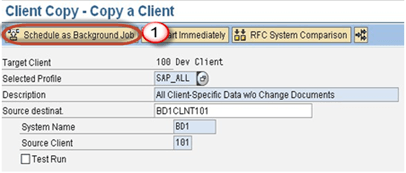
Step 6) The client copy logs are available in T-code SCC3. Status “Successfully Completed” means the client copy is done.

Remote Client Copy
Remote client copy uses Remote Function Call (RFC). You can view RFC destinations in T-code SM59. This technique depends on network connectivity, so the connection must be strong and stable.
Scenario:
- Source Instance & Client: BD1-101
- Target Instance & Client: DKM-202
Step 1) Log on to the target system (DKM). Create a new target client entry (202) using T-code SCC4. Log on to this new target client with user SAP* and default password “pass”.
Step 2) Execute T-code SCC9.

Step 3) Fill in the basic details as per your requirement.

Step 4) Select Parallel Process to exploit database capacity more effectively.

Step 5) Schedule the client copy in background.

Step 6) The client copy logs are available in T-code SCC3 as given below.

Client Import/Export
For large databases, it is recommended to use client import/export instead of remote client copy. This file-based approach does not require continuous network connectivity.
Scenario:
- Source Instance & Client: PKT-300
- Target Instance & Client: DKM-202
This technique always starts with the client export step.
Note: You must have enough space in the /usr/sap/trans_SID file system to perform the client export.
How to Export a Client?
Step 1) Log on to the target system (DKM). Create an entry for your new target client using T-code SCC4. Log on to the source system/source client (PKT).
Step 2) Before you import a client, you need to export it first. Export transfers data files and co-files from the source system database to the target system import buffer. Execute T-code SCC8.

Step 3) Select the export profile and choose the target system.
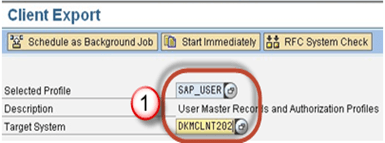
Step 4) Schedule the export in background.

Step 5) Once the job executes, data files and co-files from PKT system database are transferred to DKM system import buffer. The data will be reflected in the DKM database only after you import the transport requests.
Depending on the chosen export profile, up to 3 transport requests are created:
- Request PKTKO00151 holds the cross-client data.
- Request PKTKT00151 holds the client-dependent data.
- Request PKTKX00151 also holds client-dependent data.
How to Import the Client?
Step 1) Log on to the newly created target client (DKM-202) using SAP* and password “pass”.
Step 2) Start the STMS_IMPORT transaction.

As shown below, the import queue will open:

Step 3) Select the transport requests generated by client export. Import them on the target client in the following sequence:
- Request PKTKO00151
- Request PKTKT00151
- Request PKTKX00151
The system automatically detects these are client export transport requests and performs the import of all 3 requests. The import logs can be seen in STMS_IMPORT.

Step 4) Post-import phase: Once the import is done, execute T-code SCC7 to perform the post-client-import actions.

Schedule the post-import job in background.
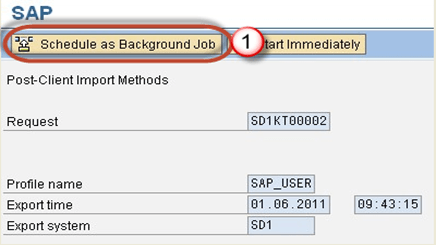
Step 5) The import log is available in T-code SCC3. A successful status confirms the client has been imported.
How to Choose the Right Client Copy Method
Selecting the correct method depends on your system landscape, database size, and network conditions.
Use Local Client Copy (SCCL) when source and target clients reside in the same SAP instance. This is the fastest method because data does not traverse a network.
Use Remote Client Copy (SCC9) when clients are on different instances and database size is moderate. This method uses RFC for real-time copy, so network interruptions can cause failures.
Use Client Import/Export (SCC8 + STMS_IMPORT) when the database is large or the network is unreliable. It creates transport files and does not require a continuous connection.
