
SAP AD HOC Query Tutorial (S_PH0_48000513)
 Editorial Team
⚡ Smart Summary
SAP Ad Hoc Query (transaction S_PH0_48000513) is a flexible reporting tool that builds queries on employee master data across all HR infotypes. It lets users select output fields, apply selection criteria, and generate custom reports without programming.

The SAP Ad Hoc Query is a tool for building reports and queries on the basic data of an employee. It offers access to data of all SAP infotypes and is one of the most flexible reporting tools available in SAP HR.
What is Ad Hoc Query in SAP?
The SAP Ad Hoc Query is a flexible reporting tool used to build queries and reports on the basic data of employees. It provides direct access to data stored across all SAP HR infotypes, so users can retrieve information without writing custom ABAP programs.
The tool is especially useful in SAP Human Resources because it can process data linked to several functional areas, including:
- Time management
- Organizational management
- Compensation management
- Training and event management
Ad Hoc Query works by letting the user pick fields for output and fields for selection. Output fields determine what appears in the report, while selection fields restrict which records are retrieved. Because it uses infosets and user groups, the same query environment can be reused by many users while still respecting data access rules. The transaction code for the Ad Hoc Query is S_PH0_48000513, and its point-and-click interface makes it ideal for HR analysts and functional consultants who need quick reports without technical development effort.
SAP Ad Hoc Query Tutorial
Step 1) In the SAP Command prompt, enter transaction S_PH0_48000513.

Step 2) In the next SAP screen:
- Select a Work Area — queries linked to a specific client or to all clients.
- Choose a User Group — to access available infosets.
- Choose an Infoset — in the list, select the desired infoset.
- Click the Check Mark Button.

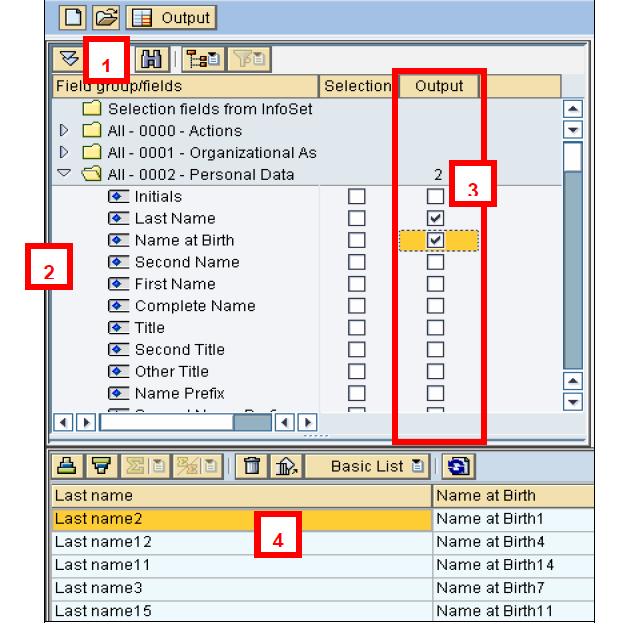
Step 3) The SAP Ad Hoc Query working panel is shown. Overview of the various sections:
- Field group/field = Where you define the selections and output fields.
- Reporting Period = This is where you define the period for which the selected objects are to be retrieved.
- Selections = Once you have ticked a field in the “Selection” column in the “Field Group/Fields” section, it will appear here, from where you can set the restrictions.

Some layout functionalities are accessible simply by using your mouse or via buttons located in the “Preview of Output”. Main functions include: create a new query, open an existing query, and execute a query.
Executing a Query: Choosing Output
- The Field group/Fields section shows a list of all available infotypes.
- Select the Infotype whose data you want in the output.
- Select the Infotype field by checking “output”.
- Data is displayed at the bottom of the working panel.

Choosing Input
It is possible to restrict or limit the population selected by using any element. Once you have ticked a field in the “Selection” column in the “Field Group/Fields” section, it will appear in the “Selections” section, from where you can set the restrictions. For example, check the Selection Column for Year of Birth.

It appears in the Selection Section.
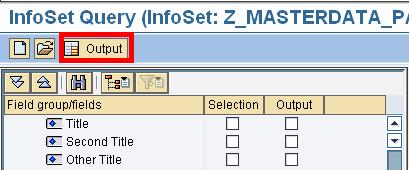
You may choose to restrict values via a pattern, single value, etc. Enter the restriction value. In case of multiple selections, the link between the selections is automatically AND. The above example will produce a list of women (Gender Key = 2) AND born in 1976.
Results
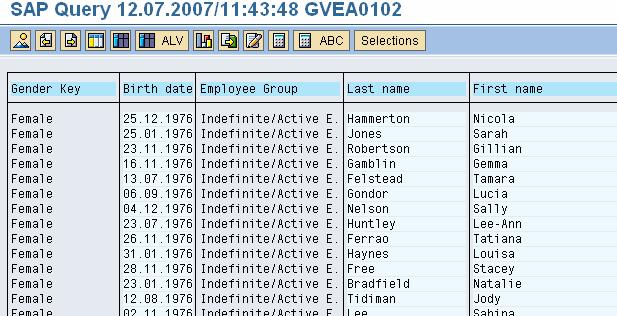
Click on output. The results are displayed.
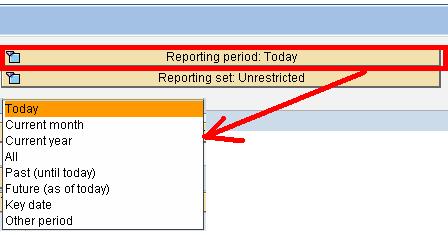
Note: Make sure you select the correct Reporting Period for your query, as it directly affects which records are returned.
Key Uses of the SAP Ad Hoc Query
The SAP Ad Hoc Query is widely used in HR reporting because it is fast, flexible, and does not require programming. Common uses include:
- Employee reporting: Generate lists of employees filtered by attributes such as gender, date of birth, department, or location.
- Cross-infotype analysis: Combine data from multiple infotypes — for example, personal data with organizational assignment — in a single report.
- Ad hoc data checks: Quickly validate master data, such as finding records with missing or inconsistent entries.
- Reusable queries: Save queries within a user group and infoset so colleagues can run the same report later.
- Period-based reporting: Use the reporting period to retrieve data valid for a specific date or time range.
Because output and selection fields are chosen with simple checkboxes, HR analysts can create tailored reports in minutes. This makes the Ad Hoc Query a practical everyday tool for functional consultants who need answers from SAP HR data without waiting for custom development.
