
Production Order in SAP: CO01, MD16, CO02, CO15
 Olivia Turner
⚡ Smart Summary
Production Order in SAP defines the material, quantity, components, and operations needed to manufacture a product. This resource explains how to create and release orders, convert planned orders, change, confirm, and technically complete them using transactions CO01, MD16, CO02, and CO15.
A production order defines which material is to be processed, at which location, at what time, and how much quantity is required. It also defines which components and sequence of operations are to be used and how the order costs are to be settled.
- Planned orders are the result of running MRP. Shortages of materials that are set to internal procurement will create planned orders, which can be converted into production orders. Production orders are “hard copies”; they cannot be adjusted by an MRP run anymore.
- BOM and routing data of the materials are copied into the production order, which determines the list of components and operational data in the order.
- Planned costs also get updated in the production order via the component price and routing activity price.
- You can run an availability check on production orders, which determines any missing components in the order so that you can bring that missing component for the order execution at the shop floor.
- You can print the production order for the shop floor, which indicates the list of components to be consumed and what kind of operations are to be performed in sequence at the work center.
- After you have physically produced the material, you can declare the production through order confirmation, which updates the activity costs such as machine running price and labor price on the order.
- You can decide to automatically do the backflush (consumption) of components during order confirmation according to the BOM. The consumption will reduce the inventory of components, and it is carried out with movement type 261 in SAP.
- You can also post goods receipt of the material automatically during order confirmation. Goods receipt would increase the inventory of the material, and it is carried out with movement type 101 in SAP.
- After order confirmation, all the costs such as the cost of components and activity cost will be debited on the order, and once you post goods receipt, costs will be credited on the order.
- Once a production order is fully confirmed and delivered, or the business has decided not to execute that order, then it needs to be technically closed, which means the order will no longer be considered in the MRP run and will be deleted from the stock/requirement list. Order reservations on components will also be deleted.
How to Create and release Production Order
Production order creation is required to produce the material and consume the components which are used, and it also specifies the sequence of operations to be performed at the work center.
The release of the order signifies that the order is ready to be executed at the shop floor. You can do an automatic release of the order also during creation mode by using the relevant production scheduling profile in the material master with the auto-release indicator set.
Step 1) From the SAP Easy Access screen, open transaction CO01.
- Enter the material code for which the production order needs to be created.
- Enter the Plant Code.

After filling in all the fields, click  or press Enter to go to the next screen.
Step 2) In this screen:
- Input the order quantity.
- Select the option “current date” in the scheduling sub-screen.
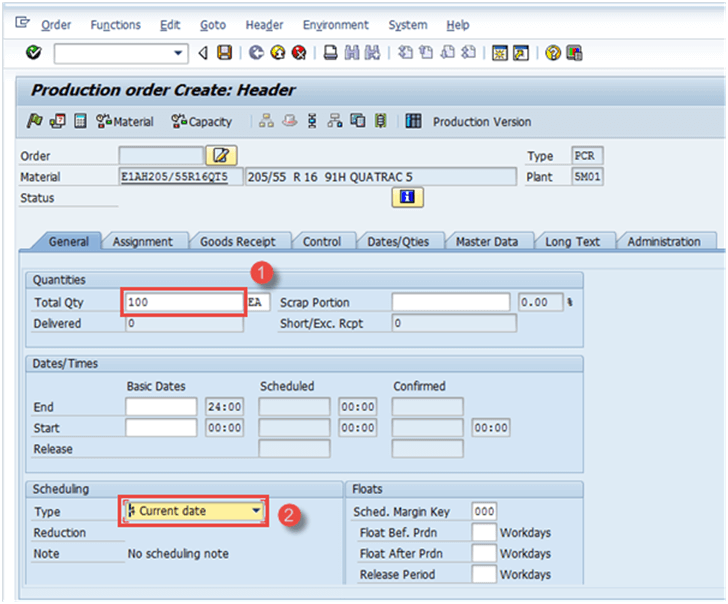
After filling in the entire fields, click  to confirm; the system will then copy the BOM and Routing data in the order.
Step 3) In the same screen:
- Click
 to release the order. The following message will appear in the bottom-left corner:
  .
. - Click
 to check material availability. The system will show the message regarding the availability of components.
 to release the order. The following message will appear in the bottom-left corner:
  .
. to check material availability. The system will show the message regarding the availability of components.
Note: You can also decide not to release the order if there are missing parts found in availability checks.

Click the button  to save; the following message will show in the bottom-left corner:
  .
.
How to Create Production Order by converting Planned Order
Planned orders are the result of an MRP run and should be converted to a production order for the further execution process.
You cannot directly declare production using planned orders, and therefore they need to be converted to a Production Order.
Once a planned order is converted to a production order, the planned order gets deleted from the system and is no longer available to be considered in MRP (Material Requirement Planning).
Step 1) From the SAP Easy Access screen, open transaction MD16.
- Select the radio button “MRP controller” from the list, which is a group of materials.
- Press the right-mark sign on top or press Enter from your keyboard.

The system will show the screen as below.
Step 2) In this screen, we will fetch the planned orders based on the MRP controller and selection dates.
- Enter the Plant Code.
- Enter the MRP controller.
- Enter the end selection date until which all planned orders will be extracted.
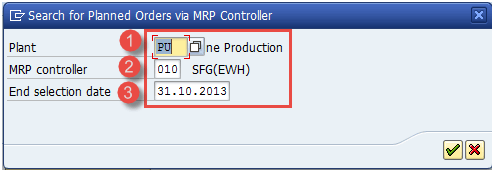
Click the right-mark sign from the bottom or Enter from the keyboard to move to the next screen.
Step 3) In this screen:
- Select the grid for which you want to convert the planned orders.
- Press the “convert to production order” button for the conversion.

Production orders will be created after conversion of the planned orders.
How to Change production Order
You might be required to change a production order in case your business wants to change some planning quantity, or if the BOM/Routing has been changed after the order has already been created.
Step 1) From the SAP Easy Access screen, open transaction CO02.
- Enter the production order number which you want to modify.
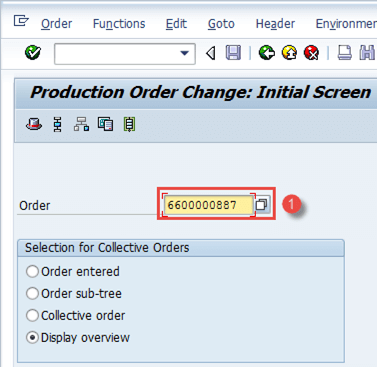
In the same window, you can see the “Display Overview” button is selected; it is selected by default.
After filling in all the fields, click  to go to the next screen.
Step 2) In this screen, the order will be modified.
- Change the order quantity to 9000, or whatever your requirement is, as shown below.

After finishing all modifications, click the button  to save the order. The system will show a message like
  Order number 6600000887 saved at the lower-left corner.
How to confirm production order
Step 1) From the SAP Easy Access screen, open transaction CO15. Three activities occur at the same time with confirmation:
- Generate confirmation document.
- Consume raw materials or semi-finished goods.
- Goods receipt of finished goods or semi-finished goods.
- Enter the production order number.

After filling in all the fields, click  to go to the next screen.
Step 2) In this screen, we will enter the actual yield quantity to be confirmed.
- Enter the yield quantity, which is the produced quantity you want to declare.
- Press the Goods Movement button at the top to check the automatic goods movement happening along with confirmation.

Step 3) In this screen, you will see the goods receipt of the parent material and goods issue of the components.
If the control key of the last operation in the order specifies automatic goods receipt, the system automatically posts the produced material to unrestricted stock.
Automatic goods receipt can also be activated by the production scheduling profile in the material master work scheduling view.
If you confirm an order with components that have the Backflushing indicator set in the material master MRP1 view, the system automatically posts a goods issue (GI) for these components.
- Auto Goods Receipt (GR), production of material, carried out using movement type 101.
- Auto Goods Issue (GI), consumption of components, carried out using movement type 261.

Click the button  to save.
The system will show a message like  at the lower-left corner, to hint how many goods movements are posted successfully or have failed.
Failed goods movements due to a deficit of stock for consumption are reprocessed manually.
How to TECO (technically complete) production order
Technical completion of the order is required when the production order is either fully delivered or it is not to be processed further at the shop floor.
After technical completion, the order status changes to TECO, and no further goods movement can be done against the order.
The order is no longer available in the MRP run and gets deleted from the stock/requirement list.
The controlling department can then carry out the variance calculation on the production order after the TECO status.
Step 1) From the SAP Easy Access screen, open transaction CO02.
- Enter the order number which you want to TECO.

Click  to go to the next screen after filling in all fields.
Step 2) In this screen, we will see how to place the production order in TECO status.
- Click in the menu Function -> Restrict processing -> Complete technically.

- The system will show the message in status – TECO.

Troubleshooting
- BOM and Routing must exist before creation of the production order, otherwise they will not be copied into the production order and can cause issues in planned-cost updating and consumption of components during the confirmation process, thereby impacting the inventory of the components.
- The production order must be released before doing order confirmation, as the released status of the order allows confirmation to happen.
- If you receive any Accounting error during goods movement in the confirmation process, then ensure the right valuation class is set in the material master Accounting view, or contact the Finance team.
- Ensure that the standard cost for the material is updated to avoid any costing-related errors, such as activity price missing, during production order confirmation.
- If some goods movement fails during the confirmation process due to the stock deficit, then you should process them separately once components are brought to stock.
