
Parameterization in QTP/UFT with Example
 Editorial Team
⚡ Smart Summary
Parameterization in QTP/UFT replaces hard-coded values with variable inputs so a single test script can run against many data combinations, environment settings, and calling actions without rewriting a single step.
What is QTP Parameterization?
QTP/UFT parameterization lets you pick different test inputs at run time instead of hard-coding a single value into a script. This process of feeding a test with external parameter values, rather than one fixed value, is called parameterization.
Without parameterization, testing the same login screen with three different agent name and password combinations means recording or maintaining three near-identical scripts. Parameterization keeps one script and simply feeds it a new row of data for every run, which is why data-driven testing depends on it.
Types of parameterization in QTP
UFT (formerly QTP) supports four parameter types, each suited to a different kind of variable data:
- Data Table parameters
- Test/Action parameters
- Environment variable parameters
- Random number parameters
The table below compares what each type is best used for before we walk through a live example.
| Parameter Type | Where the Value Comes From | Typical Use Case |
|---|---|---|
| Data Table | Global or Action (local) spreadsheet bundled with the test | Running the same steps with many rows of test data |
| Environment Variable | Built-in values, values set inside the test, or an external XML file | Sharing one constant value, such as a URL, across every action |
| Test/Action | An input or output value passed between actions | Forwarding a value produced in one action to another action |
| Random Number | A number generated automatically inside a defined range | Creating a unique value, such as an order ID, on every run |
The rest of this tutorial walks through Data Table parameterization end to end, then explains how to configure the other three types with working VBScript examples.
Data Table Parameterization: Step-by-Step Example
This Micro Focus UFT tutorial demonstrates how to parameterize a login test for the Flight Reservation application using the Data Table. You may wonder why so much effort goes into automating a simple login. The value becomes clear once the scenario checks that a user can log in successfully with a combination of valid alphanumeric Agent Name and Password values. The test steps stay the same, but the volume of data to test grows. This example restricts the walkthrough to 3 of the 8 possible combinations.
| Test Scenario | Test Steps | Test Data |
|---|---|---|
| Check that user successfully logs in to the application on inputting a COMBINATION OF valid ALPHANUMERIC Agent Name & Password | Step 1) Open Flight Reservation Application Step 2) Enter Valid Agent Name Step 3) Enter Valid Password Step 4) Press Ok Step 5) Close Application After Successful Login. |
Agent Name = Guru Password = Mercury Agent Name = Guru99 Password = MERCURY Agent Name = 9999 Password = mercury |
You could copy the same six steps repeatedly with different data values, which is what you would do manually, or you can use parameterization.

The easiest way to parameterize an argument, in this example Guru, is:
- Click Keyword View.
- Click the Parameterization icon.

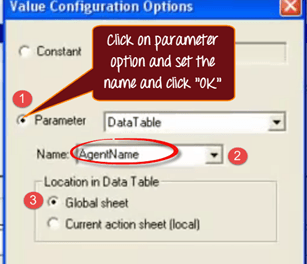
The Value Configuration dialog box opens with the value currently set to a Constant. Click the Parameter radio button. QTP assigns a default name to the parameter, which you can rename before clicking “OK.” By default, the new column is added to the Global Data Table sheet, so the value becomes available to every action in the test; choosing the Action (local) sheet instead scopes it to a single action only.
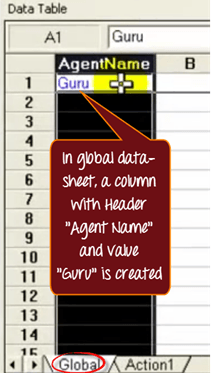
In the Global sheet, a column with the header “Agent Name” and the value Guru is created. You can add more rows of values for this parameter.
Switching to expert view shows that “Agent Name” has been replaced by the parameter reference “Guru,” along with the type of sheet used.

You can parameterize the Password argument the same way and enter a different set of test data.
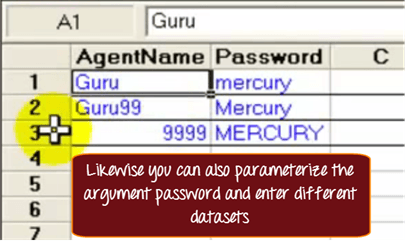
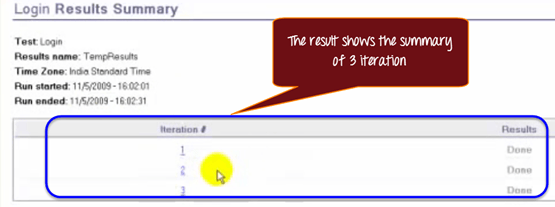
This Data Table means QTP will repeat the same six recorded steps three times. The first iteration uses the data in row one, the second iteration uses row two, and so on. The status bar reports which row is currently in use and highlights the corresponding row in the datasheet. The results summarize all three iterations.
Environment Variable Parameters in UFT
Environment variable parameters supply a value that stays constant across every iteration of a run, which makes them useful for configuration data, such as a base URL or environment name, that every action needs. UFT recognizes three kinds of environment variables:
- Built-in: Predefined values, such as the test name, action name, or operating system version, that UFT populates automatically.
- User-Defined Internal: Values you set inside the test with a script; they exist only for the current run and are not saved with the test.
- User-Defined External: Name-value pairs stored in an external XML file that you load before the run starts.
To use an environment variable inside a step, open the Value Configuration dialog box for the cell, select Environment as the parameter type, and choose the variable name. The VBScript below shows all three variable kinds inside a single Action:
' Read a Built-in environment variable
MsgBox Environment.Value("OS")

' Set and read a User-Defined Internal environment variable
Environment.Value("AppURL") = "https://demo.guru99.com/V4/"
MsgBox Environment.Value("AppURL")

' Load a User-Defined External XML file, then read a value from it
Environment.LoadFromFile "C:\Guru99\EnvConfig.xml"
MsgBox Environment.Value("Address")
To build the external file referenced above, create an XML document with a root <Environment> element and one <Variable> element per name-value pair, then load it from File > Settings > Environment in UFT before running the test. External variables are read-only once loaded, so update the source XML file whenever a value needs to change.
Environment variables differ from Test/Action parameters in scope: an environment variable is available to every action in the test, while a Test/Action parameter is passed explicitly between two specific actions, which is the type covered next.
Test and Action Parameters in UFT
Test/Action parameters let one action pass a value into another action as an input parameter, and let the called action return a value back as an output parameter. Unlike environment variables, which are visible to the whole test, a Test/Action parameter only exists for the specific call that defines it, which keeps actions reusable across different tests.
To create one, right-click the action in the test flow, choose Action Properties, and add a parameter under the Input Parameters or Output Parameters tab with a name and data type. The action can then reference the parameter directly in its steps. When another action calls this action, for example with RunAction "VerifyLogin", oneIteration, "Guru99", "Mercury", the values supplied in the call populate the input parameters for that run.
Because the values travel with the call rather than living inside the Data Table, Test/Action parameters work well for reusable actions that need different inputs depending on which test calls them, such as a shared login action used by several test flows.
Random Number Parameters in UFT
Random number parameters generate a numeric value automatically within a range you define, which is useful whenever a test needs a value that must be unique on every run, such as a new customer ID, an order number, or a booking reference that the application will not accept twice.
To configure one, open the Value Configuration dialog box for the cell and select Random Number as the parameter type. UFT asks for the numeric range, an optional name for the parameter, and how often it should generate a new value:
- For each action iteration – generates a new number every time the action runs.
- For each test iteration – generates a new number once per test iteration.
- Once per entire test run – keeps the same number for the whole run.
Random number parameters share the run-time flexibility of Data Table and environment variable parameters, but they remove the need to hand-author unique test data as the volume of data-driven iterations grows.
Advantages of Parameterization
Parameterization pays off across the whole automation lifecycle, from the first script to a full regression suite:
- It lets you pick different values at run time instead of editing the script for every data combination.
- It reduces the time and effort needed to cover multiple test data combinations.
- Data Drivers, a UFT feature, list every constant in a script that is eligible for parameterization in a single window, which simplifies parameterizing large scripts.
- It keeps test data outside the script, so a tester can add new rows, environment values, or random ranges without touching the automation logic.
Click here if the video is not accessible
