
Flight Reservation Application in HP UFT/QTP
 Editorial Team
⚡ Smart Summary
Flight Reservation Application is the sample desktop program bundled with every HP UFT/QTP installation, used throughout hands-on exercises to practice login, flight search, booking, and VBScript automation without needing a live web application.
What Is the Flight Reservation Application in UFT/QTP?
The Flight Reservation Application is the sample desktop program that ships with every installation of HP UFT/QTP. This article introduces the application so that the rest of the hands-on exercises in the QTP series have a stable, offline target to record and run tests against. Because it never changes shape between UFT releases, beginners can follow along on almost any supported version without their steps drifting out of sync with the screenshots.

The screenshot above shows the Login dialog that appears the moment the executable starts. Using Flight Reservation, you can book a flight between two cities, and later modify or delete an existing booking, all without needing an internet connection or a live server.
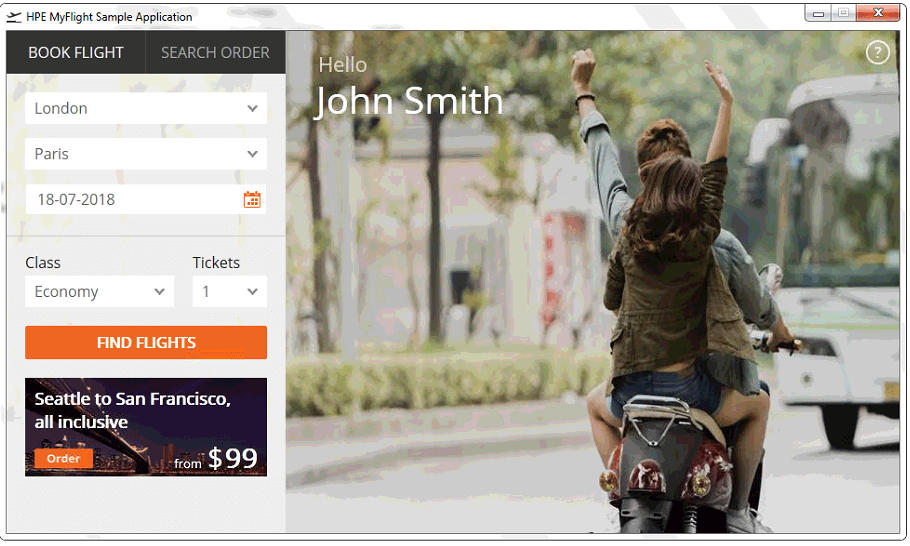
The second screenshot shows the main Flight Reservation window after a search, listing matching flights with their fare and schedule. You may also fax a booking to a customer with a custom signature, and the Reports and Graphs section helps analyze ticket-selling trends over time.
Every new agent account starts with a small number of bookings already populated, so you do not have to create test data before you begin recording. The application has been designed to help learn all the features provided by Micro Focus UFT. At times you may find this application buggy, but the focus should not be the technical accuracy of the application – it exists purely as a tool to learn various features of QTP.
Guru99’s separate web-based Mercury Tours exercises use a different sample – the online newtours.demoaut.com site – so do not confuse the two. Flight Reservation is the desktop Win32 application described on this page, launched locally rather than opened in a browser, and it is the target used across the standard-Windows-object lessons in this QTP series.
Click here if the video is not accessible
How to Launch, Log In, and Automate the Flight Reservation Application
Before recording anything in UFT, get comfortable operating Flight Reservation manually. The application lives inside the QTP/UFT installation folder and starts like any other Windows executable.
- Browse to
C:\Program Files\Mercury Interactive\QuickTest Professional\samples\flight\app\and double-clickflight4a.exe(the exact path varies slightly by UFT version). - The Login dialog opens first. Type any agent name that is at least four alphanumeric characters, such as guru99, into the Agent Name field.
- Type
mercuryinto the Password field – this fixed password is hard-coded into the sample application and never changes. - Click OK. The main Flight Reservation window opens, ready for a new order.
Before recording, confirm that the UFT Add-in Manager loads only the Standard Windows and ActiveX add-ins. Loading the Web add-in as well can slow the recorder down and is unnecessary, since Flight Reservation is a desktop target rather than a browser page.
Once you can log in by hand, the next step is to reproduce the same actions in a UFT script so the login becomes repeatable. The snippet below launches the executable, signs in, searches a route, and inserts an order using the same object names UFT assigns when you record the flow.
' Launch the Flight Reservation application
SystemUtil.Run "C:\Program Files\Mercury Interactive\QuickTest Professional\samples\flight\app\flight4a.exe"

' Log in with an agent name and the fixed password
Dialog("Login").Activate
Dialog("Login").WinEdit("Agent Name:").Set "guru99"
Dialog("Login").WinEdit("Password:").Set "mercury"
Dialog("Login").WinButton("OK").Click

' Search for a flight between two cities
Window("Flight Reservation").WinComboBox("Fly From:").Select "Frankfurt"
Window("Flight Reservation").WinComboBox("Fly To:").Select "London"
Window("Flight Reservation").WinButton("FLIGHT").Click

' Pick the first available flight and confirm the order
Window("Flight Reservation").Dialog("Flights Table").WinList("From").Select 0
Window("Flight Reservation").Dialog("Flights Table").WinButton("OK").Click
Window("Flight Reservation").WinEdit("Name:").Set "Guru99 Tester"
Window("Flight Reservation").WinButton("Insert Order").Click

' Close the application
Window("Flight Reservation").Close
Save this as an action inside a new UFT test, run it once, and confirm the Flight Reservation window closes without a runtime error. Once the base flow is reliable, replace the fixed strings with VBScript variables or a data table row so the same script can search many routes.
⚠ Tip: If UFT does not recognize the Login dialog when you start recording, open Record and Run Settings and confirm only the Windows Applications tab is configured, then close and restart Flight Reservation before trying again.
Key Windows and Fields in the Flight Reservation Application
Flight Reservation exposes a small, well-defined set of windows. Knowing their names in advance makes it much easier to read a recorded UFT script or to build one with descriptive programming, and it saves time when you are troubleshooting a failed step in the Keyword View.
| Window / Dialog | Purpose | Key Fields or Controls |
|---|---|---|
| Login | Authenticates the agent before the main window opens | Agent Name, Password, OK, Cancel |
| Flight Reservation (main window) | Searches, books, and manages flight orders | Fly From, Fly To, date, Trip Type, FLIGHT, Insert Order, Delete Order |
| Flights Table | Lists matching flights returned by a search | From list (flight number, times, fare), OK, Cancel |
| Fax Order | Faxes a confirmed booking with an optional signature | Fax Number, Send Signature With Order, Send |
| Open Order / Delete Order | Retrieves or removes an existing booking by order number | Order No., Customer Name, OK |
| Reports and Graphs | Summarizes ticket-selling trends for the agent | Report type, date range, Print |
Most controls in the main window are standard Windows objects – WinEdit, WinComboBox, WinButton, and WinList – while the flight-date field is an ActiveX MaskEdBox, which is why it needs its own Type call instead of Set.
Each dialog keeps the same control names release after release, so a script that references Window("Flight Reservation").WinComboBox("Fly From:") in one UFT version keeps working after an upgrade, which is unusual for most real-world applications under test and is one reason the sample stays useful for years of practice.
Why the Flight Reservation Application Is Used for UFT Practice
Guru99’s QTP series returns to Flight Reservation in almost every later exercise, and there are practical reasons for that choice rather than mere convenience.
- It ships inside every UFT/QTP installation, so there is nothing extra to download or license before you start practicing.
- It runs entirely offline, which removes flaky network calls as a source of test failures while you are still learning the tool.
- Its windows cover most of the standard Windows object types – WinEdit, WinButton, WinComboBox, WinList, WinMenu, WinCheckBox, and an ActiveX control – in a single, small application.
- Pre-populated bookings mean you can practice object identification, checkpoints, and regression runs without first creating your own test data.
- Because the interface rarely changes between UFT versions, scripts recorded years ago against Flight Reservation still run correctly today.
- Guru99’s other QTP tutorials reuse the same window and field names shown in the table above, so lessons stay consistent as you move from one article to the next.
These same properties make Flight Reservation a reasonable sandbox for practicing descriptive programming and building a shared object repository before you move on to testing a real, browser-based application under test. Once checkpoints, regression runs, and the object repository feel comfortable here, the same UFT skills transfer directly to production web and desktop applications.
