
How to Post Goods Receipt: SAP MIGO
 Editorial Team
⚡ Smart Summary
Post Goods Receipt in SAP using transaction MIGO. Action A01 with reference R01 pulls purchase order items onto the screen, and posting updates stock, valuation, and the purchase order history together.
What is Goods Receipt in SAP MM?
A goods receipt records that material ordered from a vendor has physically arrived. It is the point where a purchase order stops being a promise and starts affecting inventory and accounting.
Posting a receipt updates three things at once:
- Stock: The quantity is added to the receiving plant and storage location in the stock type determined by the material master.
- Accounting: For a valuated material an accounting document debits the stock account and credits the goods receipt or invoice receipt clearing account.
- Purchase order history: The order item records the received quantity, which is what later invoice verification checks the vendor invoice against.
Because all three happen in one posting, a wrong entry has consequences beyond the warehouse. Correcting it means reversing the document rather than editing it, which is covered in cancelling a goods receipt.
Steps to Post Goods Receipt in SAP
In this tutorial, we will learn how to post a goods receipt.
Step 1) You can post the goods receipt for a purchase order using transaction code MIGO. Let’s say we want to do a goods receipt for our purchase order 4500018386.
- Choose A01 – Goods Receipt.
- Choose R01 – Purchase Order.
- Enter your purchase order number.
- Press ENTER.

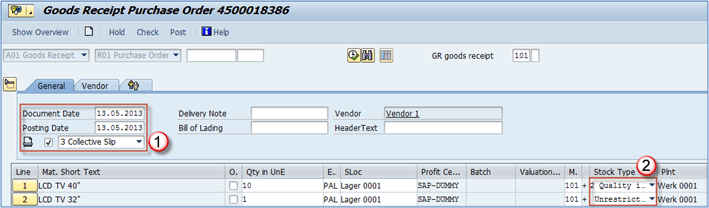
Step 2) You can see that items from the purchase order have been transferred to the screen.
- Here you can enter document data, posting date and choose the appropriate printing message type.
- If you look at the Stock Type for both items, you can see that the first item is posted to quality inspection, and the second is posted directly to Unrestricted stock so it can be used before quality check. This is the example of the influence of the material master data on further processing in MM module. This is due to the Purchasing view check box “Post to inspection stock”, which is checked for LCD TV 40″ but isn’t checked for LCD TV 32″.
Step 3) Now we can check if items are OK, and post the goods receipt (PGR).
- These check boxes are used to confirm that items are OK, otherwise you won’t be able to do a PGR.
- After ticking the check boxes check if the document is ready for posting. If there are warnings or errors, system will show them in a pop-up screen. In our case, everything is ready for posting.
- Post the document.

Document is saved and assigned a number.

💡 Tip: Note the material document number from the status bar. It is the only reference that reverses the posting later, and searching for it afterwards through the purchase order history is far slower than writing it down now.
MIGO Action and Reference Document Codes
The two dropdown boxes at the top of MIGO decide everything the transaction does. The first names the action, the second names the document the action refers to.
| Action Code | Action | Typical reference |
|---|---|---|
| A01 | Goods Receipt | Purchase order, production order, inbound delivery |
| A02 | Return Delivery | Material document of the original receipt |
| A03 | Cancellation | Material document to be reversed |
| A04 | Display | Any material document, read only |
| A05 | Release GR Blocked Stock | Material document of the blocked receipt |
| A06 | Subsequent Delivery | Material document of an earlier partial receipt |
| A07 | Goods Issue | Order, reservation, or without reference |
| A08 | Transfer Posting | Reservation or without reference |
The reference codes used most often are R01 Purchase Order, R02 Material Document, R03 Delivery Note, R04 Order, and R08 Reservation. Choosing A01 with R01, as in the example above, is the standard purchase to pay receipt. Choosing A03 with R02 is the reversal.
Stock Types on a Goods Receipt
The worked example above shows two items from one order landing in different stock types. That behaviour is not a setting on the purchase order; it comes from master data and quality configuration.
| Stock Type | Available for use? | What sends stock there |
|---|---|---|
| Unrestricted use | Yes | Default when no inspection or block applies |
| Quality inspection | No, until a usage decision | Post to inspection stock flag, or an active QM inspection type |
| Blocked stock | No | Selected manually on the receipt for doubtful material |
| GR blocked stock | No, and not yet valuated | Non valuated receipt used when ownership has not transferred |
Three practical consequences follow. Stock in quality inspection cannot be issued to production until released, so an incorrectly flagged material stalls the shop floor. Blocked stock stays valuated and still appears in the balance sheet. And moving quantity between these types afterwards is a transfer posting, not a new receipt.
Where inspection is active, the usage decision that releases the stock is covered in the SAP QM final inspection tutorial. Once the invoice arrives, verification matches it against the quantity received here and, if a variance appears, blocks it until someone can release the invoice.
