
Grammarly Review: Is Grammarly Premium worth it? (2026)
 Noah Robinson
What is a Grammarly App?
Grammarly is basically an intelligent writing assistant that saves you proofreading time. It checks your grammar, spelling, sentence structure, and more. On top of that, it has a built-in plagiarism checker that’s handy for bloggers and content writers.
You can use Grammarly on WordPress, Facebook, Microsoft Word, Google Docs, and more, making it easier to spell-check your writing in real-time. However, as with any automatic tool, it has its share of setbacks. In this Grammarly review, we’ll look at the features, pros and cons, and price points.
Grammarly Premium Reviews & Ratings
In this article we have analysis all the features, pros and cons, other , how to steps, pricing info, and its best alternatives.
Grammarly User Interface

Since Grammarly is for everyone to use, it comes with a basic user interface that’s pretty easy to work through. When you open the app, you’re welcomed with a grid of your previous documents, or in a new account’s case, you’ll find a blank document that you can paste your content in for revision.
On the left, you’ll see your account’s settings, different Grammarly apps, and support.
Who Should Use Grammarly?
He is some common use cases of Grammarly:
- Students to revise their writing and make sure their essays are mistake-free.
- Professors to revise their papers and check for plagiarism.
- Content writers spell-check their writing and optimize it.
- Casual writers who occasionally write emails or articles.
- Social media writers to spell-check their posts.
- Non-native English speakers use it to enhance their writing skills and eliminate casual mistakes.
Key Features of Grammarly
Grammarly comes with a complete package of 11 key features. It offers four main checks: correctness, clarity, engagement, and delivery.
Each one includes various checks; here’s a rundown:
- Correctness: Spelling, grammar, and punctuation.
- Clarity: Full-sentence rewrites and conciseness.
- Engagement: Tone suggestions and word choice check.
- Delivery: Writing impression on the reader.
Here’s an complete overview of Grammarly’s key features:
Spelling, Grammar, and Punctuation: Grammarly basically does the proofreading steps for you. So, you don’t have to reread your work and chase tiny mistakes, use Grammarly, and it’ll point out all mistakes that have to do with spelling, grammar, and punctuation.

Edit Suggestions: Instead of only pointing out your mistake, Grammarly gives you editing suggestions. For example, if it points out an incorrect comma, it’ll tell you whether to put a semi-colon or a period in its place.
The same goes for wrong word choices, where it’ll suggest correct words instead of incorrect ones.
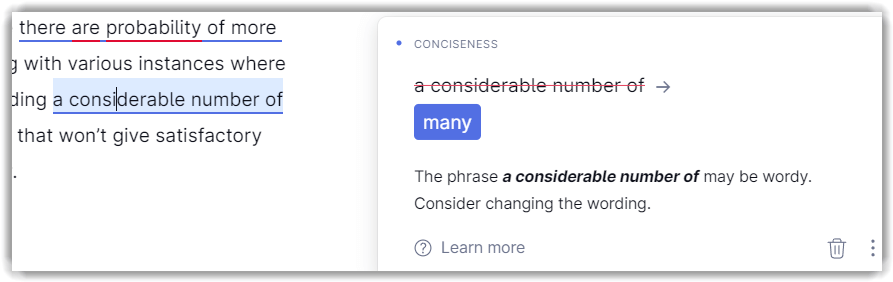
Explanation Cards: Grammarly doesn’t only point out your mistakes and gives you suggestions. It also explains these mistakes so you don’t fall into the same trap twice.

When a suggestion pops up, you’ll find Learn More written at the bottom. So, when you click on it, a full explanation of your mistake will appear.
Full Report: Grammarly gives you a full report of the content you paste into the editor. This report includes the readability score, word count, and performance highlights. It also tells you the reading time of your content. And overall score of the Article.

Browser Extension: Grammarly offers a browser extension that functions almost like the website editor. It gives you all the Grammarly insights you need while writing. You can integrate it into Chrome, Firefox, Microsoft Edge, or Safari.
The good thing about the extension is that it corrects anything you write, including social media posts, emails, and even chat text in real time. So, you don’t have to copy your content and paste it everytime for checking.

Grammarly Keyboard for Phones:
If you’re using Grammarly from your phone, you can use its keyboard feature, which shows you suggestions based on what you’re writing in real time. The suggestions appear right above the letters.

Website Editor: The website editor is Grammarly’s main feature. You can upload your documents or copy and paste your content into the editor. It’ll show you all suggestions on the right side. The editor is easy to use and shows you all the suggestions at once, so it may be more convenient than the extension.
Microsoft Office Integration: You can integrate Grammarly into your Microsoft Office applications to check your writing in real time as it is far more advanced then Word’s spell checker.

Desktop Button: Instead of opening the website editor every time you want to check something, you can use Grammarly’s desktop button.
All you have to do is install the button on your desktop. Then, whenever you want to check a document, drag it to the icon and start editing.
Plagiarism Detector: Grammarly has a built-in plagiarism detector that checks your content against 16 billion websites. However, it’s only available for the premium version.
Grammarly’s plagiarism detector shows that may seem plagiarised from other websites. This feature helps in catching clear plagiarism instances.

Language Preferences: Grammarly lets you choose between different dialects to give you accurate suggestions. You can choose from American, British, Australian, and Canadian dialects, and Grammarly will give you suggestions based on your choice.

How to Use Grammarly
Grammarly is one of the easiest tools to use; you only have to get a basic idea of the app before using it. Let me walk you through it:
Step 1) Sign Up
The first thing you need to do to use Grammarly is to sign up and create your account using Gmail, Facebook, or Apple.
Even if you’re using the free plan, signing up will allow the app to save your data, and then you can upgrade to the premium plan.

Step 2) Create a Document.
After signing up, you can create a new document.
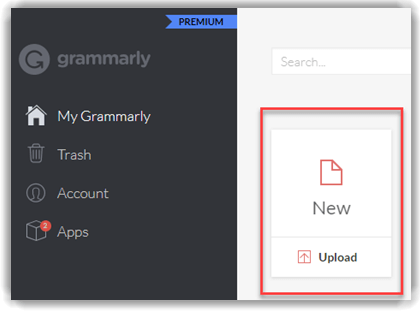
When you log into your account, you’ll see the main screen. It’ll have a blank document labeled ‘New’ on the left.
Click on it and paste your content into it or start writing inside.
Alternatively, you can upload a new document. Grammarly accepts docx, etf, txt, and odf files.
Step 3) Download the Accessories
Since you’ll start using Grammarly to revise your work, it’s better to get all the accessories that come with it.
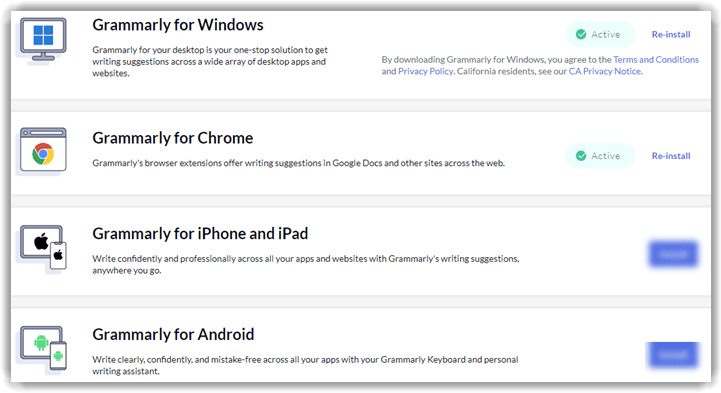
You can download the browser extension, desktop application, and mobile application so you can check the quality of your writing wherever you are.
Step 4) Start Editing

Now, your written piece is ready inside the document. What’s left is to start editing it according to Grammarly’s suggestions.
To do so, click on the underlined words or sentences, and see Grammarly’s suggestions for them. You can also click on the right panel to get all the suggestions written in order.
The 5 Different Grammarly Apps
Grammarly operates through five different apps.
Here’s a roundup of how each Grammarly app works:
Grammarly Browser Extension for Chrome, Edge, Firefox:
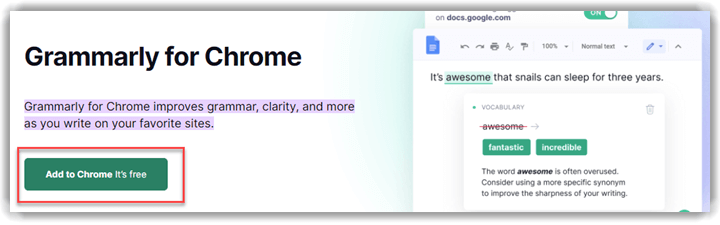
The Grammarly extension works for Edge, Chrome, Firefox, and Safari. When you install it, you’ll see the Grammarly widget when attempting to write anything on any website. You can click on the widget and choose to turn it off if you don’t want the mistakes to be underlined as you’re writing.
If you’re installing the Grammarly Chrome extension, you can pin it to the toolbar above, which makes it easier to turn it on and off.
Online Editor:
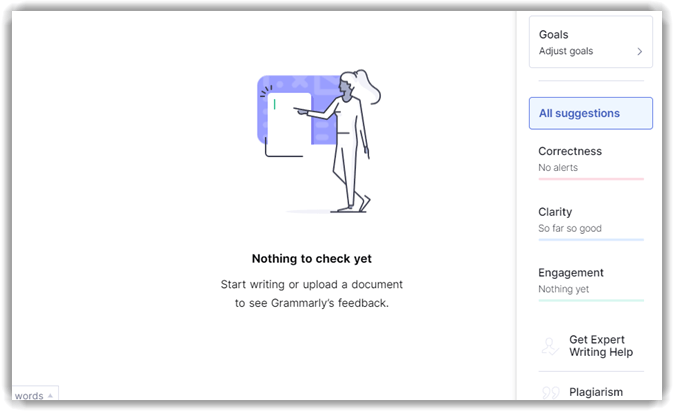
The online editor shows you all suggestions at once on the right panel, so it’s often preferred over the other ways to use Grammarly.
To use it, all you have to do is click on ‘New’ to pull up a blank document. Then, you’ll paste your content into it, and it’ll show you the performance score, the suggestions, and the readability report. You can also upload your document right into it instead of copying and pasting.
The suggestions will be divided into four main categories: correctness, clarity, delivery, and engagement. However, the delivery and engagement checks are only available for the premium version.
Microsoft Office Add-On: use Grammarly on your Microsoft Office programs, all you have to do is install its add-on. Here’s how to do it:
Step 1) Open Microsoft Word
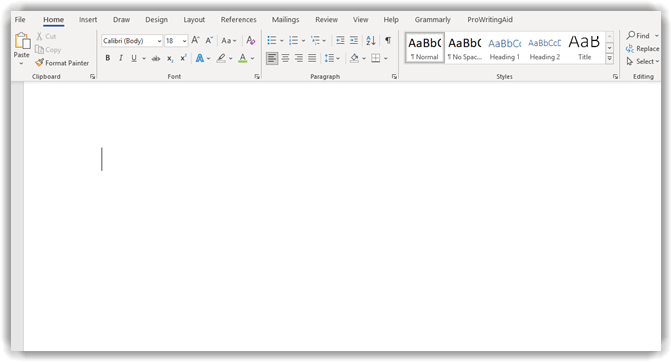
Step 2) On the bar above, click on Insert.
Step 3) Choose Add-ons, then click on Get Add-ons
Step 4) Type Grammarly’s name into the search and install it.
Step 5) When the button appears in Word, click on it and log in, then start writing.
Grammarly Desktop App:

The Grammarly desktop app is useful for users who don’t always have their browsers open. You can use the app for faster access when you need to spell-check your work.
All you have to do is download and follow the instructions until the file installs. Once the application is ready, you’ll see the Grammarly button at the bottom of any writing application you use on your computer.
Mobile App: The Grammarly mobile app is smart, intuitive, and easier than ever to use. It’s basically a keyboard that keeps suggesting better word choices and correcting your mistakes as you write on your phone.
All you have to do to use the app is to download it. Then, log in to your Grammarly account, and every time you type something on your phone, the keyboard will show you suggestions.
The app will correct basic spelling mistakes and notify you about them in the bar above the keyboard. Meanwhile, it’ll only offer suggestions for sentence structure and word choice, and you’re free to either accept or dismiss them.
Grammarly Free vs. Grammarly Premium
The Grammarly free version is pretty useful for users looking for basic features on the other hand, Grammarly premium offers a full package.
Here are some basic differences between both versions:
| Free Plan | Premium Plan |
|---|---|
| Correcting basic grammar and spelling issues | Plagiarism detector |
| Basic punctuation check | Advanced grammar checks |
| Tone detector | Complex punctuations checks |
| Language preferences | Citation suggestions |
| Microsoft Office integration | Readability and writing-style reports |
| Browser extension | Tone suggestions |
Grammarly Customer Support
Grammarly’s customer support is as good as customer support of similar tools can be. For the free plan, you can reach out to them through email, or you can get help from the chatbot that has answers to basic FAQs.
Note: For a live chat or phone support, you’ll have to subscribe to the premium plan.
Aside from the chatbot and email help, you can get Grammarly help through the variety of articles on their blog. These articles cover almost all factors related to Grammarly, like the difference between free and premium plans, tips for using the app, billing info, etc.
If you have any issue that needs troubleshooting, you can do it through the Help Center on the website.
Grammarly Pricing
Grammarly offers three plans: a free plan that has limited features, a premium plan that offers the full package. However, its premium plan is expensive, but it’s the only plan which offers all of Grammarly’s best features.
Here is table with the main differences and similarities between all plans:
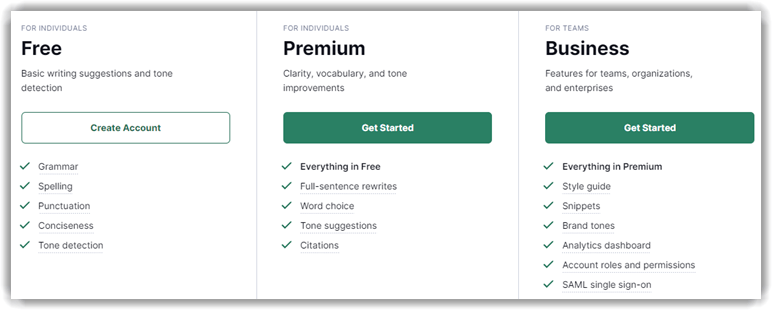
| Pricing | Free Plan | Premium plan | Business Plan |
|---|---|---|---|
| $0/month | $12/month annually, $20/month quarterly, $30/month monthly | $15/month monthly | |
| Grammar, Spelling, Punctuation | Yes | Yes | Yes |
| Tone Detection | Yes | Yes | Yes |
| Tone Suggestions | No | Yes | Yes |
| Full Sentence Rewrites and Formatting | No | Yes | Yes |
| Plagiarism Detecting | No | Yes | Yes |
| Word Choice and Sentence Variety | No | Yes | Yes |
| Style Guide and Brand Tone | No | No | Yes |
| Expert Writing Help | No | Yes | Yes |
| Analytics Dashboard and Account Roles | No | No | Yes |
| SAML Single Sign On | No | No | Yes |
If you’re planning to try the Grammarly premium plan, paying the annual subscription would be your best option. It’d cost you $12 a month, while if you decide to pay monthly, you’ll pay more than double that.
You can also make use of Grammarly’s 7-day free trial before you pay. It’ll allow you to try Grammarly’s features and decide whether you want to proceed. However, you will need to add your credit card to do so, but you won’t get credited until the trial ends.
Pros and Cons: Is Grammarly a Good app?
| 👍 Pros | 👎 Cons |
|---|---|
| Grammarly offers multi-platform support. You can integrate it into Google Docs, Microsoft Word, and Outlook for real-time proofreading. | It occasionally gives inaccurate suggestions, so it still can’t replace a human editor. |
| It lets you determine the document’s writing style (academic, creative, etc.) to give you accurate suggestions | The premium plan is a bit costly |
| Plagiarism checker tool is highly useful for bloggers. | In MAC, it doesn’t support apps downloaded from Apple App store and apps built with Electron 11 or lower |
| Most basic features are available in the free plan. |
Grammarly Alternatives
If you’re unsure about Grammarly, you can always try its alternatives and see for yourself whether it’s the best option. The two most popular Grammarly alternatives are ProWriting aid and Linguix.
Here’s a brief rundown of both:
1) ProWritingAid

ProWritingAid checks your content and gives you 24+ reports for it. These reports include checks for grammar, overused words, readability, writing style, and more aspects.
It offers a free plan, and it comes with browser extensions and applications, so you can use it anywhere.
It’s also quite affordable, starting at $10/month for the premium plans. However, ProWriting Aid has a major downside: its free version of Grammarly only checks 500 words at once.
2) Linguix

Linguix offers the most basic features, like proofreading, sentence rephrasing, and grammar checking. On top of that, it has a built-in plagiarism detector, and it offers an application for iOS and Android devices.
If you want something similar to Grammarly but at a more affordable price, Linguix would be a good choice.
FAQ:
Summary
Grammarly’s free version is ideal for checking your spelling, grammar, and punctuation. However, if you want to take your writing a step further, you can subscribe to the premium plan.
It offers a plagiarism detector, rephrasing sentences, tone suggestions, and help from expert writers, which are all useful tools for content writers, researchers, professors, and social media writers.
If your work is writing-oriented, Grammarly will serve as a nice assistant for honing your writing skills and polishing your work.
