
10 BEST Writing Apps & Software for Windows PC (2026)
 Editorial Team
Struggling with writing apps that freeze, lose drafts, or wreck formatting? I know that pain well. Poor tools slow your workflow and cause constant interruptions. They trigger sync failures and break exports across devices. Security gaps can expose your drafts. Weak collaboration blocks team progress. Clunky interfaces kill focus. Performance lag drains creativity. Good tools change everything. They restore speed, stability, and peace of mind.
I spent 170 hours researching and testing 44+ writing tools to curate this article, which features 9 carefully selected options. My choices are backed by firsthand, hands-on experience. I include key features, pros and cons, and pricing for each tool. This work reflects transparency and deep effort. Read the full article for the complete, honest breakdown. Read more…

Grammarly is a powerful writing enhancement tool designed to lift your grammar, spell check, and style in real time, whether you’re drafting emails or long-form text on Windows. It helps writers produce clearer, polished content with less effort and fewer rewrites.
BEST Writing Apps & Software for Windows PC. Top Picks!
| Tool | Key Feature | Free Trial / Guarantee | Link |
|---|---|---|---|
👍 Grammarly |
Grammar & Style + Real-Time Suggestions | Lifetime Free Basic Plan | Learn More |
 Quetext |
Plagiarism Detection & Citation Assistance | Lifetime Free Basic Plan | Learn More |
 Prowritingaid |
Deep Grammar & Style Analysis | Lifetime Free Basic Plan | Learn More |
 Surfer |
SEO-Driven Content Guidelines | 7-Day Money-Back | Learn More |
 Microsoft Word |
Universal Document Processing | Basic web version free | Learn More |
1) Grammarly
Grammarly is a powerful writing enhancement tool designed to lift your grammar, spell check, and style in real time, whether you’re drafting emails or long-form text on Windows. I remember catching subtle tense errors in a report instantly and feeling that quality boost immediately. With cloud sync, readability analysis, and in-app suggestions that go beyond basic spelling fixes, it helps writers produce clearer, polished content with less effort and fewer rewrites.
Grammarly’s seamless browser and desktop integration means corrections happen as you type, plus thesaurus and style suggestions keep tone consistent. This isn’t just auto-correct; it’s like having an editor gently nudge you toward clearer, more impactful writing every time you hit a key.
Languages Supported: English only
Automatic Suggestions: Yes
Article Rewriter: No
Active and Passive Voice: Yes
Free Trial: Lifetime Free Basic Version
Features:
- Originality Checks & Citations: It supports plagiarism detection and can assist with proper citation formatting when source-backed writing matters. This is a lifesaver for academic drafts or research-heavy articles. You can run a quick originality scan before submitting, then clean up citations to avoid accidental overlaps.
- Works Across Websites: It fits neatly into the apps you already use, so you’re not copying text into a separate editor. It catches issues inside web forms, email clients, and doc tools. I’ve relied on it while writing LinkedIn posts and client outreach emails.
- Context-Aware Error Detection: This feature looks beyond basic spell check and spots contextual mistakes that change meaning. It can catch the “right word, wrong context” problem and tighten clarity. You’ll notice it’s especially helpful with homophones and awkward phrasing.
- Genre-Specific Suggestions: It adapts recommendations based on what you’re writing, so a formal report won’t get the same style nudges as a casual message. This keeps tone, readability analysis, and style suggestions aligned with intent. I’ve seen it reduce “too chatty” wording in proposals.
- Grammar Learning: It links corrections to a deeper grammar guide, so you learn patterns instead of patching mistakes forever. This is handy when you’re trying to build consistent writing habits. I suggest bookmarking the rules you hit repeatedly and revisiting them before big submissions.
- Writing Style Boost: This feature focuses on clarity, conciseness, and flow, so paragraphs read more smoothly and more confidently. It helps remove filler, tighten transitions, and improve readability. I’ve used it before publishing a blog update, and the final copy felt sharper without losing my voice.
Pros
Cons
Pricing:
Here are the affordable plans of Grammarly:
| Premium | Enterprise |
|---|---|
| $15 | Custom |
Free Trial: It has a free version.
Lifetime Free Basic Plan
2) Quetext
Quetext is a writing app I rely on when I need plagiarism checks, citation help, and clearer drafts on a Windows PC workflow. I ran blog posts and research notes through it and immediately spotted overlapping phrasing I would have missed. With DeepSearch originality scanning, citation tools, and AI-assisted writing support, it helps me publish cleaner, more trustworthy content without slowing my editing pace.
Instead of juggling a separate plagiarism checker and grammar aid, Quetext keeps originality, citations, and polish in one writing suite. That combination makes it especially useful for long Windows drafts where accuracy and attribution both matter.
Plagiarism Checker: Yes
Citation Assistance: Yes
DeepSearch Technology: Yes
AI Writing Tools: Yes
Free Trial: Lifetime Free Basic Plan
Features:
- Plagiarism Detection with DeepSearch: It scans your draft against a broad web and academic footprint so accidental overlaps surface before you publish. Color-coded matches show where wording is too close to existing sources. I’ve used it before submitting client articles, and it caught a paraphrase that still tracked a source sentence too tightly.
- Citation Assistance: This feature helps format citations while you clean originality issues, so attribution stays consistent across the piece. You can generate references without leaving the writing flow. I suggest building citations as you resolve matches instead of saving them all for the end.
- Grammar & Clarity Cleanup: Beyond plagiarism, it flags grammar and clarity problems that weaken professional Windows documents. NLP-backed suggestions tighten sentence structure without rewriting your voice. While reviewing a proposal, I noticed it improved readability without stripping technical terms I needed.
- AI Writing Tools: Built-in AI helpers support paraphrasing and drafting when you need a faster rewrite path after an originality scan. It’s handy when a flagged paragraph needs a fresh angle. I like using it as a second pass after the plagiarism report, not as a replacement for my own edits.
- Color-Coded Match Review: Matches are highlighted so you can jump straight to risk areas instead of reading the whole draft again. That speeds revision on long Windows manuscripts. You’ll notice it’s especially useful when comparing near-duplicates across sections.
- Writing Suite Workflow: Combining originality checks, citations, grammar help, and AI tools keeps my editing loop inside one writing app. That reduces tab-hopping between separate checkers. I recommend running a full suite pass before final export from Word or Docs.
Pros
Cons
👉 How to Get Quetext for Free?
- Go to Quetext
- Create a free account, paste or upload your draft, and start with the Lifetime Free Basic Plan.
Lifetime Free Basic Plan
3) ProWritingAid
ProWritingAid is a comprehensive writing coach and grammar checker that helps refine your style, grammar, and readability across documents on Windows. When I ran long drafts through it, the tool’s detailed readability and style reports uncovered patterns I’d overlooked, making my edits sharper. With character count, word explorer, and cloud sync, it doubles as both stylistic mentor and technical editor.
Instead of just flagging errors, ProWritingAid highlights opportunities to tighten sentences, avoid repetition, and improve flow, making it ideal for writers who want rich feedback alongside core spell check and grammar correction.

Features:
- Writing Style Fixes: This feature flags awkward phrasing, clichés, and “sticky” sentences so your draft reads cleaner on a Windows PC workflow. It nudges you toward stronger verbs and tighter structure. I like how it explains why a change helps, not just what to change.
- Spelling & Grammar Corrections: It catches typos, punctuation slips, and grammar errors while you’re drafting, so edits don’t pile up at the end. You can apply fixes quickly without breaking your writing rhythm. I’ve used it during last-minute blog refreshes, and it saved me from embarrassing homophone mistakes.
- Word Explorer Tools: This capability helps you swap dull words with sharper synonyms while keeping the meaning intact. It’s handy when you’re trying to avoid repetition across headings and body copy. While using this feature, one thing I noticed is that it’s best to sanity-check tone—formal swaps can sneak into casual sections.
- In-Depth Reports for Consistency: It runs structured writing reports that spotlight patterns like overused words, pacing hiccups, and transitions that feel choppy. That makes revisions feel systematic instead of guesswork. I would recommend running a report after each major section to keep the voice consistent across long Windows drafts.
- Readability Check: This feature gauges how easily your text can be understood and helps you tune complexity to match your audience. It’s practical for tool reviews where clarity beats cleverness. I’ve used it before publishing, and it pushed me to shorten a few “monster sentences” that were hurting flow.
- Custom Rules and Personal Dictionary: You can add brand terms, product names, and preferred spellings so the checker stops “correcting” the stuff you intentionally write. It keeps style suggestions aligned with your house voice. I suggest building a rule set for recurring phrases like feature labels and UI terms to reduce repetitive clean-up.
Pros
Cons
Pricing:
Here are the plans offered BY ProWritingAid:
| Premium | Premium Pro |
|---|---|
| $10 | $12 |
Free Trial: Basic free version available
Lifetime Free Basic Plan
4) Surfer
Surfer is an intuitive writing app that blends content strategy with SEO insights, perfect for crafting data-informed articles and blog posts on Windows. I used it to structure content around key topics, and it smartly suggested target word count and readability tweaks that made my draft more competitive in search. With features like word count analysis, cloud auto-save, and optimization guidelines, it helps writers balance creativity with performance.
Beyond basic writing polish, Surfer guides you through creating content that’s both engaging and aligned with audience intent, making it a strong choice when quality and visibility both matter.

Features:
- Content Editor Guidelines: This feature turns Surfer into a real-time writing co-pilot, showing target word count, heading structure, and NLP-ready terms as you draft. It keeps your outline view tight and your readability analysis practical. While testing this feature, I suggest locking your H2/H3 plan first—then optimizing the copy.
- One-Click Content Briefs: You can generate a data-driven brief for a single article in minutes, including structure suggestions and on-page coverage expectations. It feels like a checklist for style suggestions and SEO intent alignment. I’ve used it before deadline days, and it helped me avoid scope creep.
- Content Gap Detection: It pinpoints missing subtopics and structural defects by comparing your draft (or URL) against what’s currently ranking. That makes fixing thin sections easier than guessing with a thesaurus and hope. You’ll notice this is especially handy when an article isn’t converting, and you need a cleaner narrative flow.
- Topical Map Strategy Builder: Surfer helps you plan a full content strategy by mapping related topics and clusters, so you can publish with internal linking logic instead of random posts. It’s a solid way to build topical authority over time. I would recommend using it to fill a content calendar for months without repeating ideas.
- SERP Analyzer Insights: That competitive view breaks down what top pages are doing—length, headings, and key entities—so your writing matches search expectations without losing your voice. It’s like a reality check for “distraction-free writing” that still has to rank. I’ve used it during a content refresh sprint, and it made prioritization obvious.
- Content Audit With Auto-Optimize: This feature reviews existing pages and helps update them with fresher, more relevant coverage based on current SERPs. Auto-Optimize can intelligently add missing NLP terms while preserving meaning, which speeds up optimization.
Pros
Cons
Pricing:
Here are the plans offered by Surfer:
| Essential | Scale | Enterprise |
|---|---|---|
| $79 | $175 | $999 onwards |
Free Trial: 7-day money-back guarantee
Link: https://surferseo.com/
5) Microsoft Word
Microsoft Word is a heavyweight writing app for Windows PC that blends familiar word processing with modern conveniences like auto-save, cloud sync, and robust offline mode. It covers the essentials—spell check, grammar correction, thesaurus, dictionary, word count, and style suggestions—while staying approachable for everyday writing and professional documents alike. I’ll admit it: the first time I leaned on its readability analysis and formatting tools, it quietly saved me from a deadline meltdown.
I use it when drafting long-form content that needs polish and consistency across devices. The distraction-free writing view helps me stay focused, while character count and revision tracking keep projects tidy. It’s not flashy, but it’s reliable—and that’s a superpower.

Features:
- Quick Sharing: Sharing a document takes just a few steps, which keeps collaboration moving instead of getting stuck in attachments. You can send a secure link and avoid version chaos. I’ve used this during a same-day content review, and it cut back and forth dramatically.
- Format Engine: This capability supports rich text editing with headings, spacing, tables, and typography controls that make long-form writing easier to scan. I’ve found built-in styles especially helpful for keeping outlines consistent. It also speeds things up with keyboard shortcuts instead of mouse-heavy tweaking.
- Access Controls: It includes permission management so you can control who can view, comment, or edit sensitive drafts. I would recommend setting “comment-only” access for external reviewers to prevent accidental edits. That keeps feedback clean while protecting structure and formatting.
- Smart Comments: Comments make feedback specific and trackable, especially when multiple stakeholders are involved. You can point to a sentence, ask a question, and keep the discussion anchored to the exact spot. I’ve relied on this in editorial rounds to avoid vague “fix this section” notes.
- Change Tracking: This feature records edits transparently, so you can accept or reject changes with confidence during collaboration. It’s ideal for editor-writer workflows where accountability matters. You will notice the Reviewing Pane helps spot clustered edits quickly during final polish.
- Voice Dictation: Dictation helps you draft faster when typing feels slow, and it’s surprisingly useful for capturing ideas naturally. It turns spoken phrases into text in real time. I’ve used it to rough out intros, then refined style, grammar correction, and readability afterward.
Pros
Cons
Pricing:
Here are the Microsoft Word plans:
| Microsoft 365 Personal | Microsoft 365 Family | Microsoft 365 Premium |
|---|---|---|
| $84.99 | $104.99 | $199.99 |
Free Trial: Web-based free version available
Link: https://www.microsoft.com/en/microsoft-365/word
6) Frase
Frase is a smart writing and content optimization tool for Windows PC that leans into AI-driven readability analysis, style suggestions, and topic alignment. It pairs writing assistance with research insights, making it more than just a spell check and grammar correction tool. I remember tweaking an outline with Frase’s suggestions and watching the structure snap into place—felt like having a silent editor in the room.
I use it when creating content that needs to match search intent without sounding robotic. Word count tracking, content briefs, and optimization cues help keep writing sharp, while cloud sync ensures nothing gets lost mid-idea. It’s efficient, practical, and surprisingly motivating.

Features:
- SERP Research: This feature digs into top-ranking pages to reveal what already works in your niche. It surfaces key headings, FAQs, and topical gaps. I used this when launching a new blog category, and it eliminated blind keyword targeting instantly.
- Content Outlines: This tool builds SEO-driven outlines based on live competitor data. It helps structure long-form articles logically and quickly. While testing it for a pillar post, the outline reduced drafting time by nearly half.
- AI Writer: This assistant helps generate context-aware paragraphs instead of generic filler. It adapts tone and structure around your topic’s intent. I would recommend drafting intros here, then refining manually for stronger authority and flow.
- Optimization Score: This feature evaluates keyword coverage, readability, and topical relevance in real time. It flags missing sections before you publish. While using this feature, one thing I noticed was how it caught weak subheadings I would’ve skipped.
- Content Briefs: This tool compiles SERP insights into clear writing instructions. It includes titles, keyword clusters, and questions to answer. I used it to brief freelancers, and content quality improved noticeably within one sprint.
- Opportunity Alerts: This feature highlights content that could rank higher with optimization. It monitors performance changes and ranking decay. There is also an option that lets you prioritize pages, losing impressions before competitors overtake them.
Pros
Cons
Pricing:
Here are the monthly plans offered by Frase:
| Professional | Scale | Advanced |
|---|---|---|
| $115 | $229 | $349 |
Free Trial: 7-day free trial
Link: https://www.frase.io/
7) Scrivener
Scrivener is a powerhouse writing app for Windows PC built for long-form, complex projects. It shines with distraction-free writing, dark mode, flexible outlining, and deep organization tools. You still get essentials like word count, character count, and offline mode, but wrapped in a workspace that feels custom-built for serious writing. I once restructured a massive draft in minutes—Scrivener made chaos behave.
I use it for novels, research-heavy articles, and multi-chapter projects. The binder view keeps sections organized, while snapshots and versioning make experimentation safe. It’s not lightweight—but for big ideas, it’s exactly the muscle you want.

Features:
- Binder Organization: This feature keeps every chapter, scene, and research note neatly structured in one sidebar. It feels like managing a digital filing cabinet for your manuscript. I found it especially useful when juggling drafts and background material without losing focus.
- Corkboard View: This feature lets you visualize your project as index cards for each section. It makes rearranging scenes feel intuitive and fast. While testing this feature, I noticed it helped me spot pacing issues and tighten story flow.
- Outliner Mode: This feature provides a spreadsheet-style overview of your entire manuscript. It shows word count, status, and metadata in one place. I used it to track progress during a deadline-heavy week, and it kept me surprisingly motivated.
- Split View Editor: This feature allows you to open two documents side by side. It’s perfect for referencing notes while drafting chapters. I suggest using this when revising to compare versions without constantly switching tabs.
- Focus Mode: This feature creates a distraction-free writing environment. It dims everything except your current paragraph. You can pair it with dark mode and customizable fonts to reduce eye strain during long writing sessions.
- Auto-Save and Backup: This feature automatically saves your work as you write. It also keeps backup versions behind the scenes. While using this feature, one thing I noticed was how stress-free it felt to write without manual saving.
Pros
Cons
Pricing:
Here are the plans offered by Scrivener:
| Scrivener | Scrivener |
|---|---|
| $59 | $50 |
Free Trial: Basic version is free to download
Link: https://www.literatureandlatte.com/scrivener-affiliate.html
8) Calmlywriter
Calmlywriter is a minimalist writing app for Windows PC built around distraction-free writing, offline mode, and a clean dark mode. It strips away clutter so you can focus purely on words, while still offering essentials like word count, character count, and basic formatting. I genuinely felt more focused the moment I started typing in it—it’s like mental noise just logged out.
I’ve used Calmlywriter to draft long-form articles without internet access, relying on its offline mode and simple interface to stay in flow. It’s ideal when readability and raw writing speed matter more than fancy features, making it perfect for uninterrupted brainstorming, journaling, and first drafts.

Features:
- Built-in Spell Check in Browser: You can rely on browser-based spell check while drafting, which catches obvious typos before they spread across a document. It’s especially helpful when you’re writing fast and revising later. Pair it with a quick final read for brand names and tool terms.
- Word Counter for Targets and Pace: It shows word count and character count so you can track length while writing. This is perfect when you’re aiming for a 1,500-word tool review or a tight product description. There is also an option that lets you set a target to keep sessions goal-driven.
- PDF Export for Clean Sharing: This feature exports your draft to a PDF, which is great for sending a polished version to a client or editor. It preserves a “ready-to-read” feel without accidental edits. You can draft in Calmlywriter, export, and then attach it straight to your workflow.
- Autosave and Backup Safety Net: It automatically keeps your work recoverable, so a crash doesn’t turn into a tragedy. I tested this by reopening the app after closing mid-draft, and my content came back without drama. I would recommend keeping drafts in a single tab per project to avoid version confusion.
- Dark Mode and Theme Options: You can switch between light and multiple dark-friendly themes to reduce eye strain during long writing sessions. This is a real win for late-night drafting or distraction-free editing. You’ll notice it’s easier to stay focused when the screen matches your environment instead of fighting it.
- Offline Desktop Writing Mode: It supports offline writing through the desktop app, which helps when Wi-Fi is unreliable, or you’re trying to stay intentionally unplugged. This is a solid use case for writers working during travel or deep-focus sessions. I suggest using offline mode when outlining, then syncing exports once you’re back online.
Pros
Cons
Pricing:
It offers a free version for download and has a one time payment plan that charges $19.90
Link: https://www.calmlywriter.com/
9) Google Docs
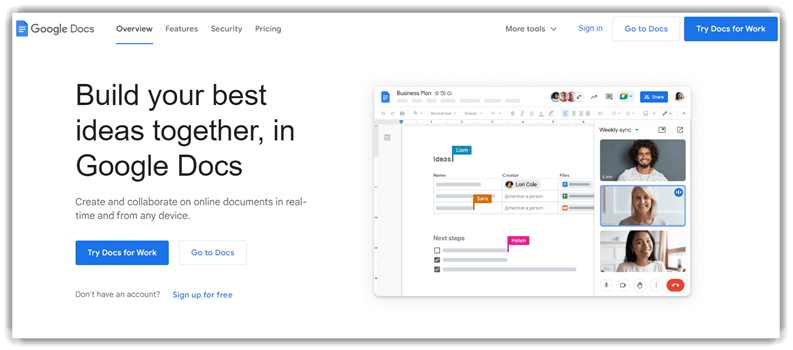
Google Docs is a cloud-based writing app for Windows PC that blends auto-save, cloud sync, grammar correction, and real-time collaboration into one smooth experience. It starts fast, works everywhere, and keeps every keystroke backed up. I remember trusting it instantly when I realized I could close my laptop mid-sentence and never lose a word.
I’ve relied on Google Docs to draft, edit, and polish content across multiple devices, using spell check, style suggestions, and built-in readability analysis to refine my writing. It’s a practical choice for collaborative projects, remote work, and anyone who values reliability, accessibility, and effortless version control.
Features:
- Offline Editing: This feature allows you to keep writing even without an internet connection. Your edits sync automatically once you’re back online. While using this feature, one thing I noticed is that enabling offline mode in advance avoids awkward surprises during travel.
- Voice Typing: This feature converts speech into text, which speeds up rough drafting significantly. It’s especially helpful when ideas flow faster than typing. While testing this feature, I found that speaking punctuation commands reduces cleanup time later.
- Version History: This feature tracks every change made to a document over time. You can restore earlier drafts or compare edits easily. I’ve relied on it after accidental deletions, and it felt like a digital undo safety net.
- Comment System: This feature makes feedback contextual and organized through inline comments. You can tag collaborators and resolve threads as changes are accepted. For client reviews, it keeps decisions tied directly to the relevant text.
- Template Gallery: This feature offers ready-made layouts for reports, proposals, and long-form drafts. It helps maintain consistent formatting across documents. I suggest customizing a few templates early to speed up future writing sessions.
- Smart Suggestions: This feature provides grammar correction and style suggestions as you type. It quietly improves clarity without interrupting your flow. I’ve found it helpful for polishing drafts before sending them for review.
Pros
Cons
Pricing:
Here are the Google Docs’ paid plans:
| Business Starter | Business Standard | Business Plus |
|---|---|---|
| $6 | $12 | $18 |
Free Trial: Free version available with 15 GB storage
Link: http://docs.google.com/
10) Ginger Software
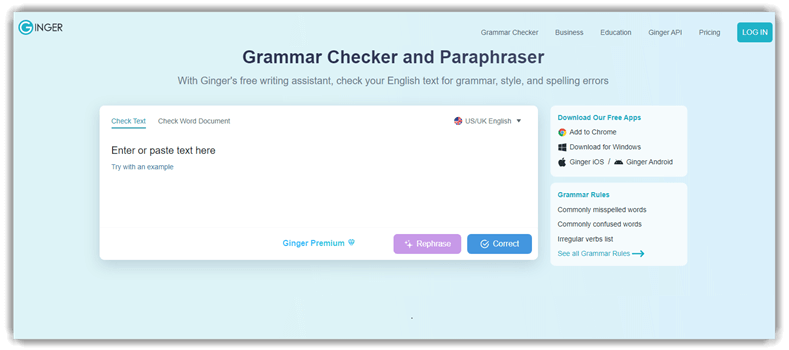
Ginger Software is a writing and editing tool for Windows PC focused on grammar correction, spell check, style suggestions, and readability improvements. It goes beyond basic proofreading with contextual corrections, a built-in thesaurus, and a dictionary for smarter word choices. I was honestly impressed by how naturally it fixed awkward sentences without killing my tone.
I’ve used Ginger while revising drafts to tighten clarity and polish flow, letting it flag grammar issues and suggest better phrasing in real time. It’s especially useful for professional writing, emails, and content editing when accuracy, tone, and clean structure actually matter.
Features:
- Context-Aware Spell Check: This feature catches misspelled words while you type and flags the “looks right, but isn’t” mistakes that slip past basic spell check. It reads the surrounding sentence for context. I used it while polishing a client proposal, and it cleaned up embarrassing typos fast.
- One-Click Corrections: It lets you apply a batch of fixes in one go, so you’re not playing whack-a-mole with every red underline. You can also roll everything back instantly if it overcorrects. While using this feature, one thing I noticed is to apply it after a quick skim for names and brand terms.
- Punctuation Checker: This feature spots punctuation mistakes that change meaning, like comma splices, missing apostrophes, and awkward sentence breaks. It’s especially useful for long-form writing where rhythm matters. I suggest running it after you finish a section, because punctuation errors cluster when you write quickly.
- Personal Dictionary: It allows you to add custom terms—product names, industry jargon, acronyms—so the tool stops nagging you about valid words. That reduces false positives in technical content. I added a few SaaS brand names during a January content sprint, and the suggestions instantly became cleaner.
- Document Error Discovery: You can scan a full document to identify errors beyond the current line, which is great for Windows users editing multi-page drafts. It helps you catch repeated issues like consistent tense slips. Picture a last-minute report review—this is how you avoid shipping the same mistake 12 times.
- Sentence Rephraser for Style: This feature rewrites a sentence in multiple ways—shorter, more formal, more direct—so you can match the intent of your article. It’s helpful when your copy sounds repetitive. While testing this feature, I found it best to rephrase only the sentences that feel “stuck,” then keep your original voice.
Pros
Cons
Pricing:
Here are the lowest plans of Ginger software:
| Annual | Quarterly | Monthly |
|---|---|---|
| $9.90 | $6.60 | $4.99 |
Free Trial: It offers a free extension for Chrome
Link: https://www.gingersoftware.com/
Feature Comparison: BEST Writing Apps & Software for Windows
You can use the table given below to compare the features of the tools above:
| Feature | Grammarly | ProWritingAid | Surfer | Microsoft Word |
| Grammar & Spell Checking | ✔️ | ✔️ | ❌ | ✔️ |
| Writing Suggestions / Style Help | ✔️ | ✔️ | ❌ | ✔️ |
| Word Count / Text Stats | ✔️ | ✔️ | ✔️ | ✔️ |
| Export to Common Formats (PDF, DOCX, etc.) | ✔️ | ✔️ | Limited | ✔️ |
| Offline Desktop Access | ✔️ | ✔️ | ✔️ | ✔️ |
| Basic Search / Find & Replace | ✔️ | ✔️ | ❌ | ✔️ |
| Real-Time Collaboration / Sharing | ✔️ | ✔️ (via integrations) | ❌ | ✔️ |
Why Should You Use Writing Apps?
Here are the reasons why you should use writing apps:
- Writing apps boost productivity with distraction-free interfaces, goal tracking, and built-in timers for focused sessions.
- They organize ideas using outlines, tags, and folders that streamline research, drafts, and revisions efficiently.
- Writing apps enhance quality with grammar checks, style suggestions, readability scores, and real-time feedback while writing.
- They enable seamless collaboration through comments, version control, and cloud syncing across devices and teams.
- Writing apps keep you motivated with streaks, milestones, reminders, and analytics visualizing progress over time.
- They let you write anywhere offline or online, syncing automatically to prevent losses and errors.
- Writing apps customize workflows with templates, shortcuts, themes, and integrations for your unique style process.
How to Troubleshoot the Common Issues of Writting Apps?
Here are the best ways to troubleshoot the common issues of writing apps:
- Issue: App crashes randomly while typing long documents, losing changes.
Solution: Enable auto-save and make frequent manual backups to cloud storage to protect work instantly and reduce stress risks. - Issue: Spellcheck isn’t catching contextual grammar mistakes in sentences.
Solution: Adjust language settings and switch on advanced grammar suggestion layers to improve contextual detection accuracy reliably. - Issue: Formatting breaks when importing files from other editors.
Solution: Paste unformatted text and reapply styles manually to preserve layout consistency without hidden formatting errors. - Issue: App lag when loading large files or chapters.
Solution: Split content into smaller segments and close unused plugins to lighten memory load and speed up rendering. - Issue: Difficulty focusing due to cluttered toolbars and menus.
Solution: Use distraction-free or full-screen modes to trim UI distractions and concentrate on writing flow. - Issue: Voice dictation transcription is inaccurate or slow.
Solution: Train the speech engine with your accent and speak clearly with pauses to dramatically improve conversion precision. - Issue: Suggestions feel repetitive or irrelevant to writing style.
Solution: Tailor style preferences in settings so corrections align with your intended tone and genre voice.
What Type of AIs are Used in Writing Apps?
Most writing apps run on large language models (LLMs) built with transformer architectures. They’re trained on massive text corpora to predict the next word, which lets them draft, rewrite, summarize, and brainstorm. Under the hood you’ll also find NLP components for tokenization, embeddings, and semantic similarity, plus fine-tuning and prompt-conditioning layers for better task alignment and safer output control.
Around the LLM sit helper AIs are grammar and style checkers (classification models), plagiarism detectors, toxicity filters, and retrieval systems that pull facts from knowledge bases. Recommendation models personalize tone and suggestions. It’s not magic—just statistics wearing a creative hat, occasionally tripping over shoelaces. Developers also add rules engines, guardrails, logging, and feedback loops for continuous improvement and user trust.
Verdict
I spent careful time analyzing how each tool supports different writing needs on Windows PC and beyond. During the review I found found that while many options are solid, a few stood out for consistent power, clarity, and practical value in everyday writing tasks. My take is based on hands-on comparison of features like grammar help, originality checks, and content strategy support.
- Grammarly: I was impressed by how Grammarly consistently catches grammar, spelling, and style issues in real time across platforms, making daily writing smoother. I liked its contextual suggestions and useful knowledge base for strengthening writing skills.
- Quetext: Quetext earned the #2 spot for me because its plagiarism detection and citation assistance made originality reviews faster on Windows drafts. I liked pairing DeepSearch matches with grammar and AI writing tools in one workflow.
- ProWritingAid: It stood out to me for its in-depth style enhancements and detailed reports, which my evaluation showed really help refine structure and tone. I was impressed by the word explorer and its holistic approach to editing.
FAQs
Grammarly is a powerful writing enhancement tool designed to lift your grammar, spell check, and style in real time, whether you’re drafting emails or long-form text on Windows. It helps writers produce clearer, polished content with less effort and fewer rewrites.
