
Correlation in LoadRunner with web_reg_save_param Example
 Editorial Team
⚡ Smart Summary
Correlation in LoadRunner captures a dynamic server value, such as a session ID, and feeds it back into later requests so a recorded VuGen script replays successfully instead of failing on stale data.
What is Correlation?
Correlation, as the name suggests, is a mechanism of defining a relationship between two variables or entities. A dictionary defines it as “statistical relation between two or more variables such that systematic changes in the other accompany systematic changes in the value of one variable”.
Brand note: this tool shipped as HP and then Micro Focus LoadRunner, and is now OpenText Professional Performance Engineering. Every correlation function below is unchanged, and the vendor spells the script generator VuGen.
Why do we need Correlation?
Let’s understand correlation with the following scenario.
Consider you are recording a script using LoadRunner.
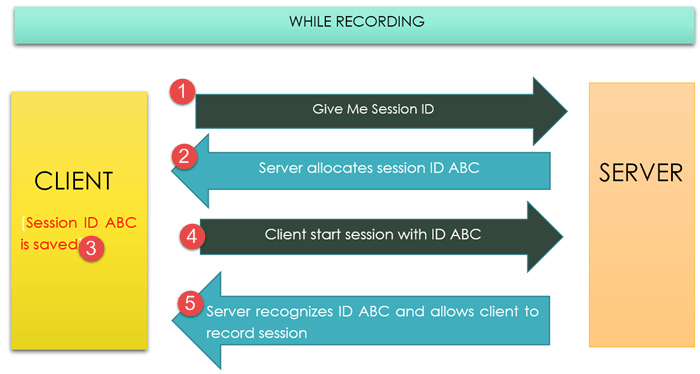
Client-Server Communication during recording runs as follows, and the diagram summarises it:
- During Record, the client sends a request to the server to start a session
- A Server receives the request and allocates a new session ID ABC
- Client stores the session id ABC in the script.
- Client starts the session with ID ABC and sends a request to a server to allow it to record
- The Server recognizes the ID ABC and allows the client to record the script
Now, let’s study the client-server communication during replay, shown after these steps:
- During Replay, a client sends a request to the server to start a session
- A Server receives the request and allocates a new session ID XYZ
- A Client starts the session with the previously recorded session ID ABC and sends a request to the server to allow it to record
- A Server is unable to identify the ID ABC as it was expecting ID XYZ that it has allocated and session fails.

We need a solution which can capture and parse the dynamic value sent at run-time and return this value back to the server. Here is how the client-server communication will look with this solution, as the diagram below shows:
- During Replay, a client sends a request to the server to start a session
- A Server receives the request, and allocates a new session ID ZZZ
- A Client parses this new session id ZZZ from the request.
- A Client sends a request to start session with id ZZZ
- A Server recognizes the ID ZZZ and allows client to replay the script
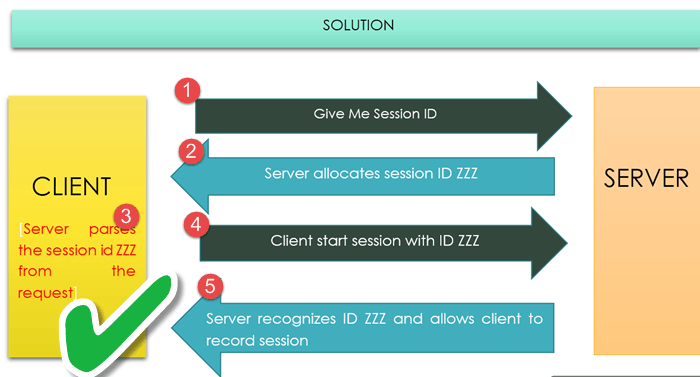
This is nothing but correlation.
The short video below walks through the same record-and-replay problem.
Click here if the video is not accessible
In case of VuGen, correlation is a binding relationship between a response and any preceding request.
There are various situations when a request is based on a previously received response from the server, such as a Session ID, or a server date and time which is fetched from the server. These values are different every time you run an application or record a script. Obviously, if the execution of the script depends upon a value returned by the server, it means you need to find a mechanism where you can “catch” the server response and attach it to those requests which the server expects. This is typically called Correlation in LoadRunner.
In simple words, the solution by using Correlation is:
- Capture output value from a step
- Use above captured value to serve as input to all subsequent steps
Correlation is classified into 2 categories in VuGen/LoadRunner:
- Automatic correlation
- Manual correlation
Automatic Correlation
LoadRunner provides a mechanism to easily perform correlation in automatic fashion.
VuGen will require you to run a recorded script at least two times so it can internally compare the varying values in the server response.
Automatic correlation can be classified into 3 categories:
- Auto-Detect Correlation
- Rule-Based Correlation
- Correlating All Statements
| Rule Name | When to Use |
| Auto-detect Correlation | Detect and correlate dynamic data for application servers supported by LoadRunner |
| Rule-Based | Used when working with a non-supported application server for which the context is known. |
| Correlate All | Helps correlate all dynamic data in blind fashion. |
Though Automatic Correlation seems simpler, it can be error-prone and works in not more than 5% of the cases. It is always advisable to use manual correlation.
To configure automatic correlation at the time of recording, perform below configuration in Record Time Setting after a script has been recorded.
Click on Record =>Recording Options (or click Ctrl +F7), shown in the menu below,

Below window will open:
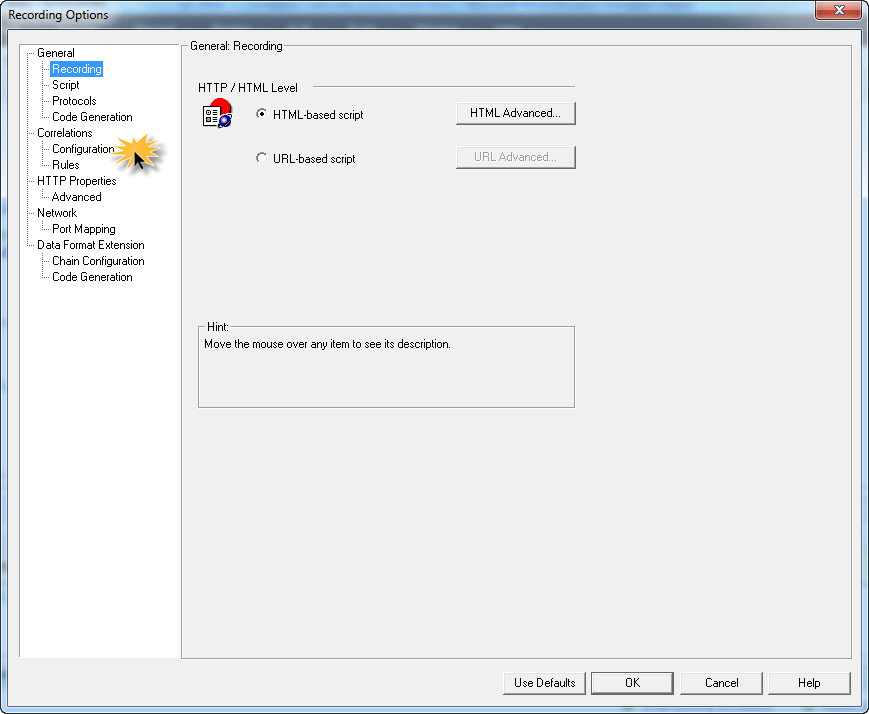
Click on Correlation =>Configuration – below window will open.
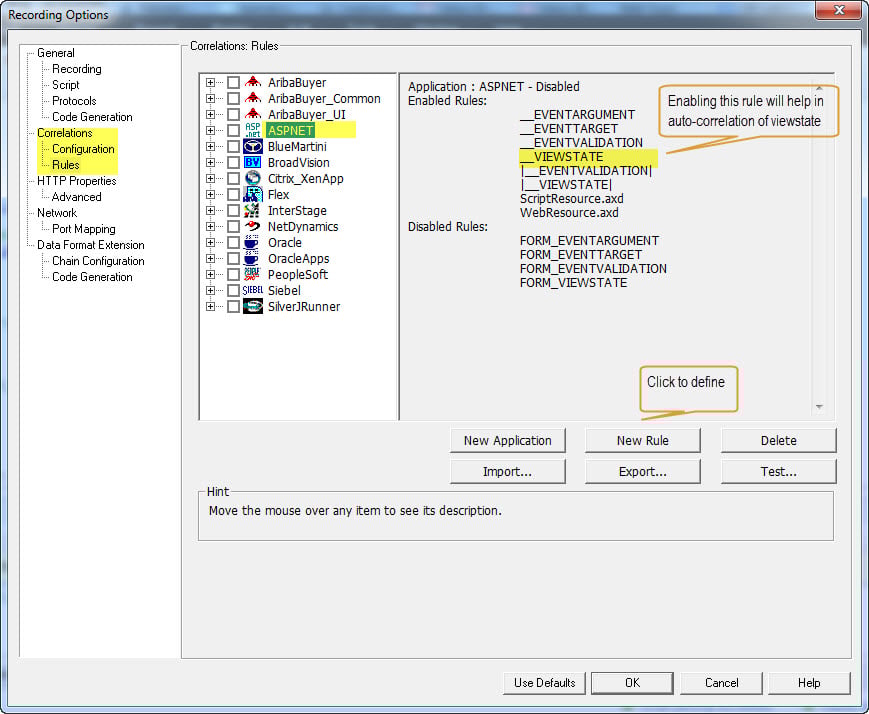
Here, you need to mark as checked against all applications (ASPNET) etc., which are used in your subject application. On the right-hand side, you can see the rules which will detect possible candidates for correlation e.g. _VIEWSTATE. You can also add more applications or custom rules by clicking on New Rule button.
You can also click on RULES, you will see as below:
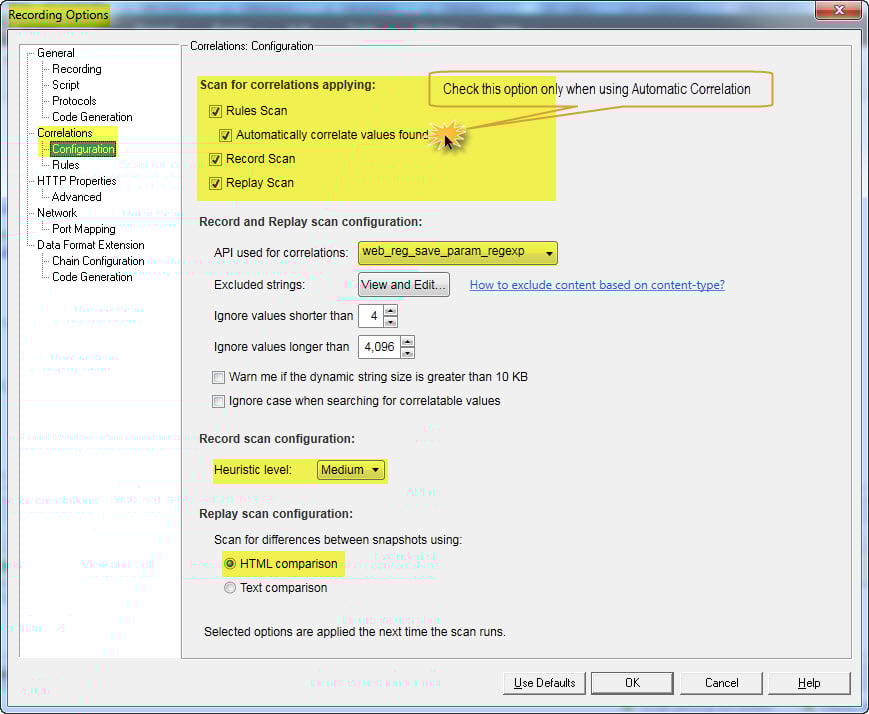
In order for Automatic Correlation to work, you need to ensure Rules Scan is marked as checked. If you click on automatically correlate values found, VuGen will not prompt you with the choice once a correlation candidate is found, instead, it will just correlate them.
We will understand API used for correlation later. However, it is advisable to use HTML comparison instead of text comparison.
Once you’ve selected any rules, click on OK button to close the windows.
Click on the toolbar button shown here  from the menu and VuGen will regenerate script (without having to record) with new configurations. VuGen will automatically add a required piece of code to handle correlation. We will look at the sample in more detail in Manual Correlation.
Please note, if you perform correlation manually or use automatic correlation, the piece of code will contain exactly same syntax and function.
Steps to auto-correlate a script:
- Record a script
- Replay script
- Identify the values to be correlated
- Select the values and click the auto-correlate button
- Verify the script by running again. A successful run means successful correlation.
Tip:
- Correlation helps run your script with different values
- Correlation also reduces the size of your script
Manual Correlation
Manual correlation is about writing code directly into your script to cater for ever-changing values. We can split it into below steps:
- Determine the value to capture
- Find the right and left text boundaries of the value to capture (WEB)
- Find which occurrence of the text boundaries should be used
- Add a web_reg_save_param function to the script, above the piece of code which requests the page with the value to capture
- Add a parameter name, left boundary, the right boundary, and occurrence to the function
- Parameterize the dynamic value in the script every time it occurs
- Verify correct execution
web_reg_save_param (" OracleAppJSESSIONID3",
	"LB/IC=JSESSIONID=",
	"RB/IC=;",
	"Ord=l",
	"Search=headers",
	"RelFrameId=l",
	LAST);

web_reg_save_param("Siebel_Analytic_ViewState2",
	"LB/IC=ViewState\" value=\"",
	"RB/IC=\"",
	"Ord=1",
	"Search=Body",
	"RelFrameId=l",
	LAST);
Code note: both snippets appear exactly as published. Watch the ordinals: Ord=l and RelFrameId=l use a lower-case L, and VuGen expects the digit 1.
Manual correlation can be done by VUser Comparison. Steps in VUser Comparison method of Correlation can be split as below:
- Identify Dynamic values that need to be correlated
- Find the server response containing the Dynamic value
- Capture the Dynamic value in a parameter
- Replace every occurrence of the Dynamic value with the parameter
- Verify Changes
Understanding the web_reg_save_param Function
VuGen provides multiple functions or APIs to correlate candidates, including:
- web_reg_save_param
- web_reg_save_param_ex
- web_reg_save_param_regexp
- web_reg_save_param_xpath
Version note: current VuGen releases treat web_reg_save_param_ex as the successor to the original function, and web_reg_save_param_regexp as the choice when the boundaries themselves change. The original example still runs.
While a brief introduction is being provided here, for a detailed understanding of functions and their parameters, open VuGen, write function (or use Steps Toolbox), move a cursor on the function and click F1 – get yourself acquainted with VuGen help and make a habit. You will have to deal with it a lot when working in the industry.
Here we go with the function details:
web_reg_save_param(Parameter Name , Left Boundary , Right Boundary )
List of Attributes
The table below collects every attribute the function accepts, whether it is mandatory, and what it controls.
| Attribute | Required? | What it does |
| Convert | Optional | HTML_TO_URL converts HTML-encoded data to a URL-encoded data format. HTML_TO_TEXT converts HTML-encoded data to plain text format. |
| Ignore Redirections | Optional, default “Ignore Redirections=No” | When set to Yes and the server response is redirection information (HTTP status code 300-303, 307), that response is not searched. The GET request goes to the redirected location and the search runs on the response from there. |
| LB | Required | The left boundary of the parameter or the dynamic data. If you do not specify an LB value, it uses all of the characters from the beginning of the data as a boundary. Boundary parameters are case-sensitive. To further customize the search text, use one or more text flags. |
| NOTFOUND | Optional, default “error” | Handling when a boundary is not found and an empty string is generated. “Not found=error” raises an error. “Not found=warning” (“Not found=empty” in earlier versions) instead sets the parameter count to 0 and continues, which is ideal when you want to see whether the string was found without failing the script. With Continue on Error enabled the script continues even under “error”, but the extended log records it. |
| ORD | Optional, default 1 | Indicates the ordinal position or instance of the match. If you specify “All,” it saves the parameter values in an array. The use of Instance instead of ORD is supported for backward compatibility, but deprecated. |
| RB | Required | The right boundary of the parameter or the dynamic data. If you do not specify an RB value, it uses all of the characters until the end of the data as a boundary. Boundary parameters are case-sensitive. To further customize the search text, use one or more text flags. |
| RelFrameID | Optional | The hierarchy level of the HTML page relative to the requested URL. The possible values are ALL or a number. RelFrameID is not supported in GUI level scripts. |
| SaveLen | Optional, default -1 | The length of a sub-string of the found value, from the specified offset, to save to the parameter. The default saves to the end of the string. |
| SaveOffset | Optional, default 0 | The offset of a sub-string of the found value, to save to the parameter. The offset value must be non-negative. |
| Search | Optional, default ALL | The scope of the search — where to search for the delimited data. The possible values are Headers (search only the headers), Body (search only body data, not headers), No resource (search only the HTML body, excluding all headers and resources), or ALL (search body, headers, and resources). |
Once the script replays cleanly, add parameterization, transactions and run-time settings, run it from the Controller, and read the result in Analysis as part of wider Performance Testing and Load Testing.
